
Navigating a Draft Exploration
Let's start with a Draft Exploration. As you remember from the Refining Search Results section, you can create Draft Exploration by starting with Search, selecting the relevant rows, and clicking Explore selection.
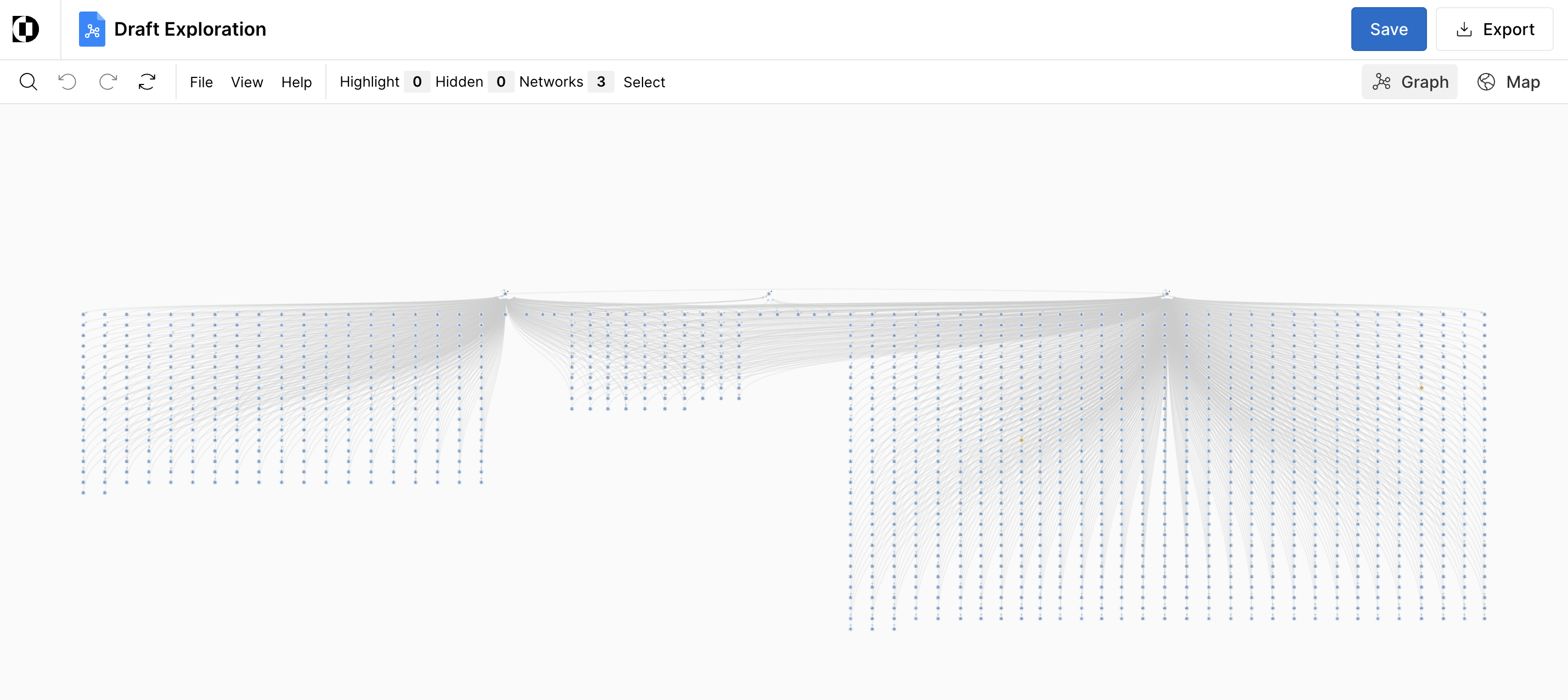
You can double check which networks you're exploring by clicking on the Network tab. Here you see the Sherwin Williams entities we chose previously.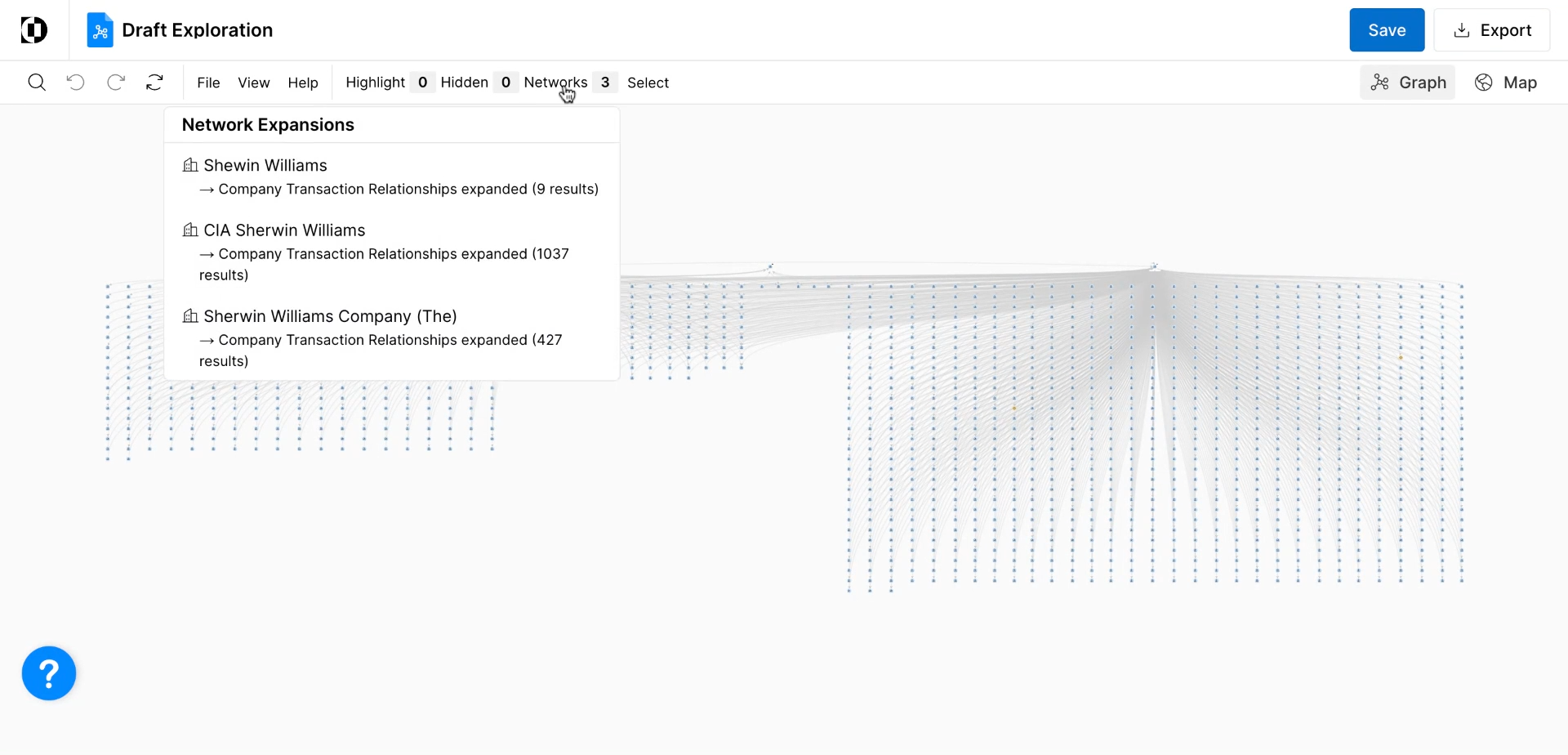
When an exploration is launched, entities are presented with their immediate supply chains visible. Let's take a look at this top left company node, Sherwin Williams Company. Clicking on it opens a side drawer, where you can explore Supply Chain, Facility Operations and other options.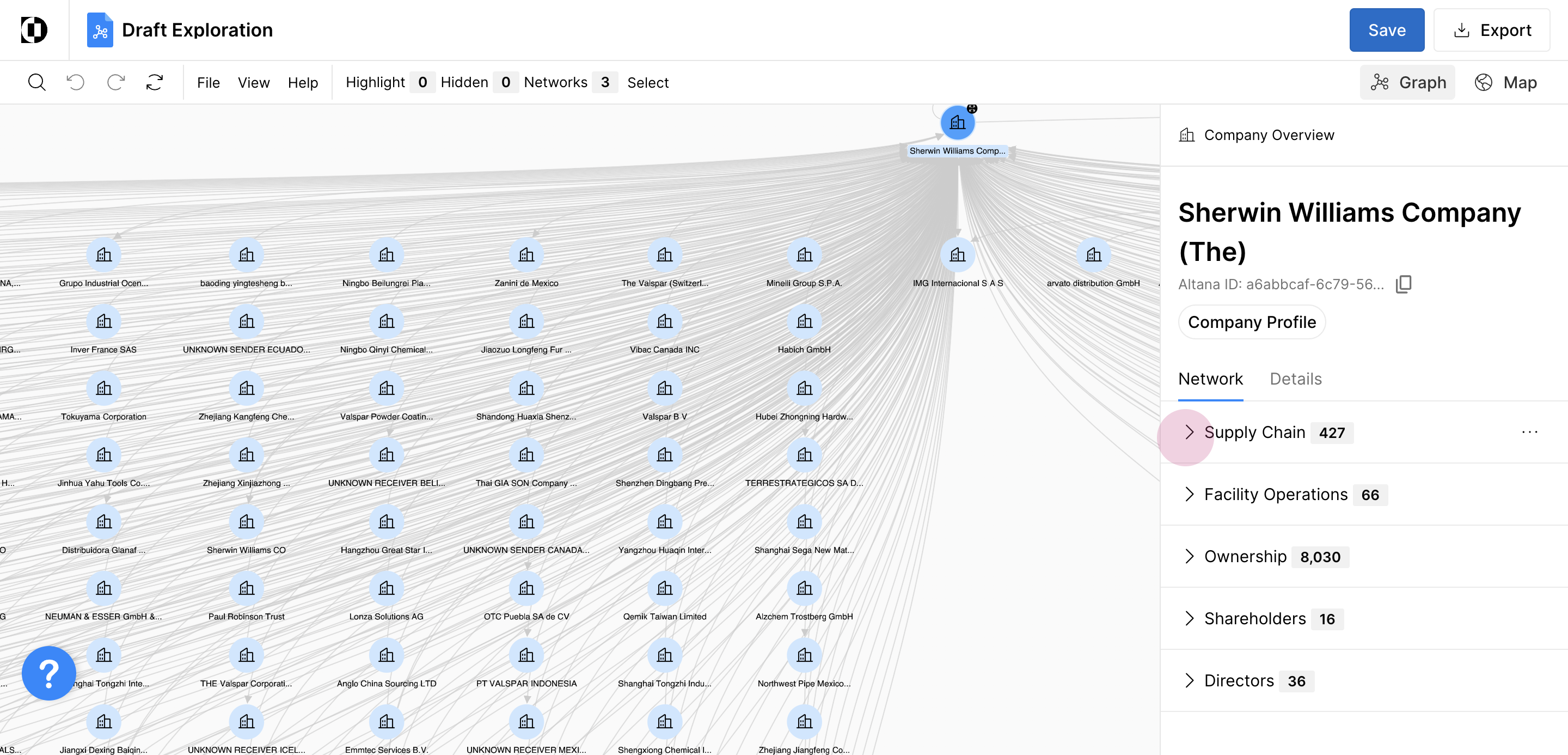
Companies in the supply chain are sorted left to right by number of shipments and top to bottom by recency of shipments. That means the top left hand corner is the largest trading partner with recent shipments.
Additionally, you can click Company Profile to see a full company overview, including custom fields, ownership, facilities, products, and more.
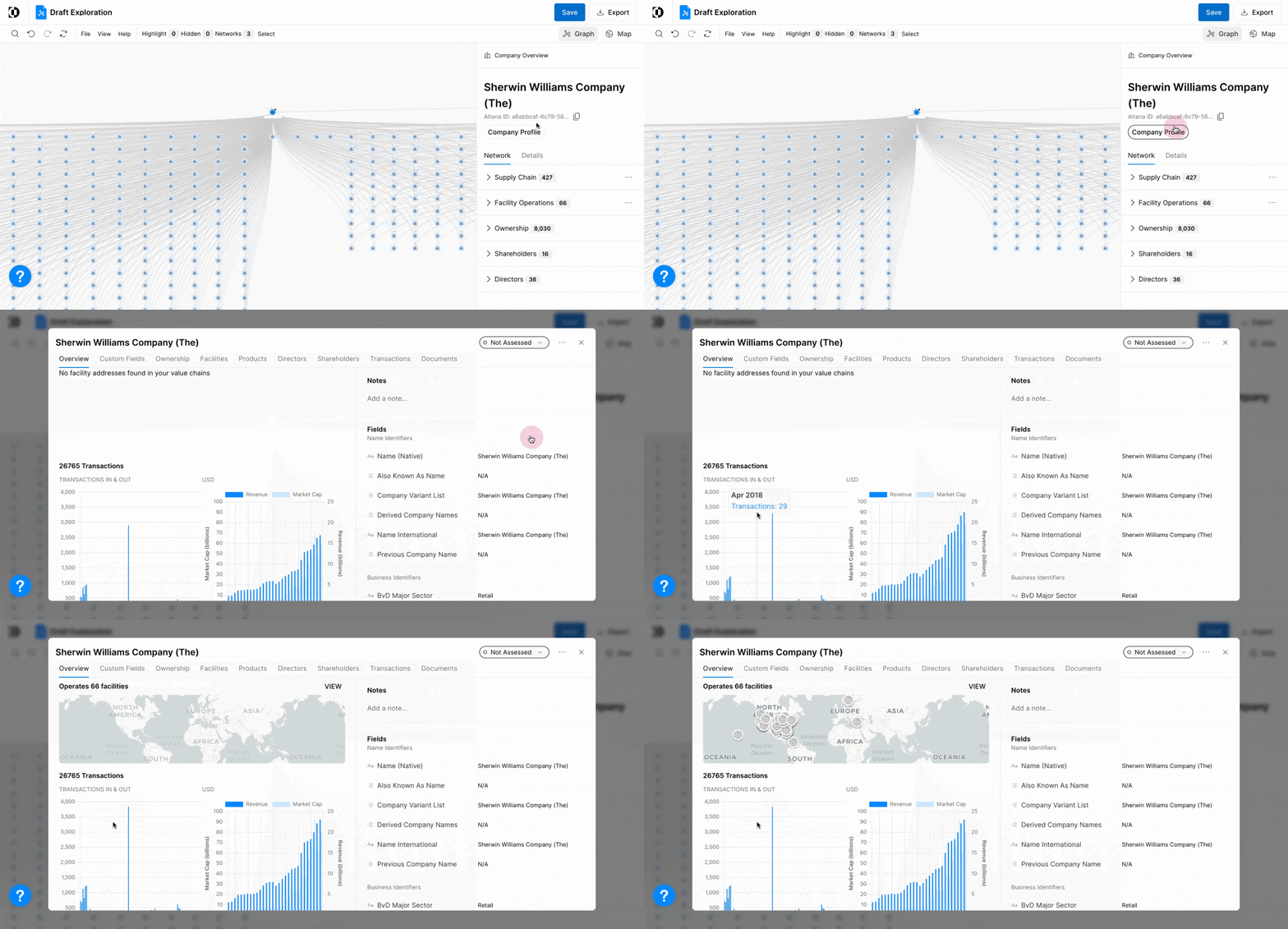
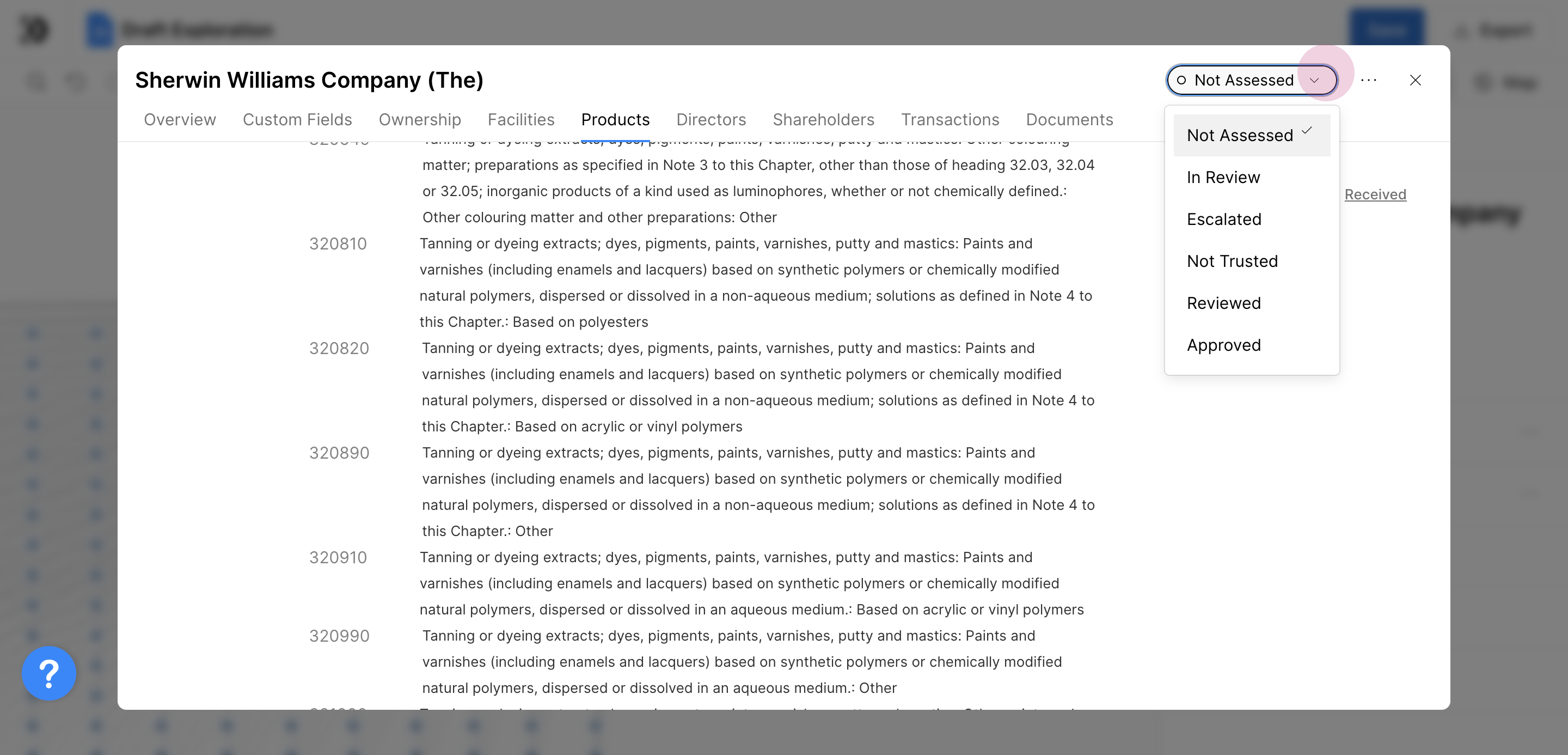
You can update the status of a company in the top right drop down. This status will be reflected anywhere in your environment.
Highlighting
Highlights are visual tags you apply to specific entities or relationships to track them as you explore.
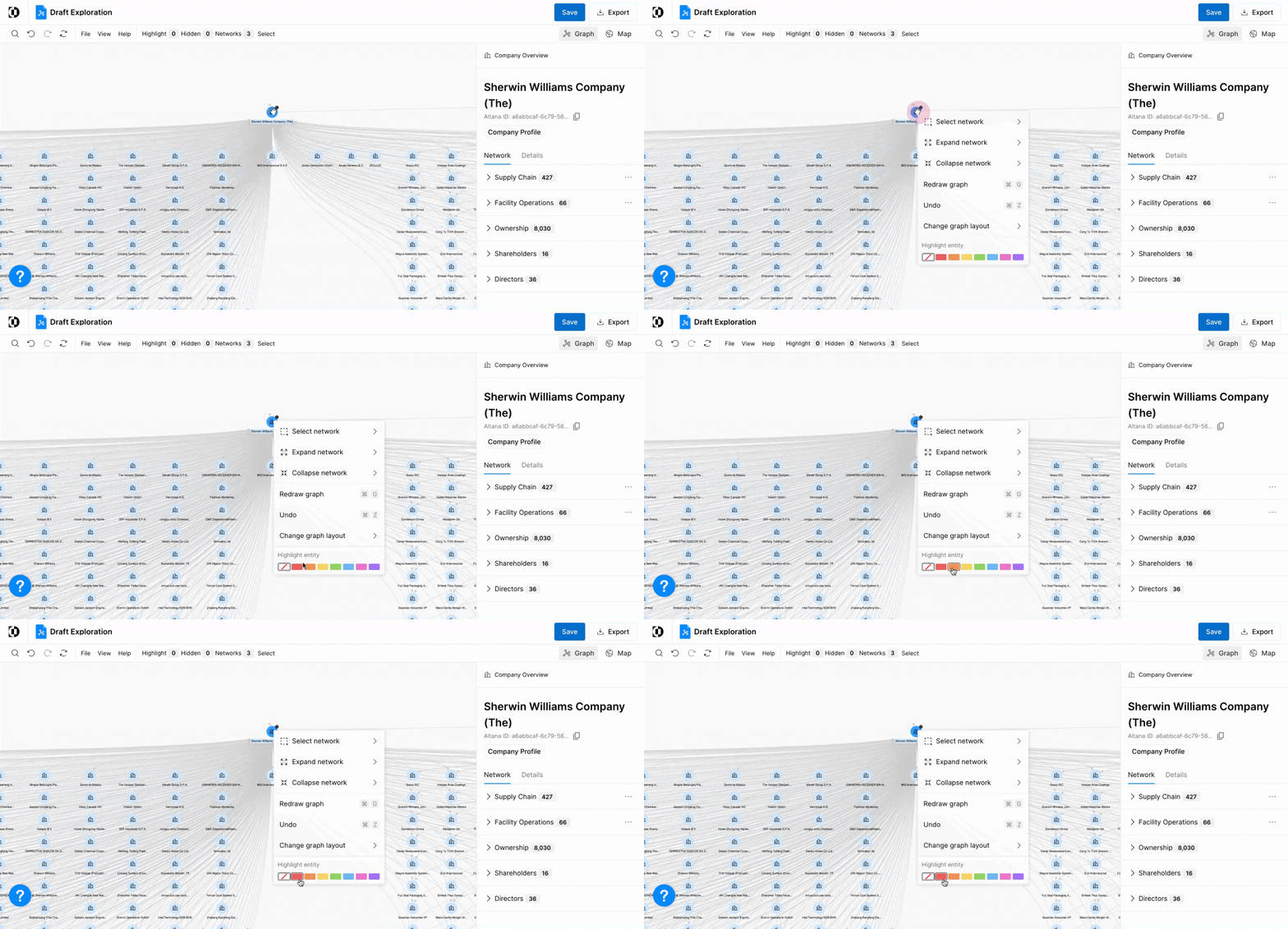
Per-entity (right-click): Right-click any node, then choose a color from the Highlight entity palette — transparent (clear), red, orange, yellow, green, blue, pink, or purple. The color persists across the session and is included in screenshot exports.
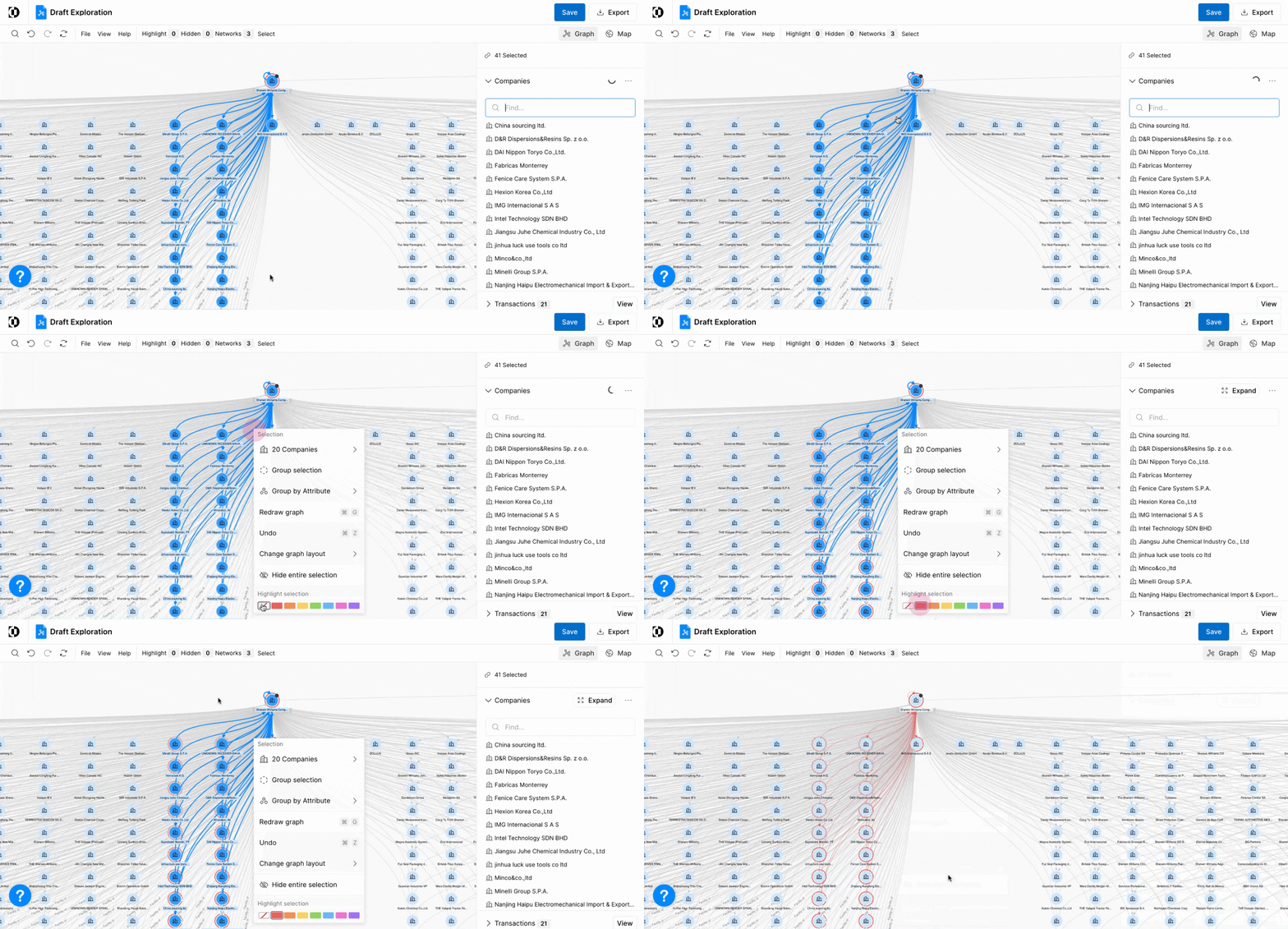
Multiple entities at once: Hold the Shift button and drag your mouse to select multiple entities, then right-click and apply a color.
Field-based highlighting: Open the Highlight menu in the toolbar to highlight all entities or relationships matching a specific field value (for example, all entities with Country = China). This is useful for quickly seeing patterns across a dense network.
Hidden Nodes
The Hidden menu in the toolbar shows nodes you've manually hidden during your exploration. Use it to un-hide entities and review what's been filtered out of your current view.