
Creating a Workspace from the Catalog
A workspace is a focused view of your catalog where you can analyze products, surface risk, and take action.
Opening the catalog
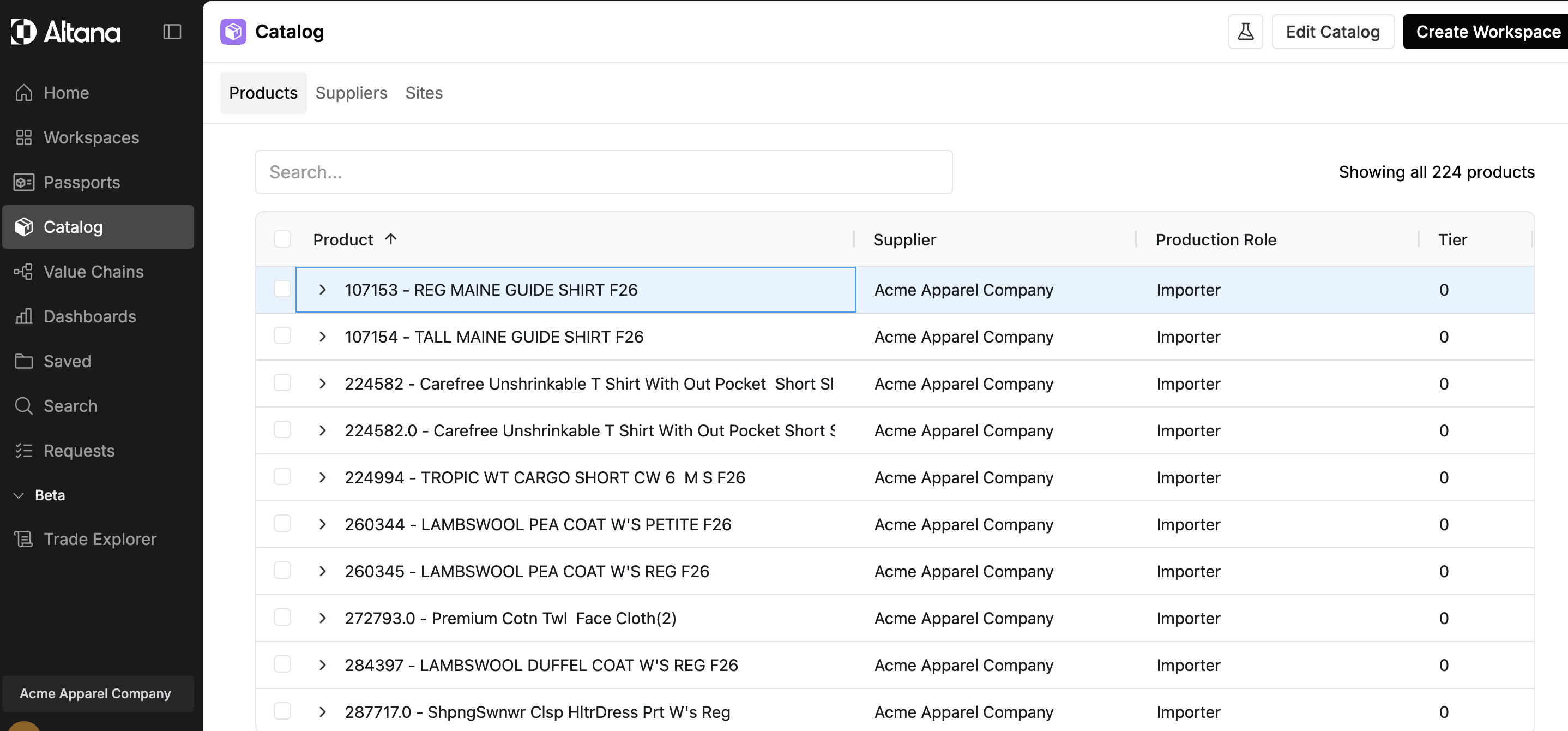
Select Catalog from the left-hand navigation. The catalog opens to the Products tab, which lists your aggregate products. Use the search bar to find products by name, part number, or stock keeping unit (SKU). The Suppliers and Sites tabs show the supplier and site records associated with your catalog.
If your organization has more than one catalog, use the Select Catalog dropdown at the top of the page to switch between them.
Creating the workspace
Select Create Workspace in the catalog header. A dialog opens with two fields:
- Workspace name — a label for this workspace. Choose something that describes its scope or purpose.
- Product Scope — shows which products will be included. By default this reads "Scoped to all products in the catalog."
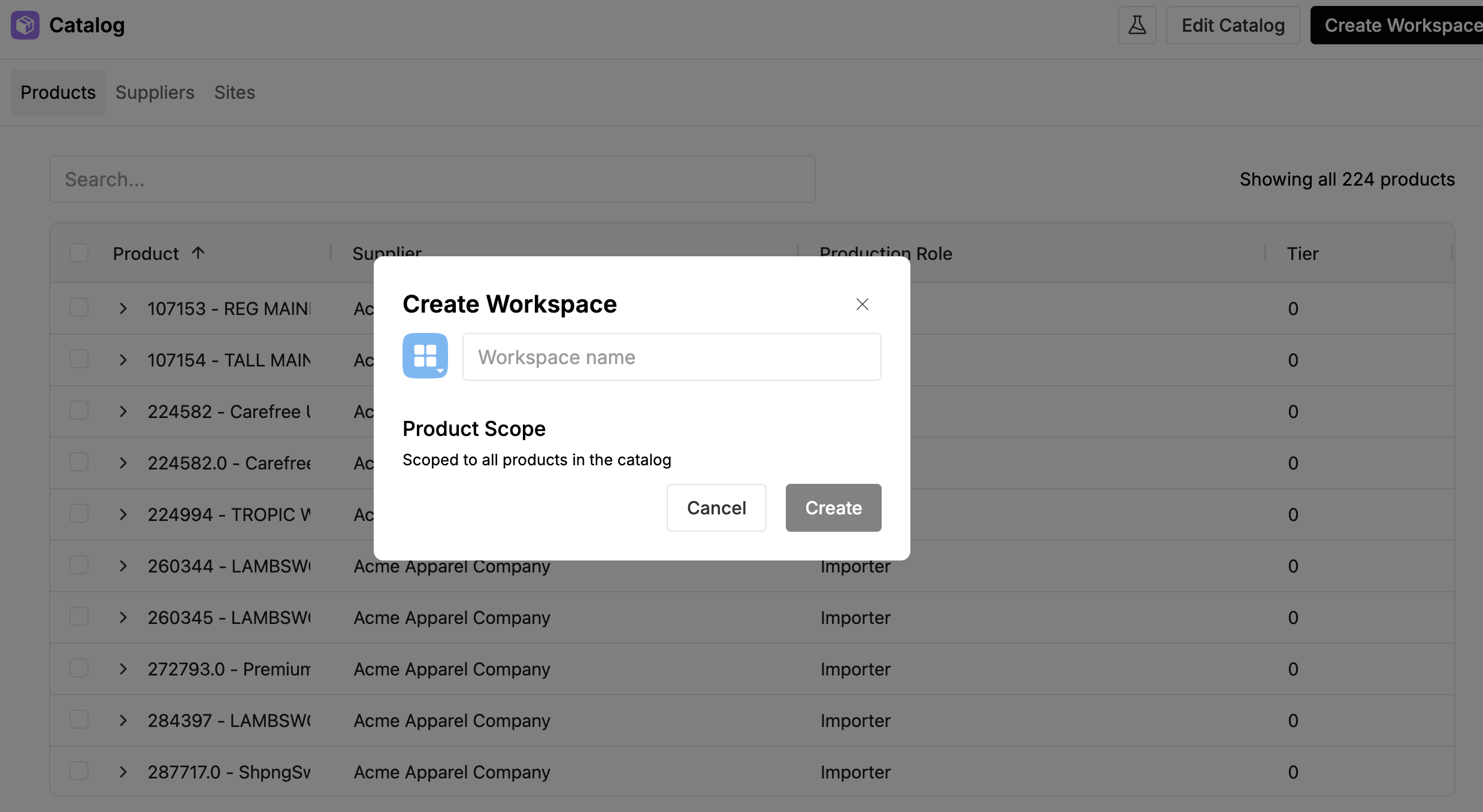
Enter a name and select Create. The workspace opens immediately.
What the workspace contains
A new workspace opens with three views selectable at the top:
- Products — the Altana products in your catalog, with columns for name, description, Harmonized System (HS) code, network type, and external ID.
- All Suppliers — every supplier connected to your products across all tiers of the value chain.
- T1 Suppliers — only the Tier 1 suppliers that supply you directly.
Each view shows a count of records it contains. Use Filters, Columns, and Groups to narrow the list, adjust which columns are shown, and organize rows.
Adding tabs and applying lenses
Select Add Tab inside the workspace to open a new lens tab. A lens is a pre-configured view that frames the workspace data for a specific workflow, such as exposure screening or supplier status tracking. Your account comes with a set of lenses configured by your Technical Account Manager (TAM); custom lenses can be created on request.
See Applying Lenses to a Workspace for full instructions.
Related
- Navigating the Catalog — how to find products and read a product record.
- Applying Lenses to a Workspace — adding and switching lens tabs within a workspace.
- Creating Custom Lenses (From Existing Lens) — how to save a tab's filters and charts as a lens of your own.
- Conducting Risk Exposure Assessments — using the workspace to review product exposures.