
Working with Network Expansions
The exploration canvas is built by expanding networks from one or more seed companies. Right-click any node to access expansion controls, and use the Networks menu in the toolbar to review every expansion you've made so far.
Expanding from a Node
Right-click any entity on the canvas to open its context menu and access network actions:
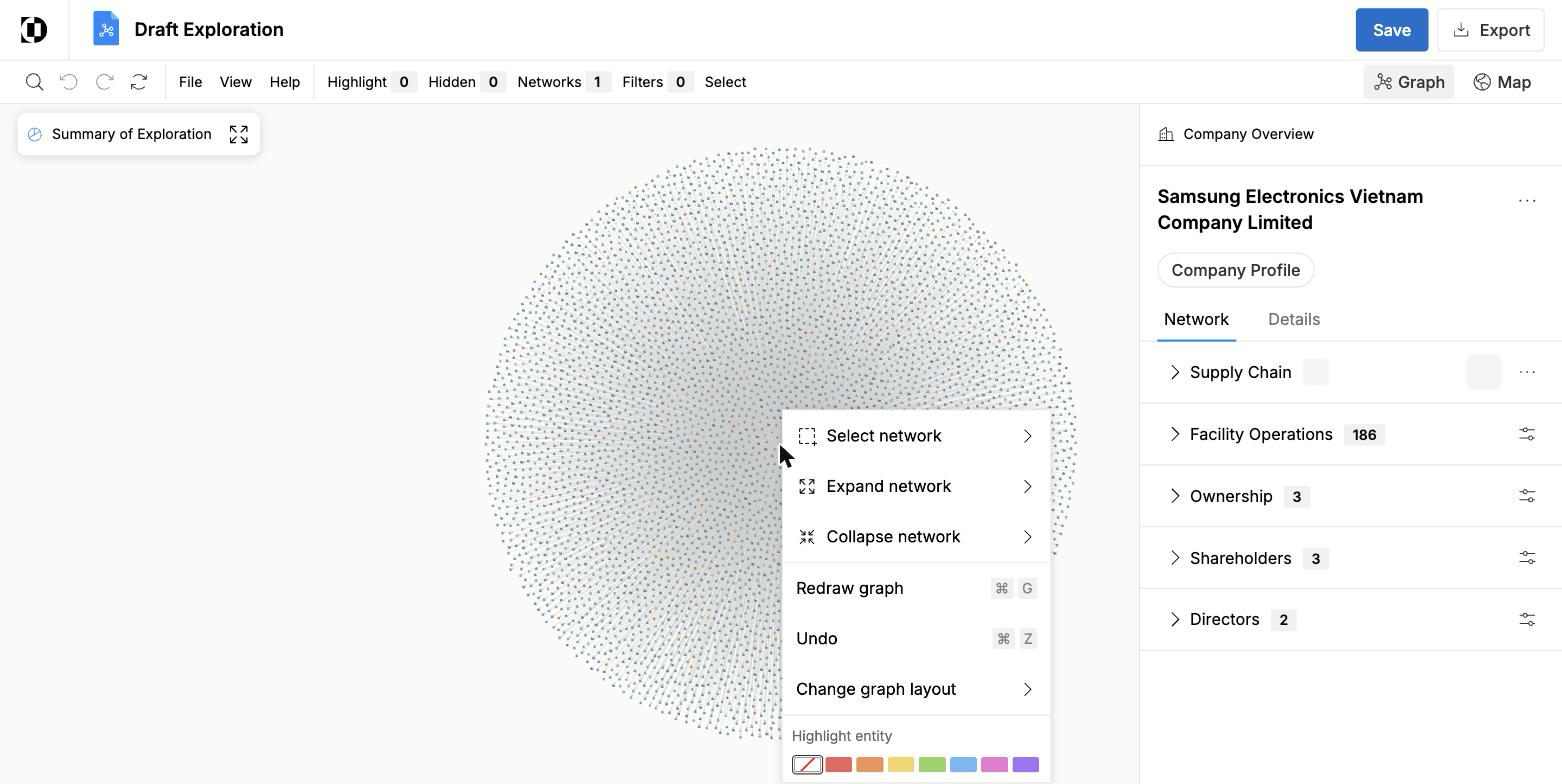
- Select network — Select all entities reached via a specific edge type from this node (Supply Chain, Ownership, Directors, Facility Operations, Shareholders).
- Expand network — Add more tiers of relationships outward from this node.
- Collapse network — Remove a previously expanded set of relationships from the canvas. The data remains available; it's hidden from the current view.
The right-click menu also includes:
- Redraw graph (
⌘G) — Re-run the layout algorithm to clean up node positions after an expansion. - Undo (
⌘Z) — Reverse the most recent expansion or collapse. - Change graph layout — Swap between Sequential, Structural, and Organic layouts. Different layouts make different kinds of network structure easier to read.
- Highlight entity — Apply a color tag (see Navigating a Draft Exploration for details).
Reviewing What's Expanded
Click Networks in the toolbar to see every expansion in this exploration. Each row shows:
- The source entity that was expanded
- The edge type that was expanded (for example, Company Transaction Relationships)
- The number of results that came back
This is the simplest way to verify the scope of an exploration before sharing or exporting.
Filtering an Expansion
Each network section in the right-side Network tab (Supply Chain, Facility Operations, Ownership, Shareholders, Directors) has a filter icon next to its count. Use it to narrow the entities in that specific network — for example, to show only suppliers in a particular country before expanding further.
Key Details
- Network expansions are tracked in order and listed in the
Networkstoolbar menu. - Collapsing an expansion hides it from the canvas but doesn't remove it from the exploration's history. You can re-expand the same network later.
- Changing the graph layout after expanding can dramatically improve readability for dense networks — try all three layouts to find the one that best suits your data.