
Filtering Search Results
Apply filters across search result tables to refine your data and focus on the most relevant results.
Overview
You can now filter search results across multiple columns using a variety of operations, making it easier to drill down into large result sets and find exactly what you need.
Applying Filters
Open the Filters rail on the results grid to refine the table field by field. Each field offers the operations appropriate to its type.
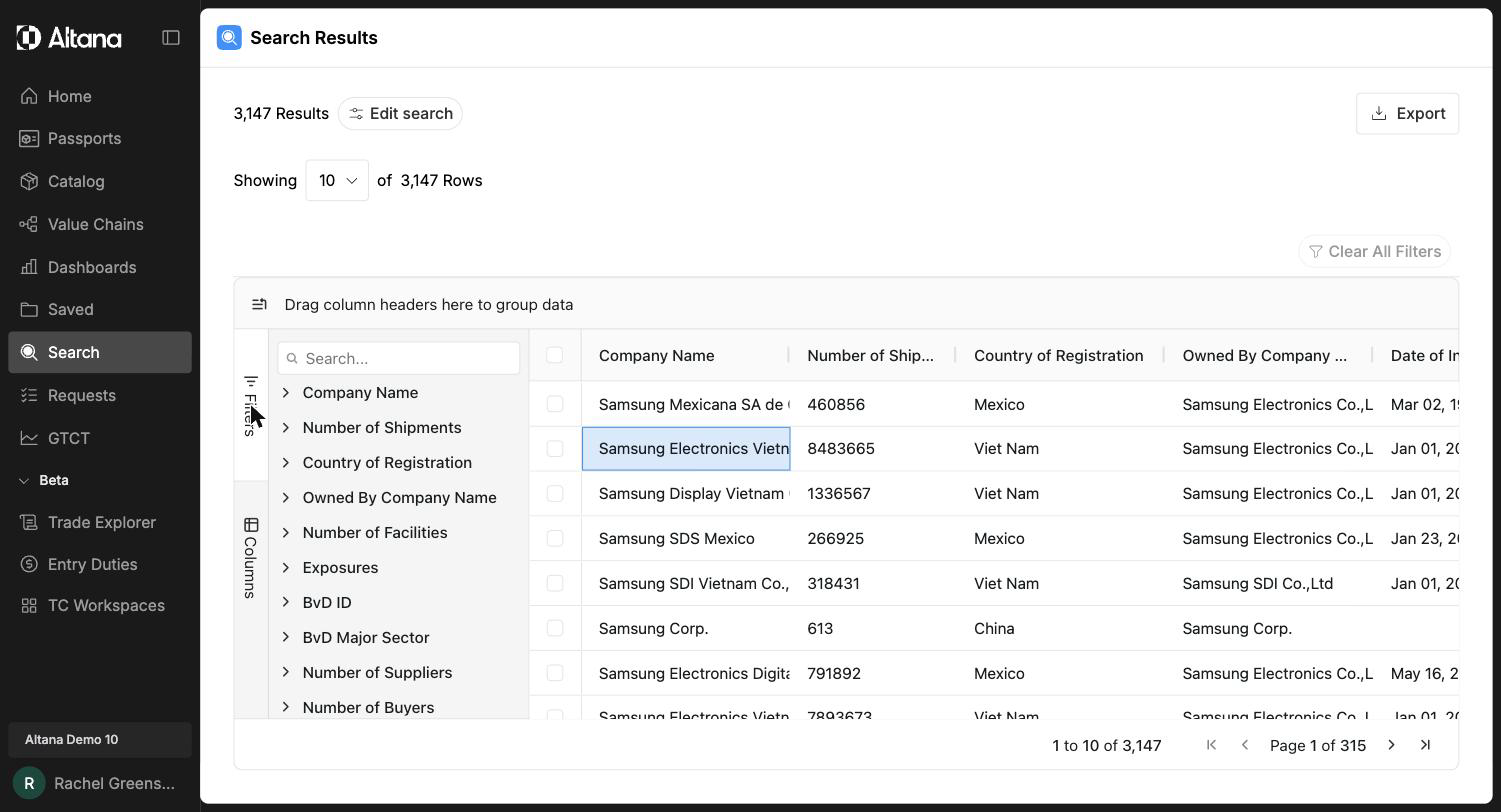
Filter Operations
Depending on the field type, the following operations are available:
- Text fields: Contains, Equals
- Numeric fields: Equals, Greater than, Less than
- Date fields: Equals, Before, After
Combining Filters
Use AND and OR logic to combine multiple filter conditions. For example, you can filter for companies in a specific country AND with transactions above a certain value.
Managing Filters
- Apply — Confirm and activate your current filter conditions.
- Reset — Clear the current filter selection.
- Clear All Filters — Remove all active filters at once.
- Quick Column Filter — Right-click on any column header to access quick filter and reset options.
Identifying Active Filters
Filter icons appear next to column names when filters are active, so you can easily see which columns are currently filtered. These indicators appear both in the search results and in the filters panel.
Key Details
- Filters refresh instantly as conditions are applied or removed.
- Filters remain active throughout your session until you explicitly clear them.
- Some fields may not support filtering due to data formatting. Filters are implemented for all feasible fields.