
Viewing Exploration Version History
Saved explorations keep a history of versions. Instead of each save overwriting a single state, you can see how a network has changed over time and open any earlier version to review it.
When to use version history
- When you want to see what an exploration looked like before you or a colleague changed it.
- When you want to compare two stages of an investigation side by side.
- When you pick up an exploration that someone shared with you and want to see how it developed.
Before you start
- Version history is available for saved explorations only. A draft has no history until you save it. See Sharing an Exploration for how to save.
- You can view the history of explorations you saved and explorations shared with you.
How it works
- Open a saved exploration, for example from Saved > Explorations.
- In the canvas toolbar, select History. The list shows every version of the exploration, newest first, with the date and time it was saved and the user who saved it. The current version is labeled.
- Select a version. It opens in a new browser tab in View only mode, with the version number in the title.
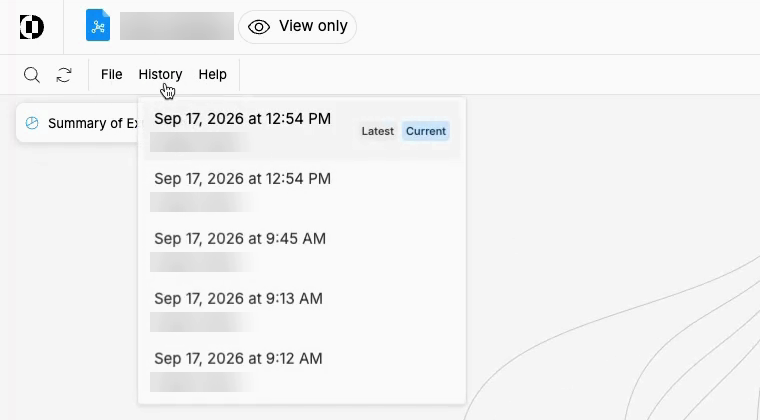
Example: the History menu in a saved exploration.
You can open as many versions as you want, each in its own tab, to compare them side by side.
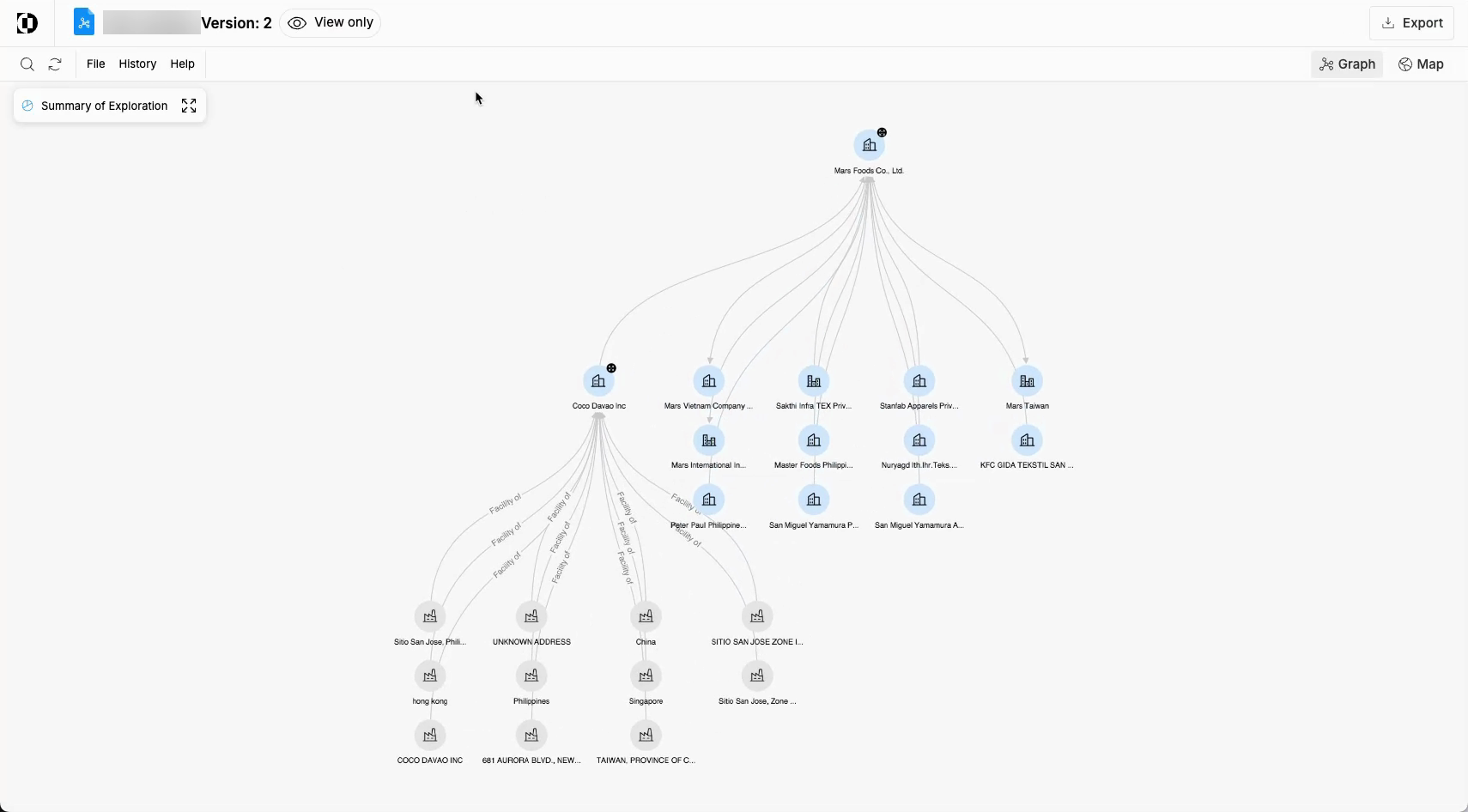
Example: an earlier version open in view-only mode.
Constraints and caveats
- Earlier versions open in view-only mode, so you can't edit them. Make changes in the current version of the exploration.
- Draft explorations do not have version history.