
Exploration Summary Report
The Exploration Summary Report exports an exploration as a condensed, shareable PDF. It documents the companies at the center of the network, the network you built around them, and the key statistics, exposures, and relationships on the canvas, so the analysis you did in an exploration can leave the canvas as a single document. It is the exploration-level companion to the Company Profile Report.
When to use the Exploration Summary Report
- When you need to brief a decision maker on a network you investigated, without asking them to open the exploration.
- When you want a point-in-time record of an exploration for a case file or review, including a picture of the canvas as you left it.
- When you want one report that covers several related companies. For a deep, single-company record, use the Company Profile Report instead.
Before you start
- You need an open exploration. It can be a draft or a saved exploration.
- The report is built from what is on the canvas. Expand the data layers you want covered (for example, supply chain, ownership, shareholders, or facility operations) before you export.
- The report includes only data you are entitled to see in the exploration.
How it works
- In the open exploration, select Export in the top right, then choose Export Summary PDF.
- Enter a Report title. The title appears on the PDF cover. It defaults to the saved exploration name; for a draft, you can set a title without saving.
- Under Canvas, choose whether to include a Canvas image, a screenshot of the canvas as it appears at export.
- Under Report Body, choose your Focal Entities and the layer sections to include (see below).
- Select Export. The report generates in the background, and you can keep working while it builds.
- When the report is ready, a notification appears with a Download button. The notification stays until you download the file or close it.
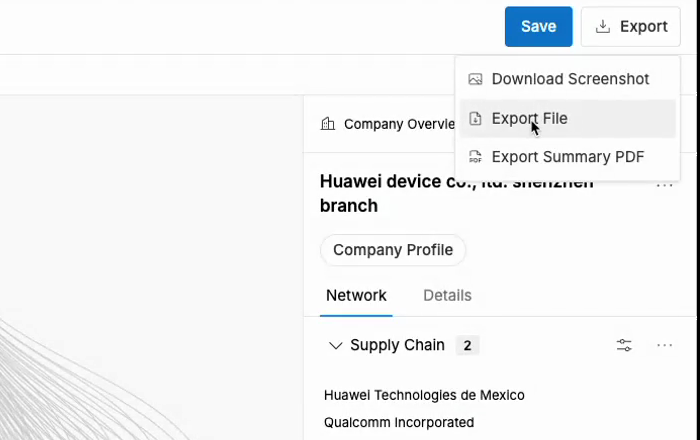
Example: the Export menu in an open exploration.
Seed entities and focal entities
- Seed entities are the companies the exploration started from. They are always included in the report.
- Focal entities are other companies on the canvas with at least one expanded network layer. You can select up to 10 focal entities, and each one gets its own detail section in the report.
- The layer sections you can include (such as Supply Chain, Ownership, Shareholders, and Facility Operations) depend on which layers are expanded on the canvas.
The cover, summary, and provenance sections are always included.
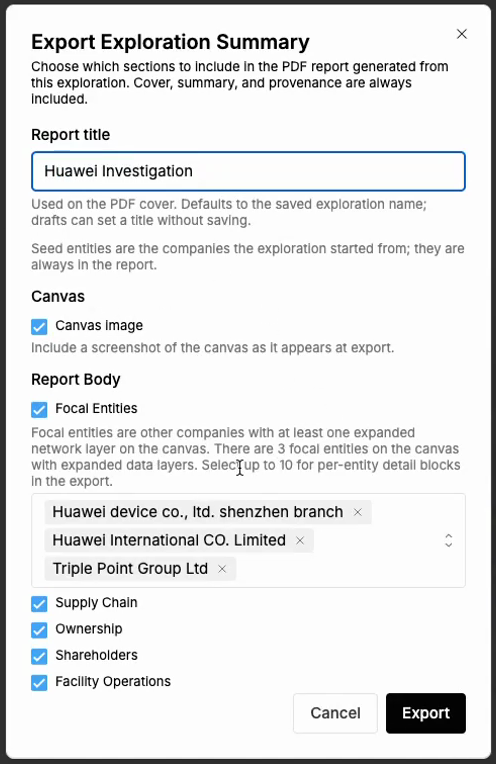
Example: the Export Exploration Summary dialog.
What the report contains
- Cover page: the report title, what was exported, and a link back to the exploration in Altana.
- Exploration overview: the layers expanded on the canvas and headline counts for the network.
- Summary: an executive summary of the network and its seed and focal entities, with exposure headlines that call out listed entities in the network.
- Canvas view: the canvas image, if you selected it.
- Focal entities: a section per focal entity covering its supply chain, a transaction summary, and exposure information.
- Network sections: transaction summaries with the HS codes traded in the network, risk exposures across the network, and the other layers you selected.
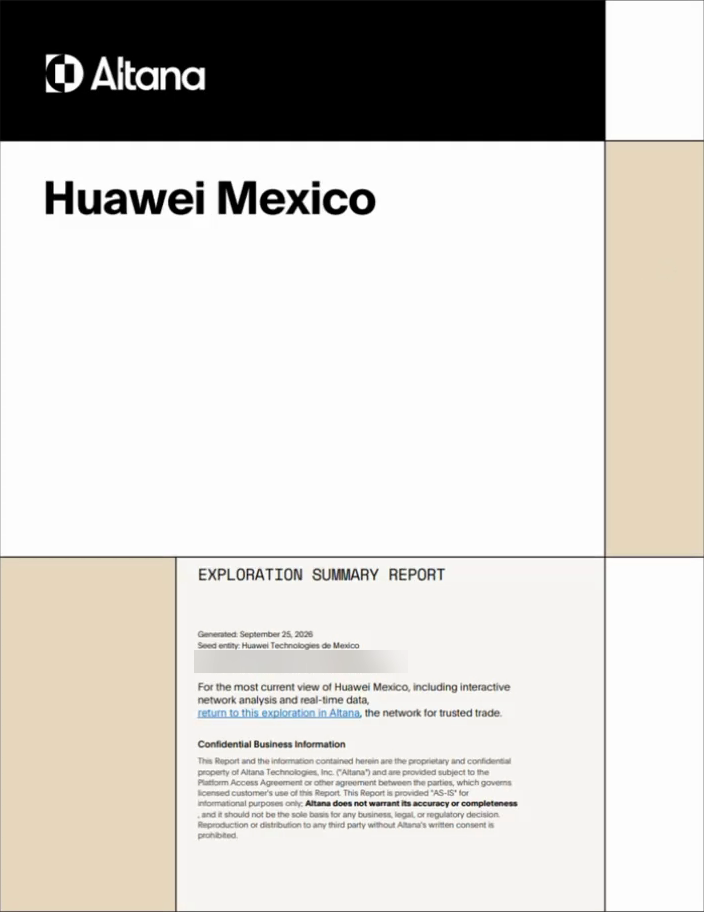
Example: the report cover.
Constraints and caveats
- You can select up to 10 focal entities. Only companies with at least one expanded layer can be focal entities.
- Larger explorations produce longer reports, and they take longer to generate.
- The canvas image is a picture of your current view. Zoom to the area you want before you export so company names stay legible.
- The report is a point-in-time PDF. If you change the exploration later, export again to get an updated report.
- For the raw data behind the canvas, use Export File instead. See Exporting Data.