
Reviewing an Entry
Opening an entry gives you two levels of depth: the side sheet for quick review, and the full-page view for working through larger entries line by line.
The side sheet
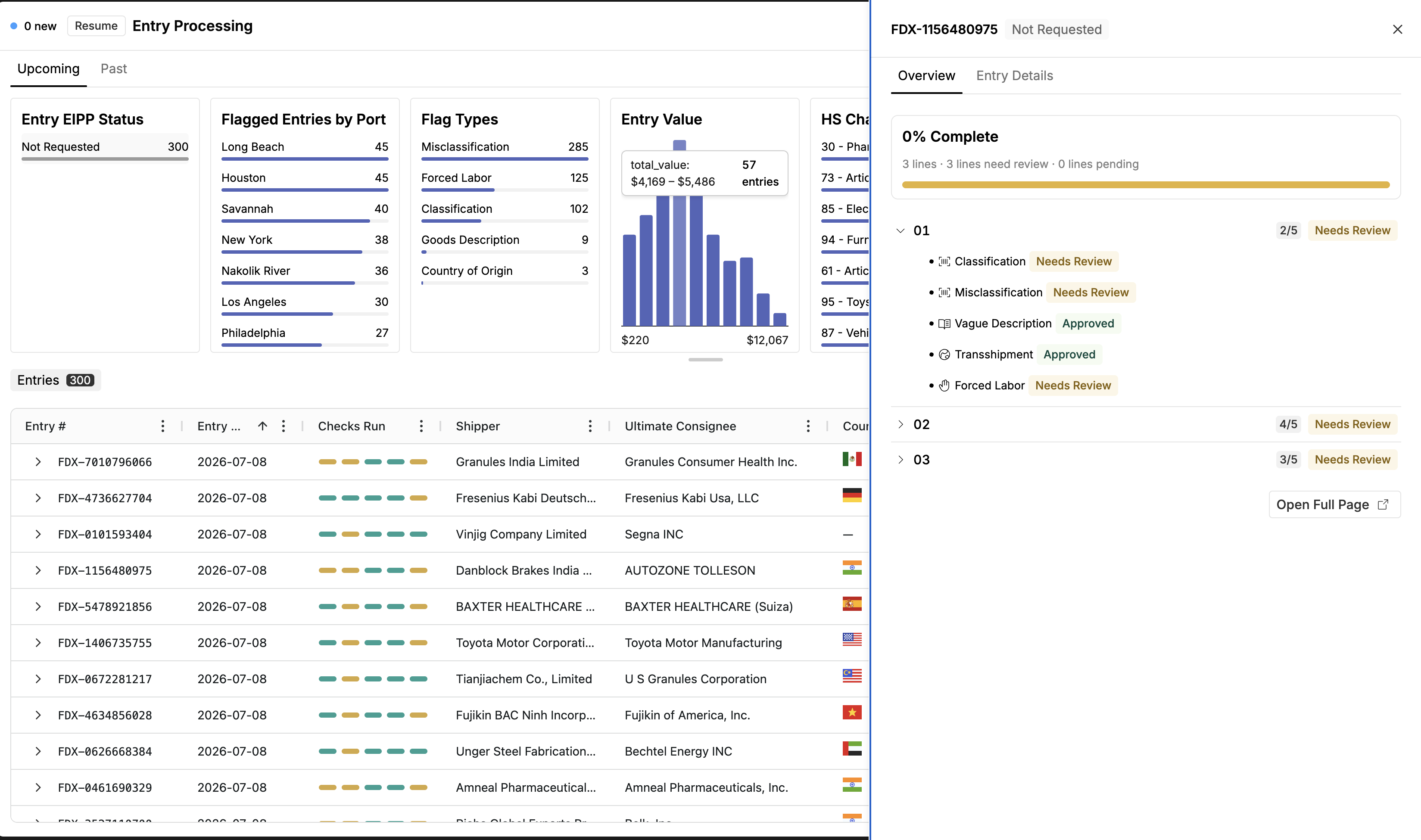
Clicking an entry opens the side sheet: a summary of the entry's lines, the checks that ran, and each check's result. For short entries — one to three lines, typical for low-value shipments — the side sheet is usually all you need: review the flag, read the reasoning, done. The side sheet is collapsible, so you can put it away when you want the full table.
The full-page view
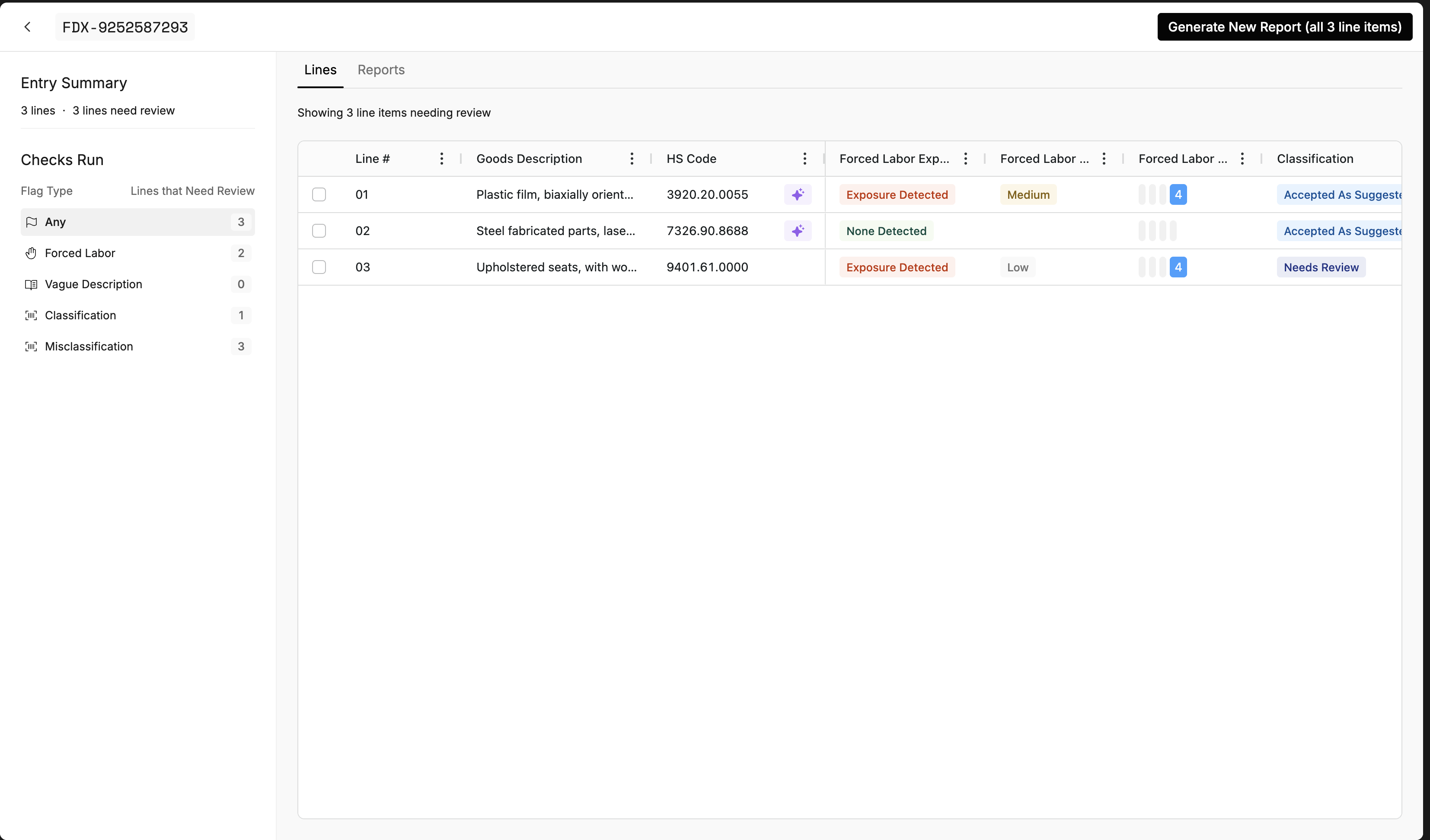
For entries with many lines — 10, 50, 100+ — expand to the full-page view. Each line item is a row, with a column set covering every check result, carried over in full from TCG.
Down the left side, the checks panel lists every check that ran on the entry, including vague goods description and misclassification risk. Clicking a check scopes the table columns to just that check's results — so if forced labor is your job today, you see only forced labor columns, across every line. Click another check to switch, or clear the selection to see everything.
Which view to use
Side sheet — short entries, quick triage, single-flag review.
Full-page view — multi-line entries, working one check across many lines, deep column-level comparison.
Nothing is only possible in one view — the full-page view just makes high-volume work easier.
For how to interpret each result, see Reading Check Results; for how results roll up to a queue, see Statuses & Review States.