
Company Profile Report
The Company Profile Report exports a company's full Company Profile as a formatted PDF, with the option to also download the underlying data behind each table. It gives you a shareable, point-in-time record of a company's ownership, transactions, facilities, financials, and exposures without leaving Search & Explore.
When to use the Company Profile Report
- When a trade compliance analyst needs to share a company's profile with a colleague or file it as part of a review, outside the app.
- When you want a fixed, point-in-time snapshot of a company's profile — for example, before an ownership or exposure change might update it.
- When you need the raw data tables behind a company's ownership, transaction, or exposure grids for further analysis.
Before you start
- You need an open Company Profile for the company you want to export.
- The report includes only the data and sections you're already entitled to see on the Company Profile — your role-based access and any partner-data entitlements carry through to the export automatically.
How it works
- Open the Company Profile for the company you want to export.
- Select Export in the top right of the profile.
- In the export modal, choose what to include. Report sections are selected by default; separate data-table downloads (the underlying data behind each table) are not selected by default.
- Confirm your selections to generate the export.
- Download the file. It arrives as a .zip containing the PDF report and any data-table files you selected.
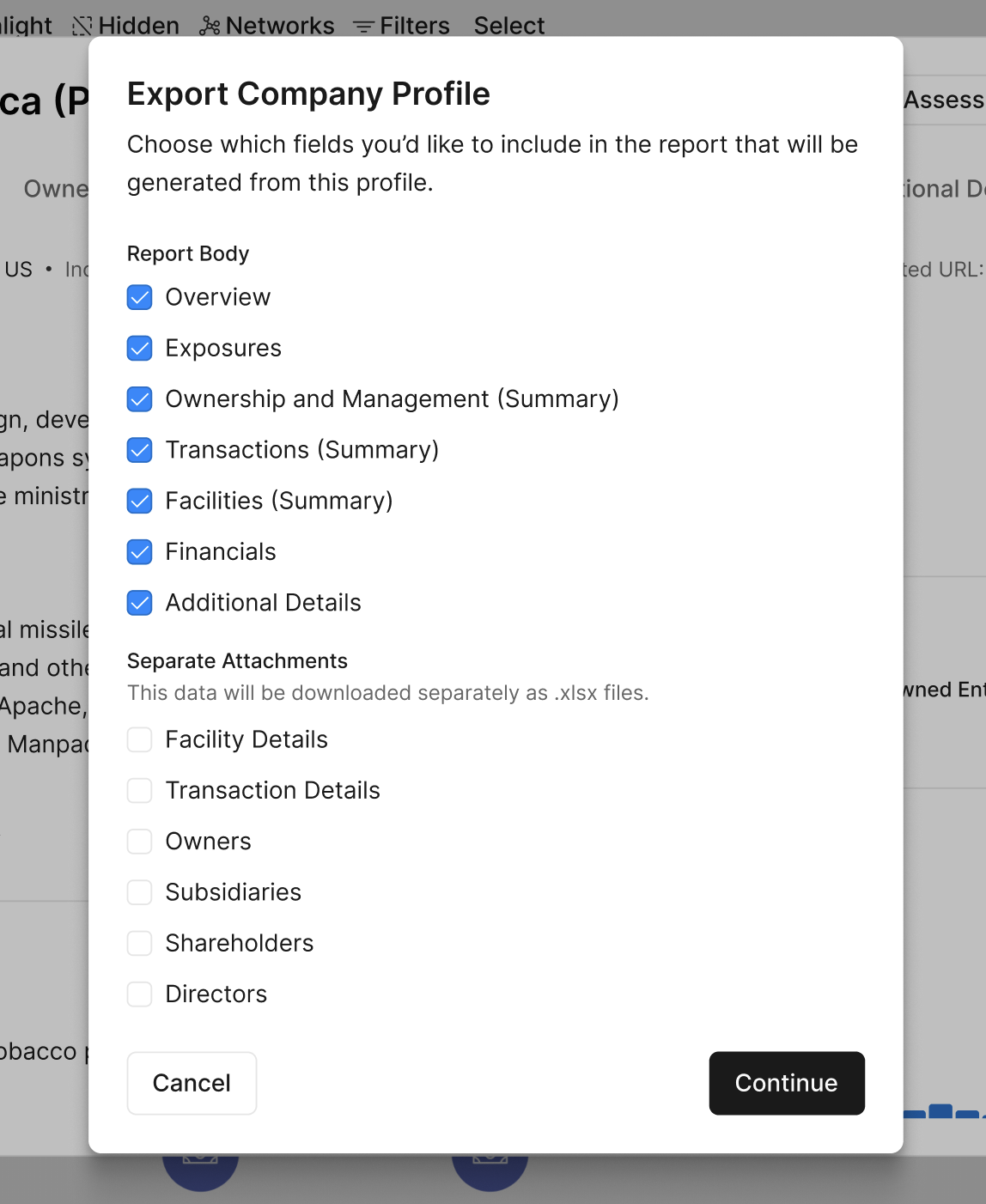
Example: the export modal, where you choose what to include before exporting.
What the report contains
The report mirrors the sections you see on the Company Profile:
- Cover page — company name, export date, and the report's legal disclaimer.
- Overview — Company Type, Legal Form, State-Owned Entity (SOE) flag, GUO Country of Registration, transaction and facility summaries, and an exposure summary.
- Ownership & Management — owners, subsidiaries, shareholders, and directors, each with GUO/DUO chips and exposure detail.
- Facilities — the company's associated facilities.
- Transactions — HS-code summary tables for imported and exported goods, followed by the 10 most recent inbound and 10 most recent outbound transactions.
- Financials — financial performance data sourced from Moody's.
- Exposures — a Supply Chain Network Exposures Summary plus a detailed exposures table.
- Sources — a reference section at the end of the report listing the exposure lists cited (name, issuing authority, description, and reference) and the underlying data and record sources behind the report, so every finding is traceable.
- Additional Details — a flat list of the company's extended data fields. This section is not selected by default, since it's a large raw-field dump.
The report's legal disclaimer appears in full on the cover page, with a short confidentiality footer on interior pages.
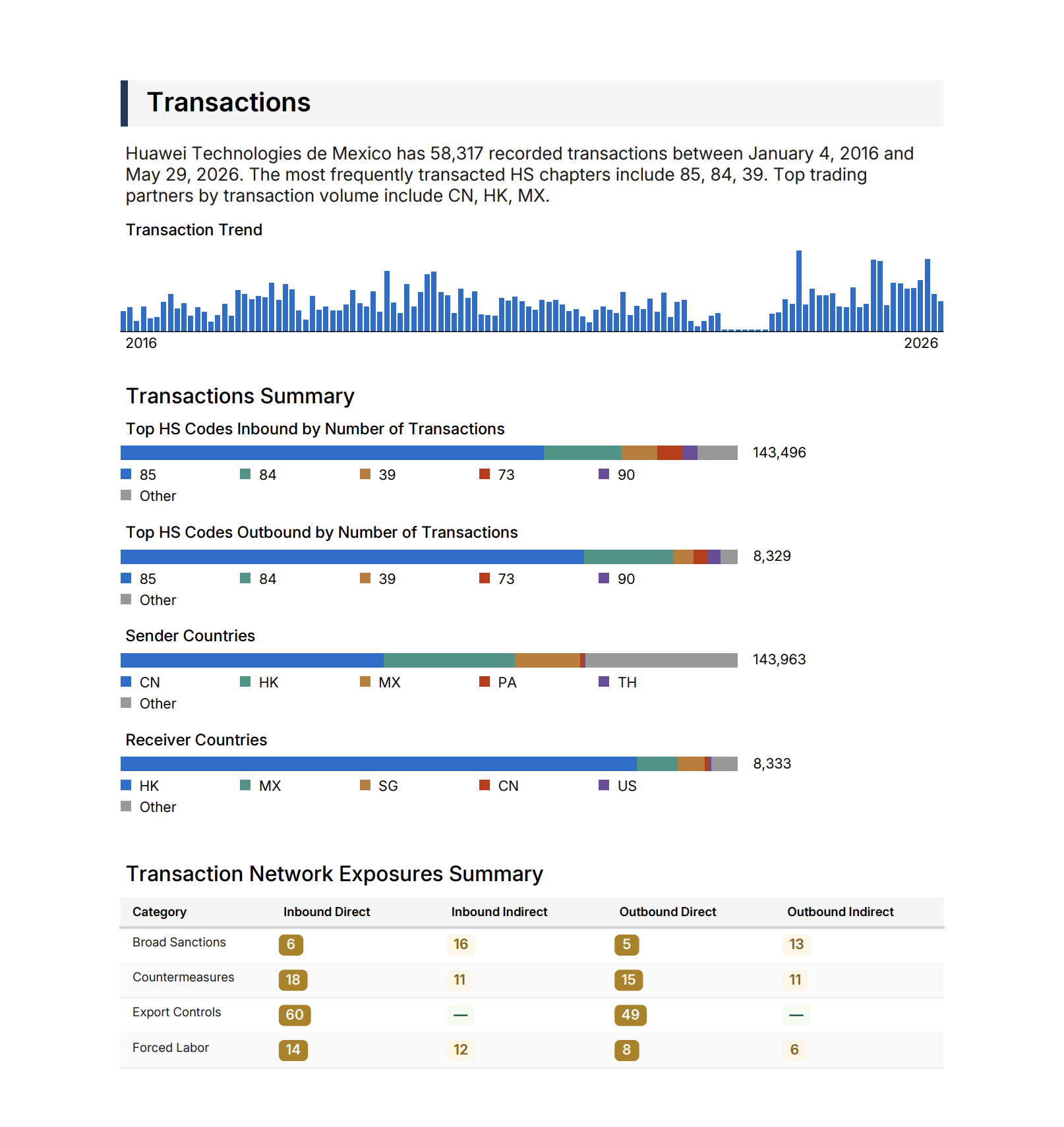
Example: the Transactions section of a generated report.
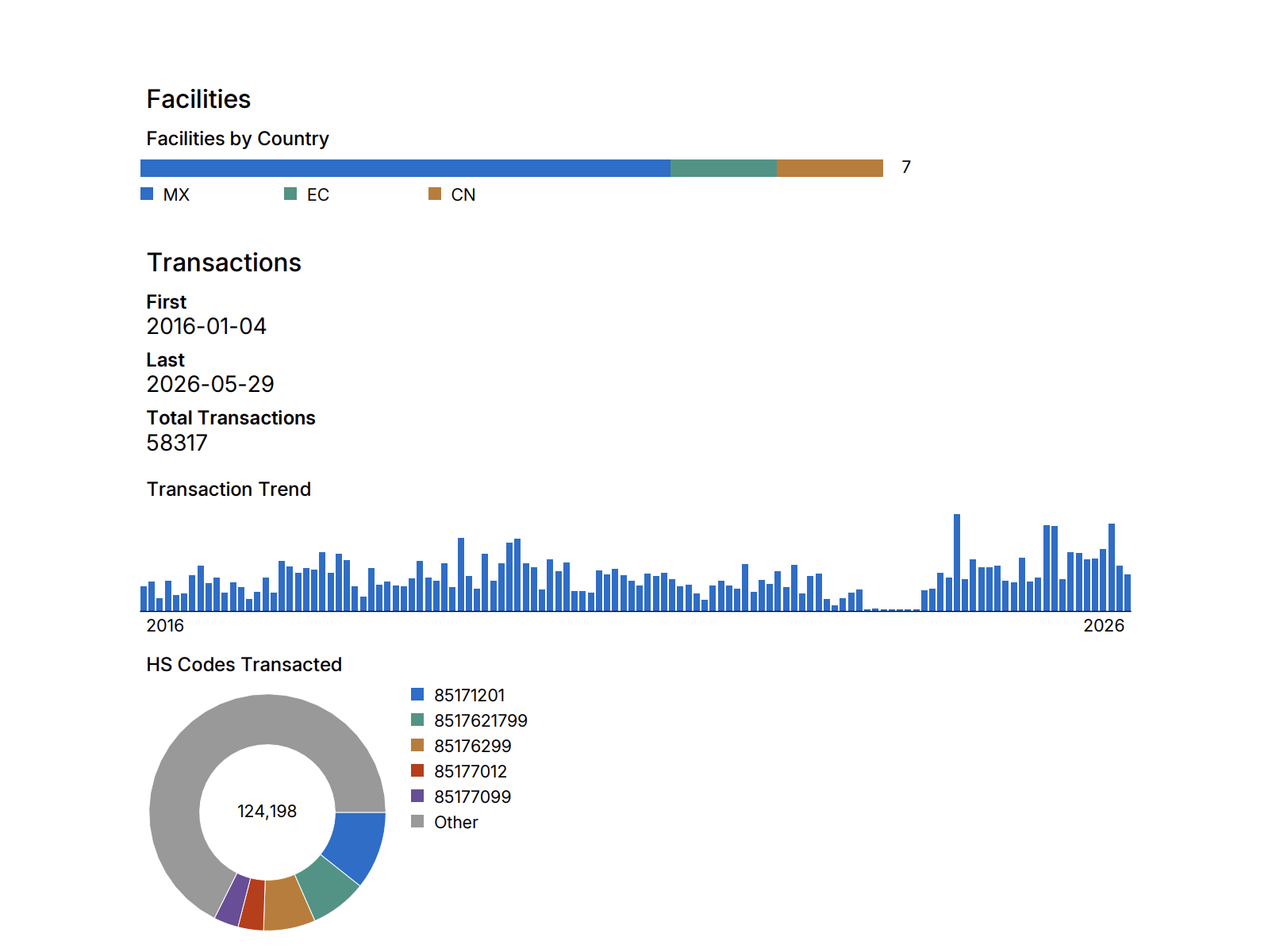
Example: facilities and transaction summaries from a generated report.
Outputs and interpretation
Because the report is a fixed export, tables that are too long to show in full are truncated to a consistent, deterministic view rather than whatever sort order you last used in the app — so the same company produces the same report for everyone, every time.
- Ownership tables (owners, subsidiaries, shareholders, directors) sort by ownership type, with global ultimate owners first, then company name A to Z.
- Transactions sort by transaction date, most recent first.
- Facilities sort by facility name, A to Z.
Each truncated table carries a caption stating how many rows are shown out of the total and how the table is sorted, with a link back to the full data on the Company Profile — for example, "Showing 5 of 22 owners, sorted by ownership type (global ultimate owners first), then company name (A to Z). View all owners on the Company Profile in Altana."
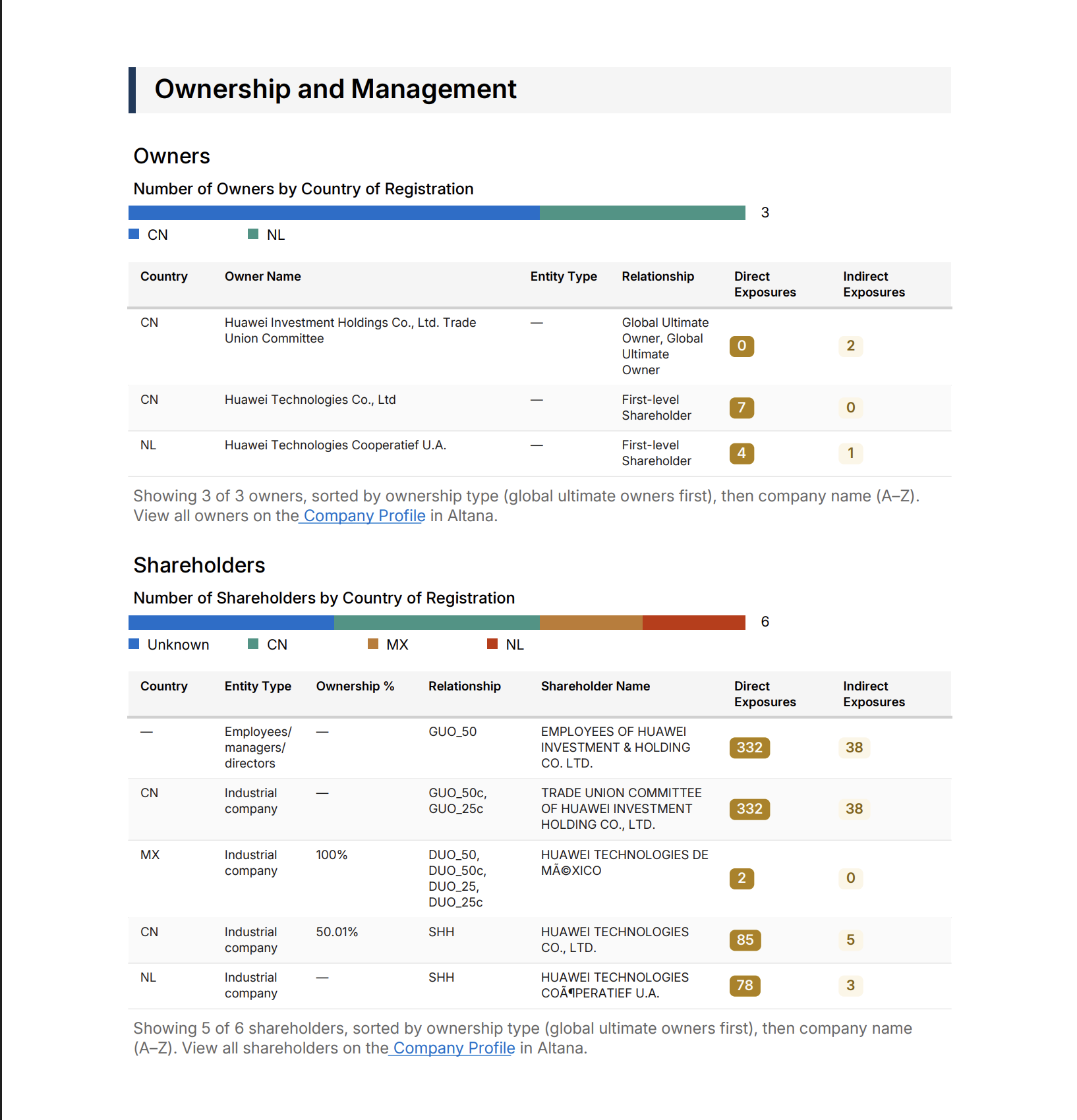
Example: a truncated Ownership & Management table with its sort-transparency caption.
Where a table has no rows to show, the report replaces it with a plain-language explanation rather than an empty grid — for example, noting that no records of that type were identified in the company's supply chain network, or that no data of that type is available for the company. Each section starts on its own page, so a table that spans multiple pages never separates from its header.
Constraints and caveats
- The export downloads as a .zip file. Make sure you can open .zip files on the system you're using to review it.
- Table text is kept small so content fits within the page.
- Additional Details is not included by default, because it's a large raw-field dump — select it in the export modal if you need it.
- The Company Profile Report is a download-only PDF export. It does not currently support in-app viewing, saved report history, or added commentary.