
Saving Column Preferences
Customize which columns you see in search results and exploration tables, and have your preferences persist automatically across sessions.
Overview
Column preferences now save automatically — no manual action required. Your column visibility, ordering, and display choices persist across login and logout sessions, so you never need to reconfigure your workspace.
How It Works
Automatic Persistence
Any changes you make to column visibility or ordering are saved immediately. The next time you log in, your tables will look exactly the way you left them.
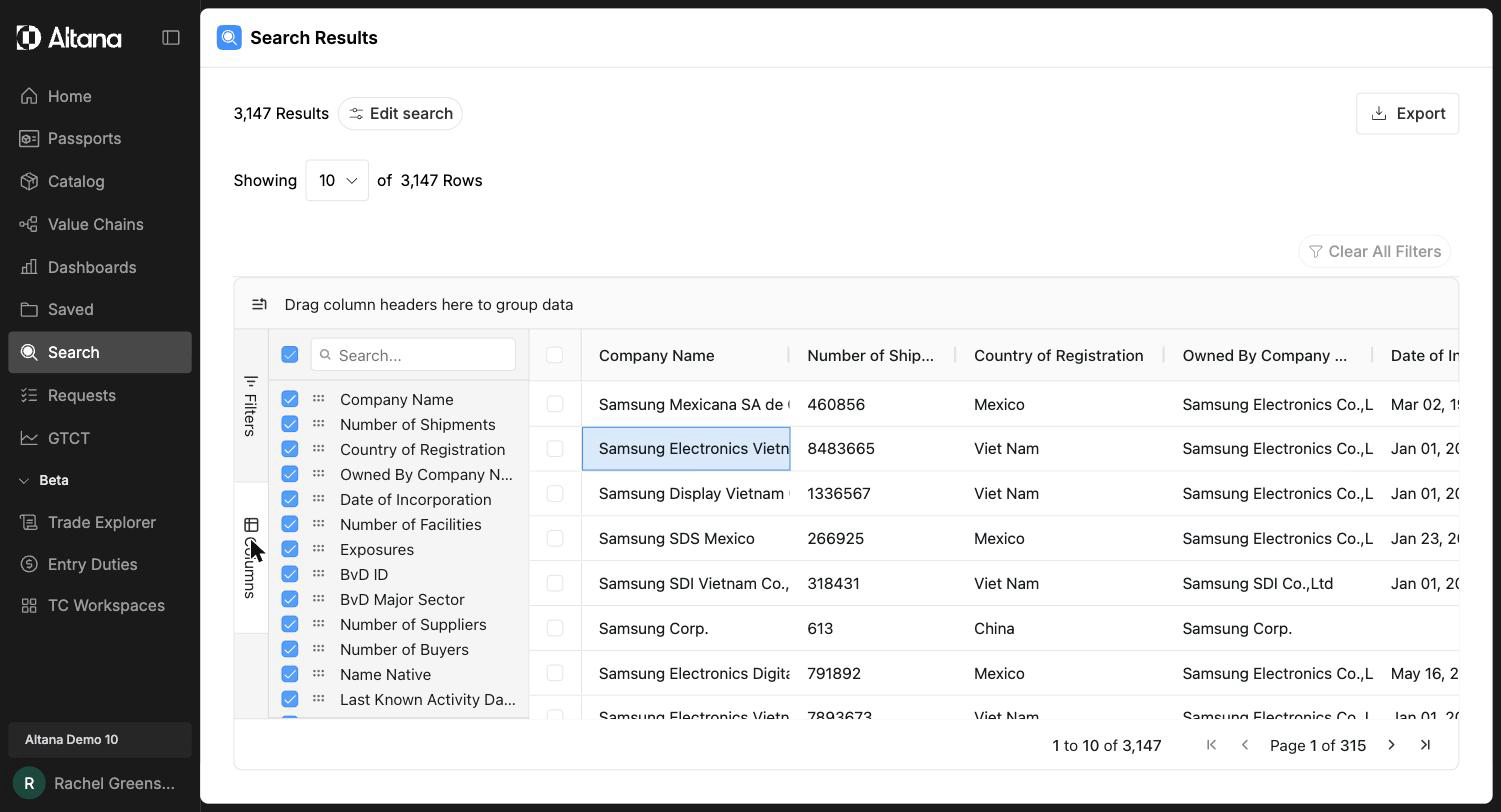
Open the Columns rail on the results grid to show, hide, and reorder columns. Use the checkboxes to control which columns appear and the drag handles to set their order.
Context-Aware Settings
Your preferences are saved independently for different contexts:
- Search Results — Column settings for search result tables are saved per node or edge type.
- Exploration Edge Tables — Column settings for edge tables on the Exploration Canvas persist for each edge type.
This means you can optimize each view for its specific workflow without one affecting the other.
New Column Handling
When new columns are added to the platform, they automatically appear at the end of your custom column order. Your existing preferences are preserved — the new column is simply appended.
Resetting to Defaults
To return to the system default column configuration, right-click on the column header area and select Reset Columns to Default.
Key Details
- Show/hide selections and column order changes save immediately.
- Settings persist across login and logout cycles.
- Different page types and data types maintain independent preferences.
- New platform columns are appended to your existing order without disrupting your setup.