[Beta] Adding Users
Who is this for? This guide is for account administrators and users with user management permissions who need to add new team members to their Altana environment.
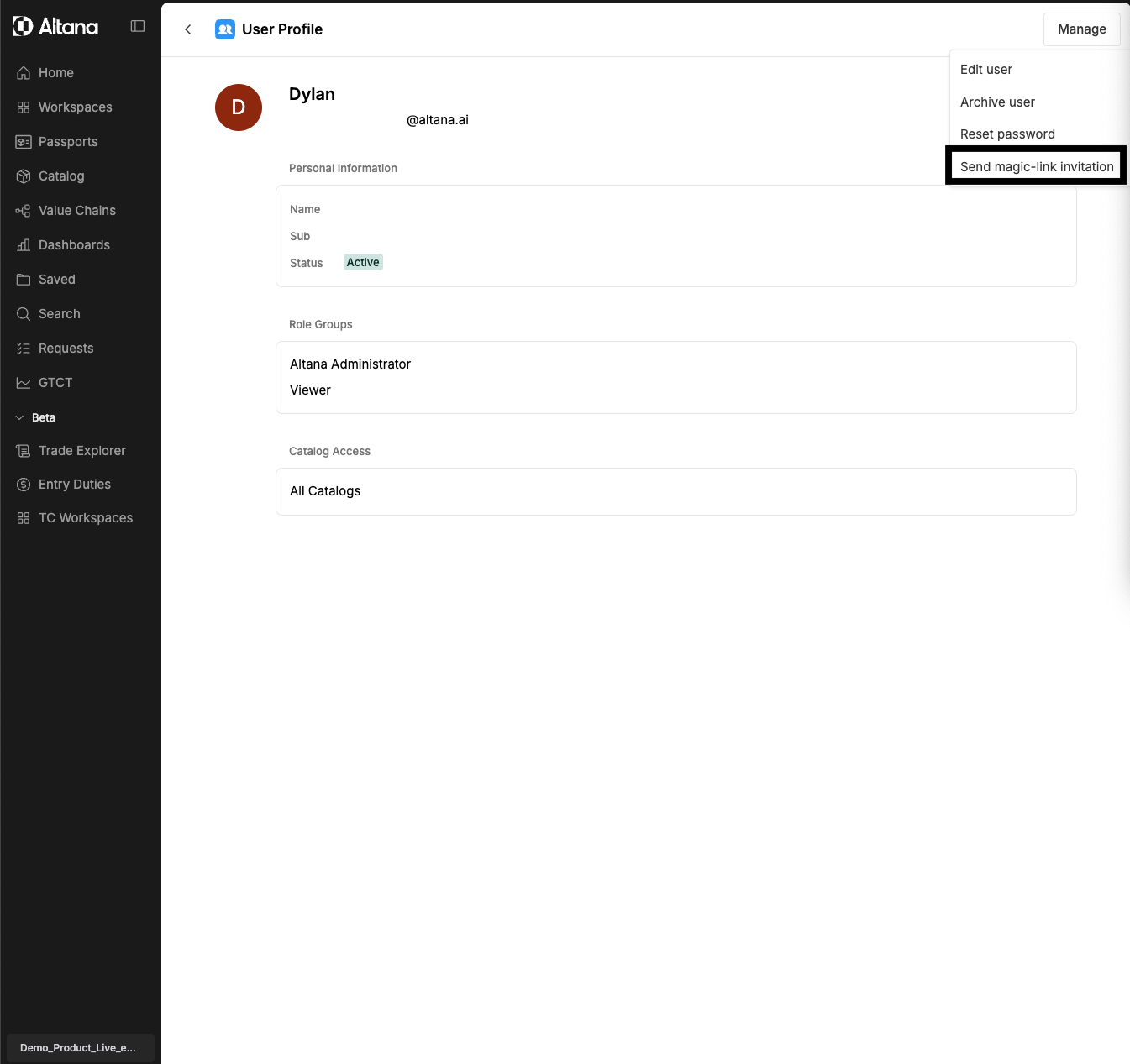
This guide walks you through how to invite a new user to your environment. This is best suited for one-off invitations and ensures new users receive a magic link invitation.
Invitation methods
Altana offers two ways to invite users to your environment:
- Magic-link invitation (passwordless): The recommended method that sends an invitation email containing a magic link to sign in.
- Reset Password: Sends an email to your user asking that they set a password.
This guide focuses on the magic-link invitation method.
Step 1: Add the user
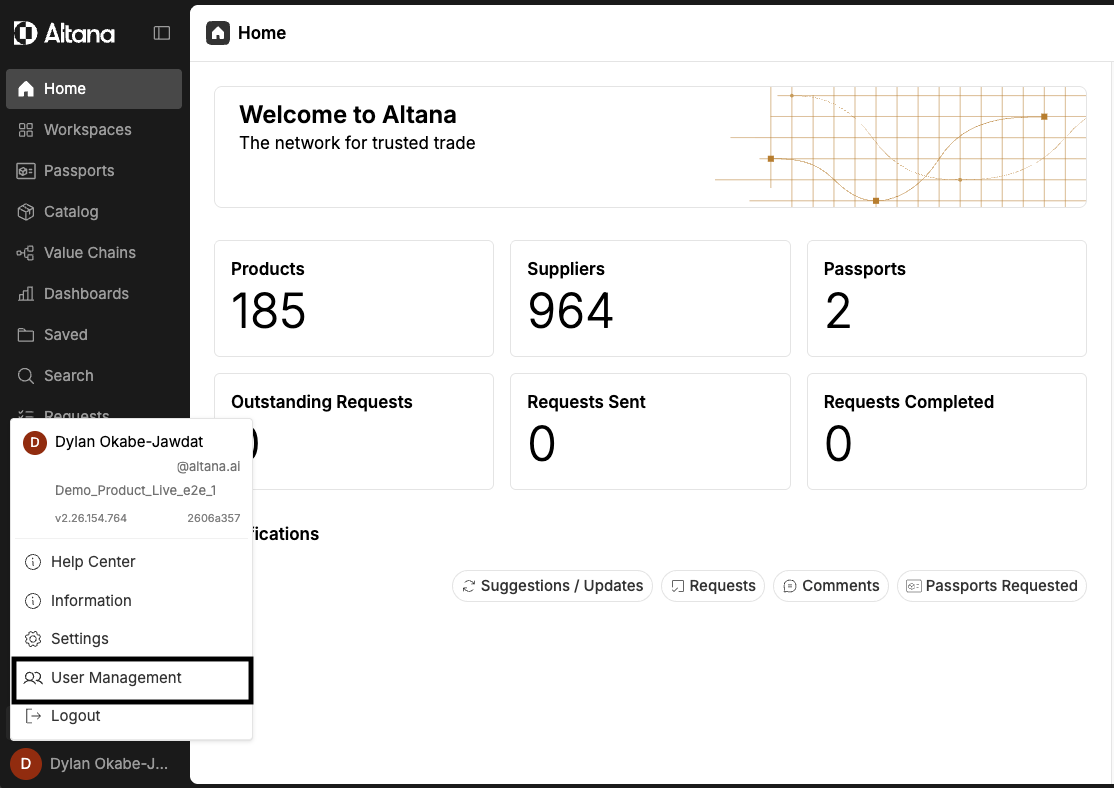
Navigate to User Management in your settings panel by clicking your name in the lower left corner and selecting User Management from the menu.
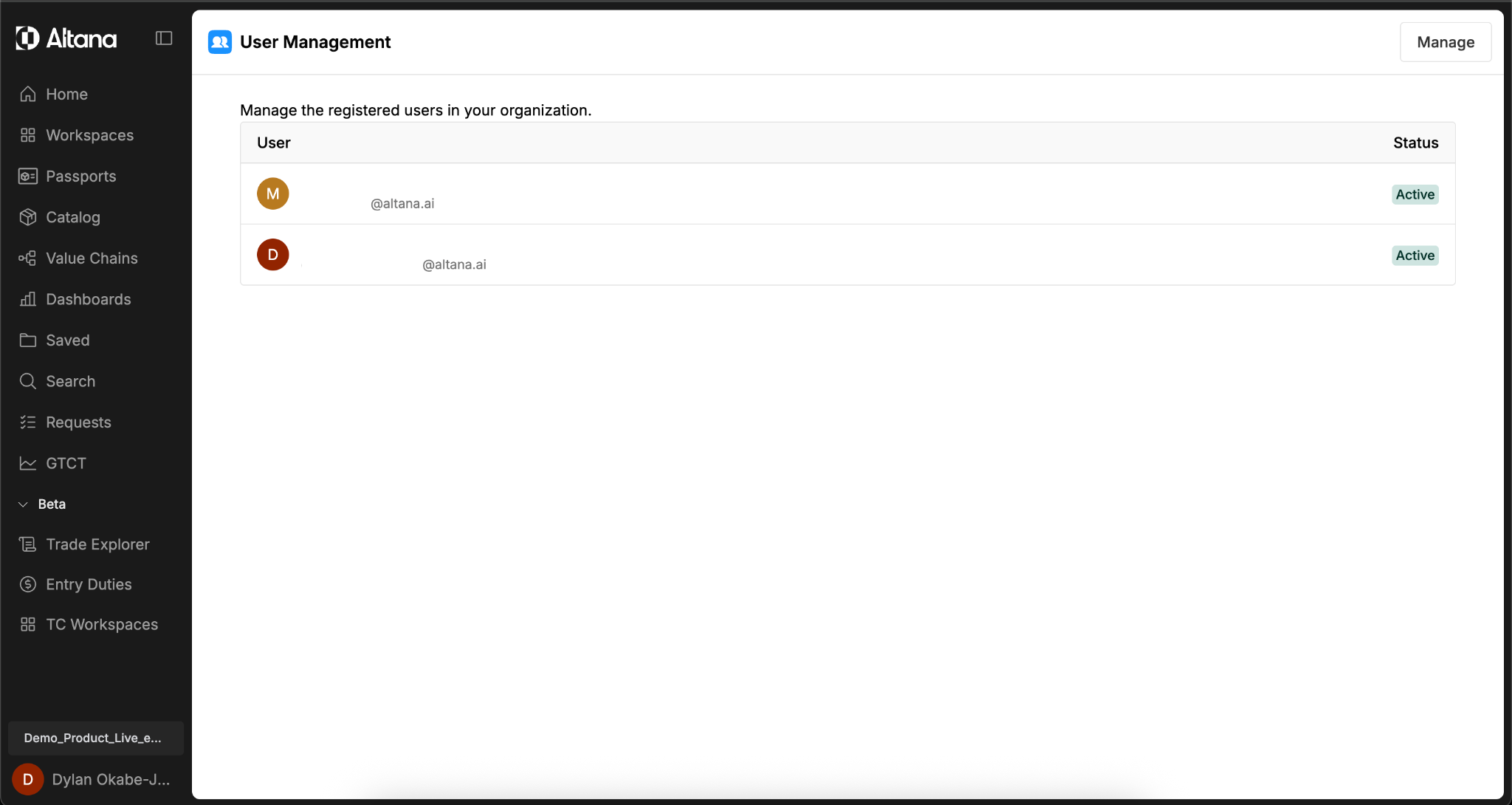
You will see a list of all existing users in your environment.
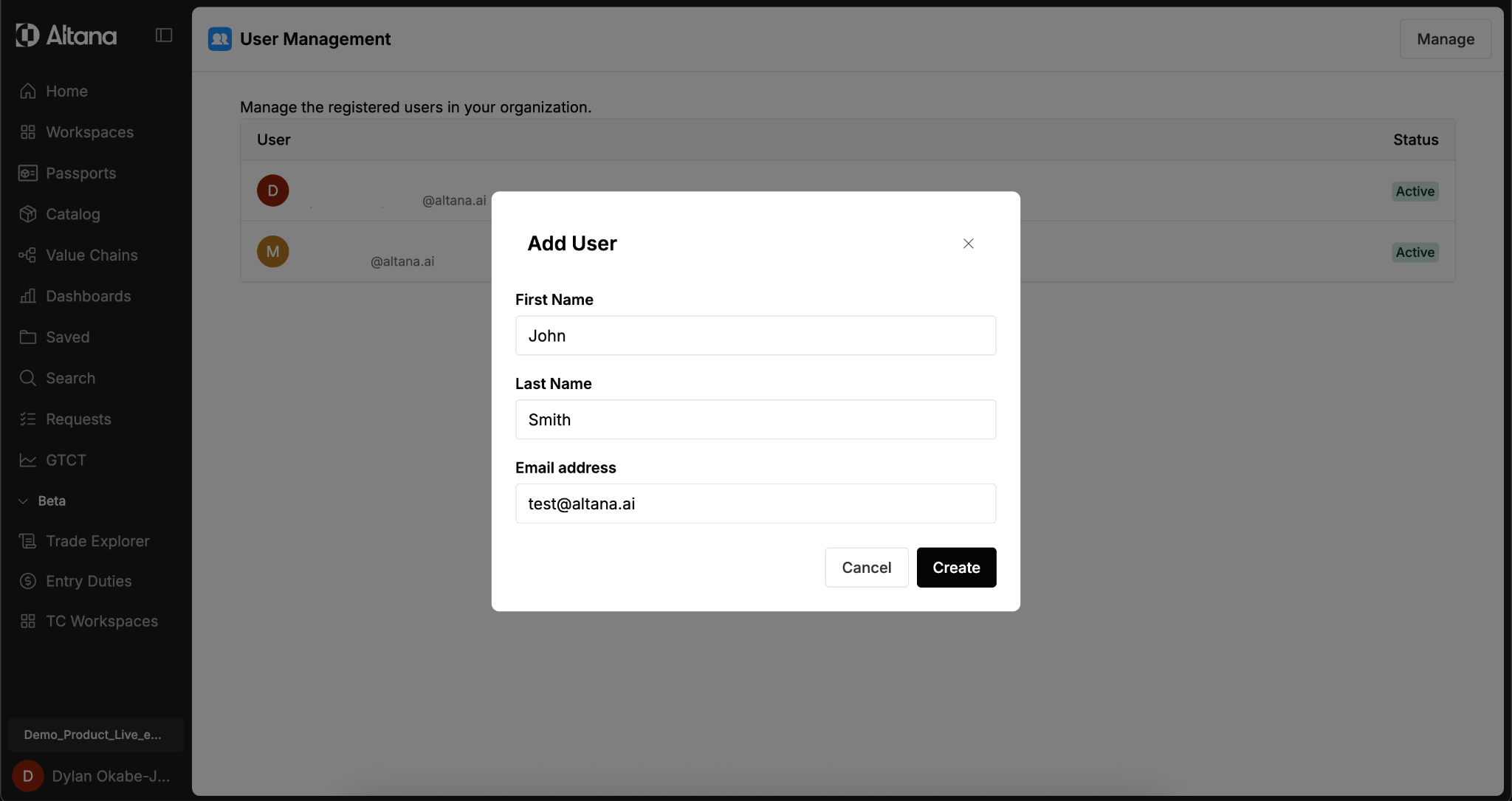
Click Add New User and enter the following details:
- First name
- Last name
- Email address
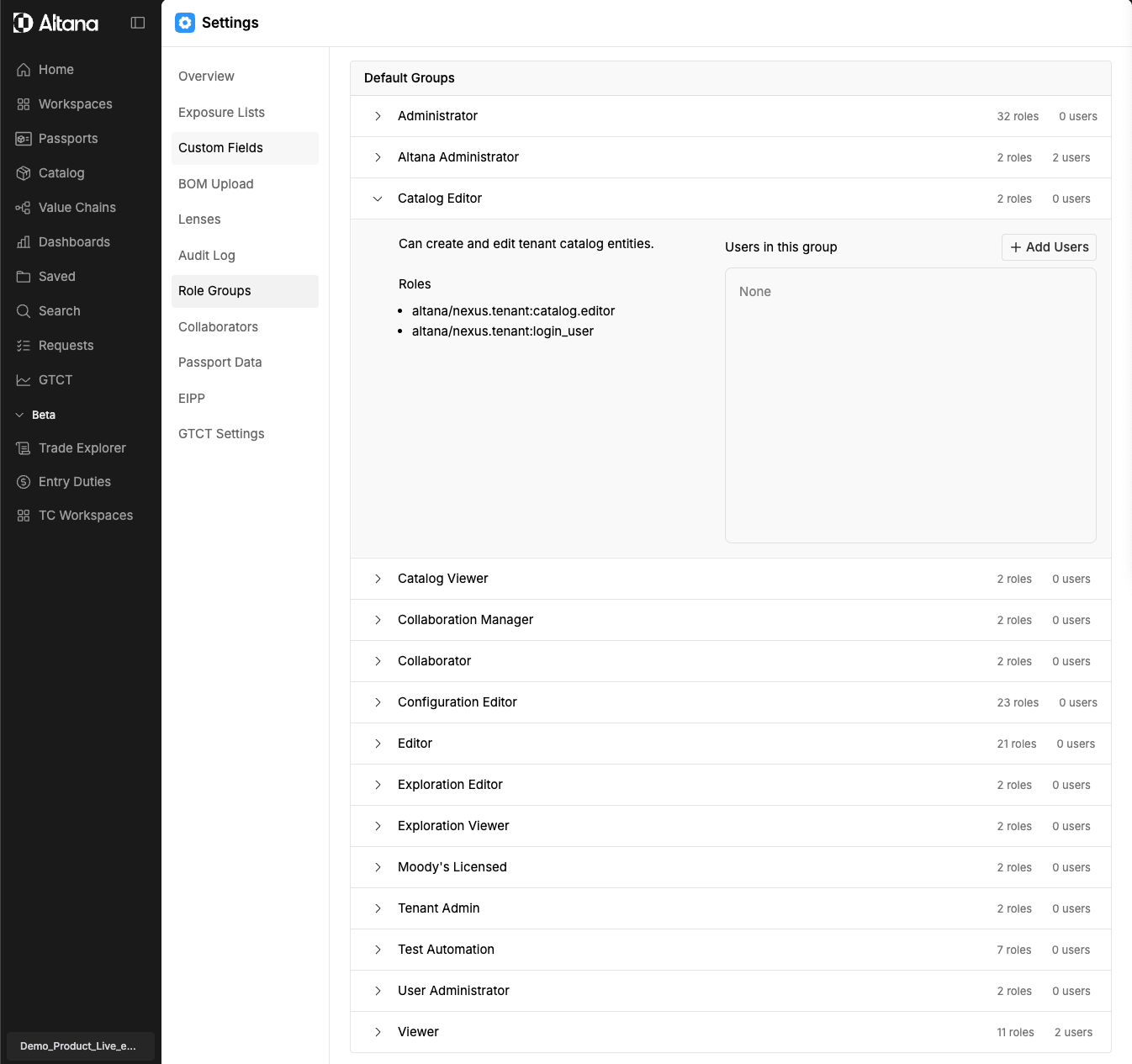
Step 2: Assign the user to a role group
Once the user has been created, you need to place them in a role group so they have the correct permissions.
- Go to Settings.
- Navigate to Role Groups.
- Navigate to the role group that you want to add a user (or users) to. For most users, Catalog Editor is the recommended role.
- Find the new user in the list and add them to the appropriate group.
Step 3: Send the magic link invitation
Once the user has been assigned to a role group:
- Return to User Management.
- Find the new user in the list.
- Click Send Magic Link Invitation. The user will receive an email with a magic link to log in without needing to set a password.