
Uploading Products into Your Catalog
This guide walks you through the process of uploading data into your product catalog from a CSV. This process is a great option for quickly adding products, product data, and product value chains to your catalog in seconds.
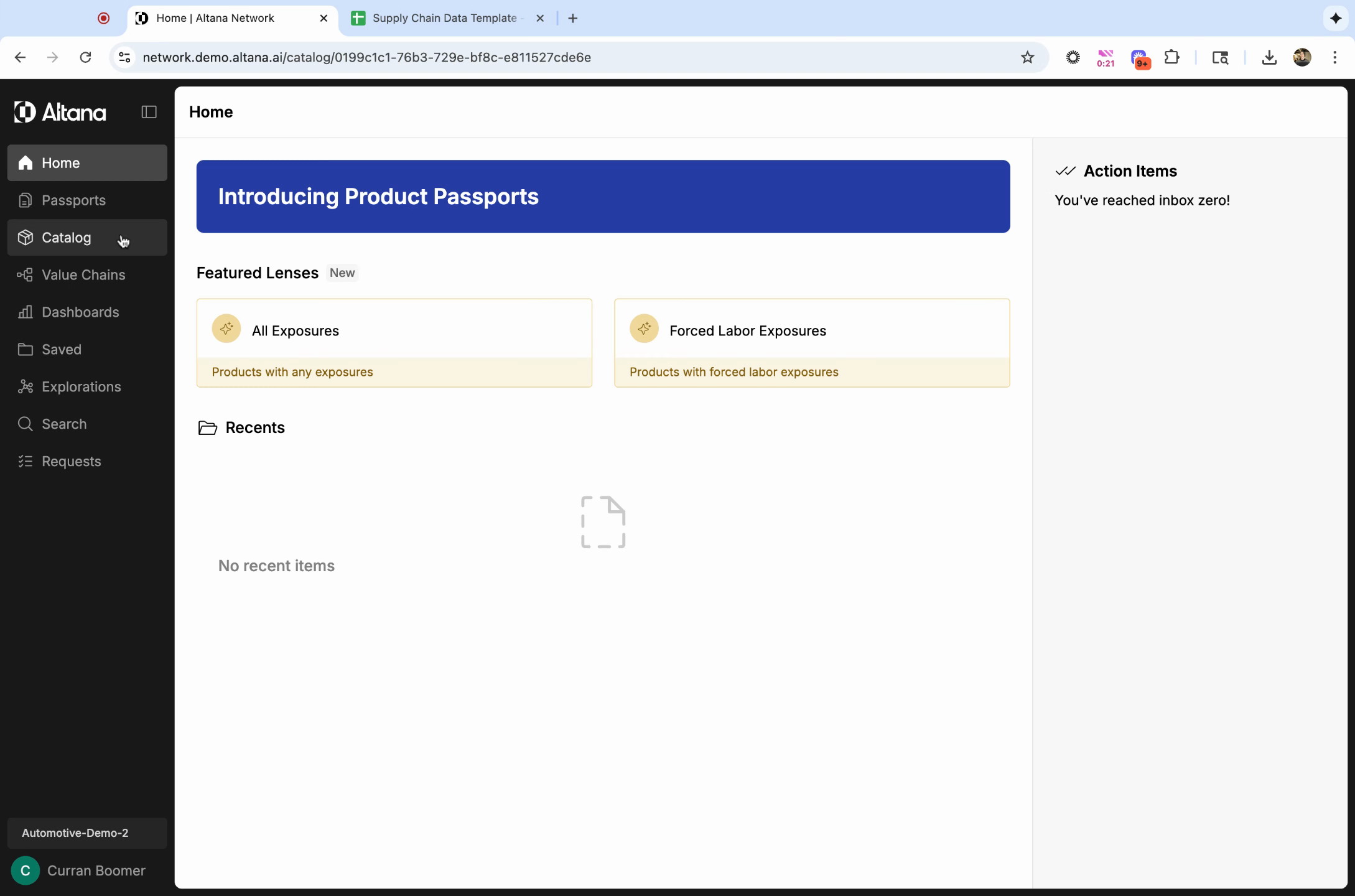
Step 1: Go to Catalog from the left-hand menu.
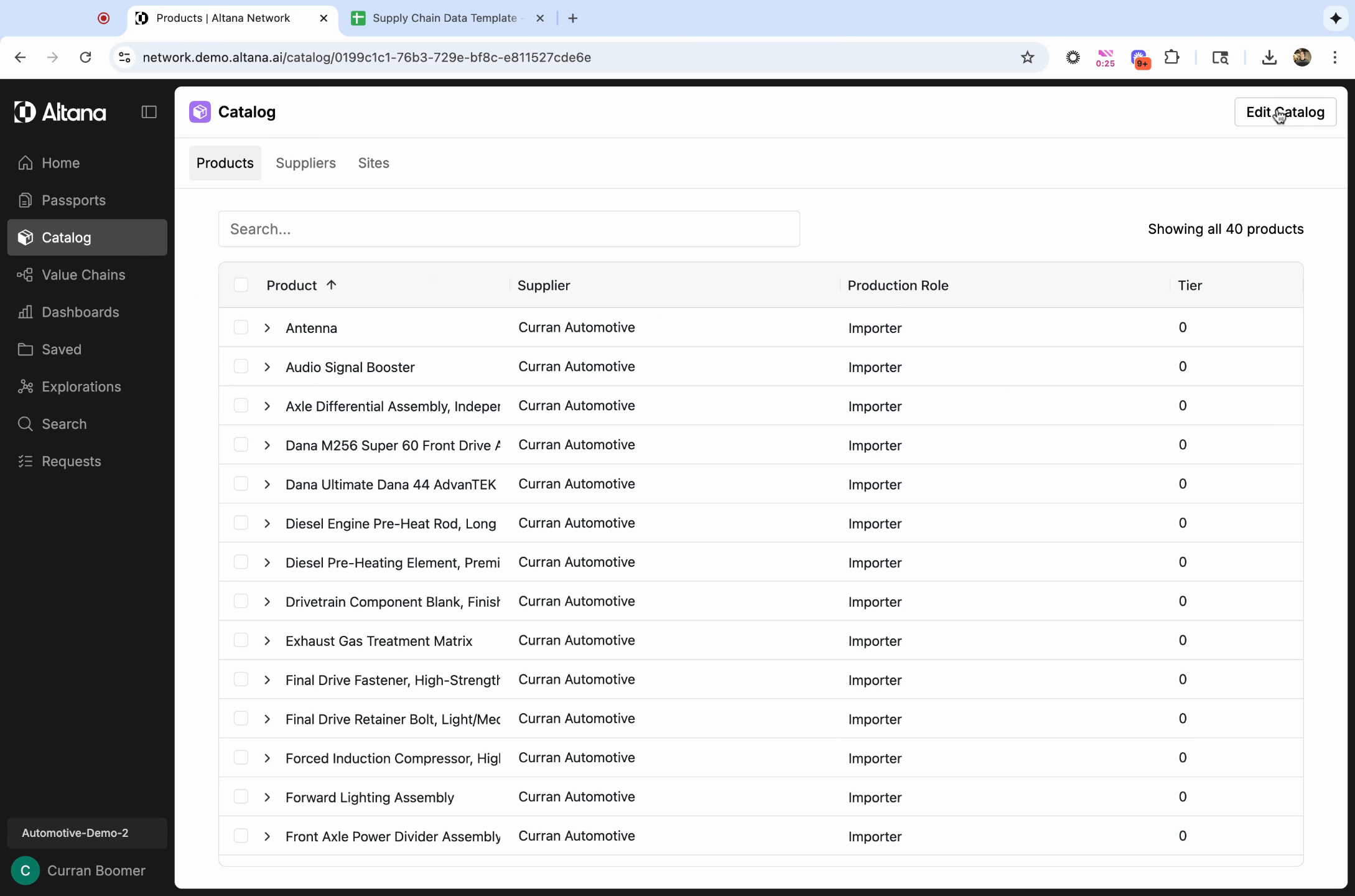
Step 2: Select Edit Catalog and then click Add Data.
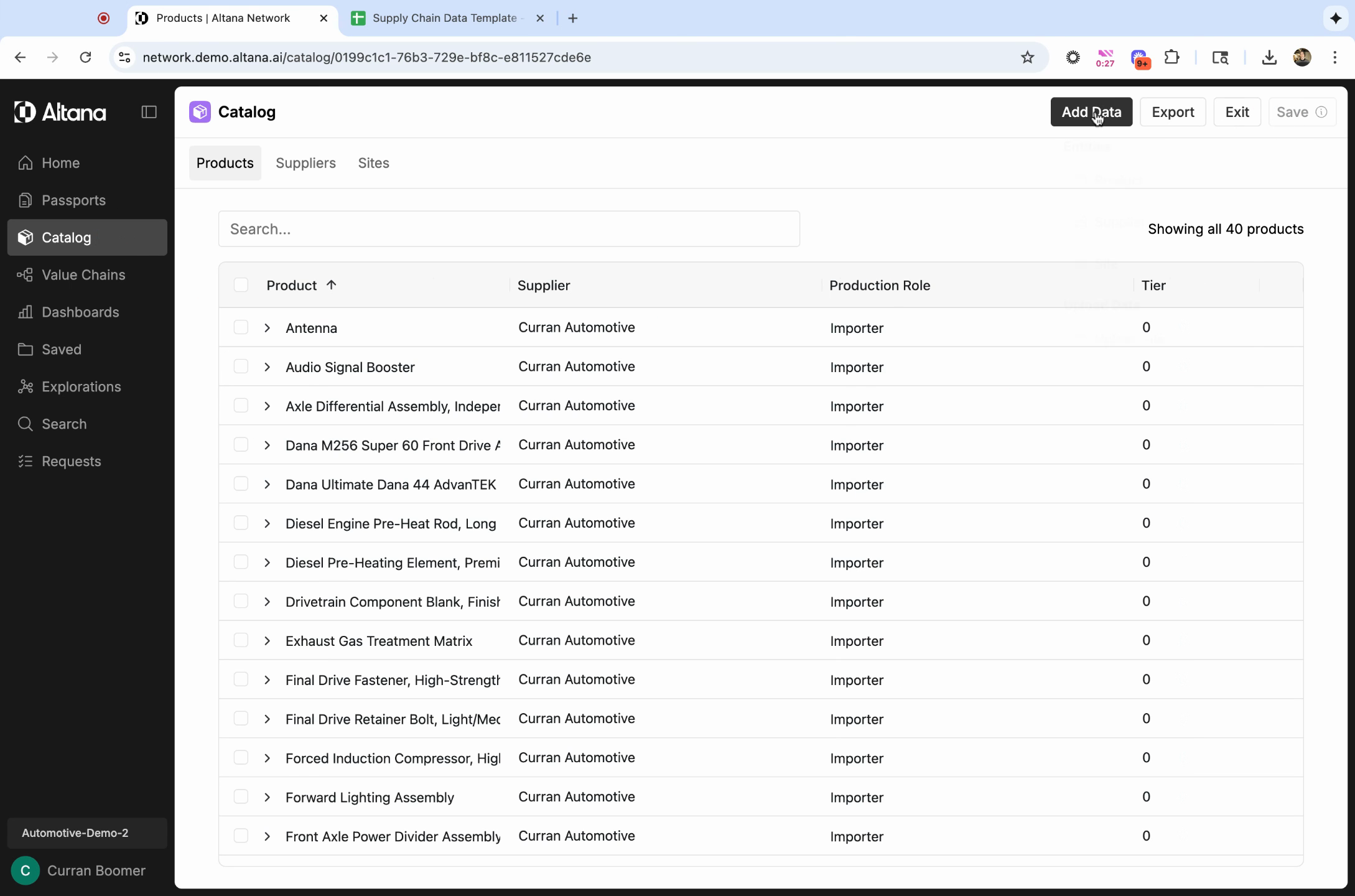
Step 3: Select Upload File to add data to your catalog by uploading a CSV.
You can also manually add data to the catalog by selecting Product, Supplier, or Site under Entities.
Step 4: In order to upload a CSV, your file must be formatted in a specific way. Click Download Template to get a CSV file with the exact format you need for import.
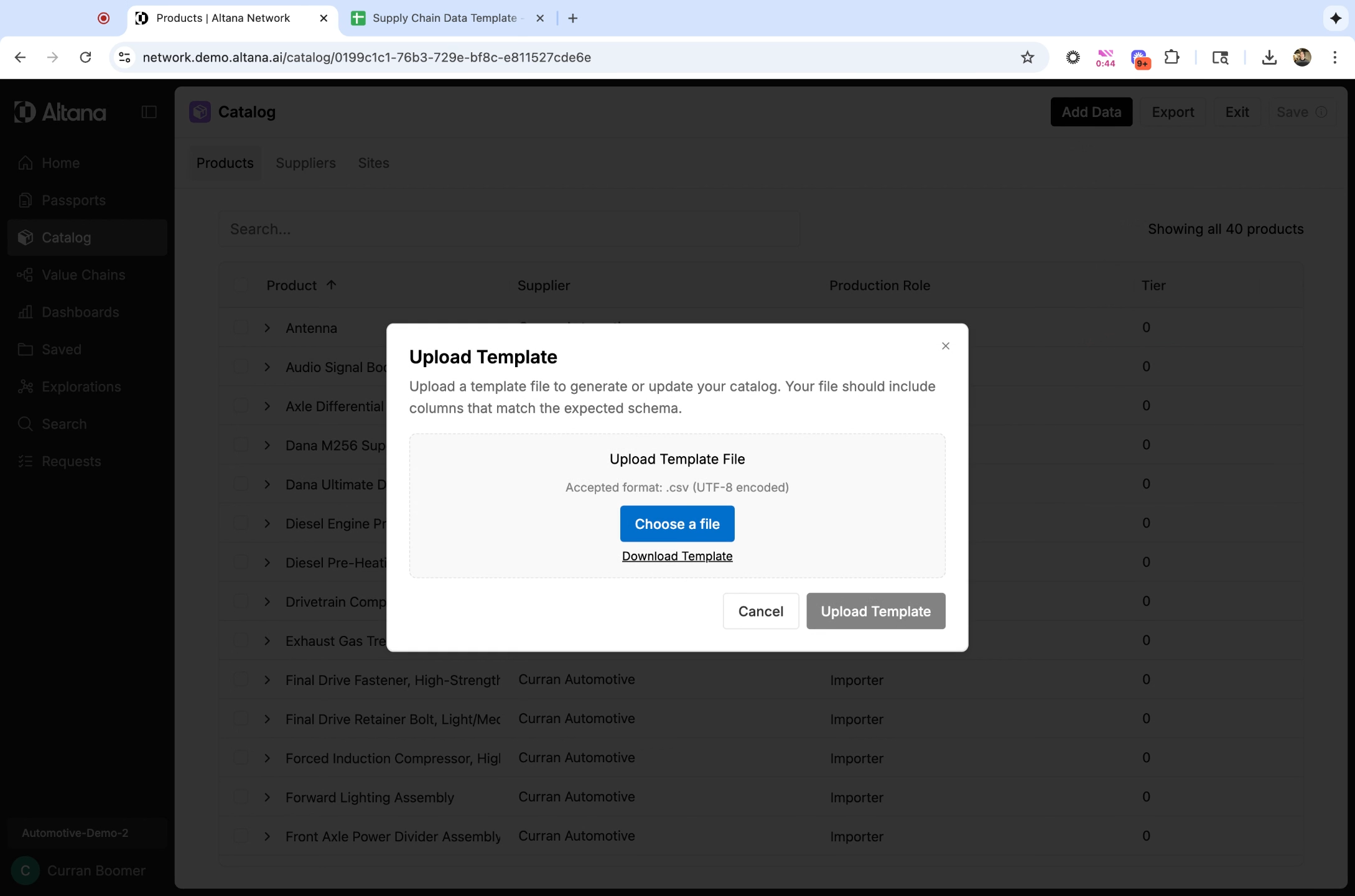
Step 5: Format your CSV according to the template.
In order to upload data into the system, you must provide data about your product (the finished good that you produce or procure), your Tier 0 site, as well as the T1 supplier(s) who supply you this product. If you have supplier data about tiers that are further upstream, we encourage you to provide that as well.
How to format your CSV
Rows: In your CSV, each row represents a separate product or input good. Where there is more than one product produced per supplier, please fill out an additional row with the same supplier information and new product-level values.
Columns: In your CSV, each column represents a different field in the Altana product catalog.
In order for your upload to process, you must include the following 11 columns:
(T0 Product) Finished Good Internal ID
(T0 Product) Finished Good Name
(T0 Site) Internal ID
(T0 Site) Name
(T0 Site) Address
(T1 Product) Input Good Internal ID
(T1 Product) Input Good Description
(T1 Product) Input Good HS Codes
(T1 Supplier) Internal ID
(T1 Supplier) Name
(T1 Supplier) Address
For every additional tier of information you want to add (e.g. Tier X), you must include the following six columns:
(TX Product) Input Good Internal ID
(TX Product) Input Good Description
(TX Product) Input Good HS Codes
(TX Supplier) Internal ID
(TX Supplier) Name
(TX Supplier) Address
You can add additional columns with additional fields, as long as these required columns are present.
For more information about how to format your CSV, review the Supply Chain Data Template. It includes with more instructions, field definitions, and an example template that can help you format your CSV.
Step 6: Once your CSV is ready and formatted correctly, use Choose File option to select the correct file and Upload Template to upload it into the catalog.
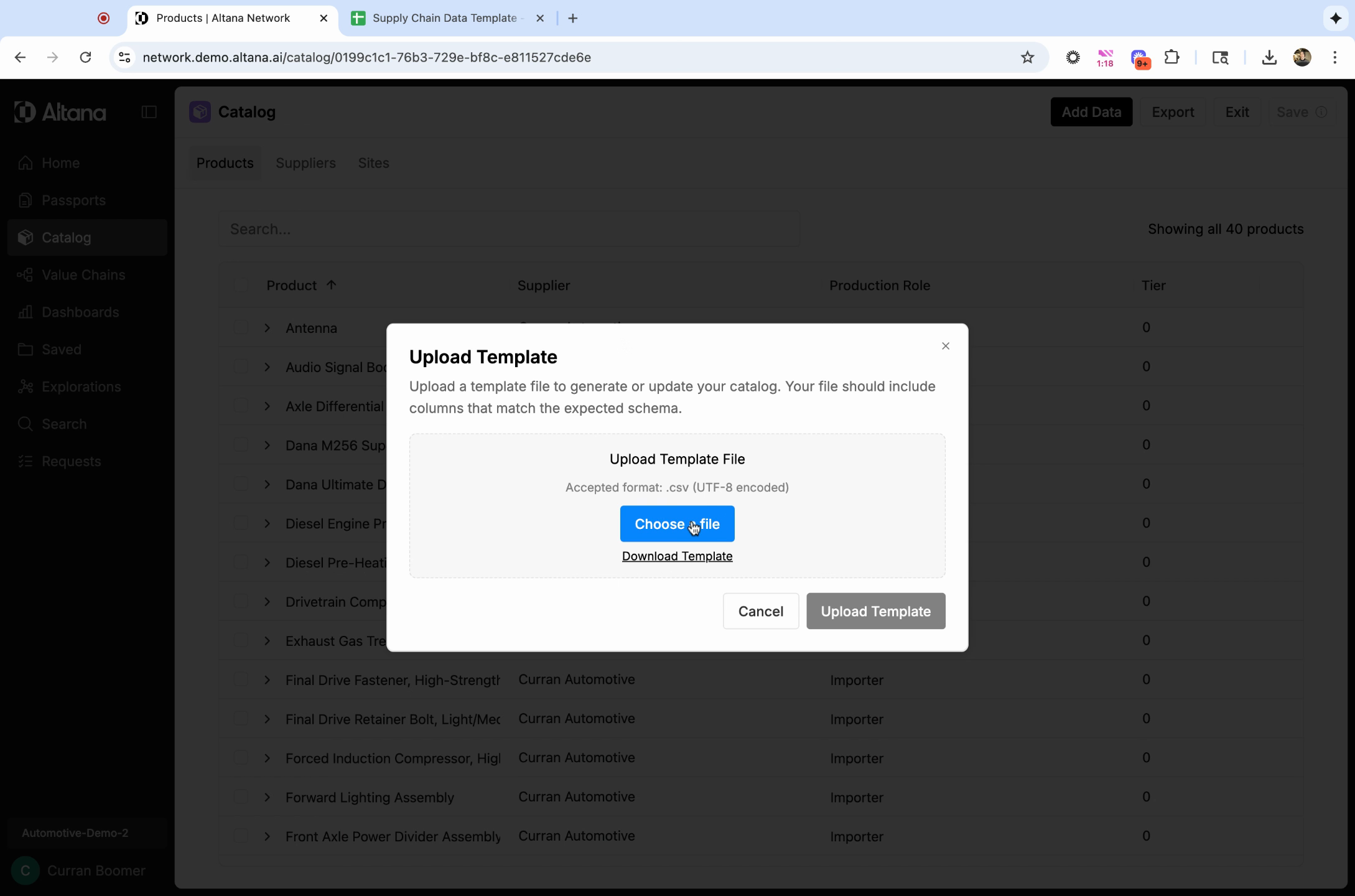
Step 7: The status of your upload will appear at the top of the catalog, and when it's finished will display the number of products and suppliers added.
To understand how an upload decides whether to create or update records, how to update data you have already loaded, and how to structure a multi-tier file, see How Catalog Uploads Work.
Optional columns you can add
Beyond the required columns, your file can carry extra information that Altana loads onto the matching record. These columns are optional — add them only when you have the data.
Supplier and site contact information
Add a Contact Info column to load business contacts for a supplier or a site. The contacts attach to the organization, not to the product, and Altana stores the contacts your file supplies rather than inferring any of its own. Email addresses are stored in lower case, and listing the same address twice in one cell is an error rather than a silent drop; How Catalog Uploads Work covers the rest of the load rules.
- Multi-tier files: use
(T1 Supplier) Contact Infofor a supplier,(T0 Site) Contact Infofor a site, and the same pattern for each additional tier. - Single-tier files: use
Contact Infoor(Supplier) Contact Info.
One cell can hold several contacts, so you never need more than one column per organization. Inside the cell:
- Write each field as
key=value, using the keysname,email, andphone. Each contact needs at least one of the three. - Join the fields of one contact with a caret (
^). - Join separate contacts with a pipe (
|).
Two contacts for one supplier look like this:
name=Jane Doe^email=jane@example.com|name=John Smith^phone=+1 555 0100|, ^, or =, percent-encode that character — %7C, %5E, %3D.
Fields with more than one value
A field of your own can hold a list rather than a single value, provided the field already exists in your catalog as a list field. A column Altana creates for the first time from your upload is created as a text field, and a bracketed cell in such a column is stored as literal text. On a list field, wrap the values in square brackets and separate them with a pipe:
[VENDOR-118|VENDOR-2049|VENDOR-3387]A single value needs no brackets — write it plainly.
Exports use a different, quoted form for the same values:
['VENDOR-118', 'VENDOR-2049', 'VENDOR-3387']Both forms load, so you can either edit an exported cell in place and re-upload it, or write the pipe form above by hand.
Trade compliance data in a single cell
Contact information is one of several columns that pack multiple records into one cell using the same key=value, ^, and | pattern. Product-level trade compliance data — country of origin, free trade agreement qualification, HS classification, partner government agency requirements, and material composition — follows the same shape. Ask your account team for the field reference if you plan to load any of these.