
Colombian Coffee Sourcing Analysis
This tutorial explains how to find a specific company's upstream suppliers and obtain important sourcing information such as per unit cost for comparison. The example used is Starbucks.
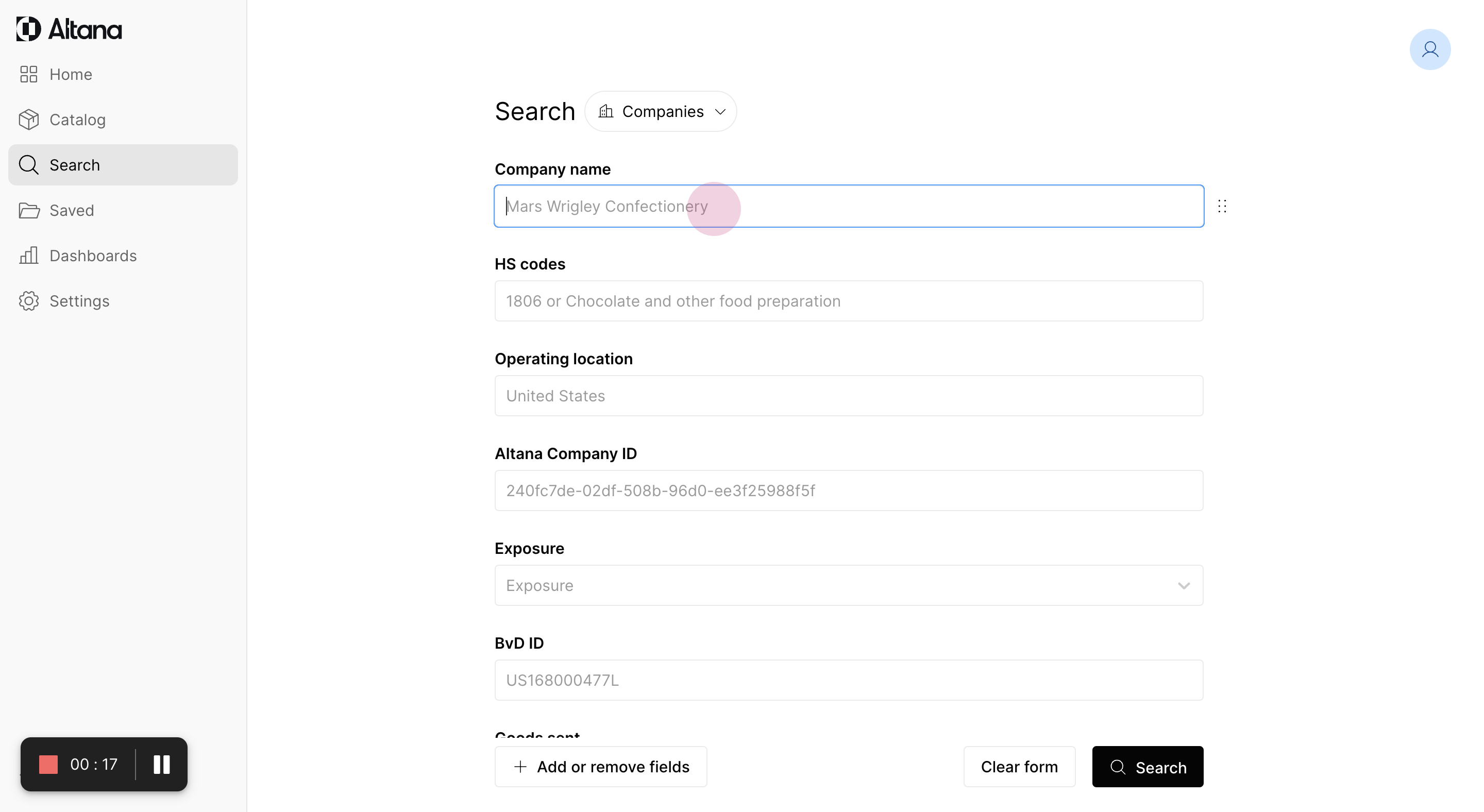
Step 1: Enter the company name, Starbucks, to display its suppliers.
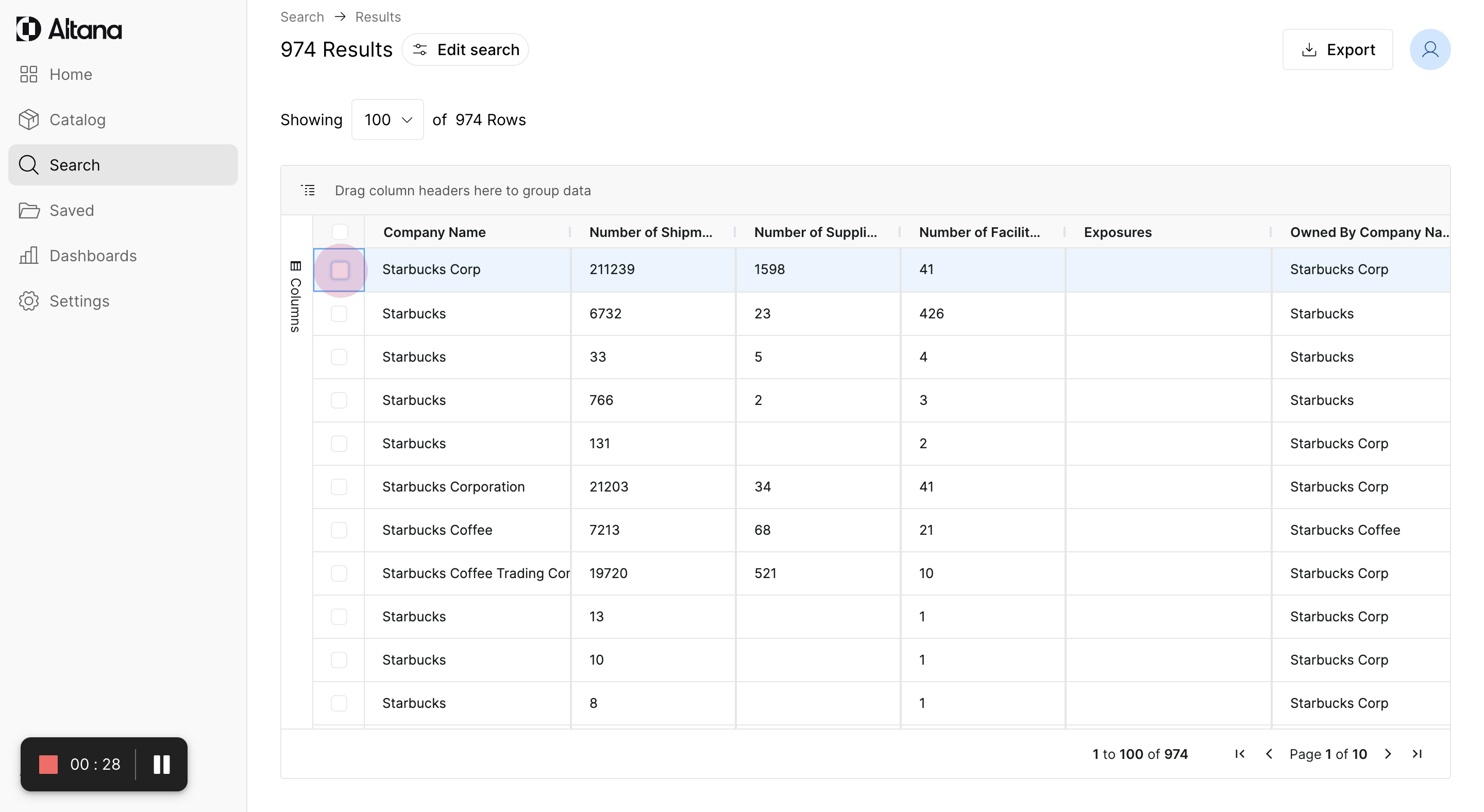
Step 2: Choose the first result, Starbucks Corp, and explore the selection.
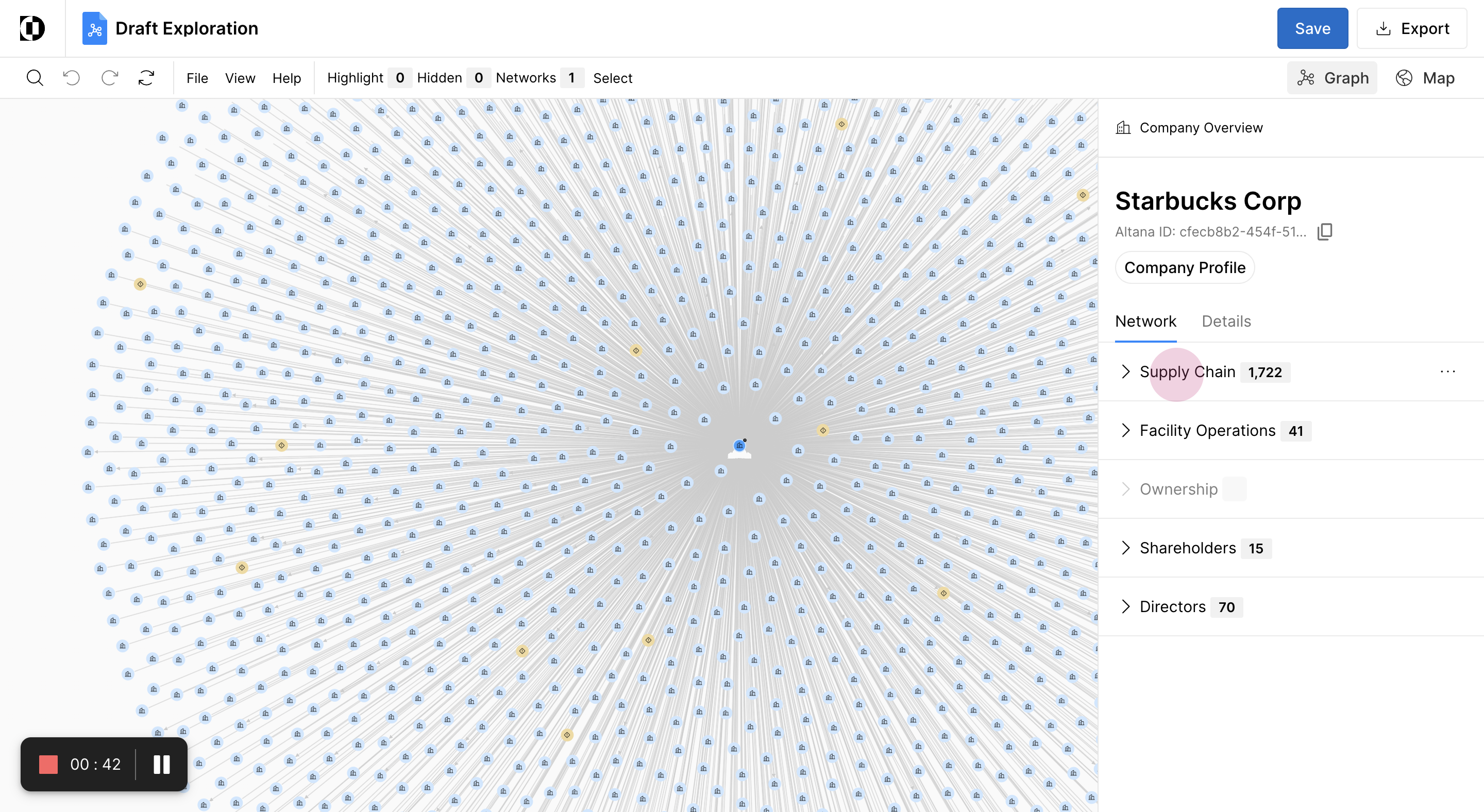
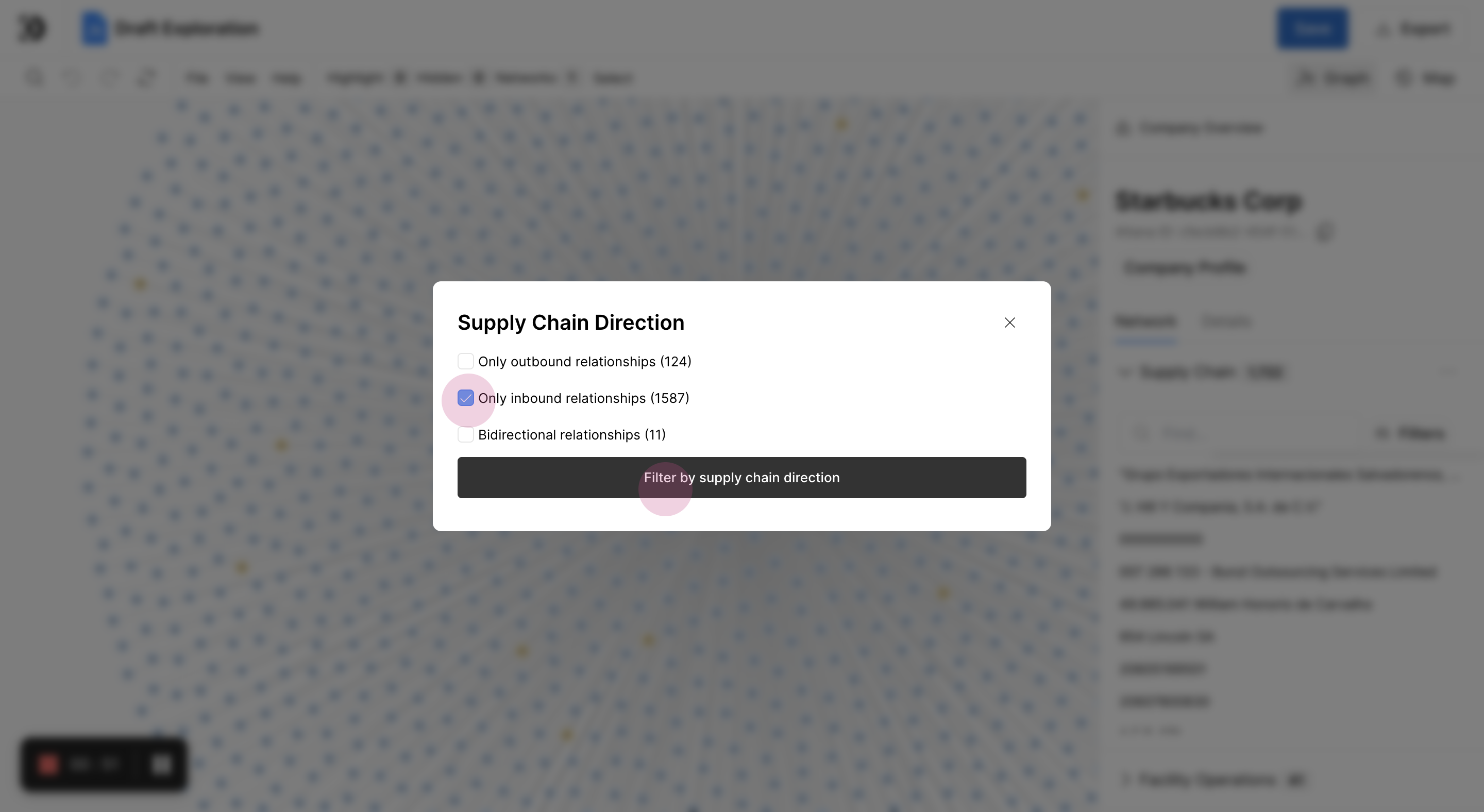
Step 3: In order to reduce the number of suppliers, click the Supply Chain tab and apply a filter on inbound shipments.
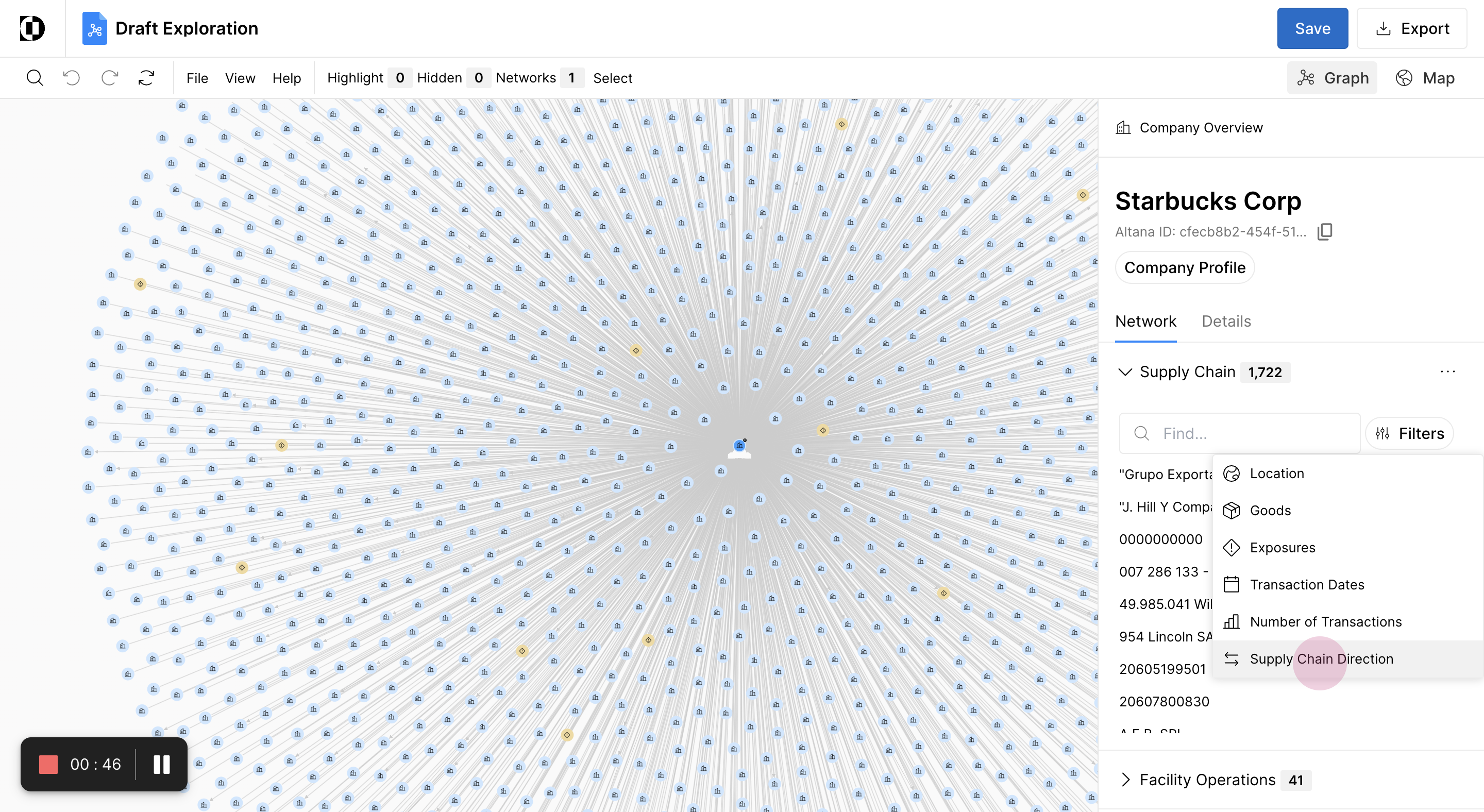
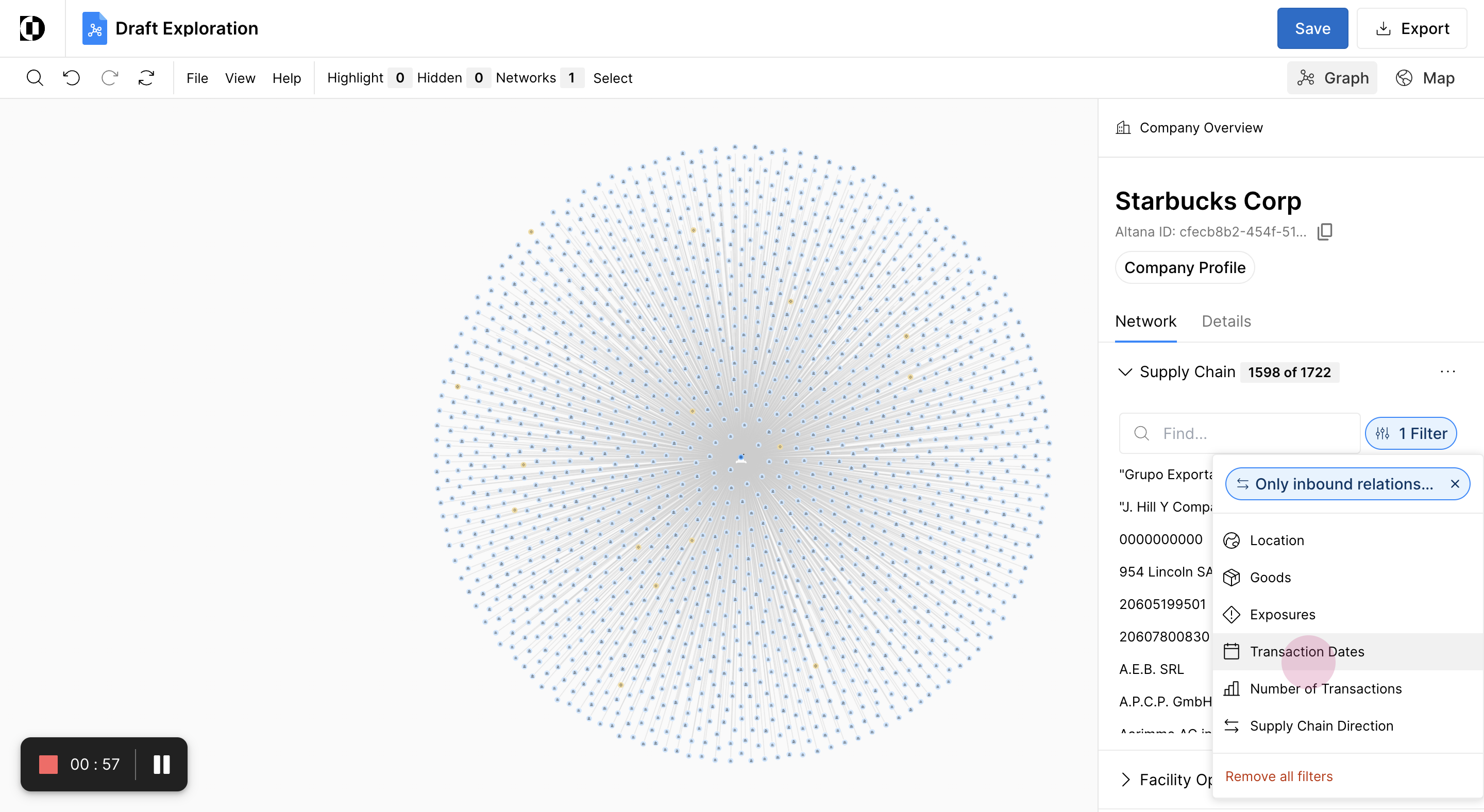
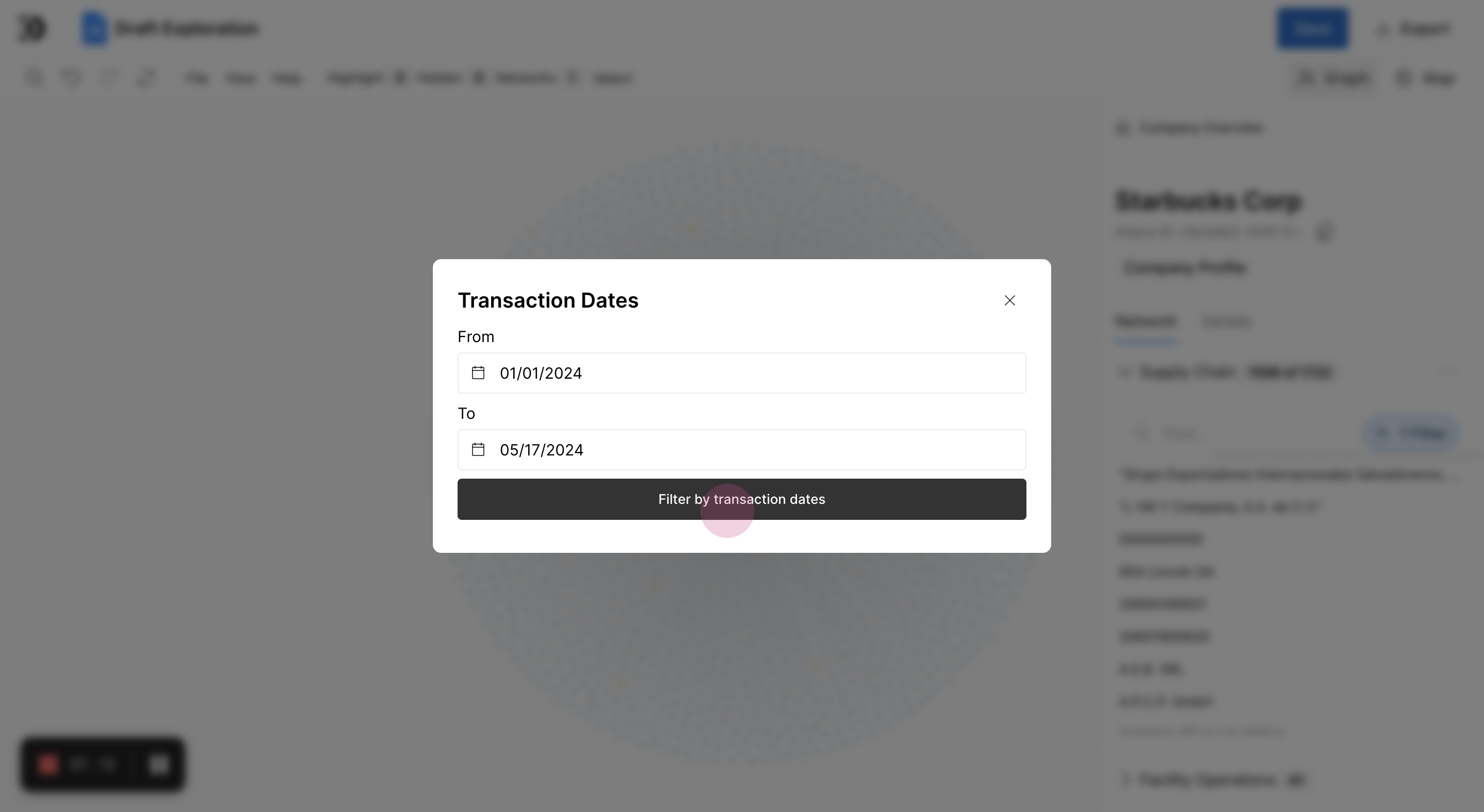
Step 5: Filter by transaction date, choosing only shipments that occurred within 2024.
Step 6: Adjust the date range from 2016 to January 1st, 2024 and apply this filter.
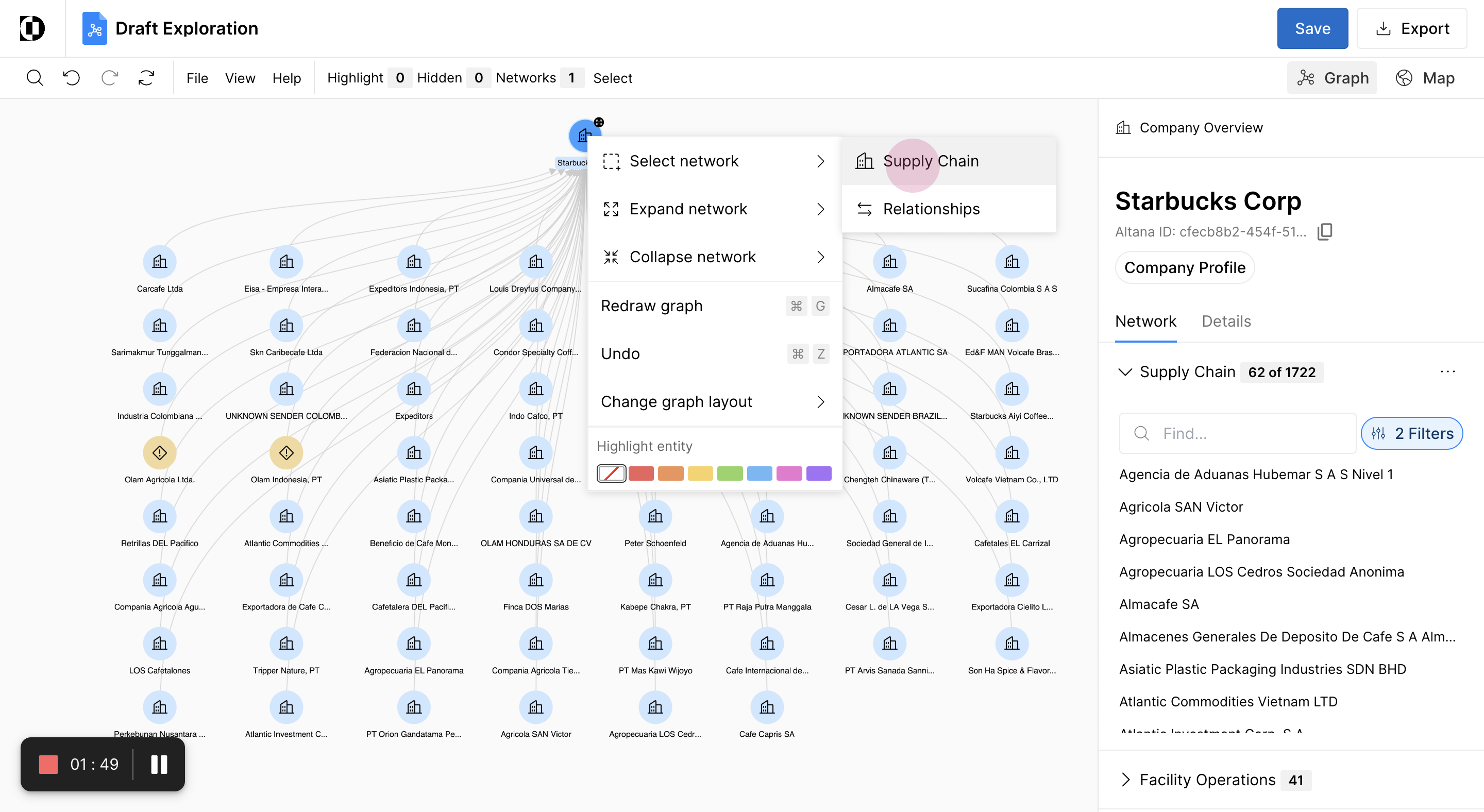
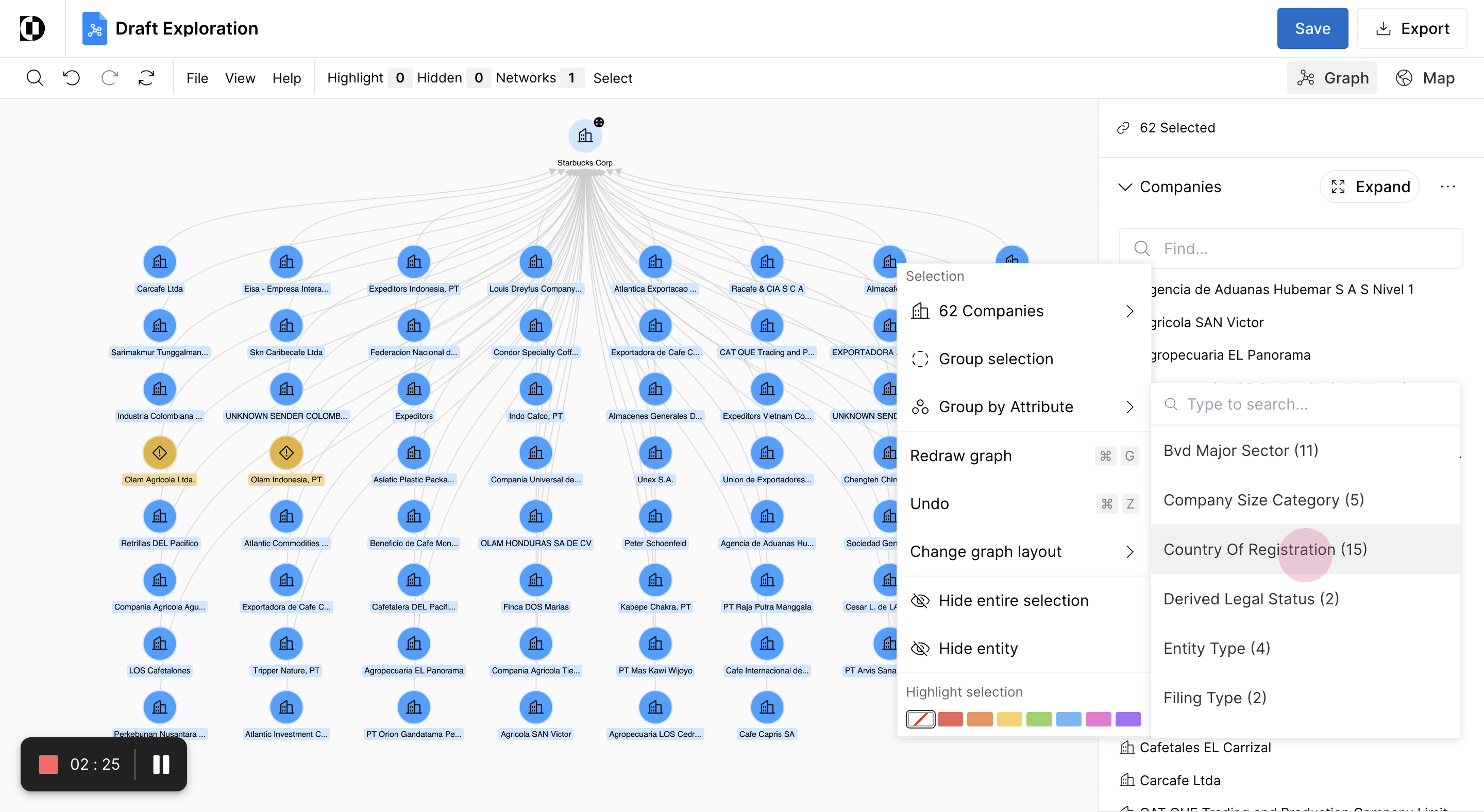
Step 8: Highlight all transaction relationships and group the shipment transactions by selecting the supply chain network and grouping the companies by attribute, in this case you are looking to group the companies by 'Country of Registration'.
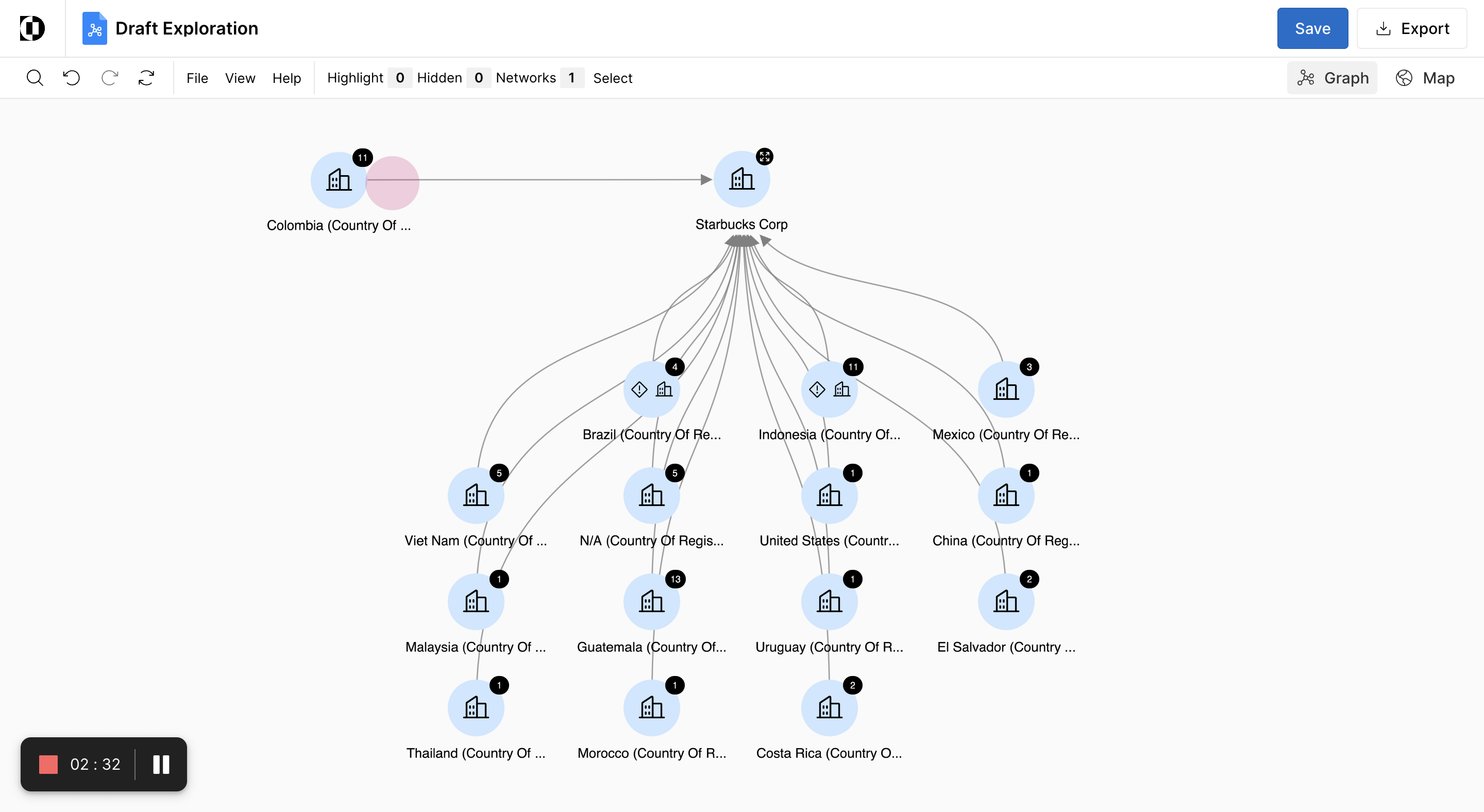
Step 10: Group the companies by country of registration, focusing on Colombian coffee exporters.
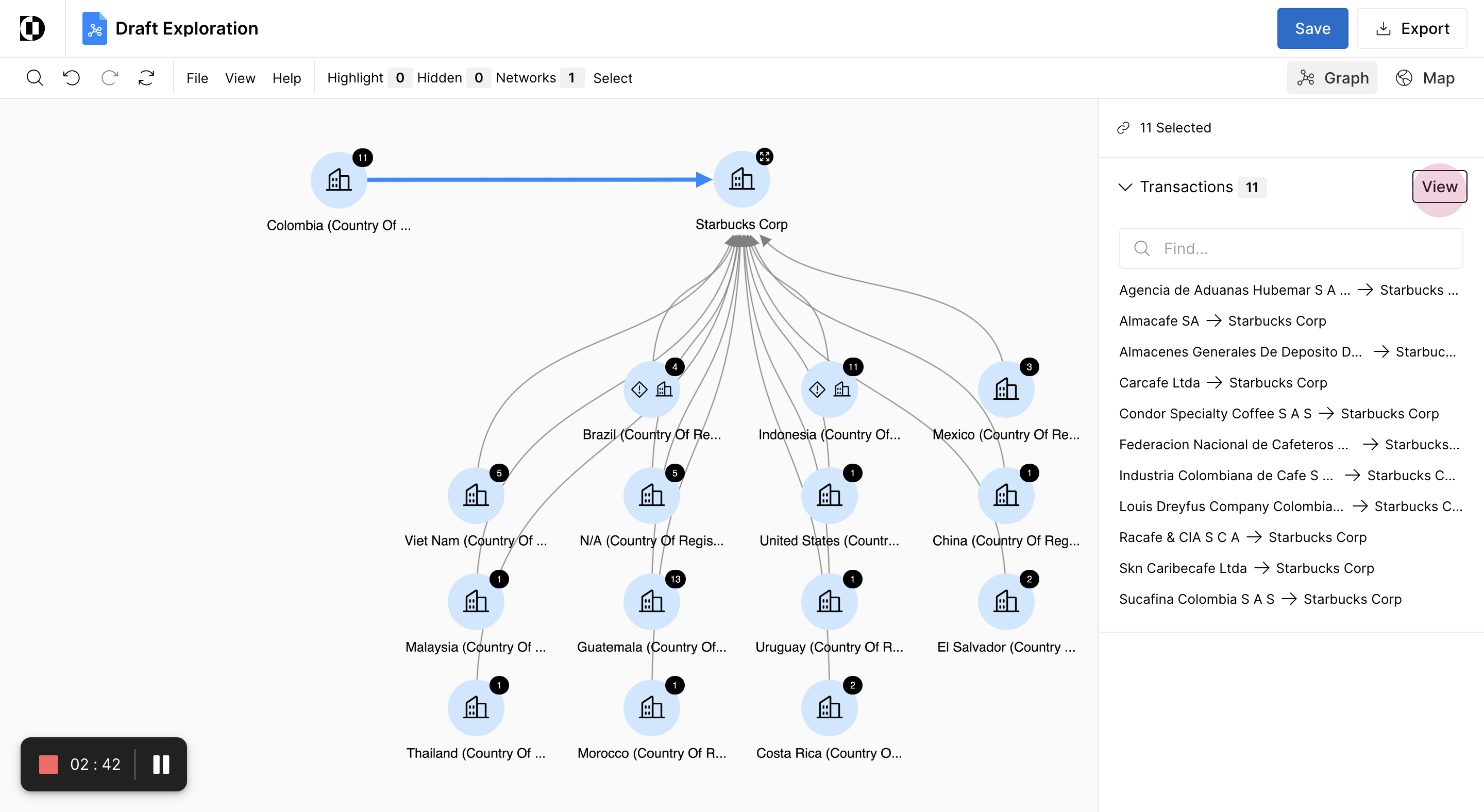
Step 11: View the suppliers from Colombia that are sending coffee to Starbucks by selecting the transaction edge.
Step 12: Select 'View' to further analyze the transactions in the shipment tray.
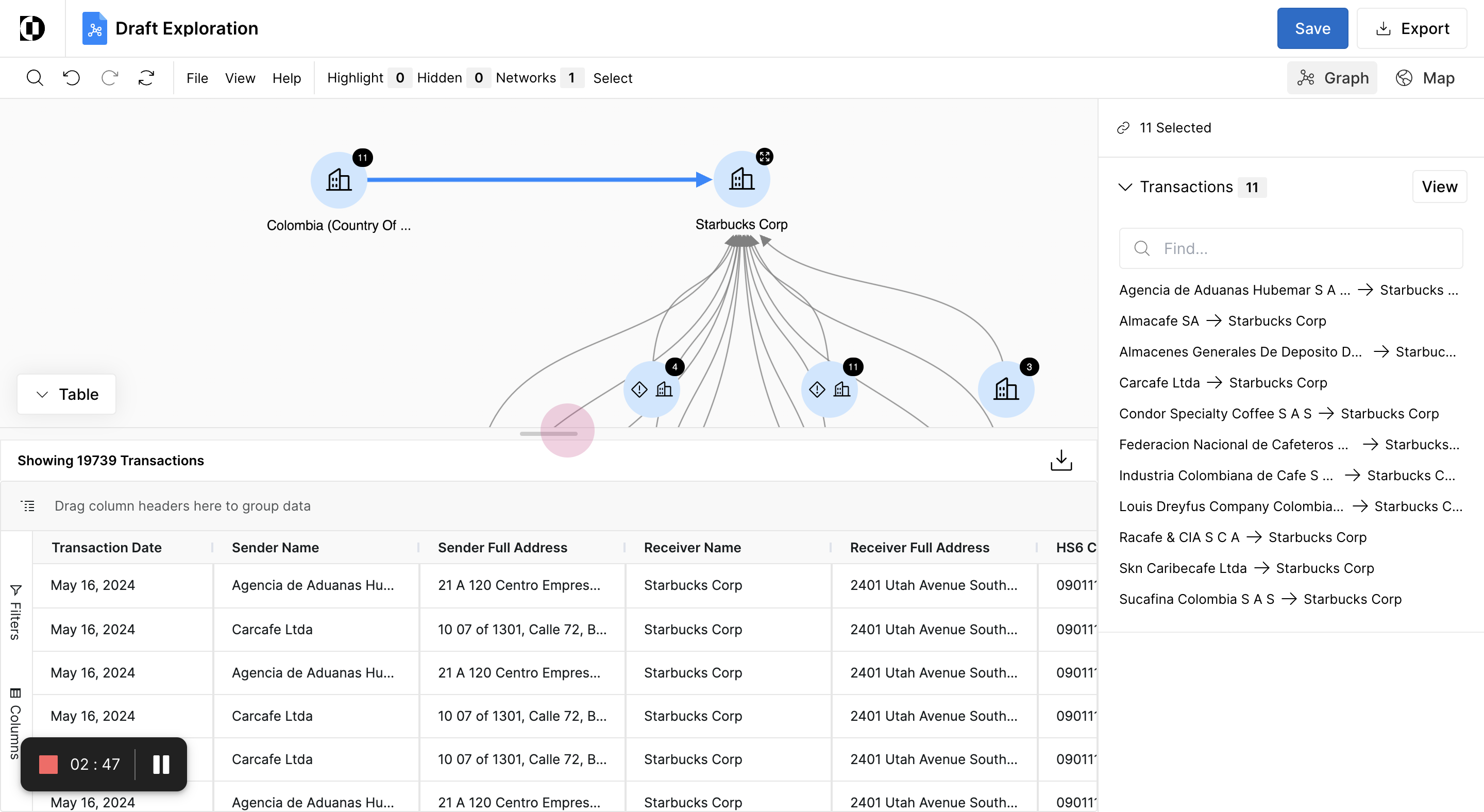
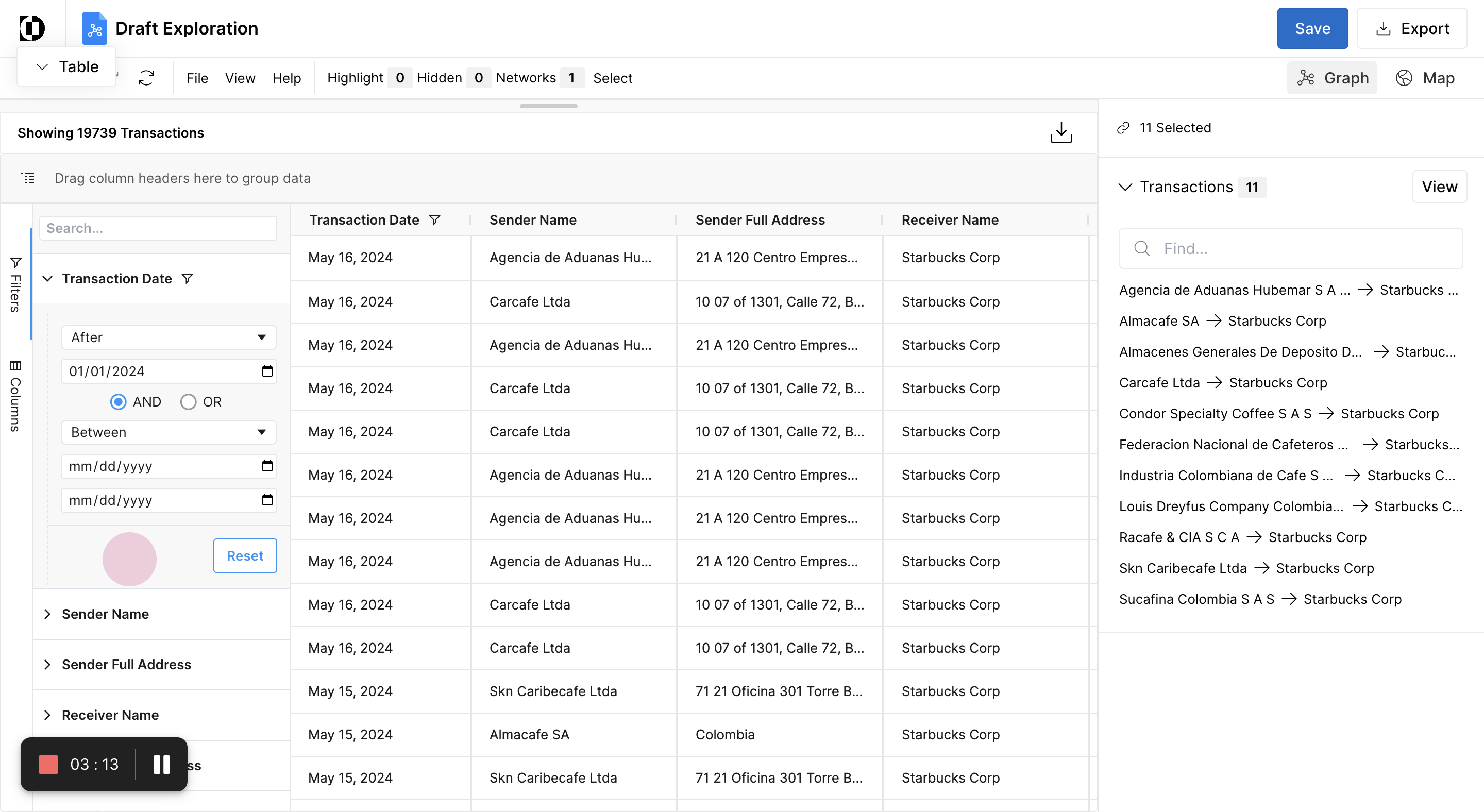
Step 13: Filter by the transaction date, selecting anything that occurred after January 1, 2024.
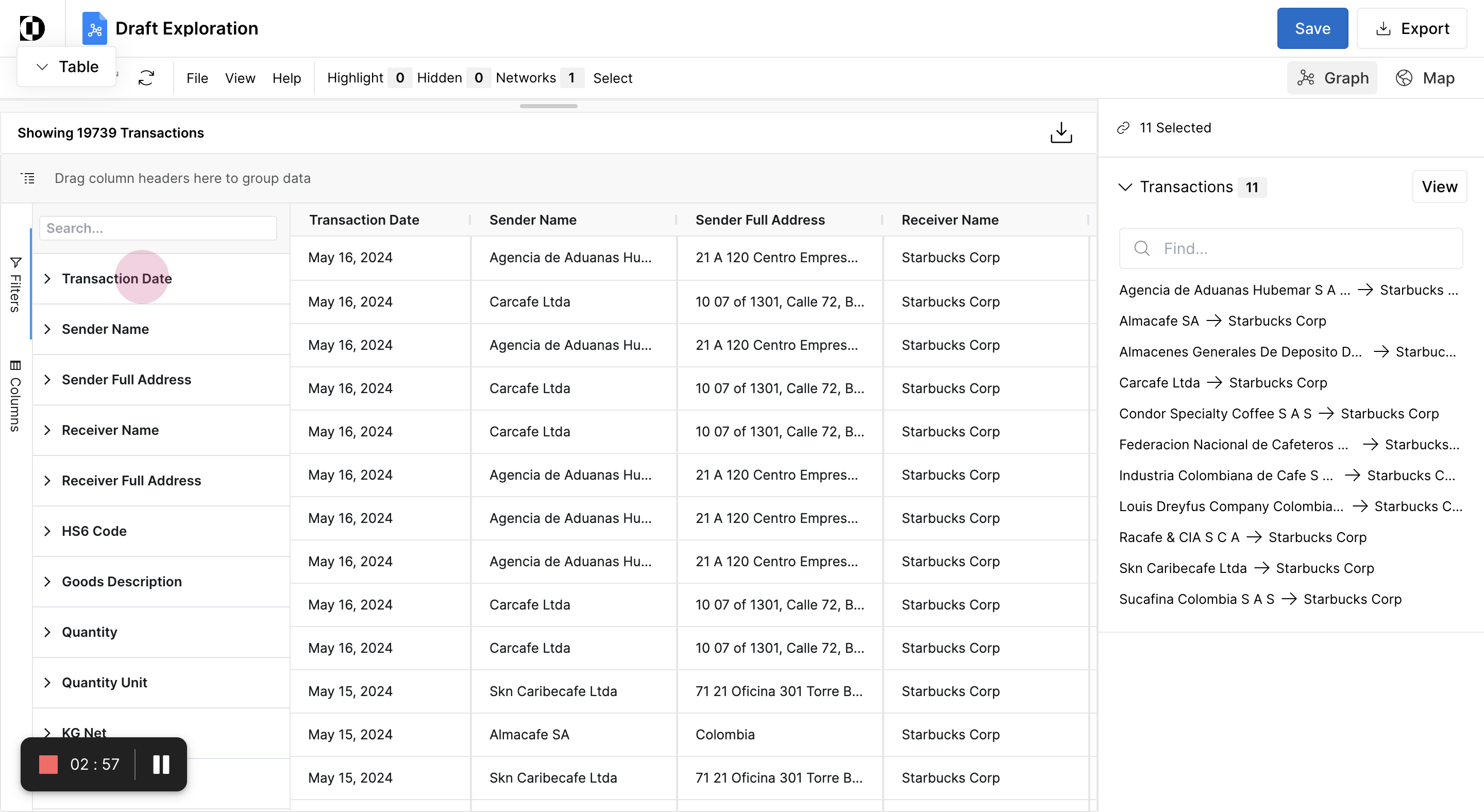
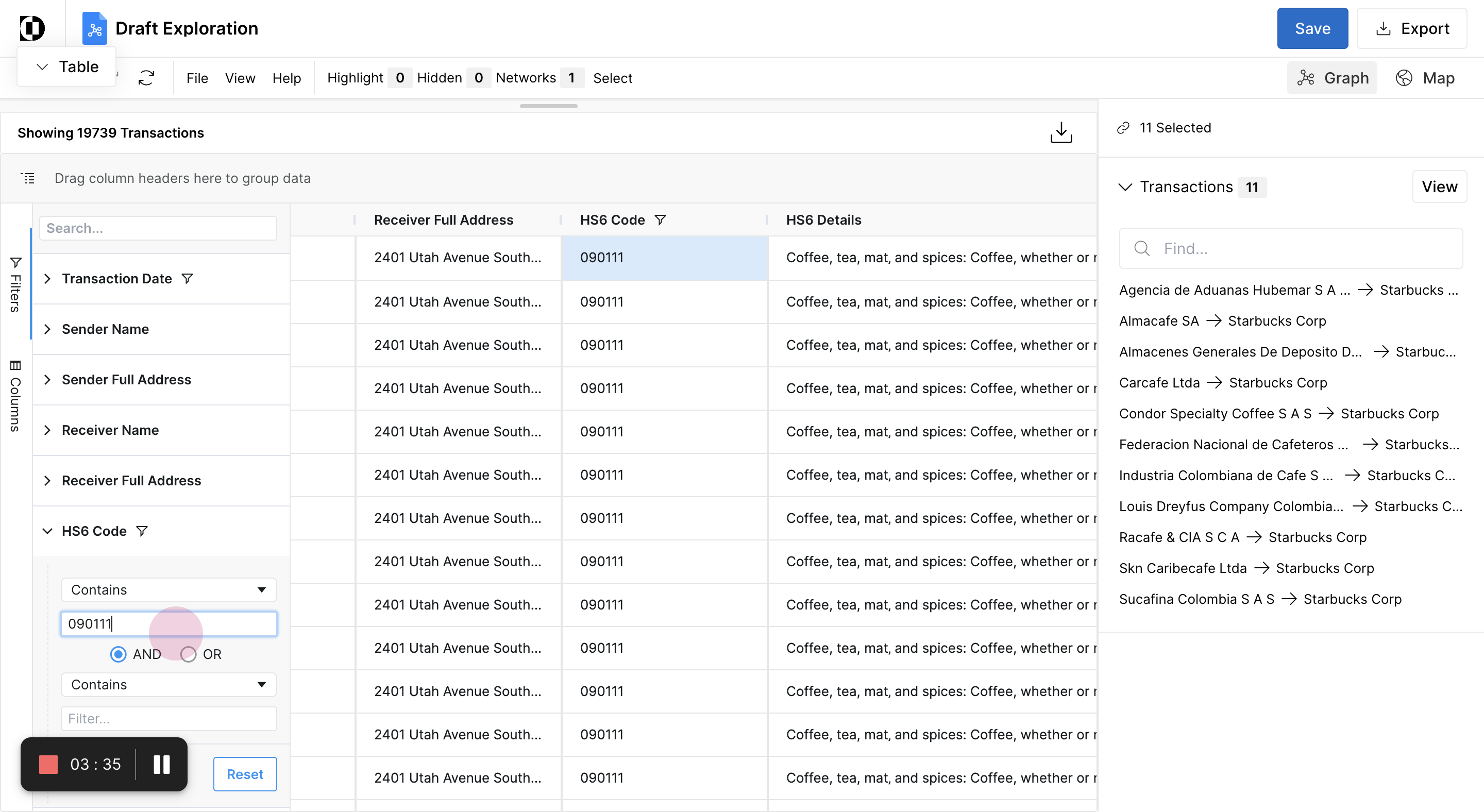
Step 14: Apply an additional filter for the HS code related to coffee.
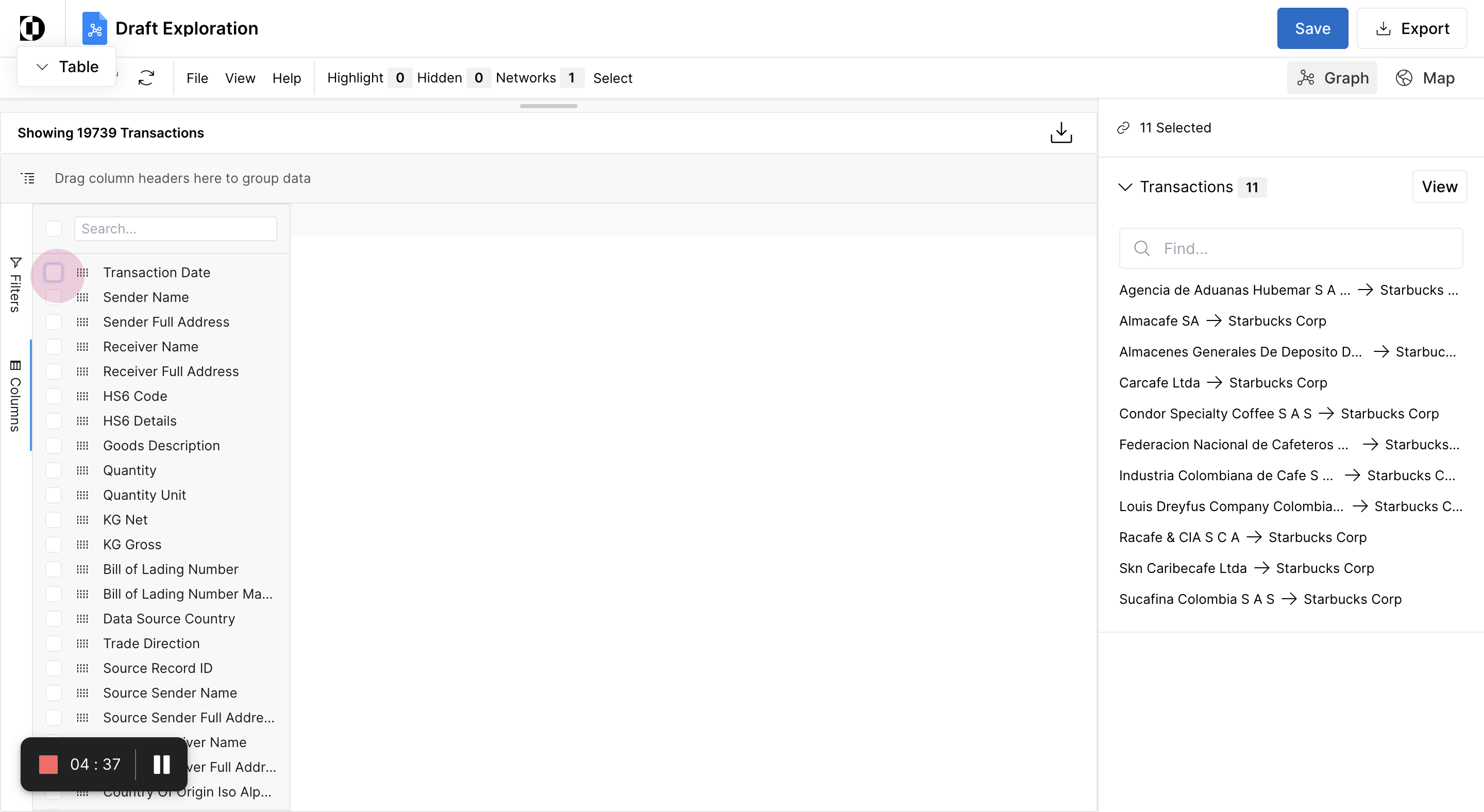
Step 15: Extract data fields of interest, such as sender name and estimated price per unit.
Step 17: Download the information into an Excel file and load the file.
Step 18: Apply a pivot table in the Excel file to compare the average estimated price per unit of each supplier from Colombia.