
Browsing & Filtering the Catalog
The Catalog can hold thousands of products, suppliers, and sites. Before you analyze anything, you narrow it to what you care about — by choosing which columns to show and by applying filters. This is also the first step in building a workspace: you scope the data here, then save that scoped view.
From the full Catalog walkthrough — opens at Browsing & filtering (1:16).
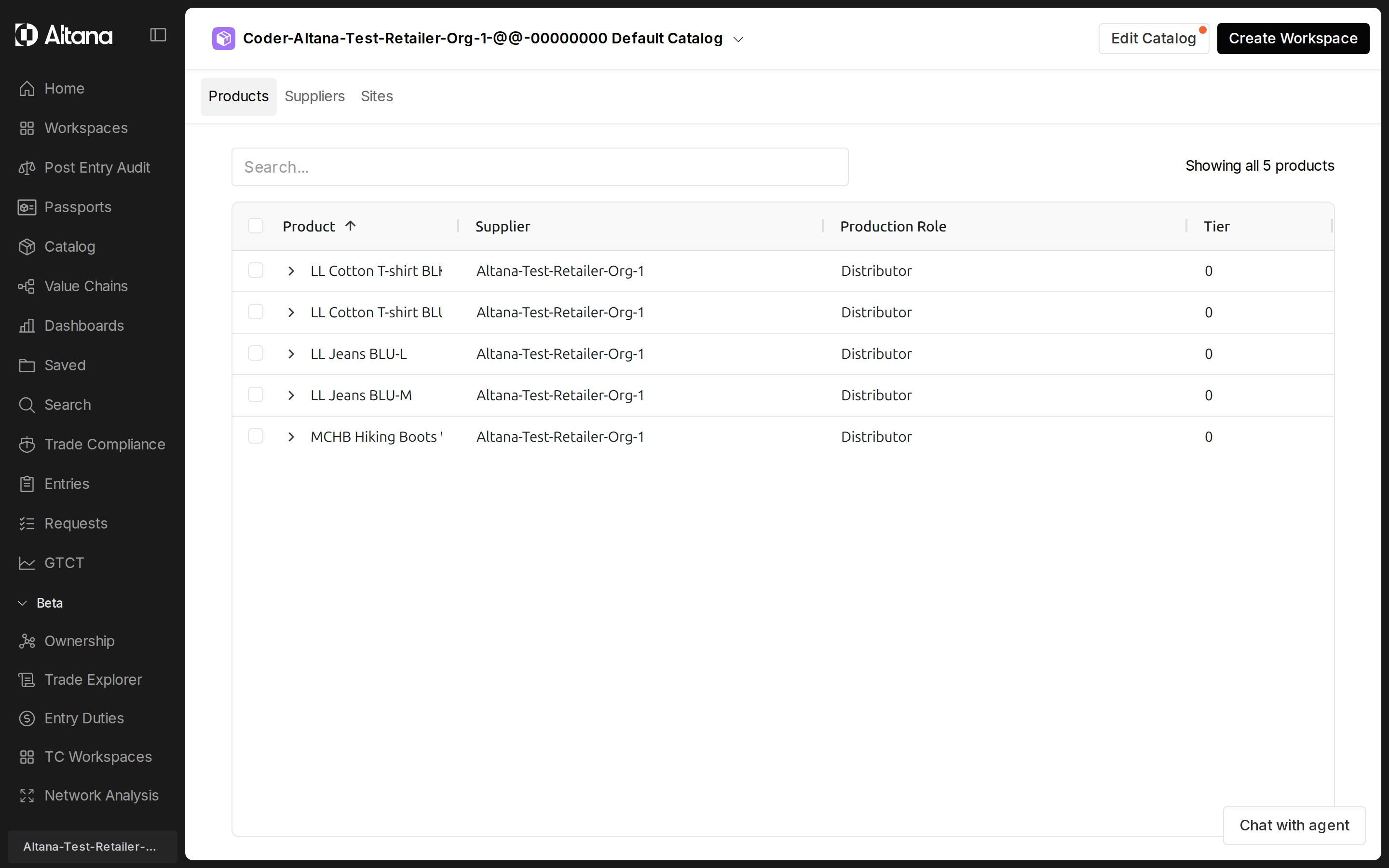
Choose your columns and custom fields
Open the Columns panel (top-right) to control what each table shows. You can:
- Toggle standard fields on or off.
- Toggle custom fields on or off — your organization's own attributes appear here (for example, Finished Good Custom Field 1/2, Risk Score, Unit Price, Category, Color, Is Eco Friendly, Product Annual Revenue).
- Reorder columns by dragging their handles.
You can also scroll a table horizontally to discover additional columns beyond the ones shown by default.
Apply filters
Use the Search box above each view to quickly narrow products, suppliers, or sites, and switch scope with the Products, Suppliers, and Sites tabs — the supplier view further splits into All Suppliers, Linked, and Needs Review. For richer, multi-field filtering — including your custom fields — scope the data into a workspace, where filters are organized into groups by view (Finished Products, Input Products, All Products, T1 Suppliers, All Suppliers, and Sites) with an Add [view] Filter option for any field.
Common filter behaviors:
- Text and category filters (for example, Category = clothing) apply as a removable pill, and the Filters button shows an active-count badge.
- Tier is a multi-select checkbox list (Tier 0–5) with an Apply button.
- Country is a checkbox list of country codes (for example, CN) with Apply.
Products can be filtered by Name, Description, HS6 Code, Aggregate Product, Tier, and Network Type. Suppliers can be filtered by Country, Organization Name, Address, Tier, and Network Type.
Filters are cross-cutting
Filtering one entity type narrows the connected ones too. If you filter T1 Suppliers by Country = China, the connected products and sites narrow with it, and every view's count updates together. This lets you scope the whole network from any starting point.
View your verified network
Apply Network Type = Verified to a supplier view to see only confirmed relationships — for example, narrowing All Suppliers from 2,973 to 416. Switch to Suggested to see the relationships Altana has inferred but that are not yet confirmed, which are more common at deeper tiers.
Key terms
- Network Type — Verified (confirmed) vs. Suggested (inferred by Altana, not yet confirmed).
- Tier — how many steps removed an item is in the supply chain (Tier 0 = your own finished good).
- Custom field — an organization-specific attribute, available in both the Columns and Filters panels.