
Accepting a Collaboration Request
In this article we'll cover how to accept a request to collaborate from another business. In this example, we're a supplier responding to a request to collaborate from one of our buyers.
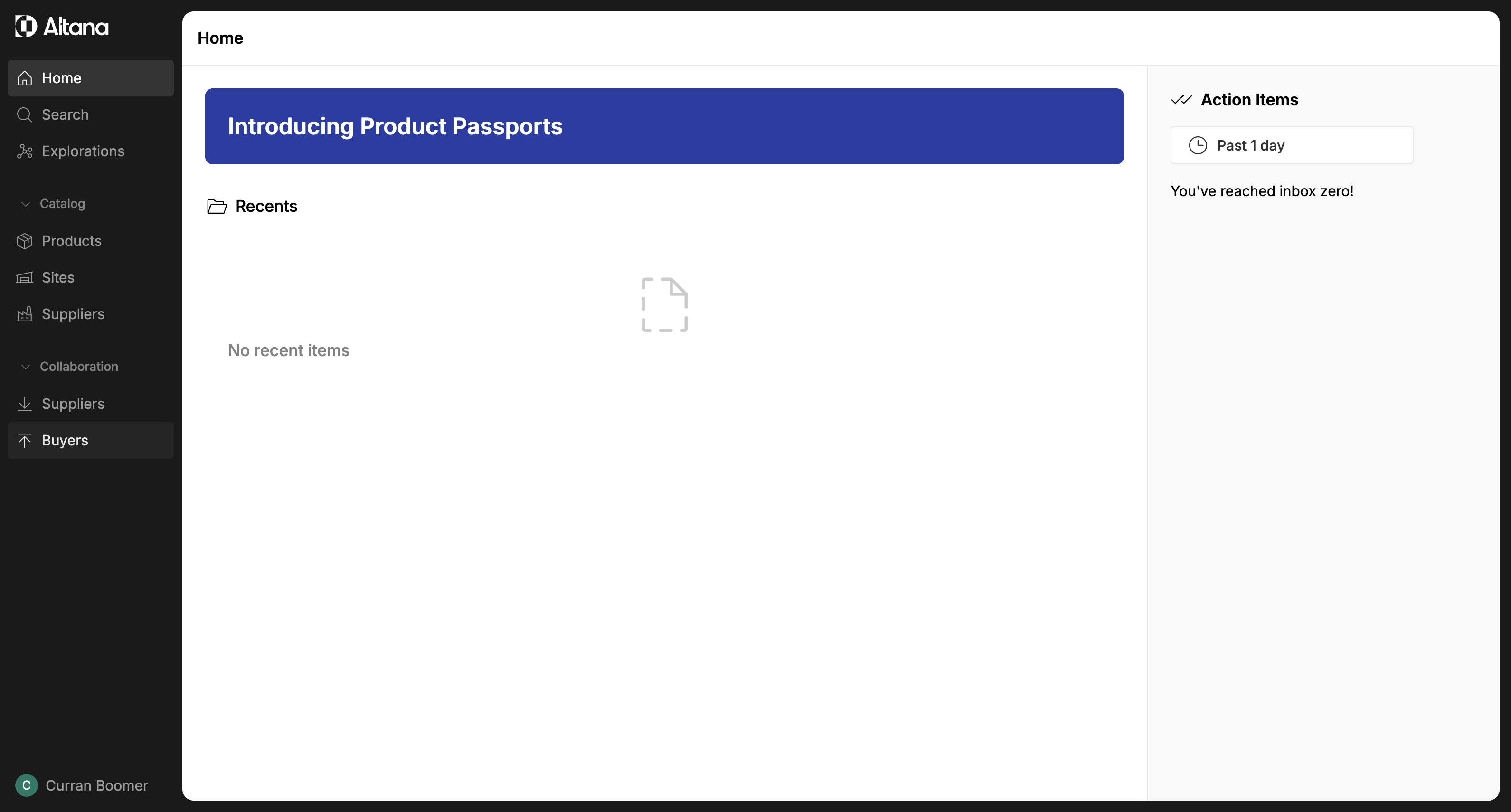
Step 1: Navigate to the Collaboration section from the homepage. Click on Buyers in the left-hand menu.
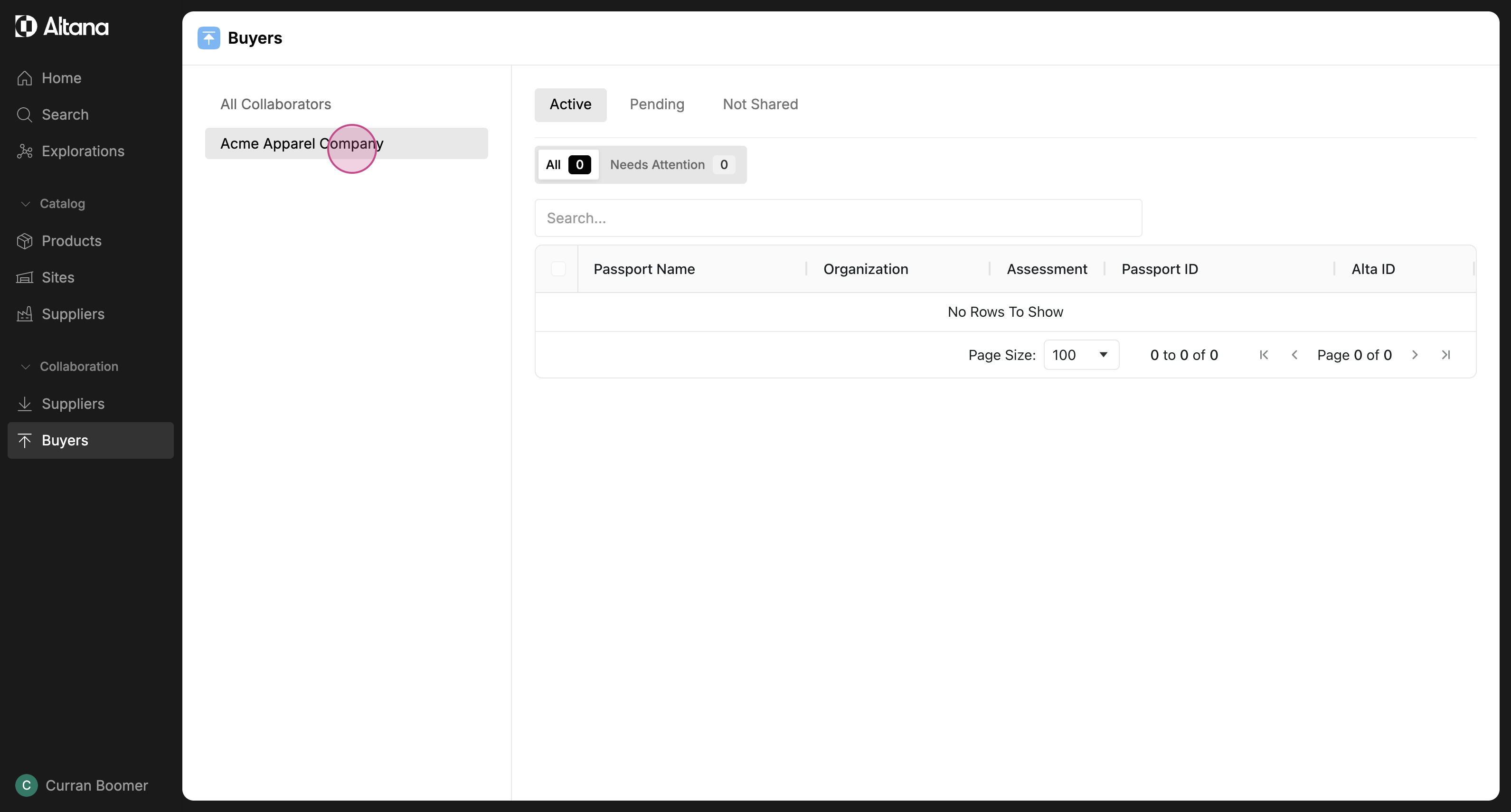
Step 2: Select the buyer you wish to collaborate with.
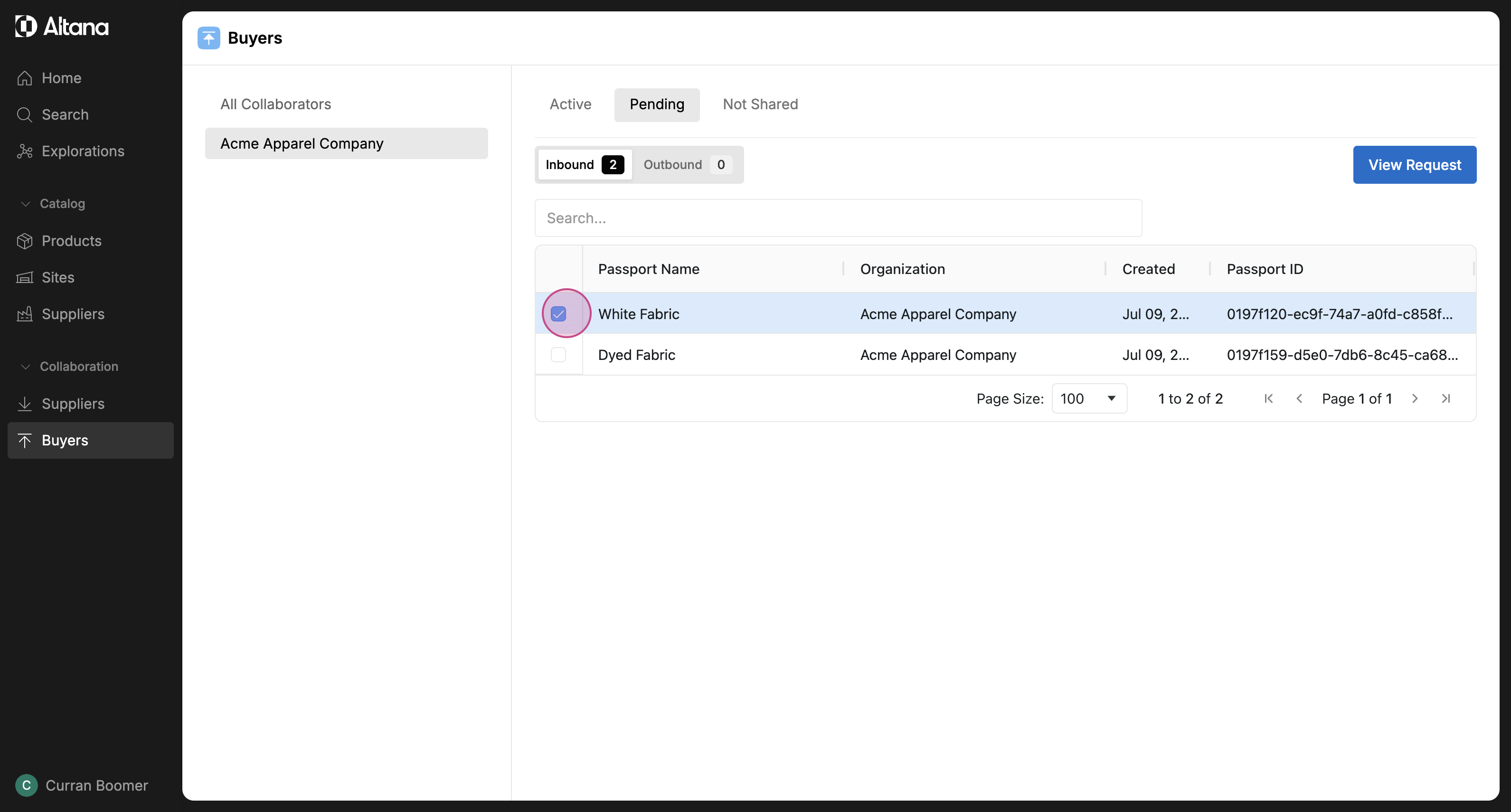
Step 3: Under the Pending tab, view the inbound requests from the selected buyer. Click on the product passport you wish to collaborate on.
In this case we have two requests from our buyer. We'll click on White Fabric first.
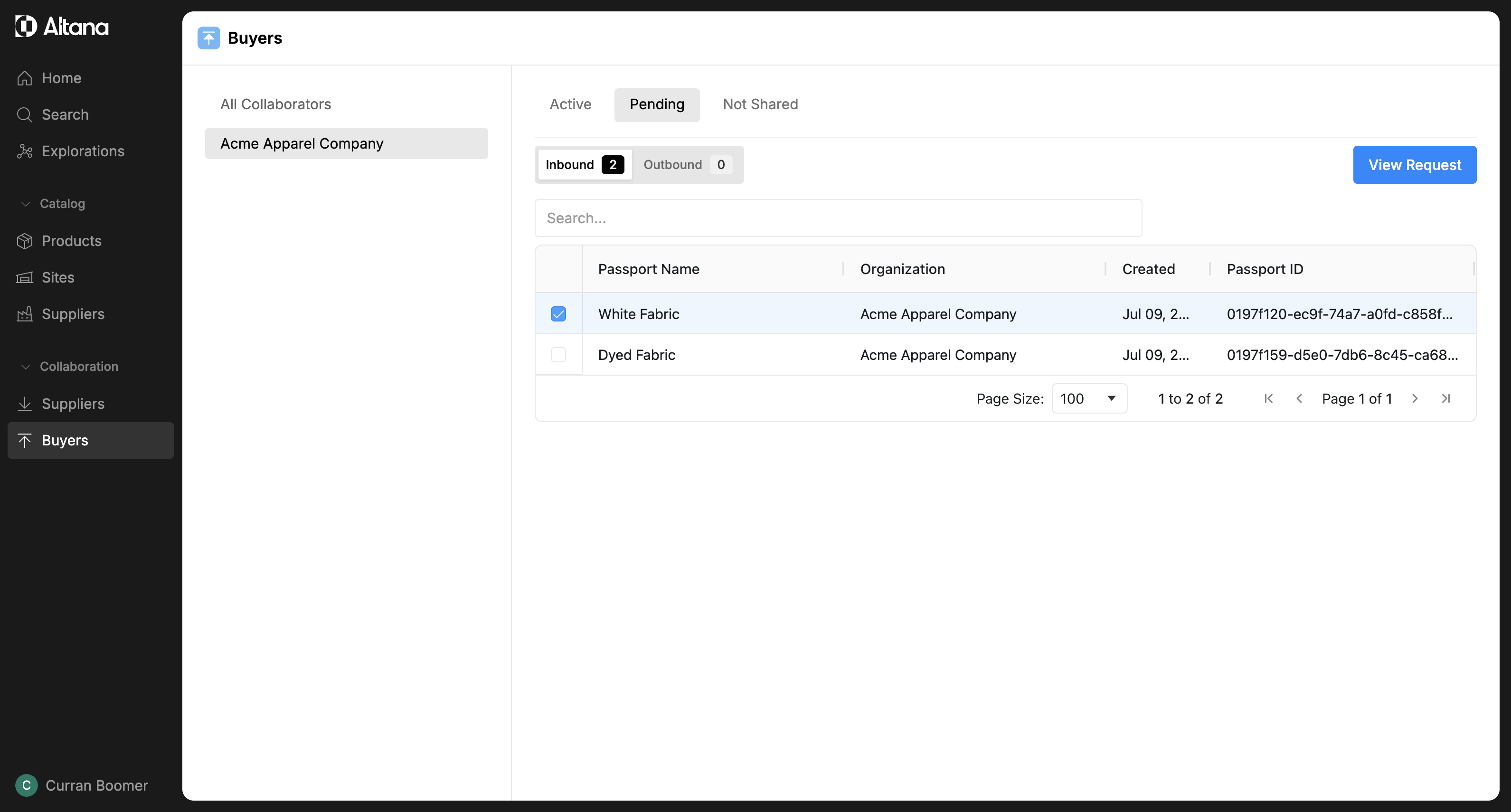
Step 4: Click on View Request.
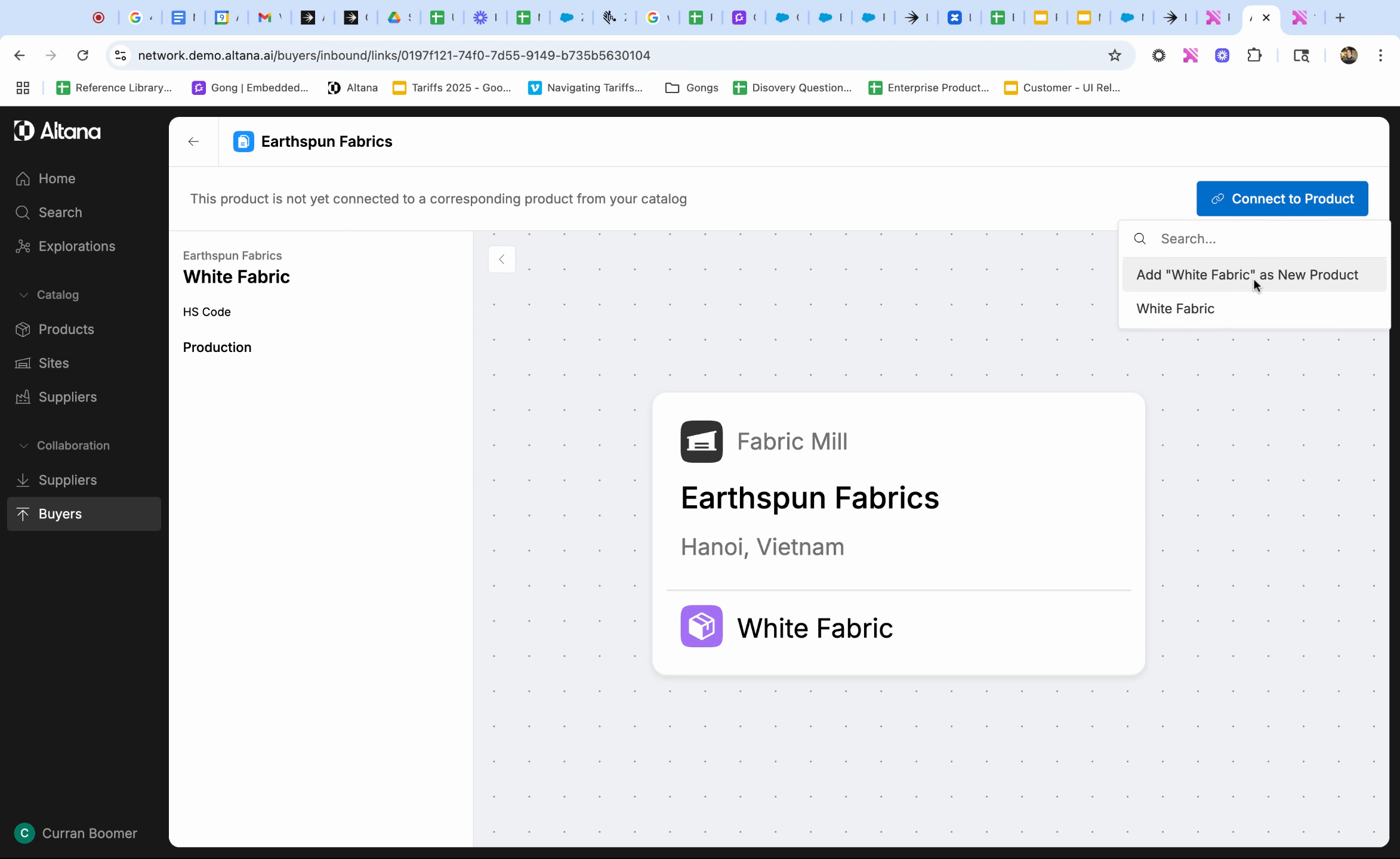
Step 5: To start collaborating, connect this product passport to a product in your catalog by clicking on Connect to Product. You can either link this product to an existing product in your catalog, or add a new product if it doesn't yet exist in your catalog.
In this example, we will link it to the existing White Fabric product.
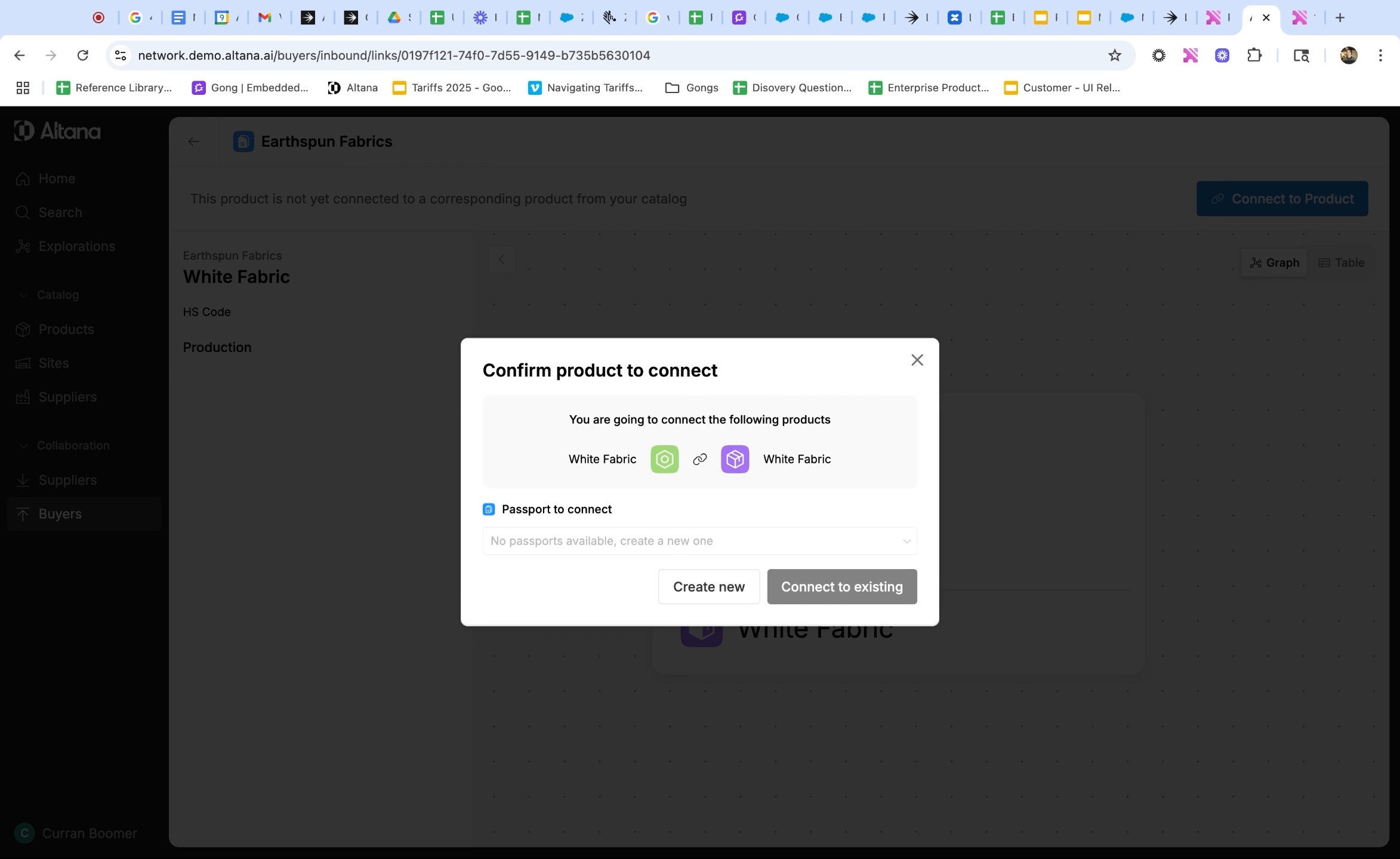
Step 6: Confirm the product in your catalog to connect to the product being shared with you. To start sharing product information, you'll need a product passport for the product in your own catalog. If passport already exists for this product, select Connect to existing. If a passport hasn't been created already, select Create new.
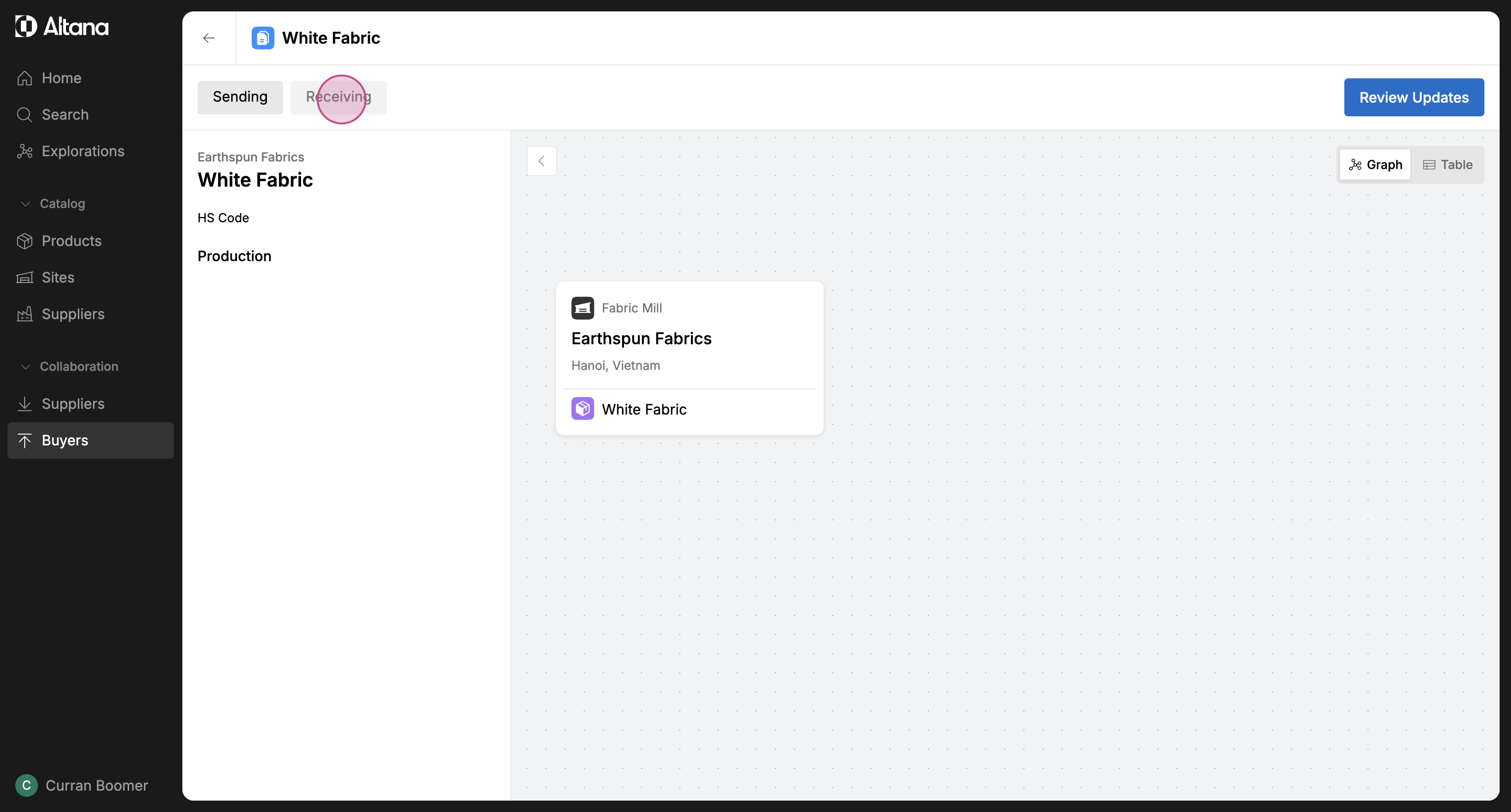
Step 7: Review the newly created product passport. Under the Receiving tab, you can view the information received from your buyer.
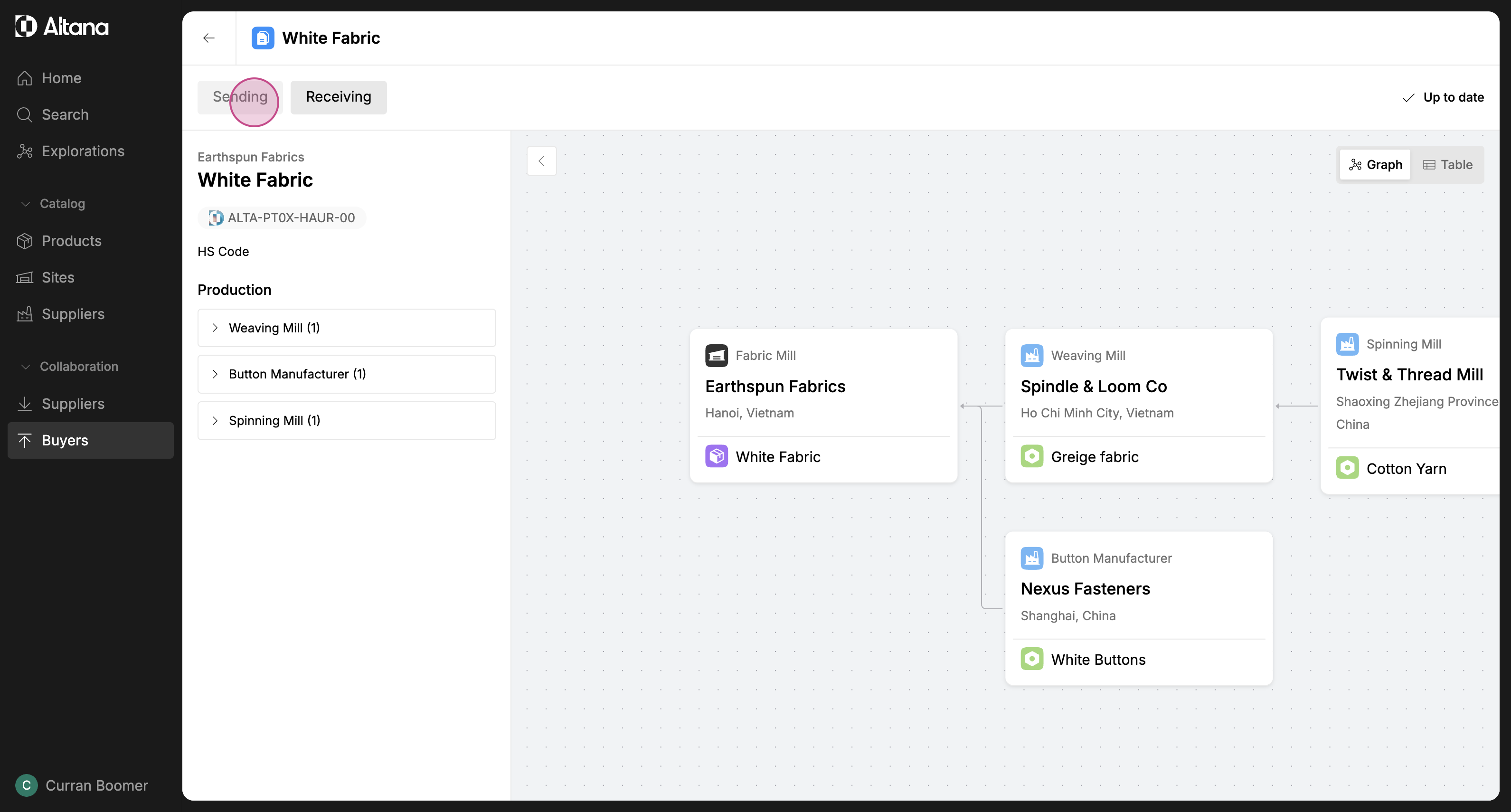
Under the Sending tab, you can view the information from your own product catalog that's now being shared with your buyer.
Step 8: Now let's return to the other request from the buyer, this time for Dyed Fabric. In this case, we don't have a pre-existing product in our own catalog.
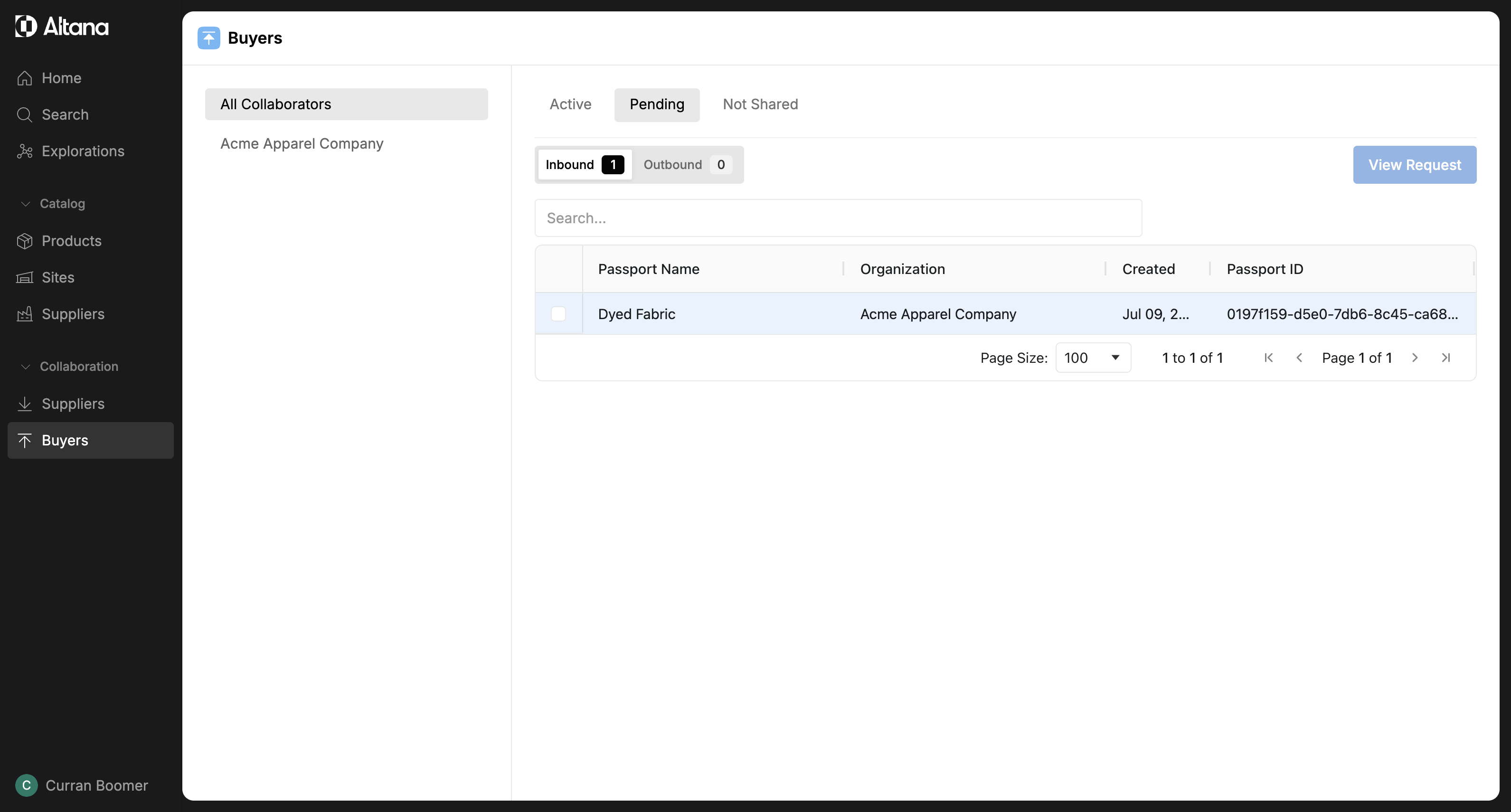
Step 9: Select View Request and then Connect to Product.
Because this product doesn't exist in our catalog, we'll add it as a new product.
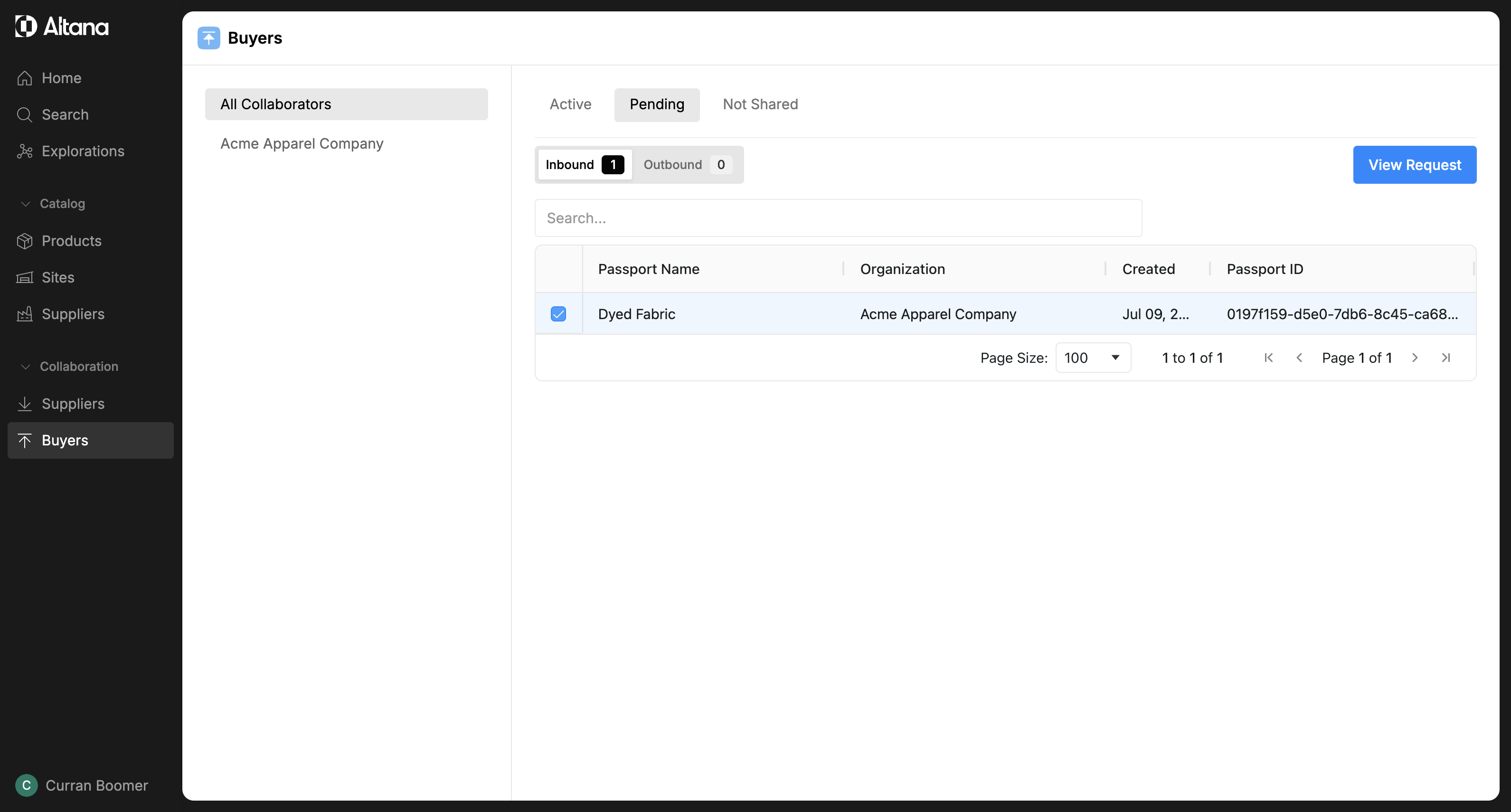
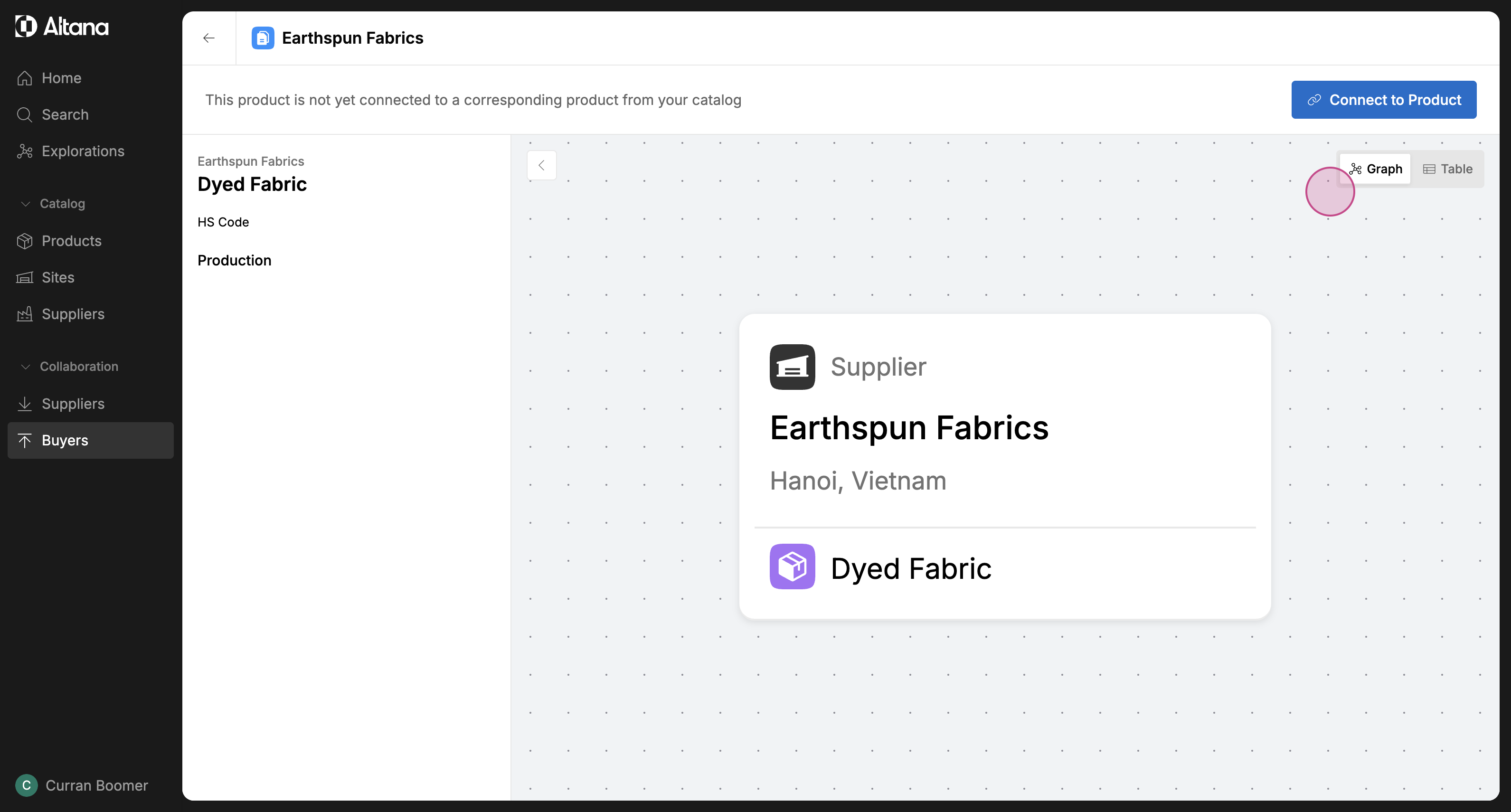
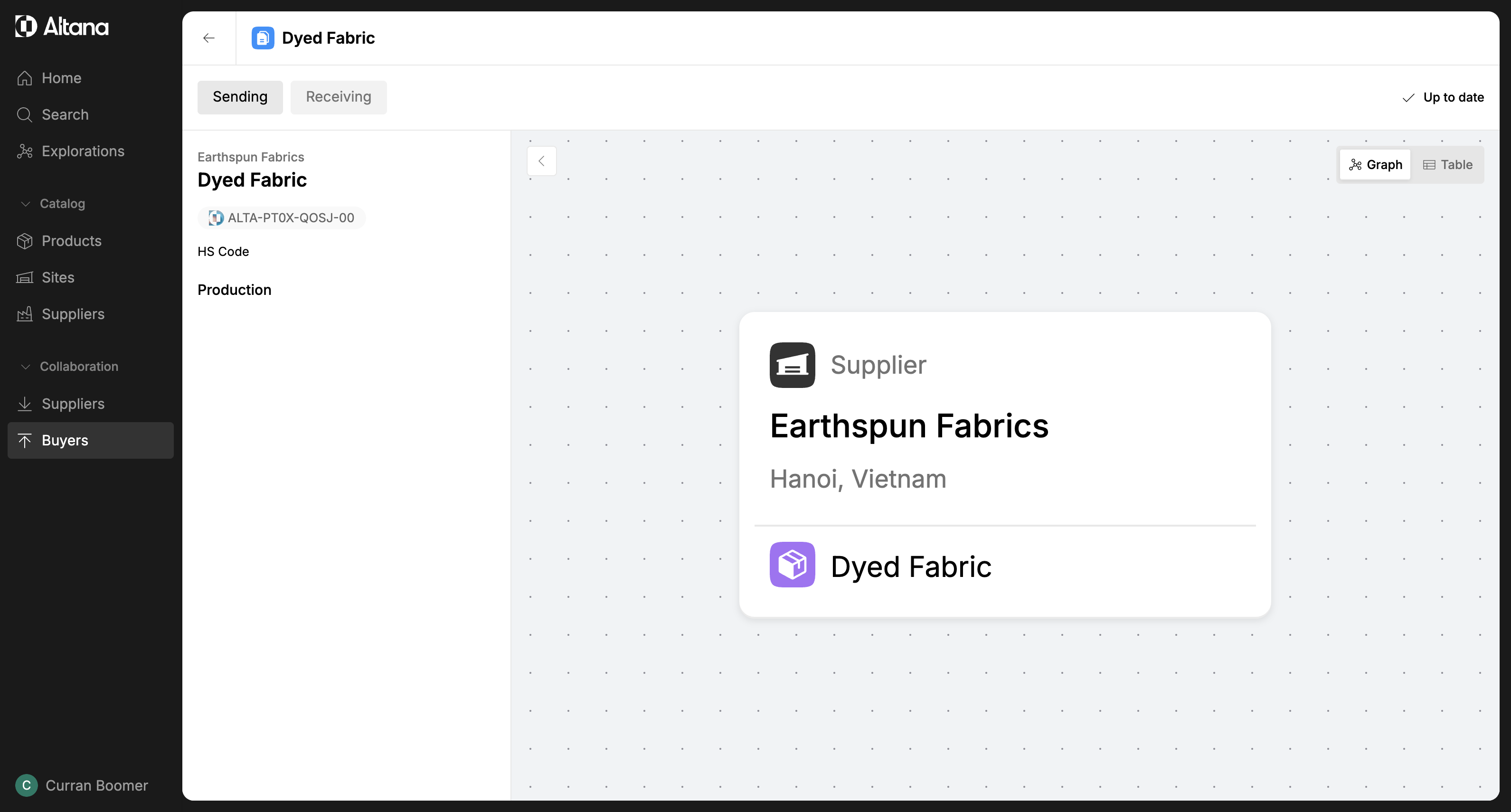
Step 10: Review the newly created product passport.
Under the Receiving tab, you can view the information received from the buyer. And under the Sending tab, you can view the information you're sending back to the buyer. In this case, because this is a new product, the information on both tabs is the same.
Step 11: You can find all the product passports you're collaborating on under Collaboration > Buyers > Active.