Requesting Information via a Product Passport
In this article, you'll learn how to request information, ask questions, and share documents within a product passport.
Step 1: Navigate to the Collaboration section.
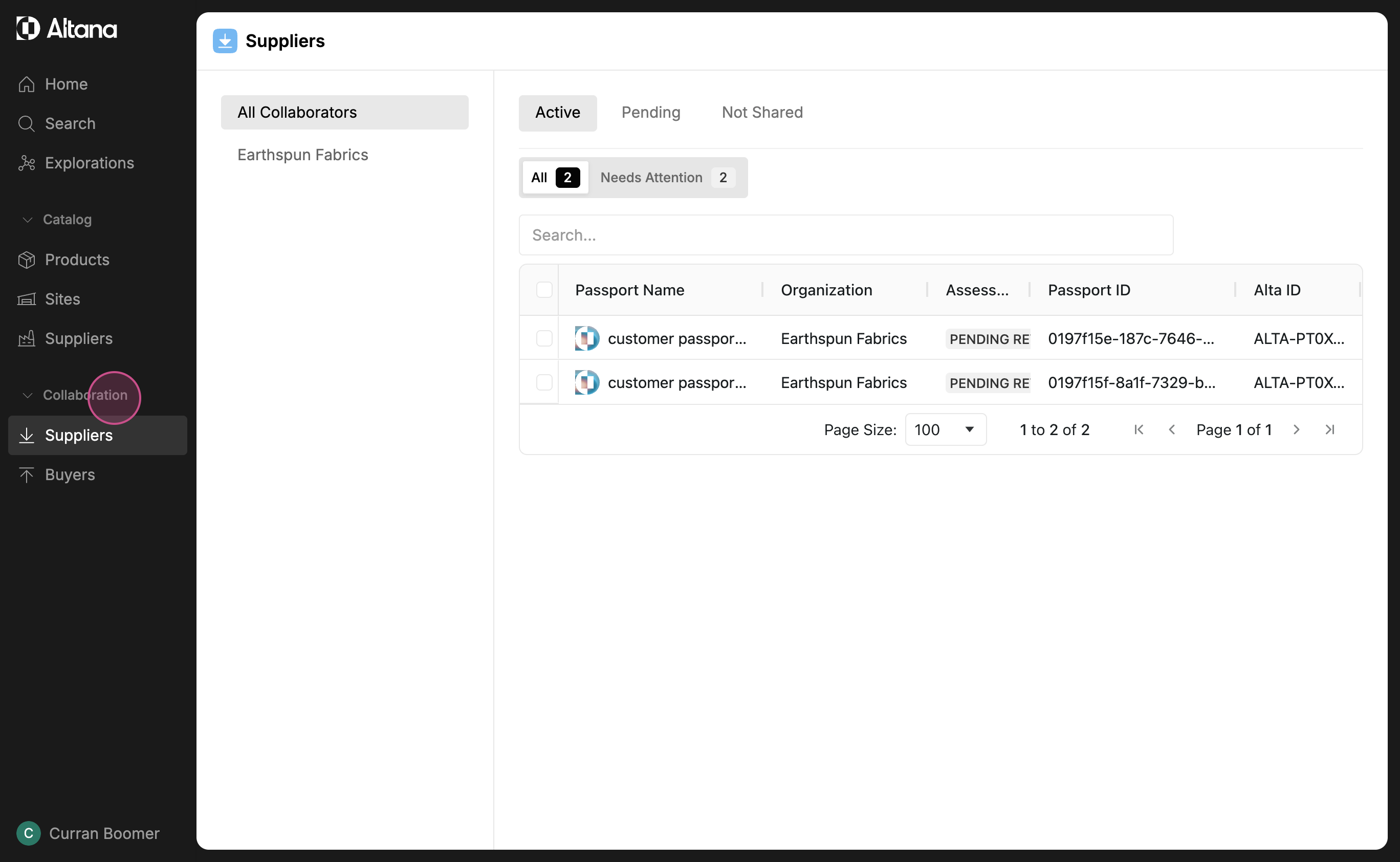
Step 2: Click on Suppliers or Buyers, depending on who you're collaborating with.
Suppliers will display all the product passports you're collaborating on with your suppliers.
Step 3: Select a passport you want to collaborate on.
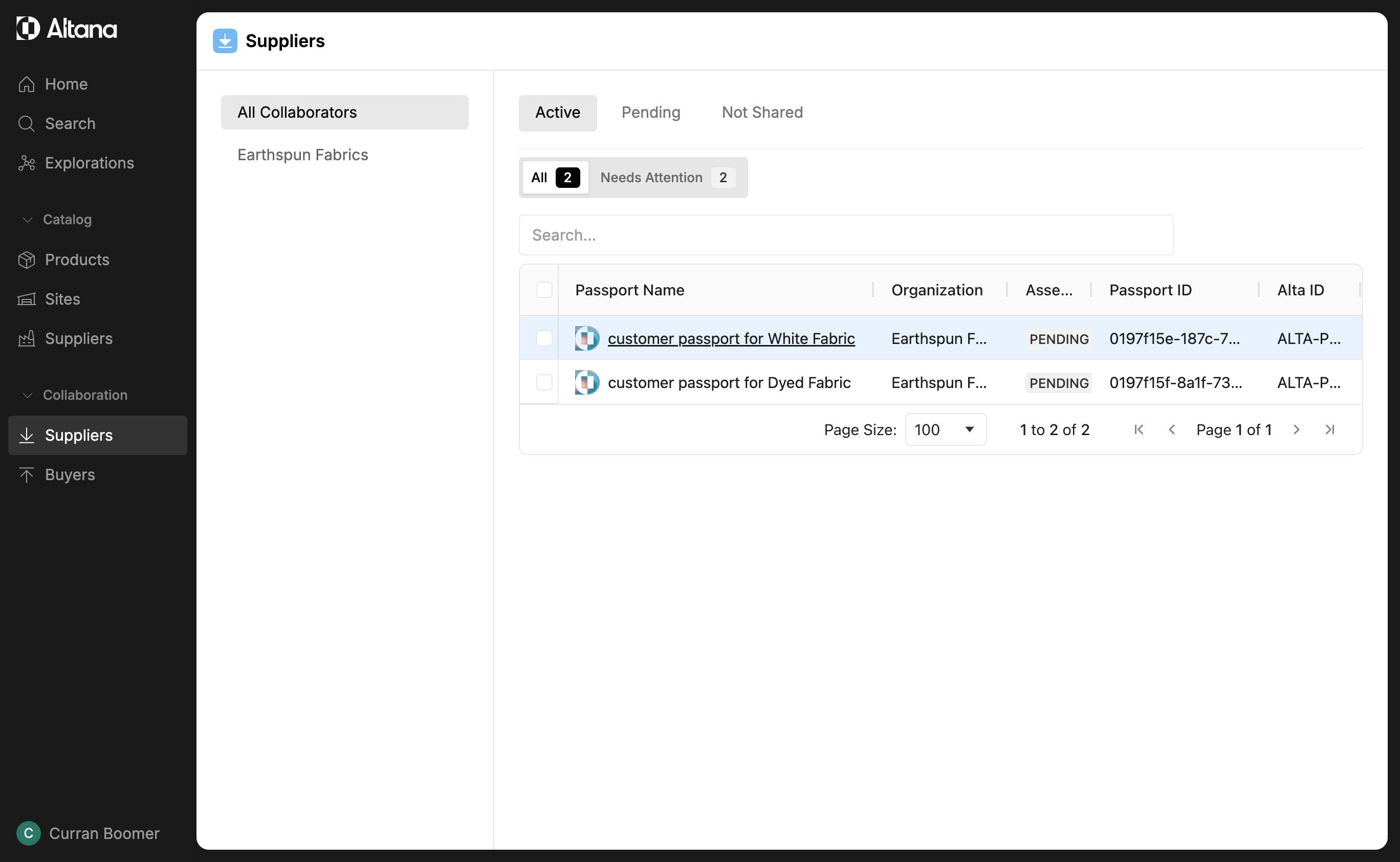
Step 4: Review the information in the product passport. This includes details received from your supplier about the product, found under the Receiving tab, and the information you've sent to your supplier, found under the Sending tab.
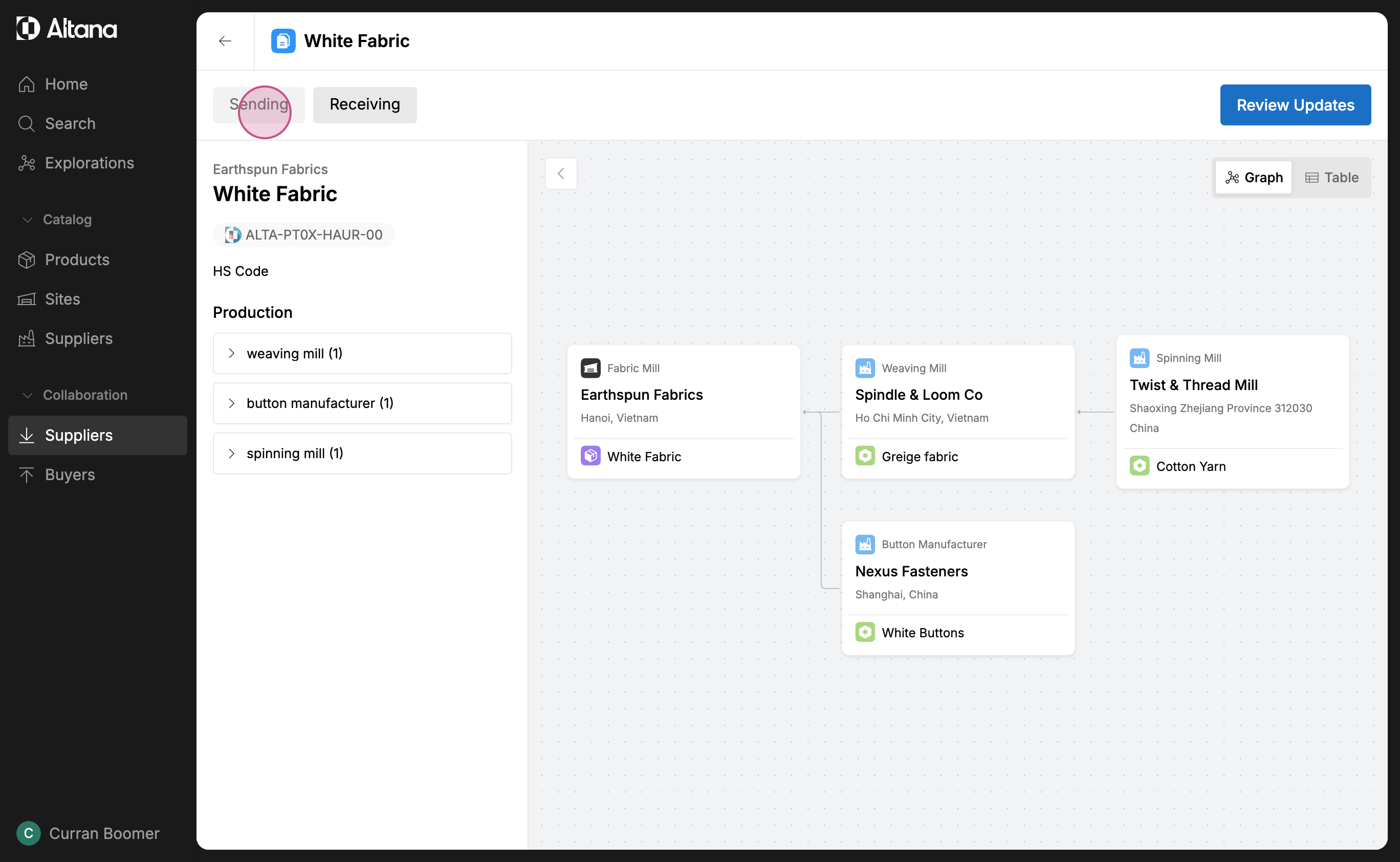
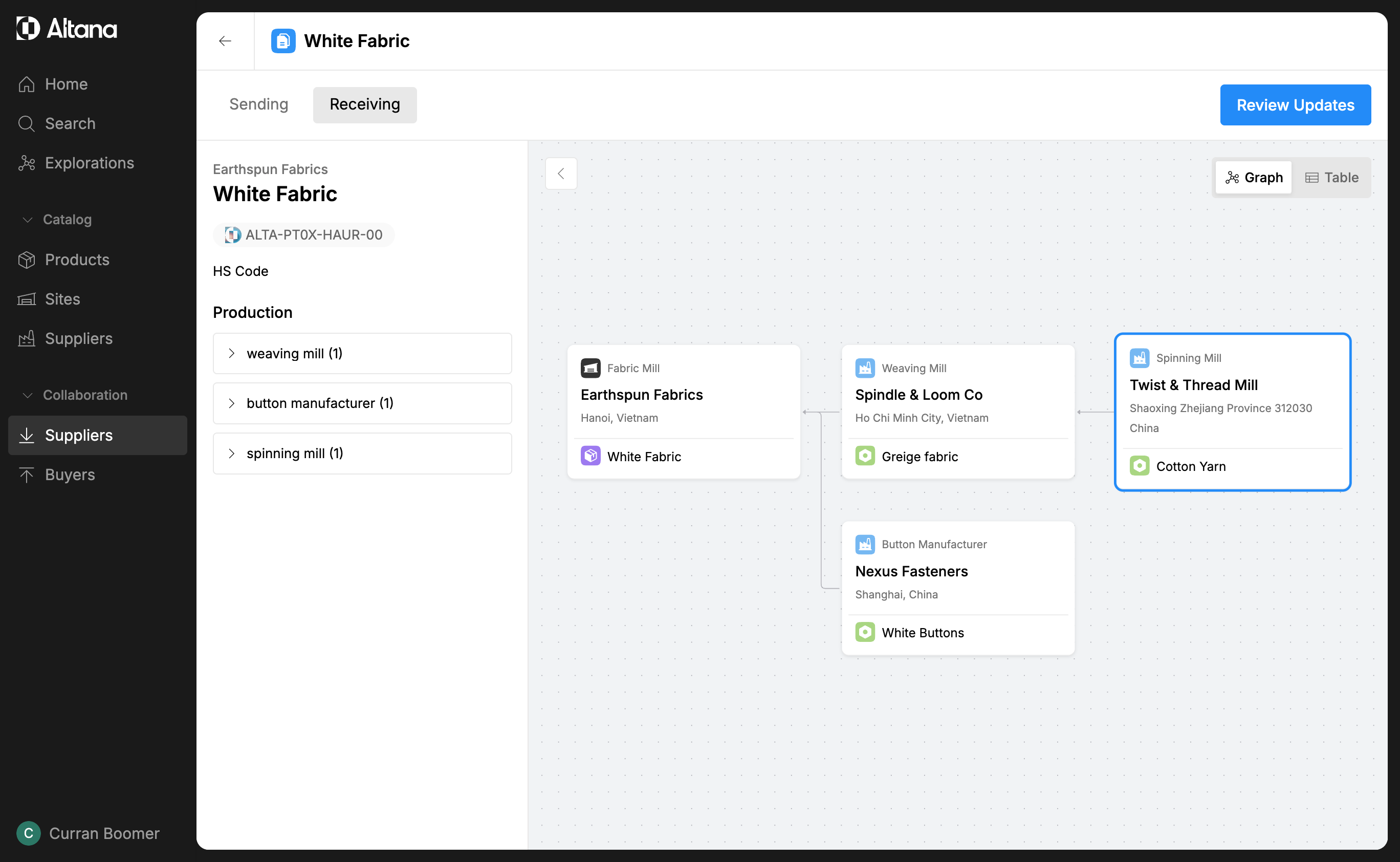
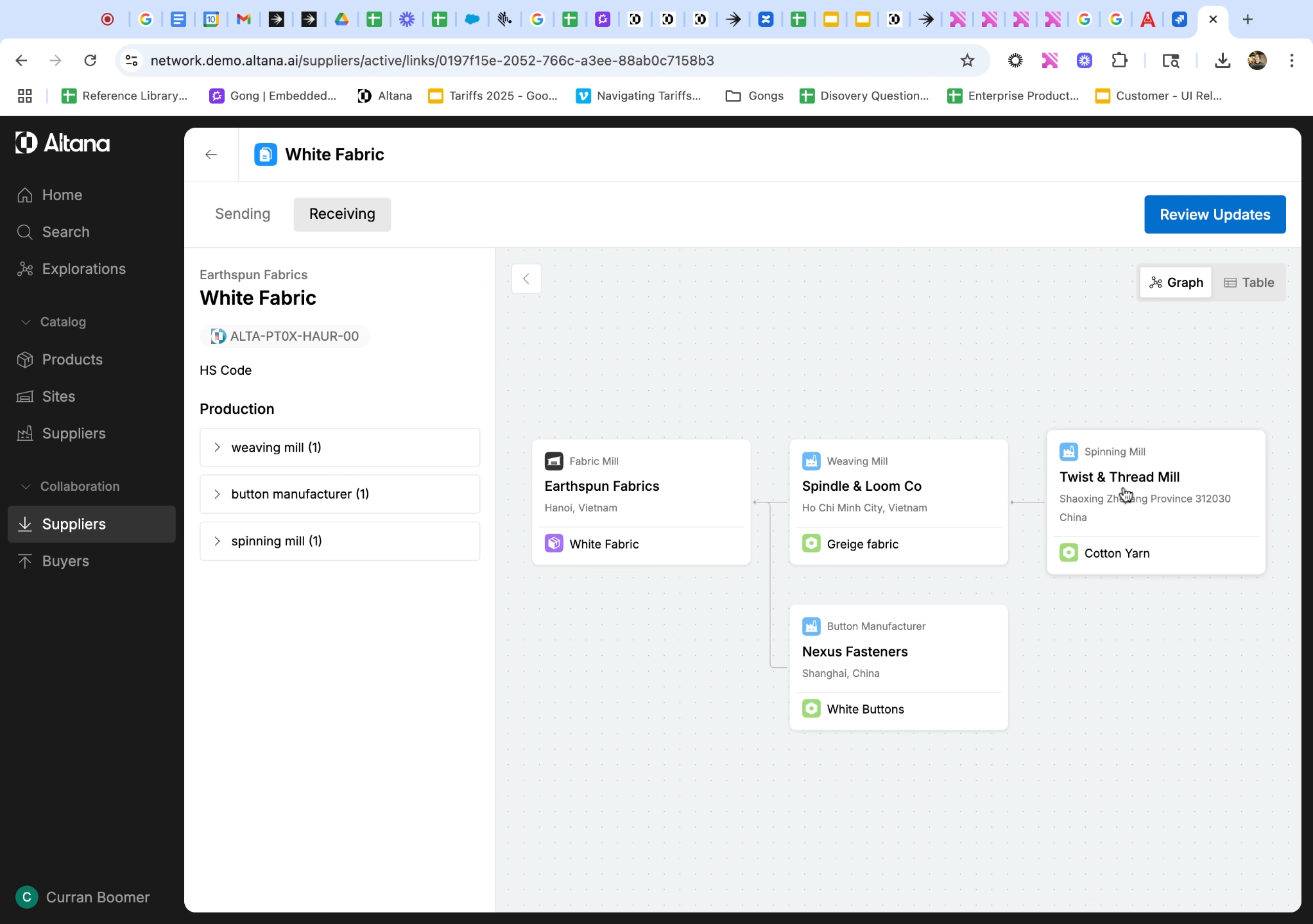
Step 5: If you have a question about an upstream supplier, click on the entity in the value chain. This will reveal more information about that specific upstream supplier.
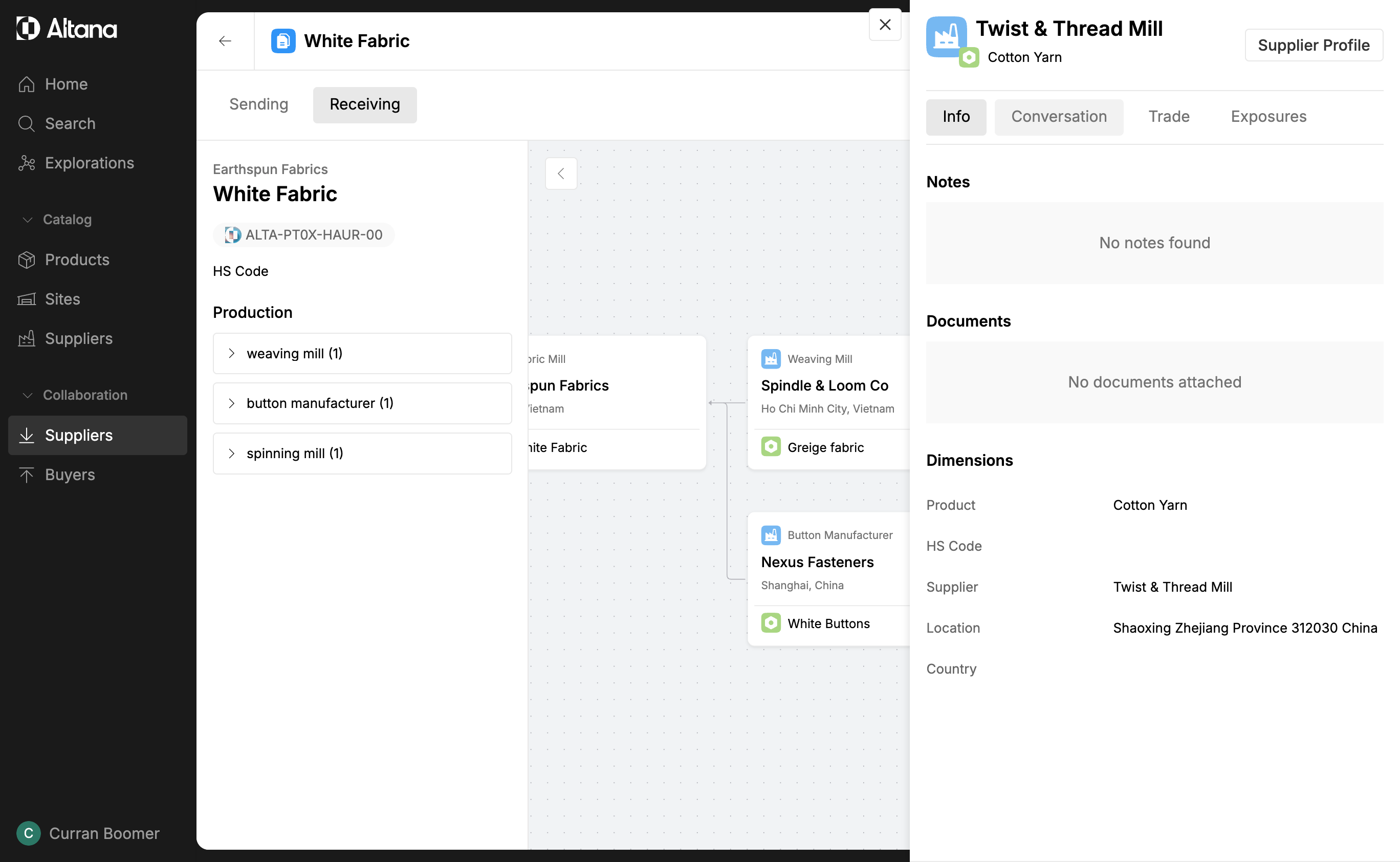
Step 6: Navigate to the Conversation tab.
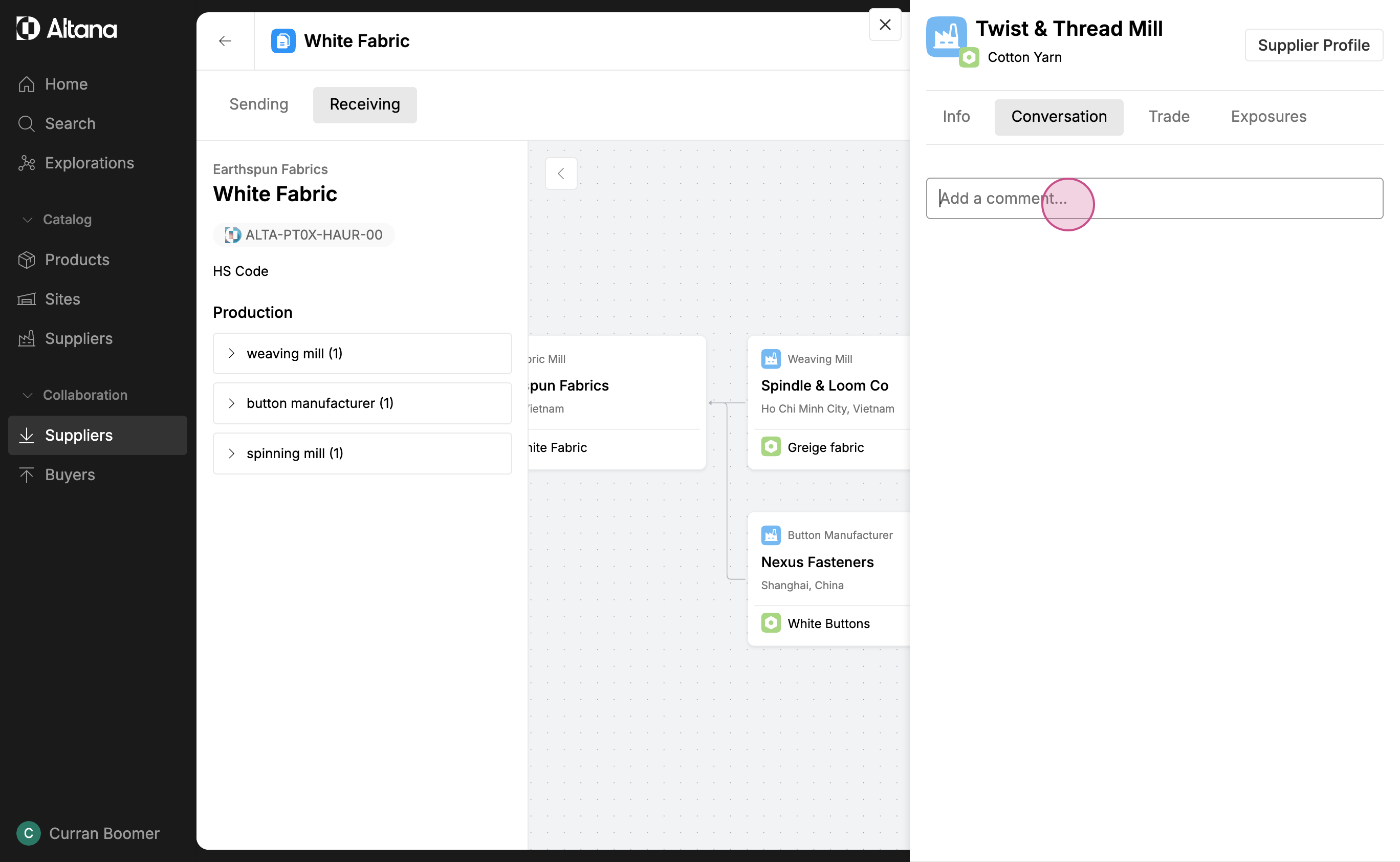
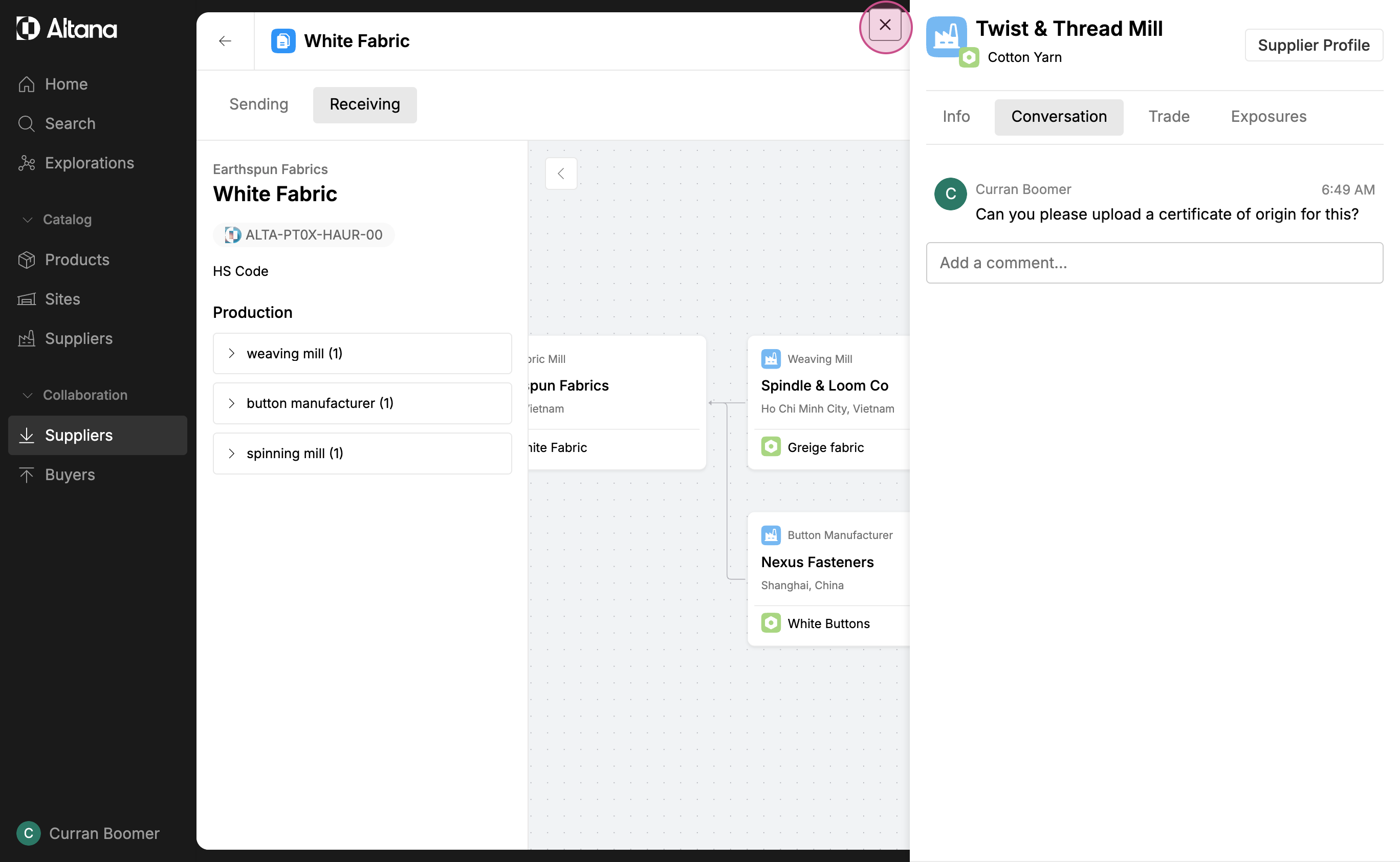
Step 7: Ask your question or request a document from your T1 supplier.
Note: You can only collaborate with your T1 supplier within a passport. In this case, we're asking our T1 supplier to add a document related to a T3 supplier in their value chain.
Once sent, your supplier will receive your comment.
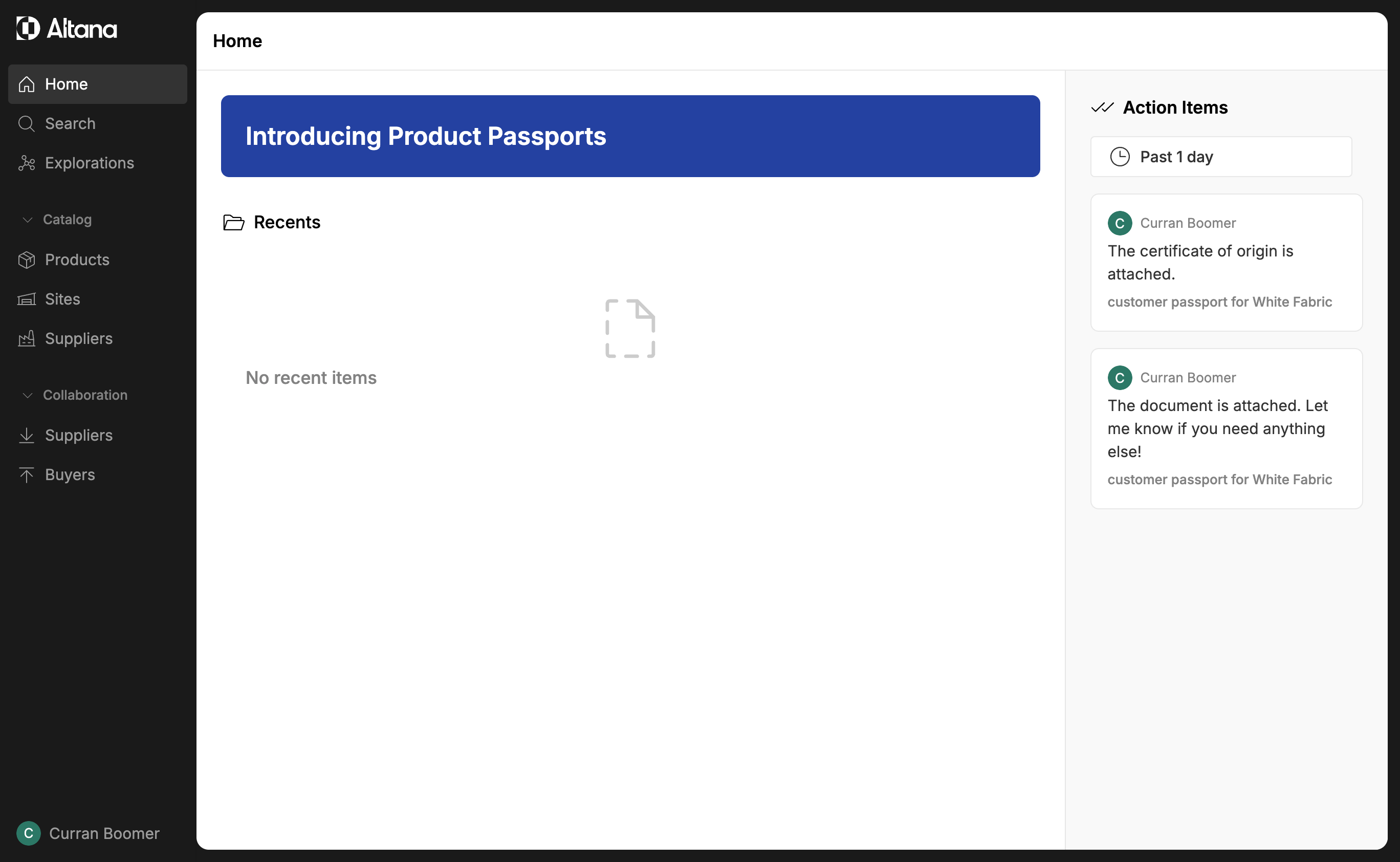
Step 8: When your supplier responds, you'll get a notification on the Altana homepage. Click on this notification to go directly to the passport where you asked the question.
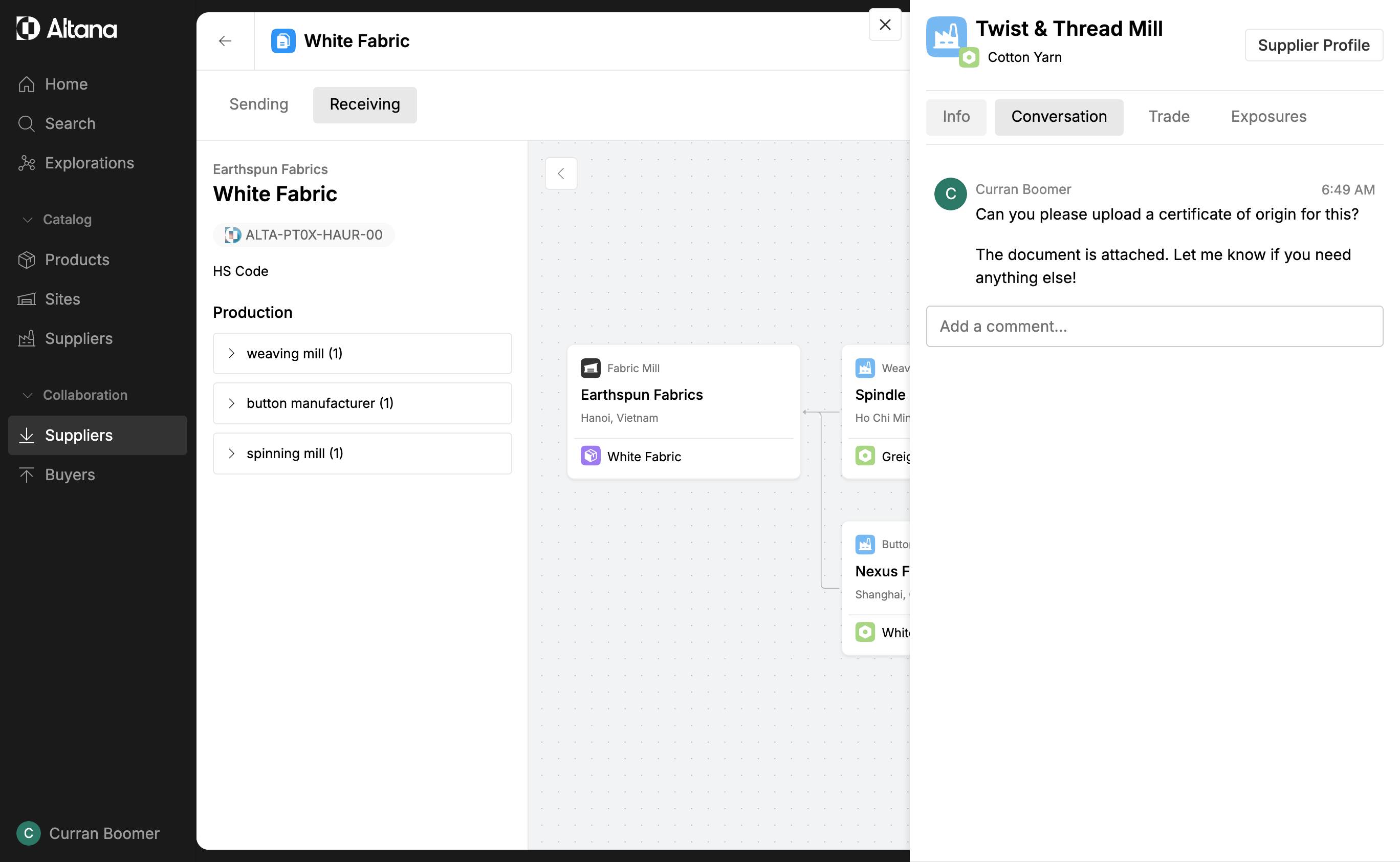
Step 9: Open the relevant entity in the value chain to view your conversation.
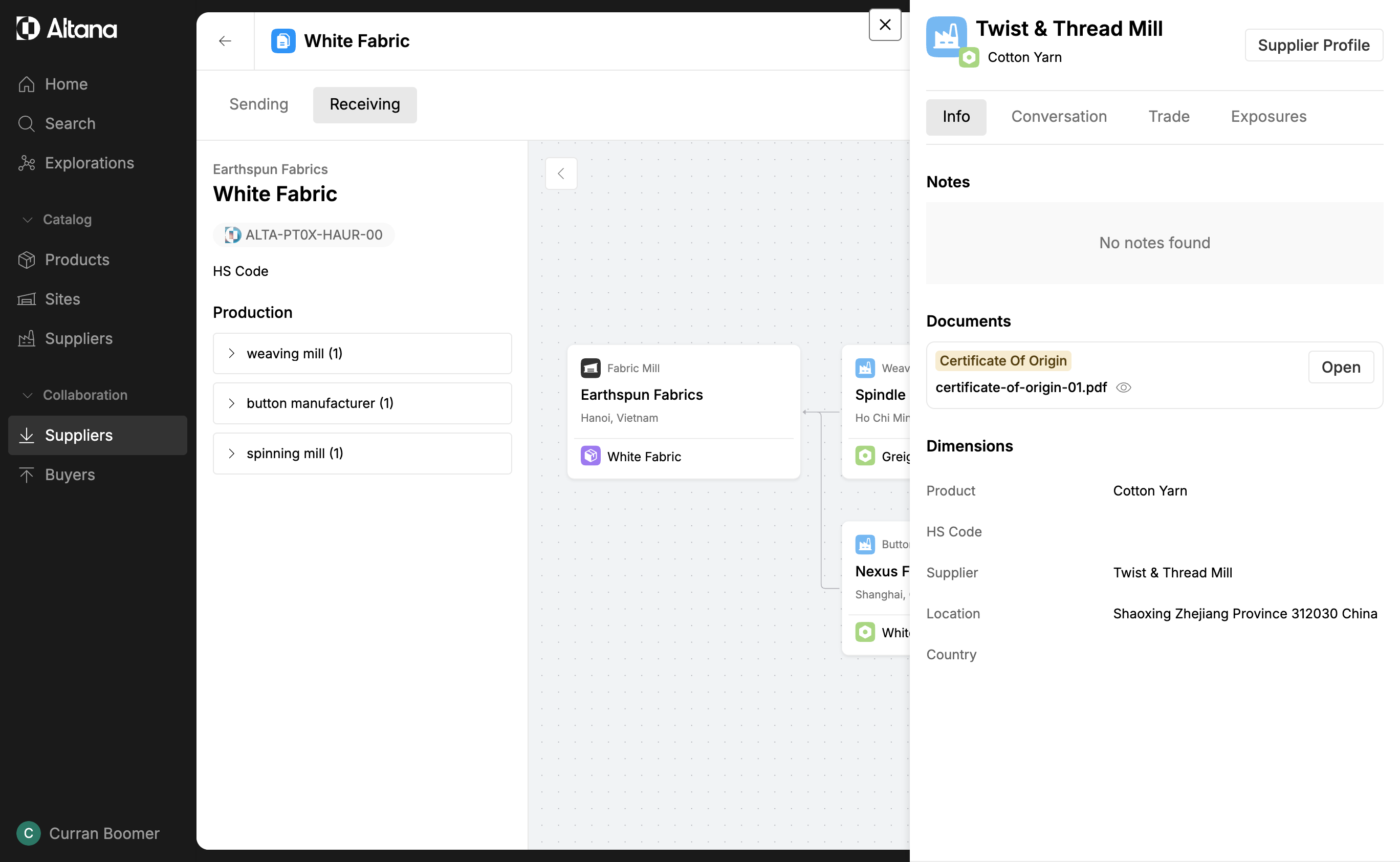
Step 10: Go to the Info tab to see the attached document. You can open it to verify the details.
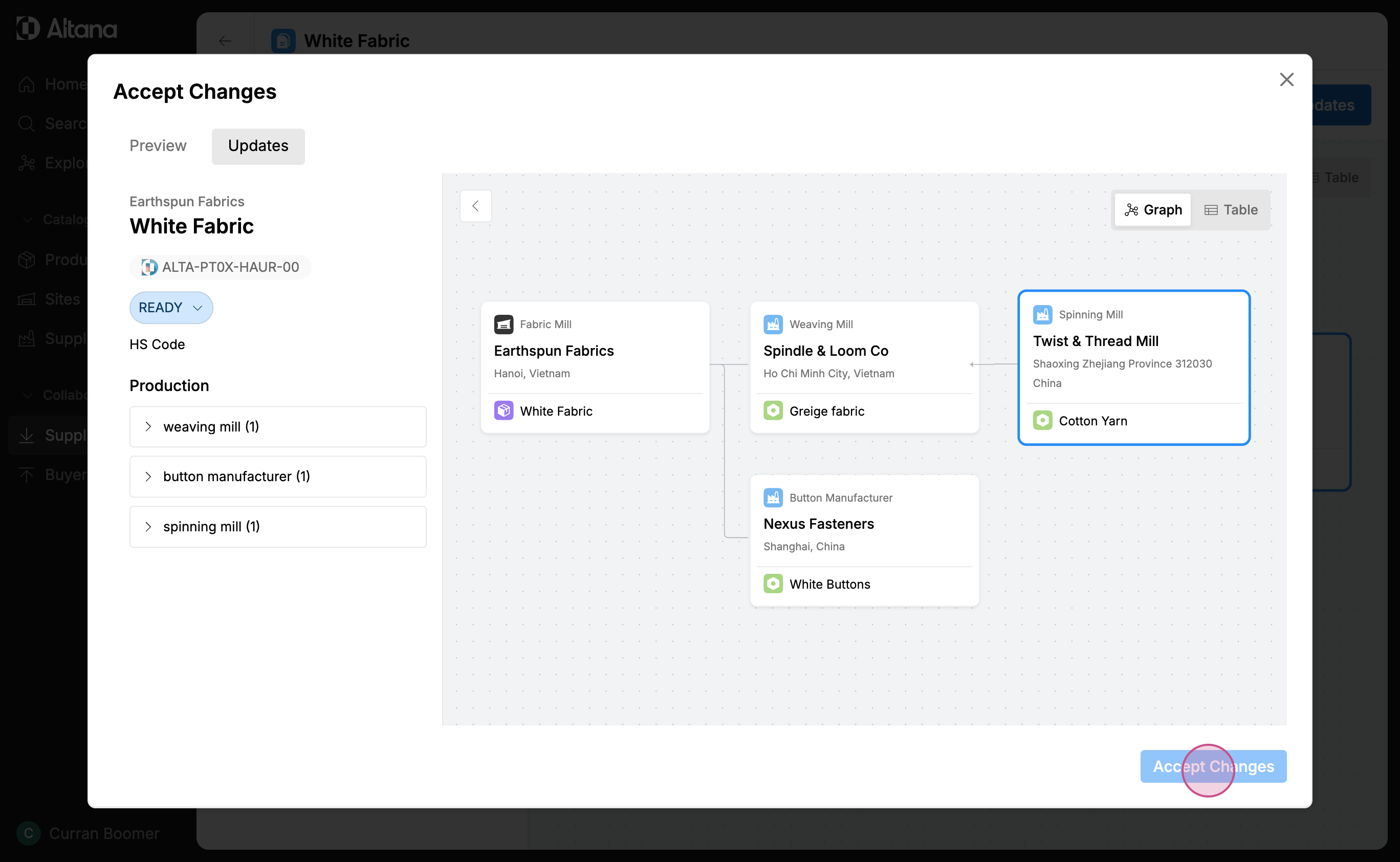
Step 11: Currently, the document only exists within the product passport. To incorporate the document into your product catalog, select Review Updates. If everything is correct, accept the changes into your catalog. The document will now be stored inside the value chain of your own product catalog.