Responding to Traceability Requests from Customers
This article guides you through the process of responding to a traceability request from a buyer. Traceability requests allow buyers to ask suppliers for more information about their products.
Please note, all traceability requests are made and answered within a Product Passport.
Step 1: From your homepage, locate the Action Items box in the top right corner. This is where you'll find your incoming requests.
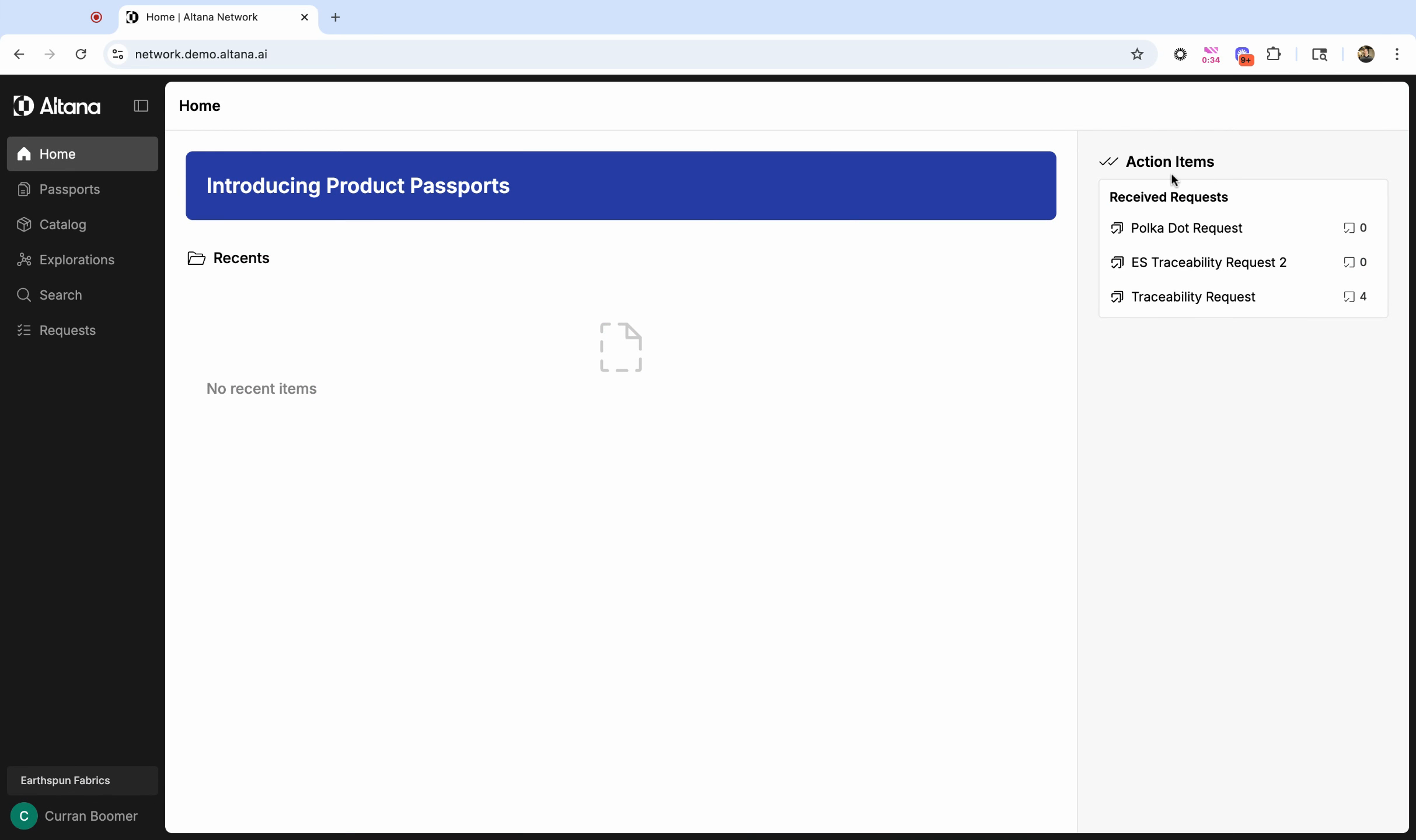
Step 2: Click on one of these requests to view the Passports associated with it.
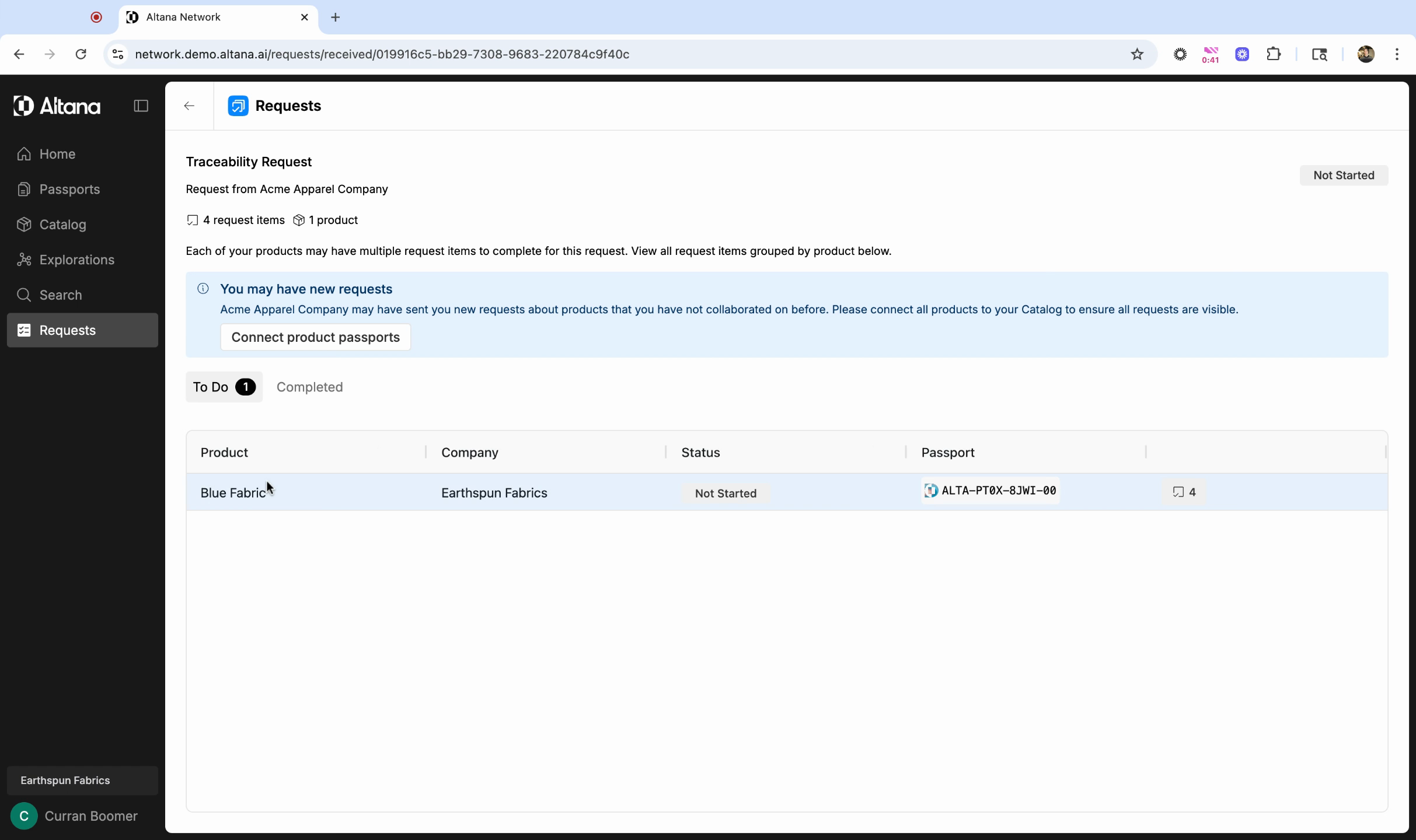
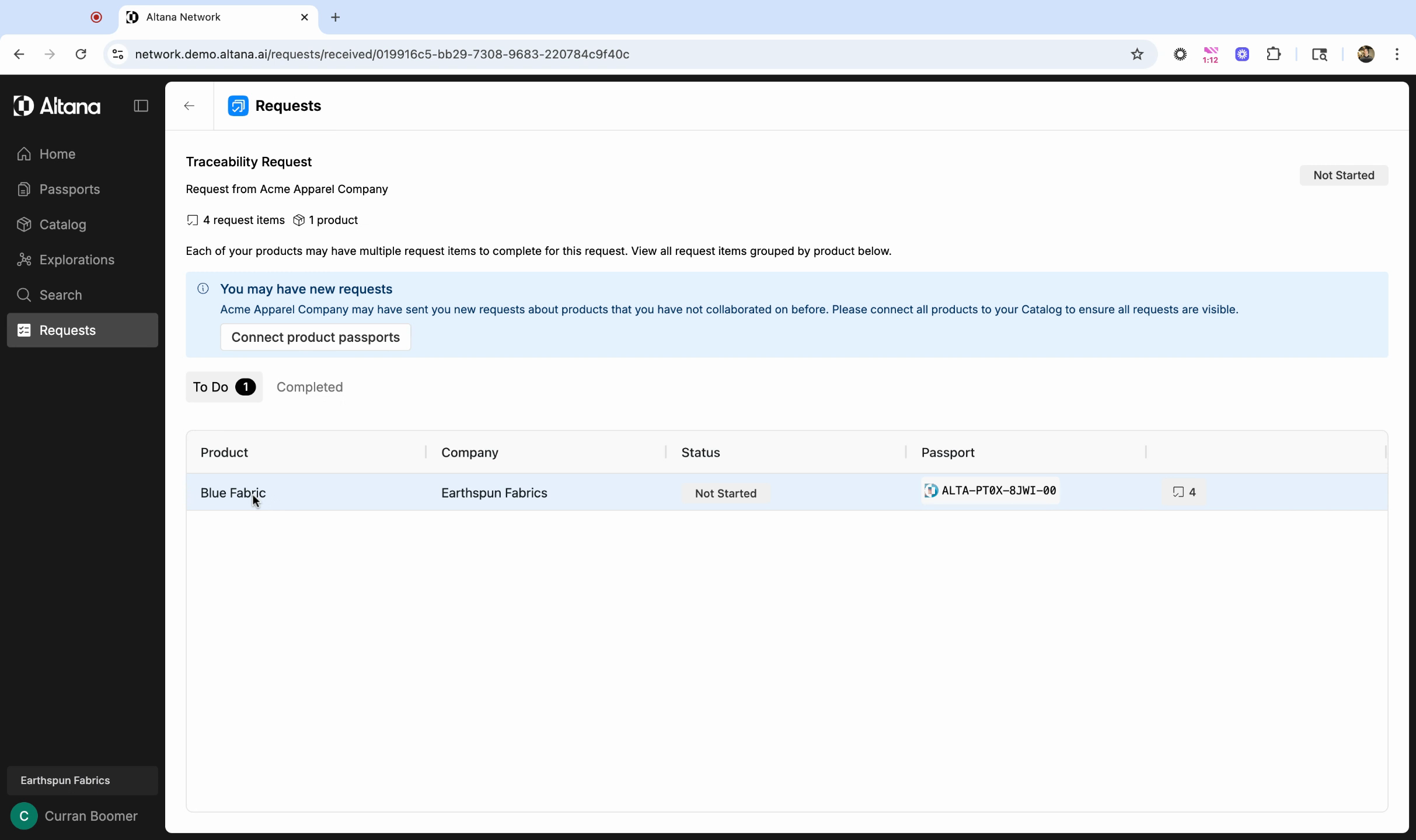
Your buyer will select the products they want to collaborate on when making a request. In order to collaborate on a given product, you need a Product Passport connected to your buyer. If you haven't created or connected product passports yet, navigate to connect product passports.
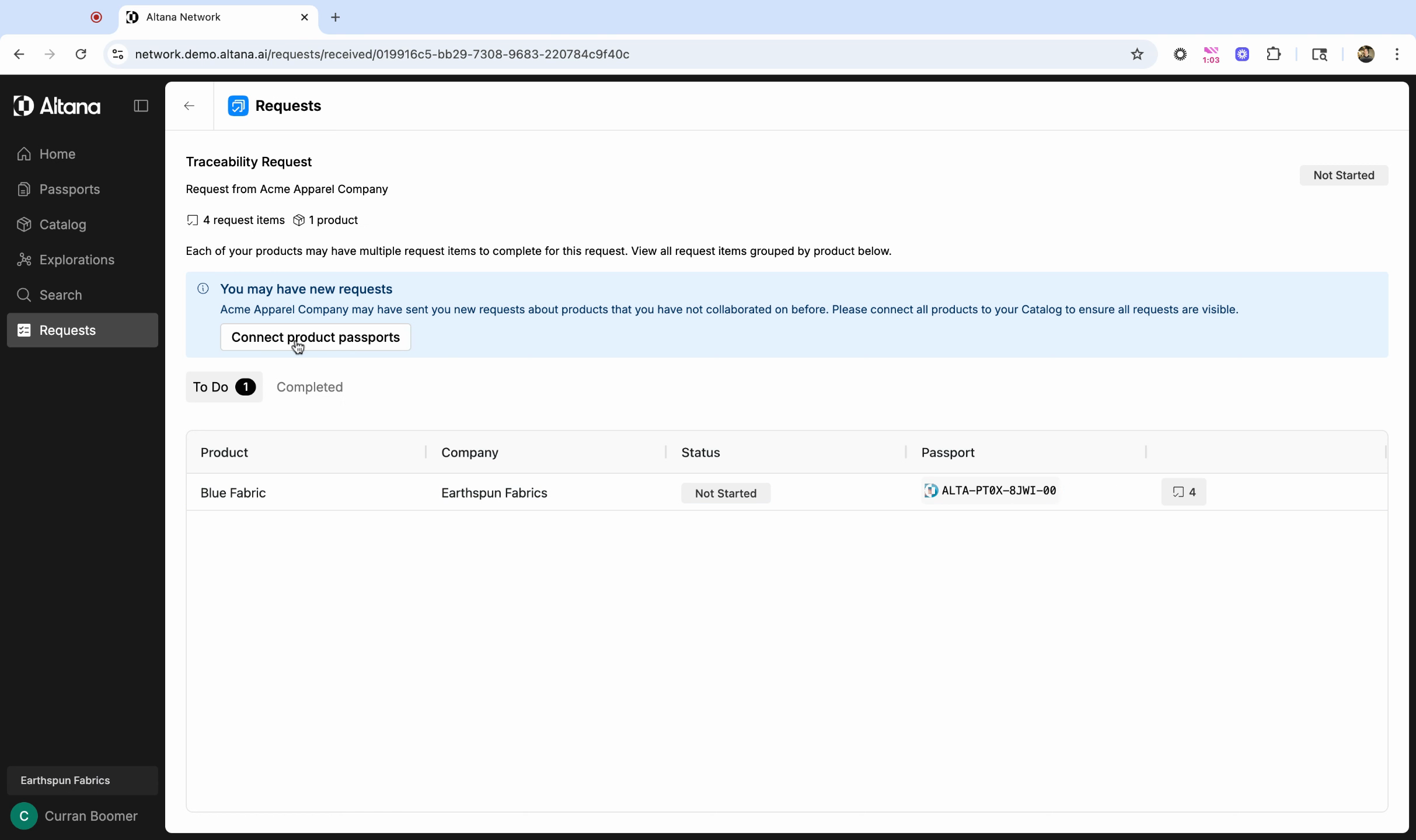
In this tutorial, we're using a product passport for blue fabric that we've already shared with our buyer.
Step 3: Click on the product passport to view it.
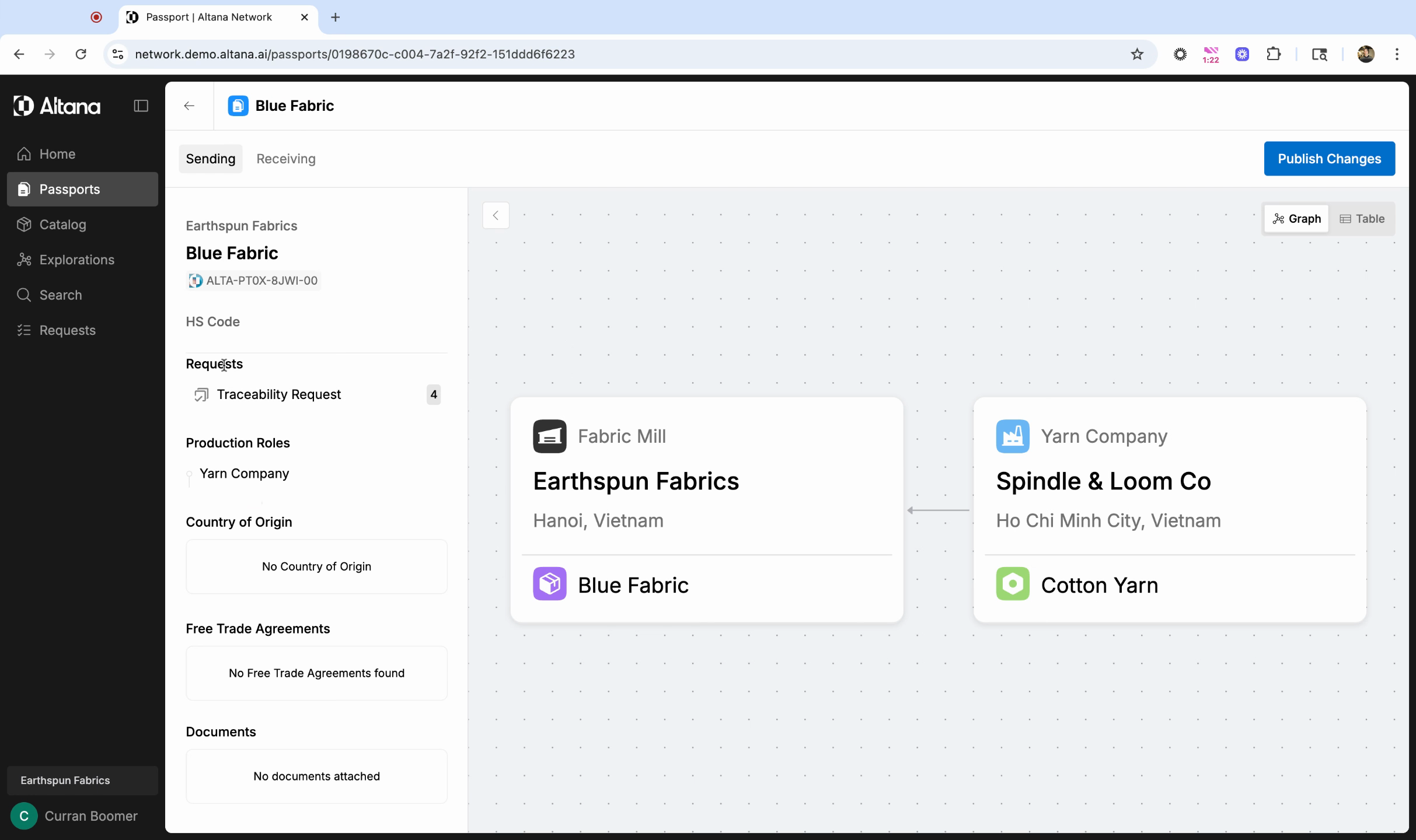
Step 4: Inside the passport, find the Requests section on the left-hand side. This is where you'll find the traceability request from your buyer.
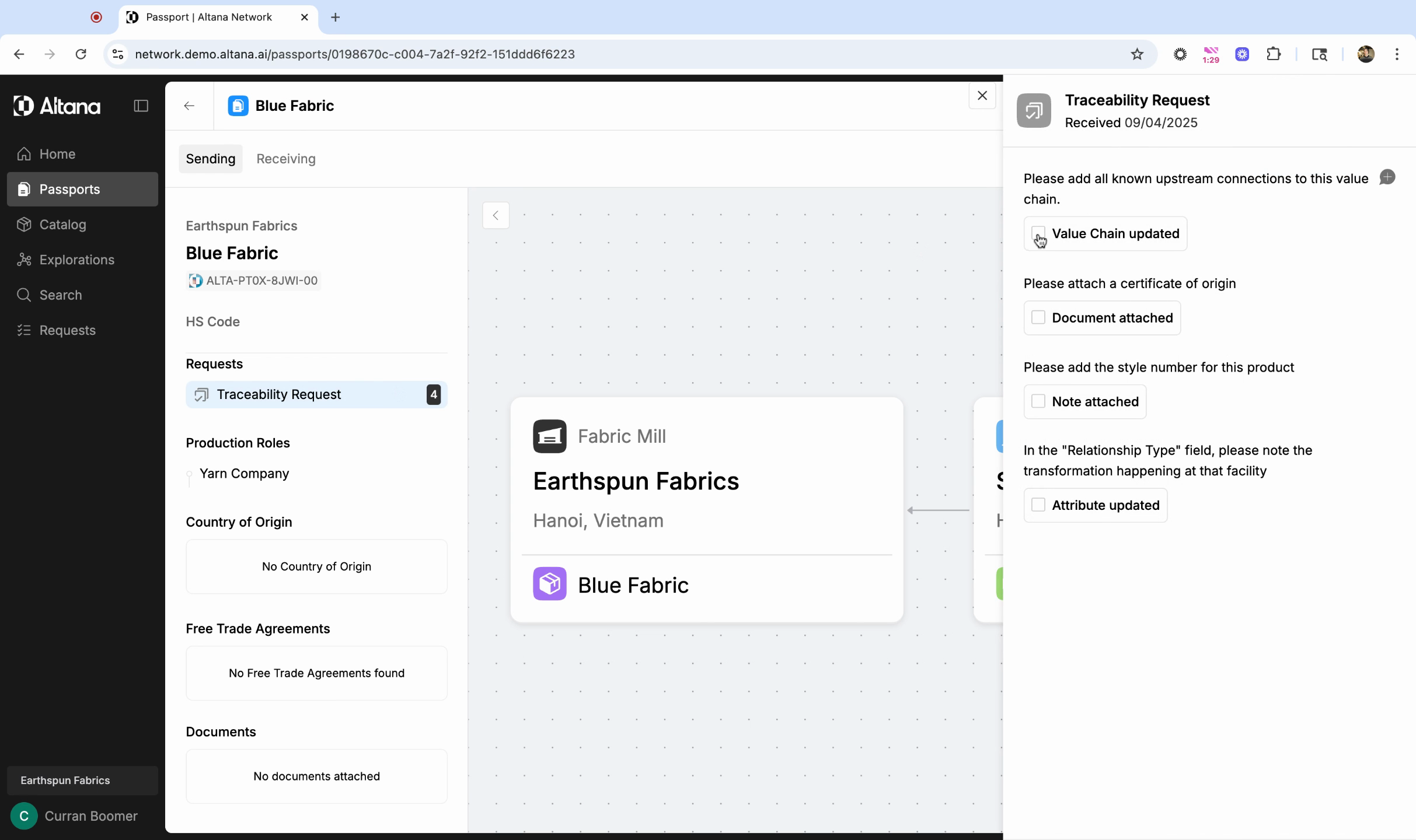
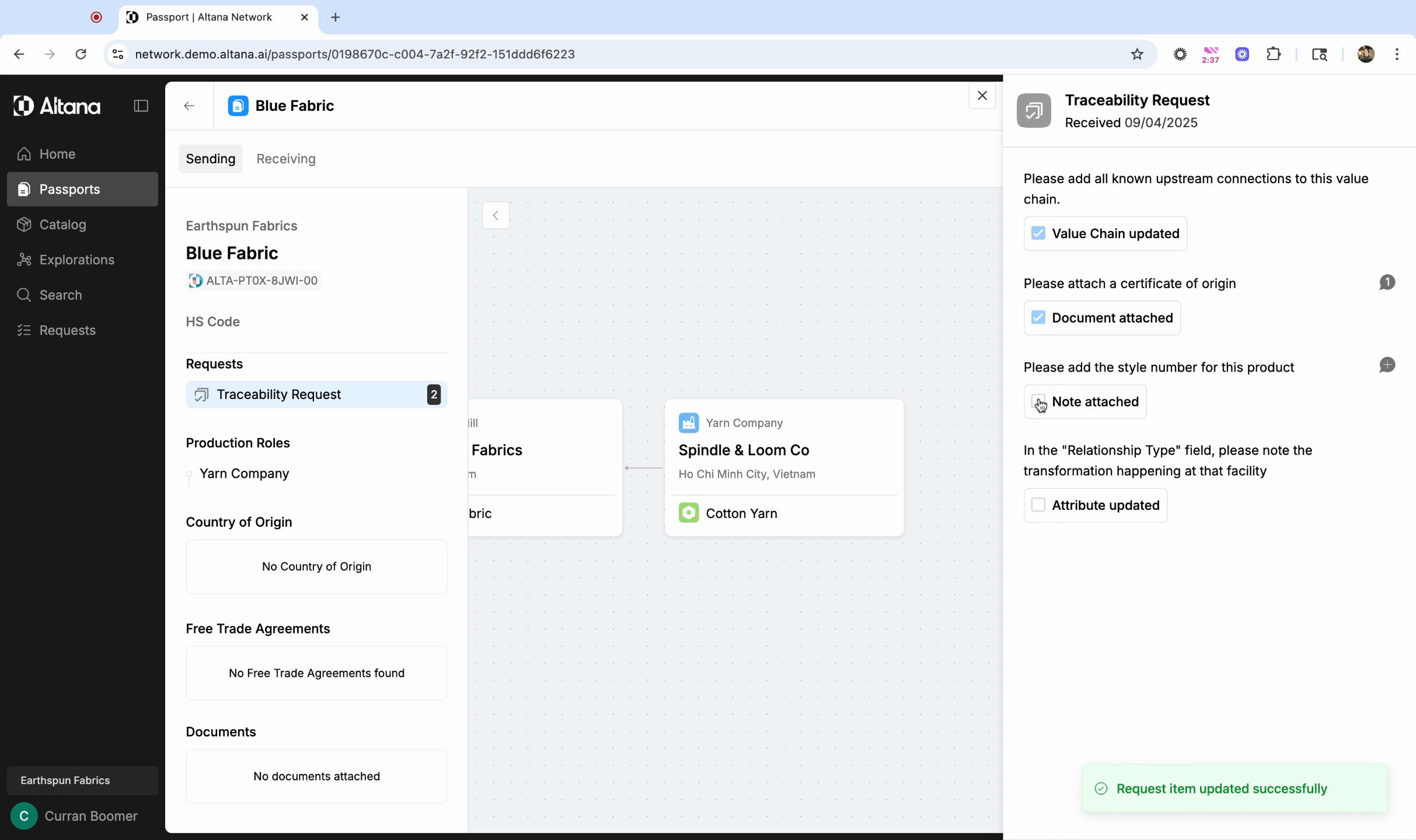
Step 5: Click on the request to review the individual items your buyer has asked for. These can fall into four different categories:
- Update Value Chain: Your buyer is requesting that you provide more connections in the product value chain itself.
- Attach Document: Your buyer is requesting that you attach a specific document to the value chain.
- Attach Note: Your buyer is requesting that you attach a note to a particular entity in the value chain.
- Update Attribute: Your buyer is requesting that you update a specific field in the value chain, like the relationship type field or the input product.
Step 6: Complete these request items within the Product Passport. For instance, after adding all upstream connections for this product passport, check this off the list. If you have any questions about an item, select the comment bubble and write a comment.
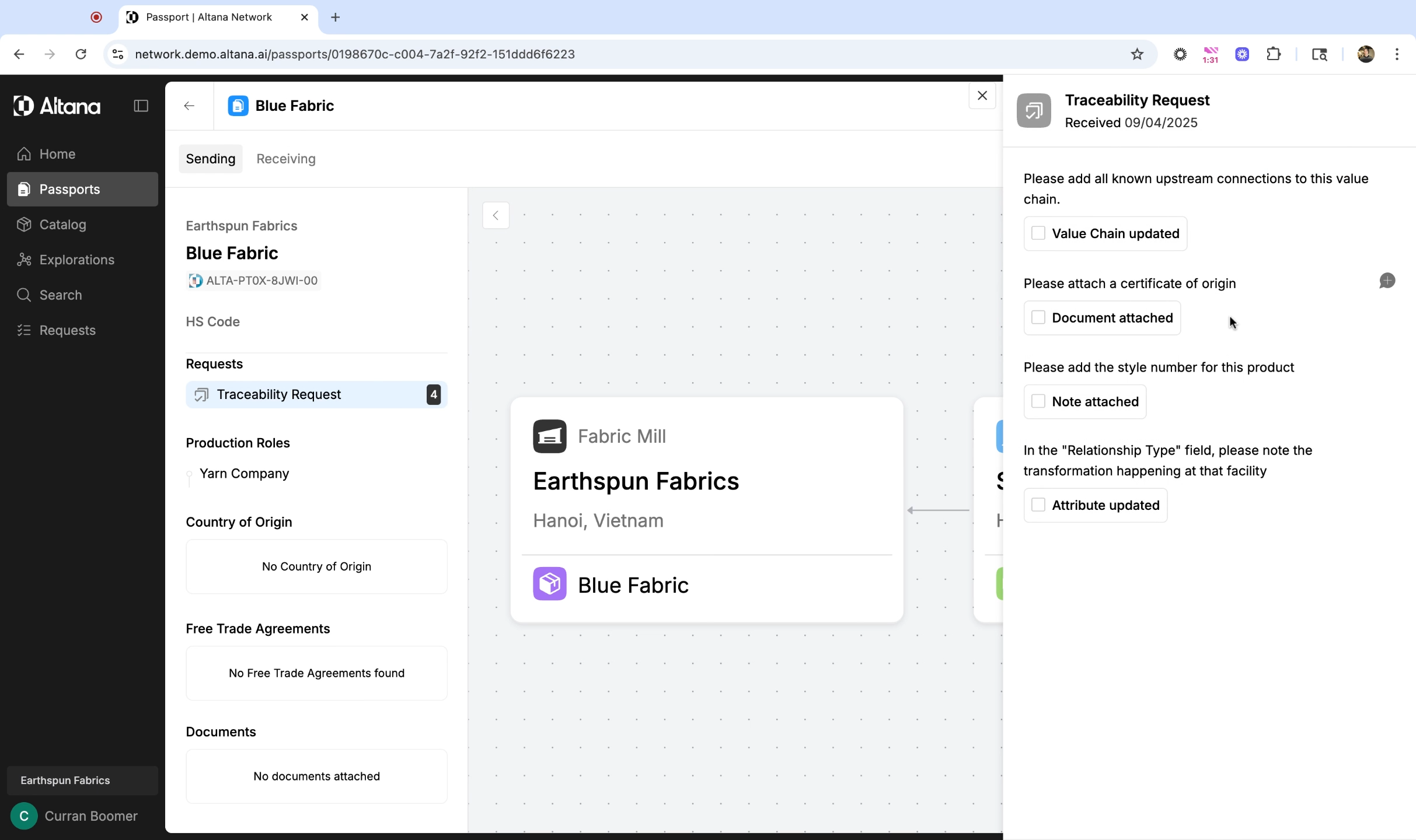
This feature allows you to have a direct conversation with your buyer within the request item.
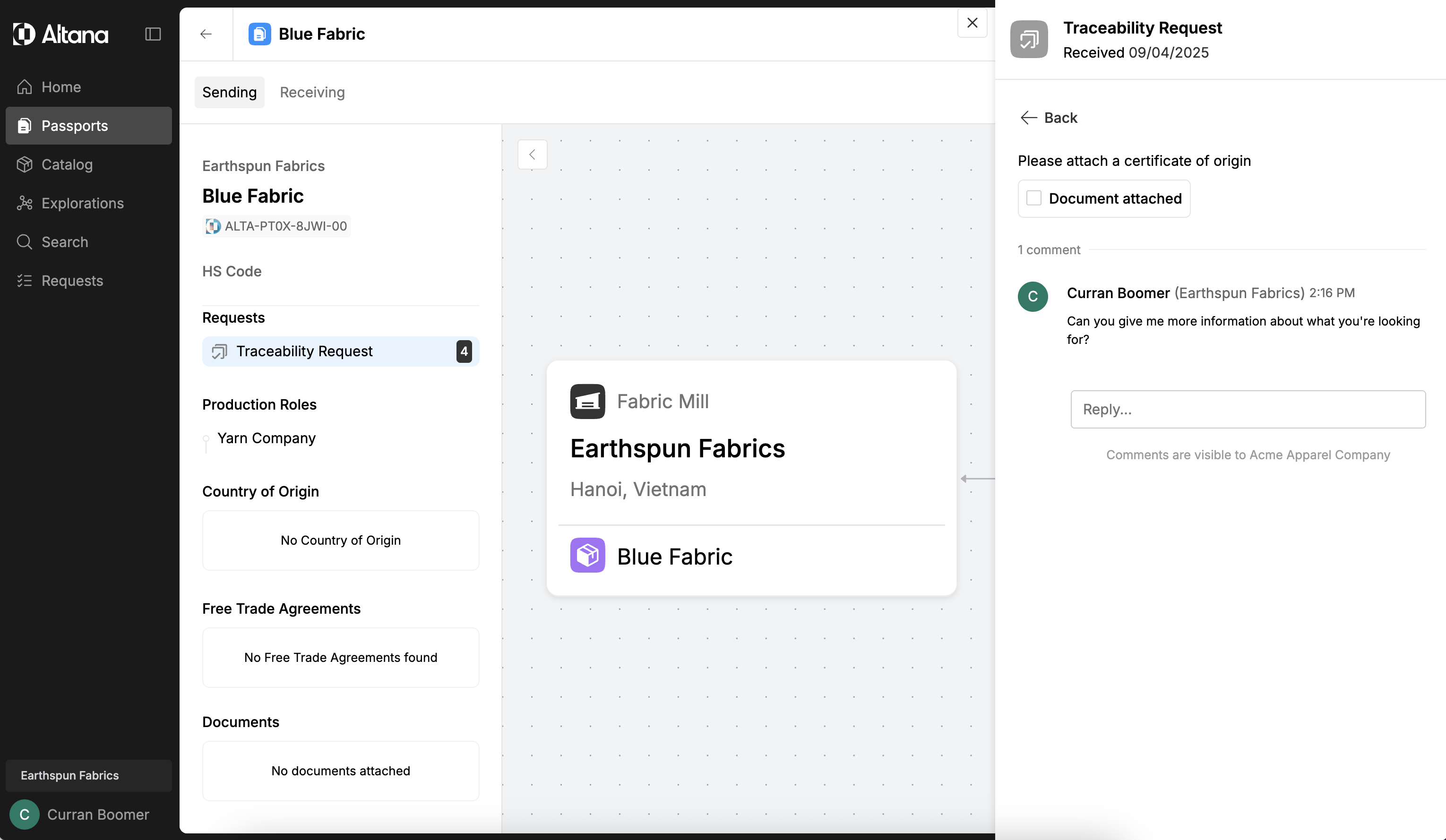
Step 7: Once you've completed all items, check them off the list.
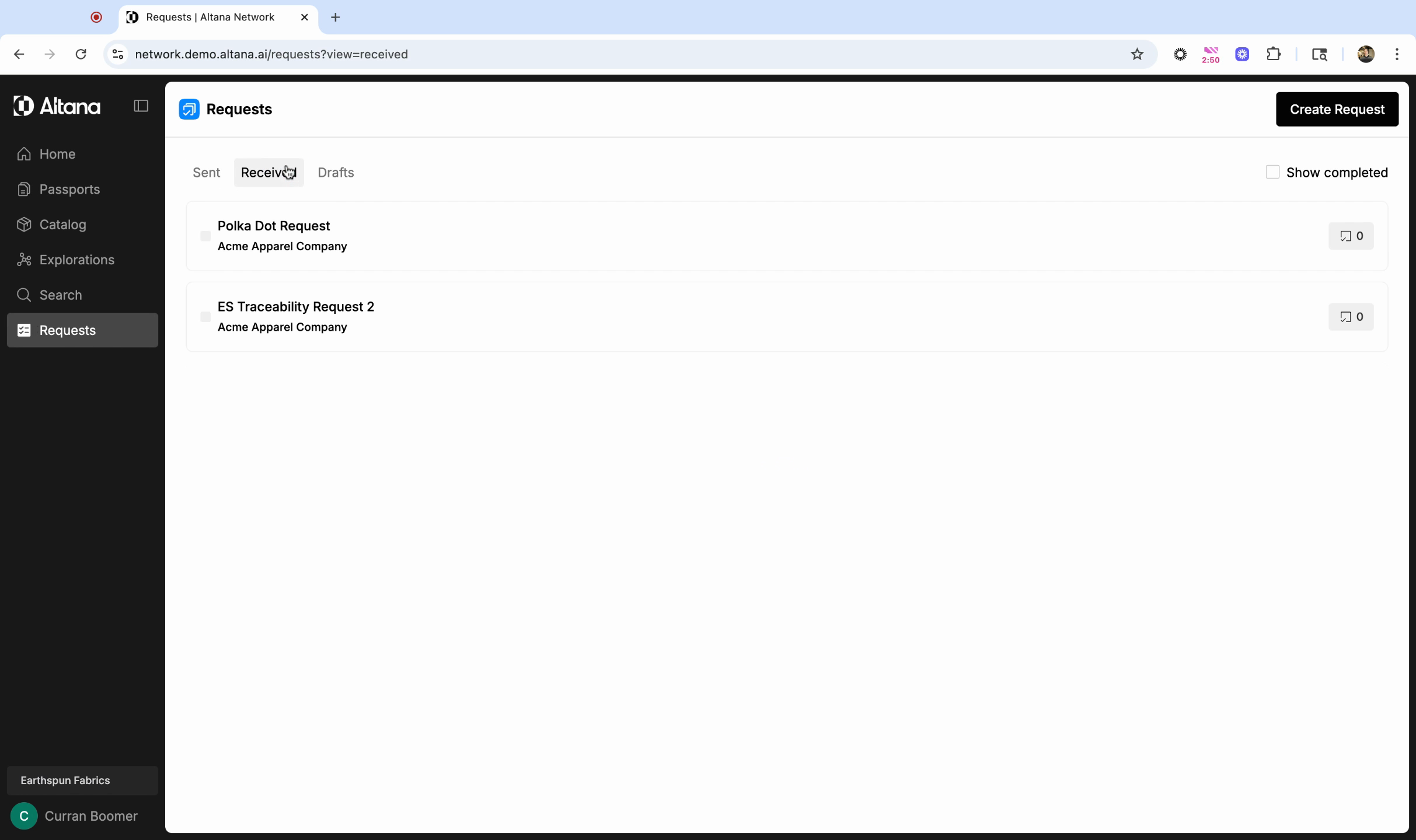
Step 8: Keep track of incoming requests by navigating to Requests on the left-hand menu, then to Received. Here, you'll see all requests you've received from your buyers. You also have the option to create and send your own requests to your suppliers.