
Uploading Products into Your Catalog
This guide walks you through the process of uploading data into your product catalog from a CSV. This process is a great option for quickly adding products, product data, and product value chains to your catalog in seconds.
Step 1: Go to Catalog from the left-hand menu.
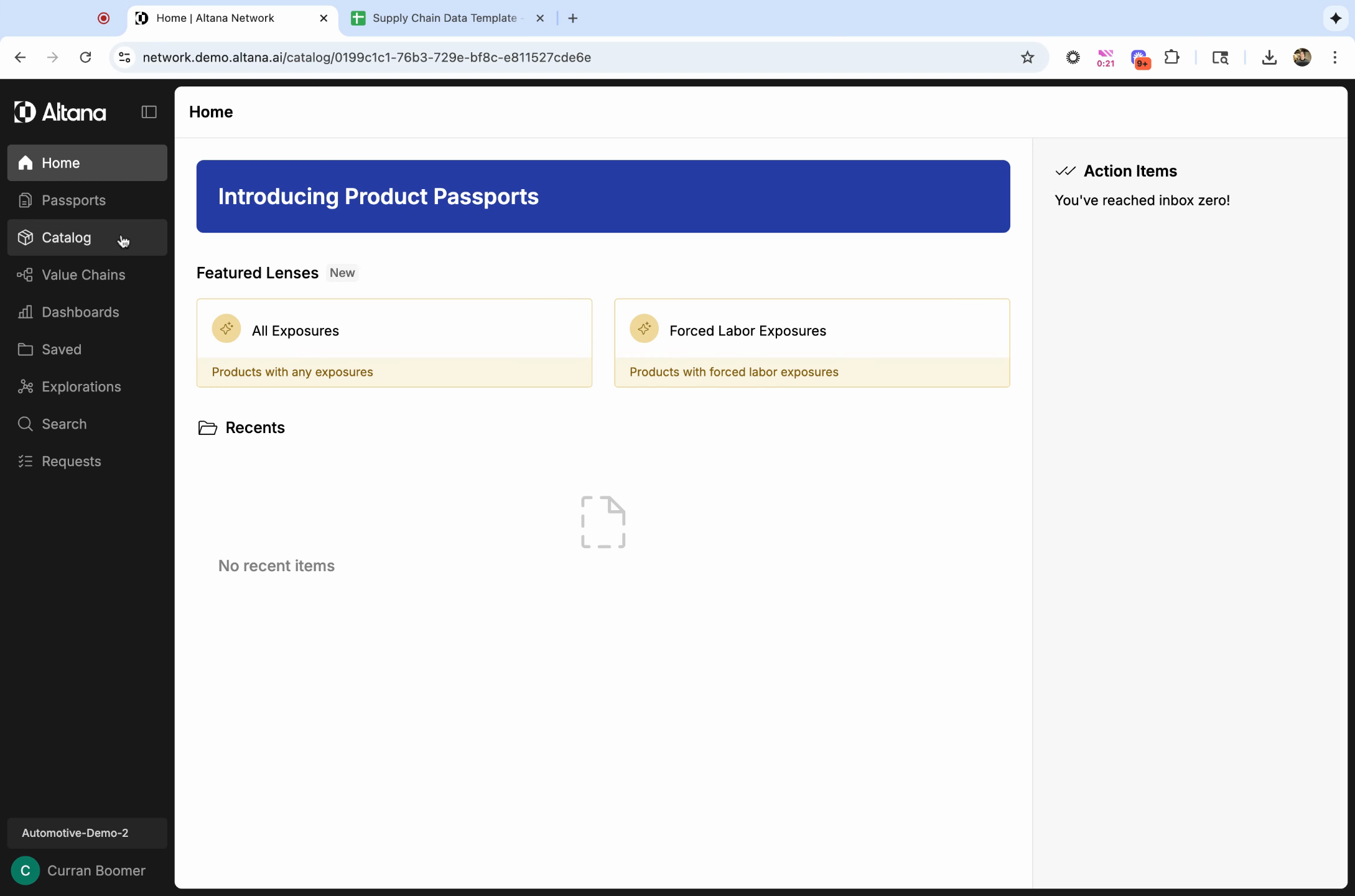
Step 2: Select Edit Catalog and then click Add Data.
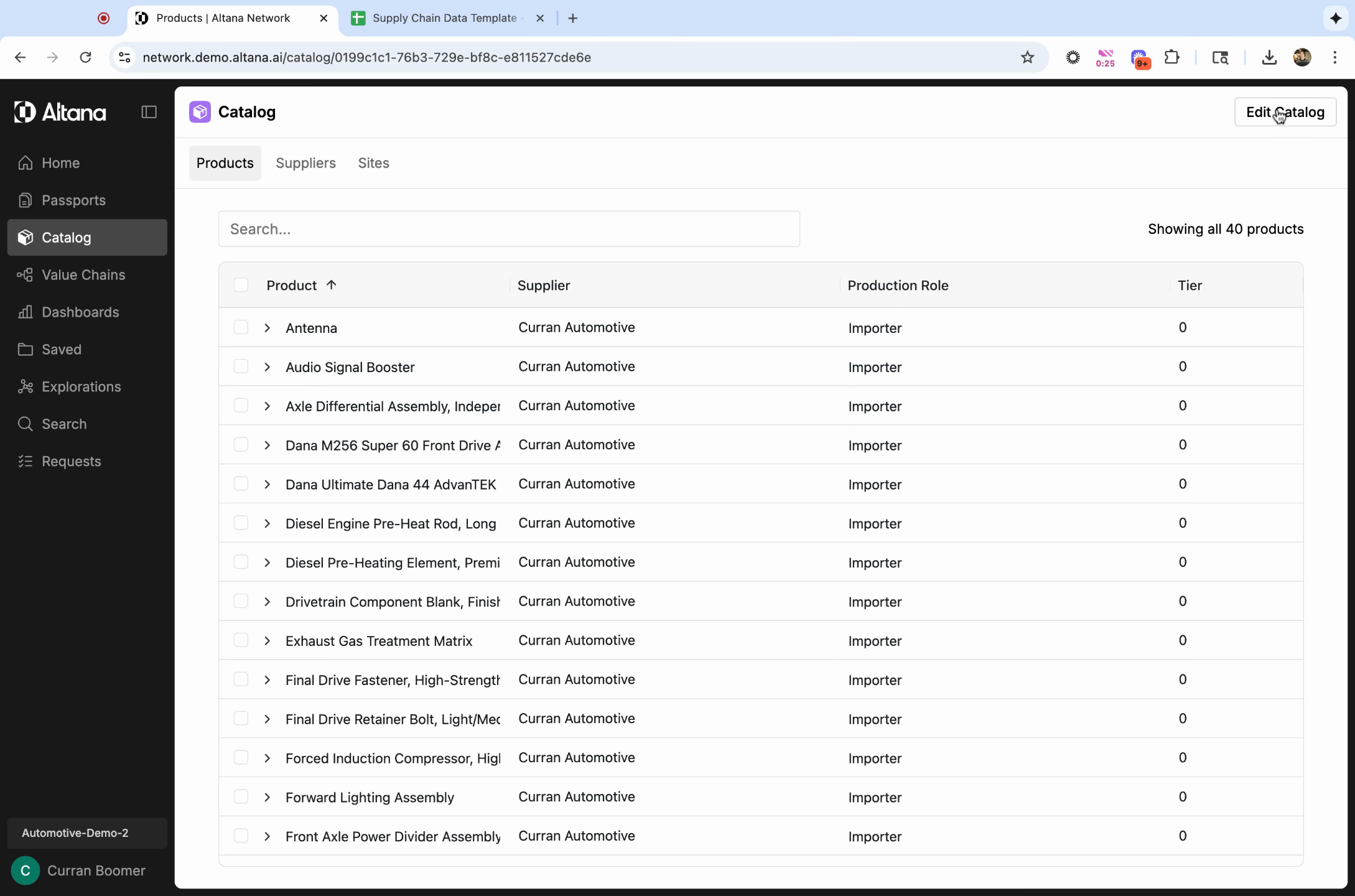
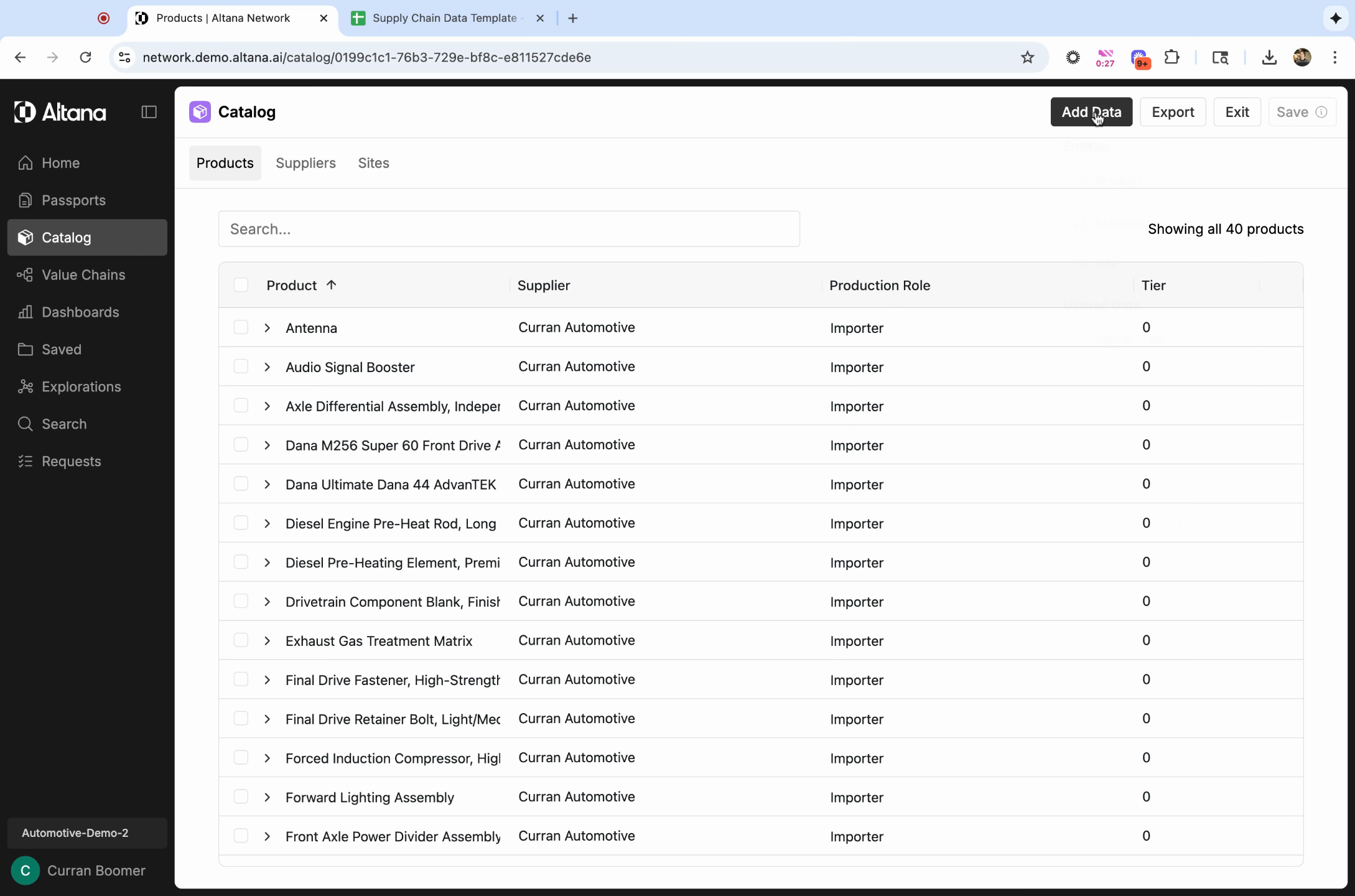
Step 3: Select Upload File to add data to your catalog by uploading a CSV.
You can also manually add data to the catalog by selecting Product, Supplier, or Site under Entities.
Step 4: In order to upload a CSV, your file must be formatted in a specific way. Click Download Template to get a CSV file with the exact format you need for import.
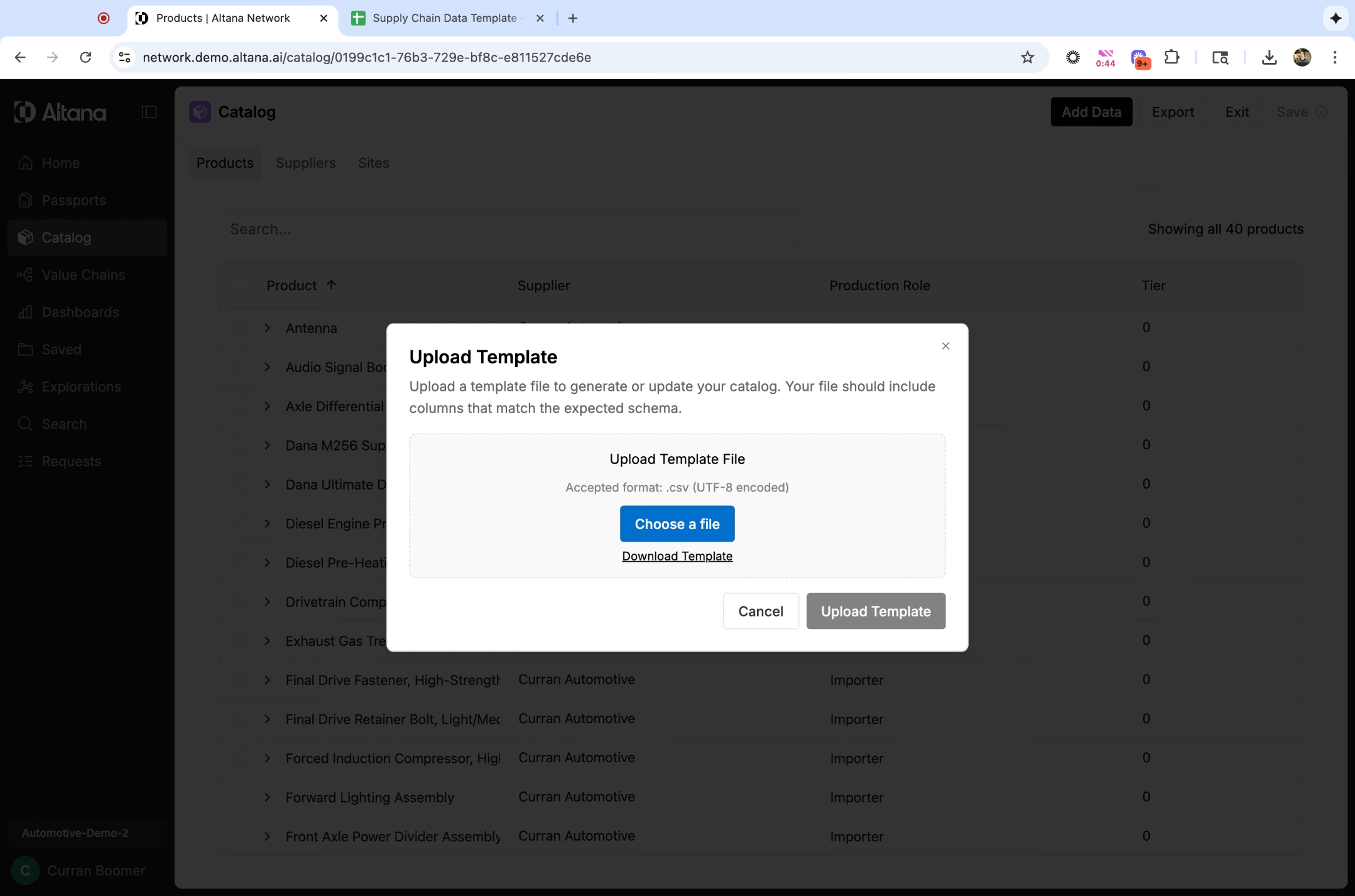
Step 5: Format your CSV according to the template.
In order to upload data into the system, you must provide data about your product (the finished good that you produce or procure), your Tier 0 site, as well as the T1 supplier(s) who supply you this product. If you have supplier data about tiers that are further upstream, we encourage you to provide that as well.
How to format your CSV
Rows: In your CSV, each row represents a separate product or input good. Where there is more than one product produced per supplier, please fill out an additional row with the same supplier information and new product-level values.
Columns: In your CSV, each column represents a different field in the Altana product catalog.
In order for your upload to process, you must include the following 11 columns:
(T0 Product) Finished Good Internal ID
(T0 Product) Finished Good Name
(T0 Site) Internal ID
(T0 Site) Name
(T0 Site) Address
(T1 Product) Input Good Internal ID
(T1 Product) Input Good Description
(T1 Product) Input Good HS Codes
(T1 Supplier) Internal ID
(T1 Supplier) Name
(T1 Supplier) Address
For every additional tier of information you want to add (e.g. Tier X), you must include the following six columns:
(TX Product) Input Good Internal ID
(TX Product) Input Good Description
(TX Product) Input Good HS Codes
(TX Supplier) Internal ID
(TX Supplier) Name
(TX Supplier) Address
You can add additional columns with additional fields, as long as these required columns are present.
For more information about how to format your CSV, review the Supply Chain Data Template. It includes with more instructions, field definitions, and an example template that can help you format your CSV.
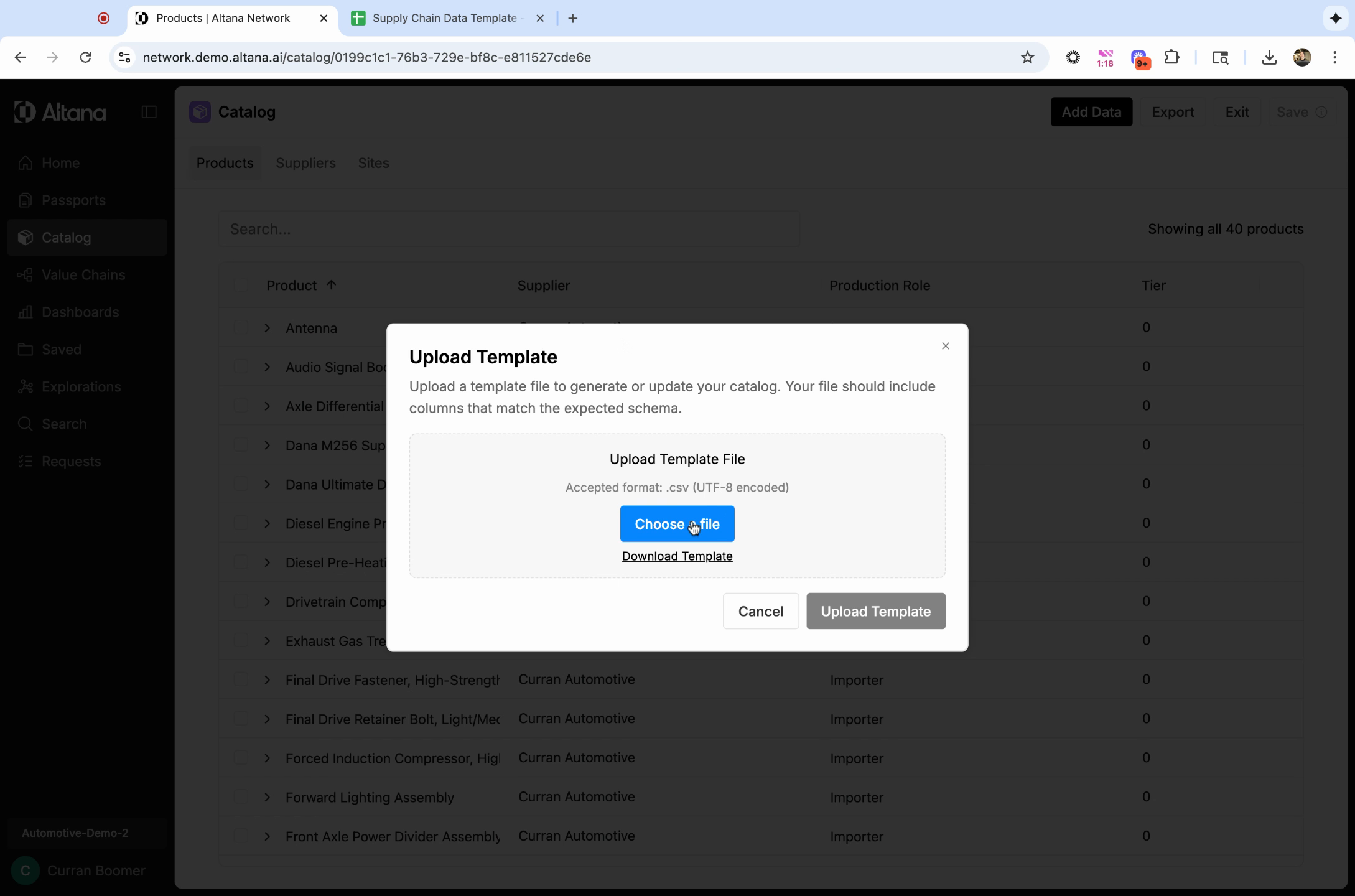
Step 6: Once your CSV is ready and formatted correctly, use Choose File option to select the correct file and Upload Template to upload it into the catalog.
Step 7: The status of your upload will appear at the top of the catalog, and when it's finished will display the number of products and suppliers added.