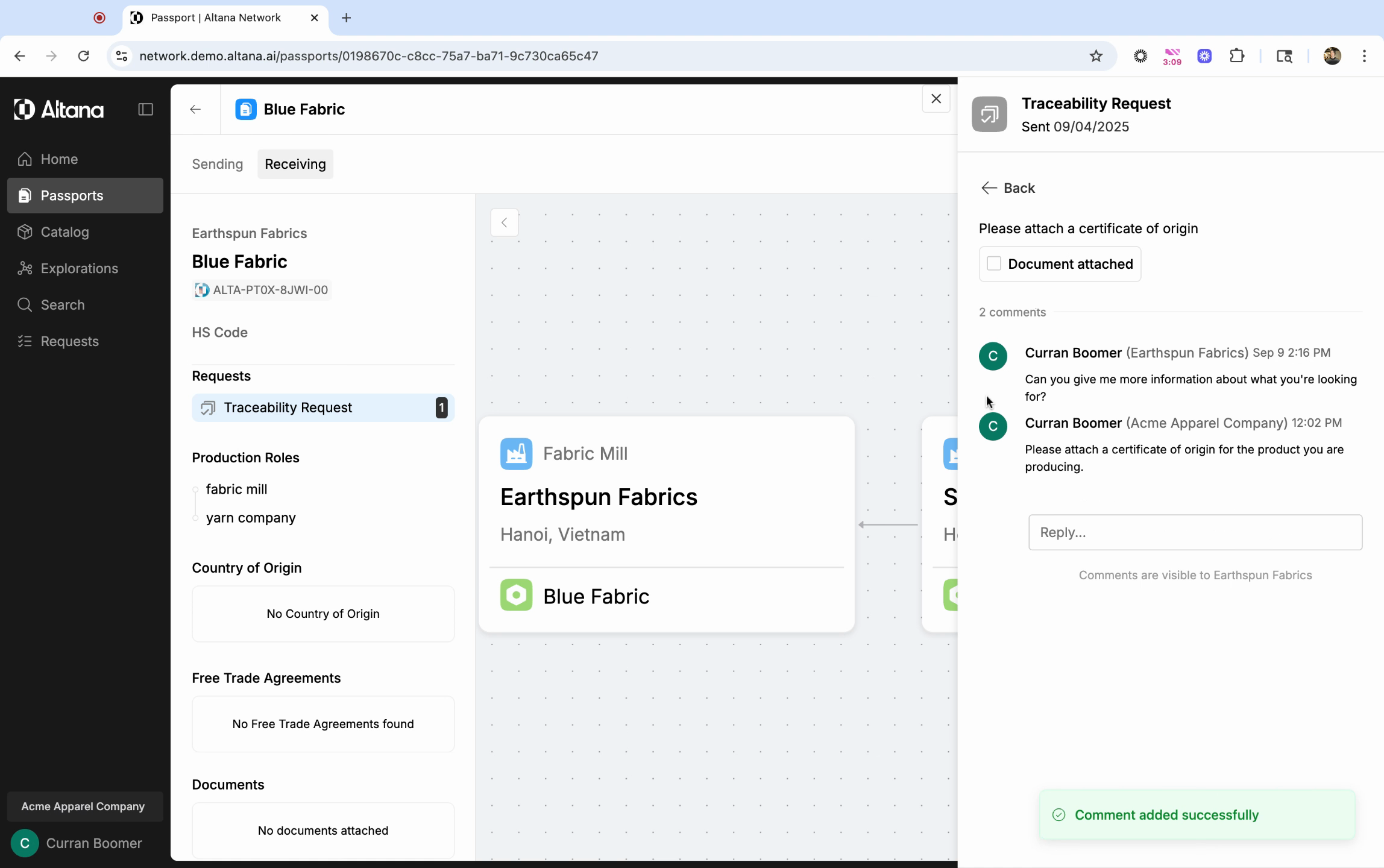
Reviewing Responses to Traceability Requests
In this article, you'll learn how to review responses to traceability requests sent to your suppliers.
Step 1: Start from the Home screen and select Requests from the left-hand menu.
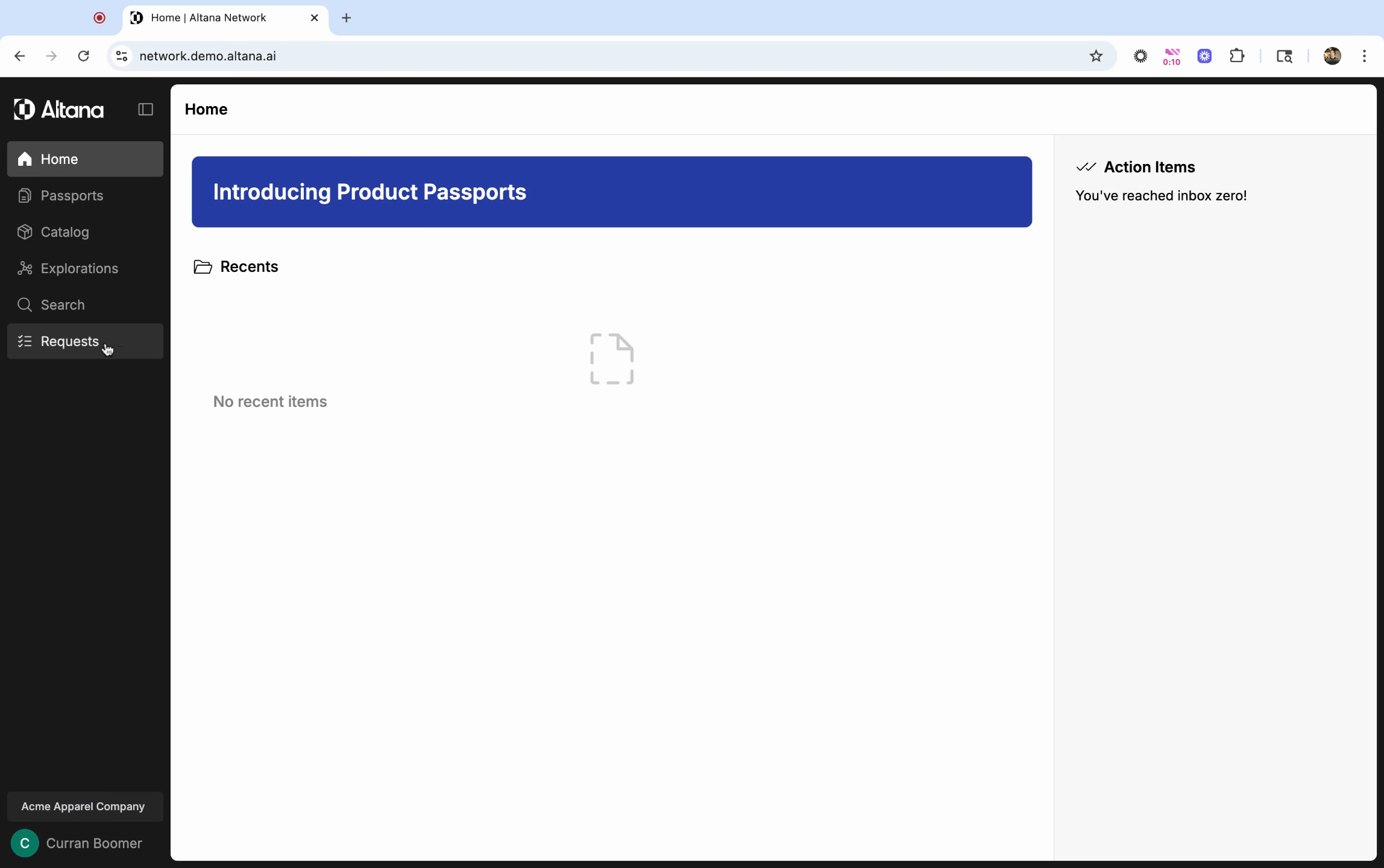
This will display all sent, received, and draft requests.
Step 2: To review supplier responses, navigate to the Sent tab and locate the specific request.
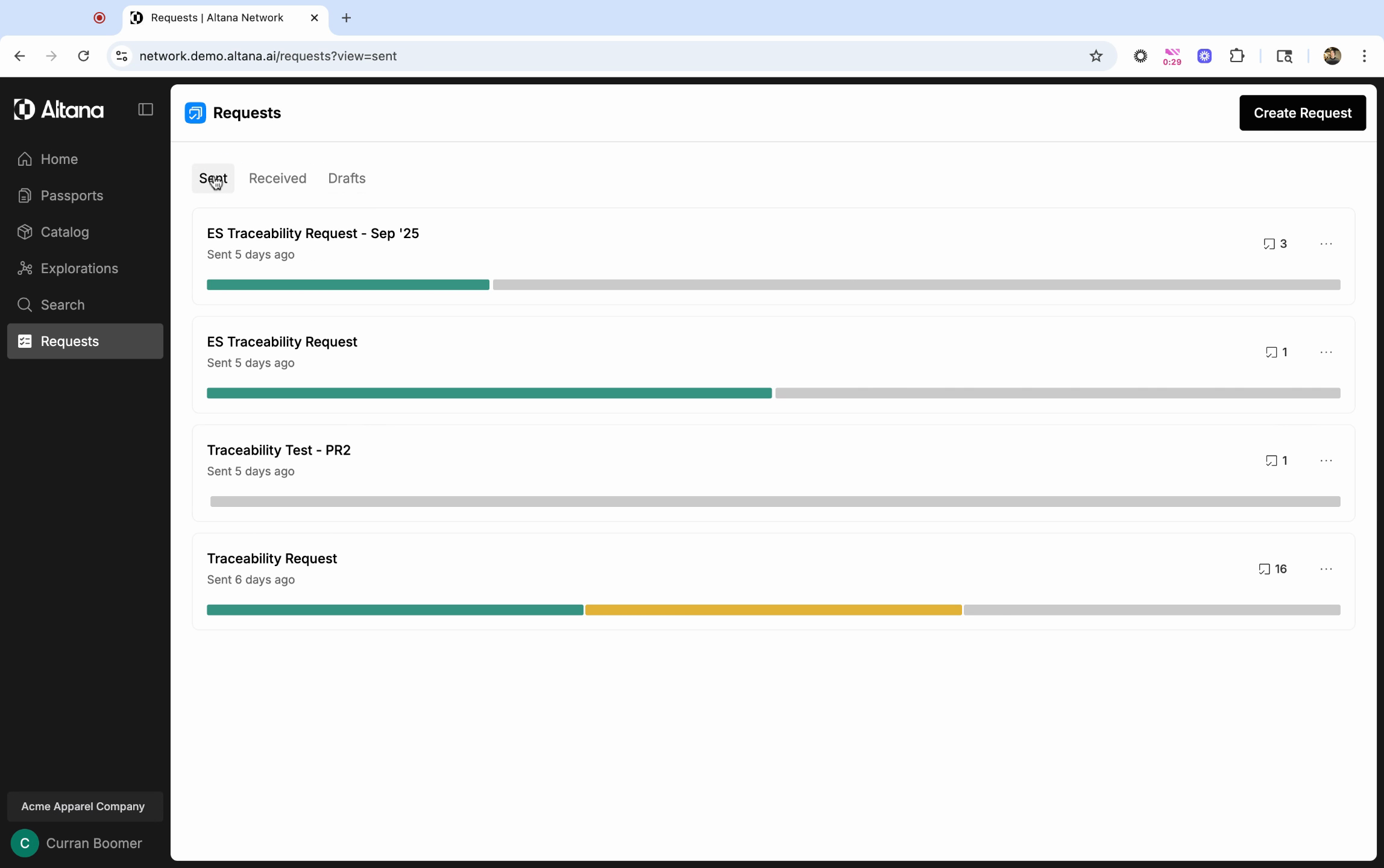
The progress bars indicate the completion status of each request. Since traceability requests are managed through Product Passports, progress is tracked on a per-Passport basis.
A green bar means that all questions for a given Product Passport have been answered. A yellow bar indicates that the questions in a Product Passport have been partially answered, and a gray bar indicates that no questions have been answered.
Step 3: Click on the request to view individual Product Passports.
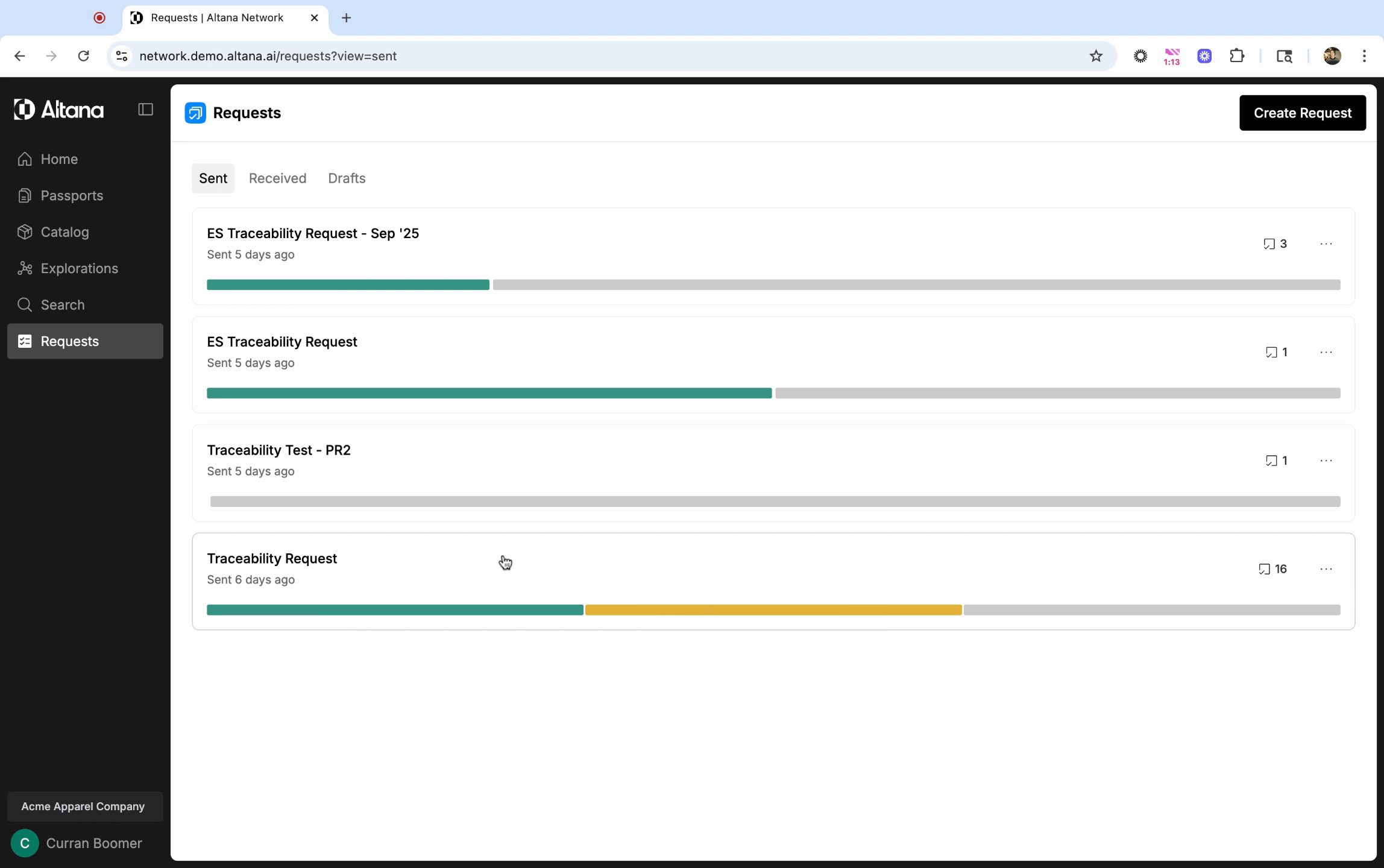
Here, you'll see the suppliers who received this request and the Passports for the products you've asked about in your request. Each passport also has a completion status, letting you know if this request has been completed.
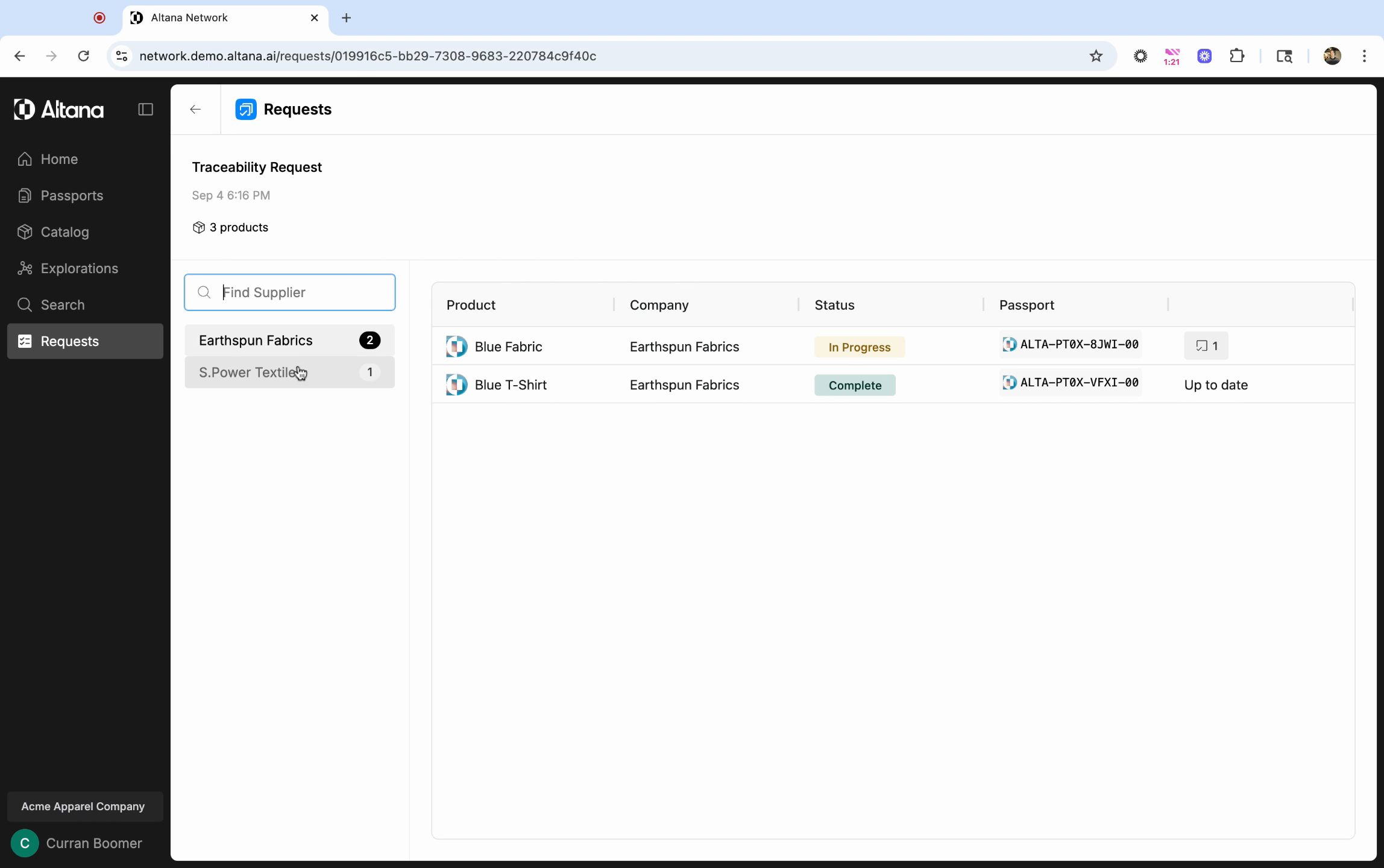
Step 4: To view their responses, click on the passport and then the specific request sent to them.
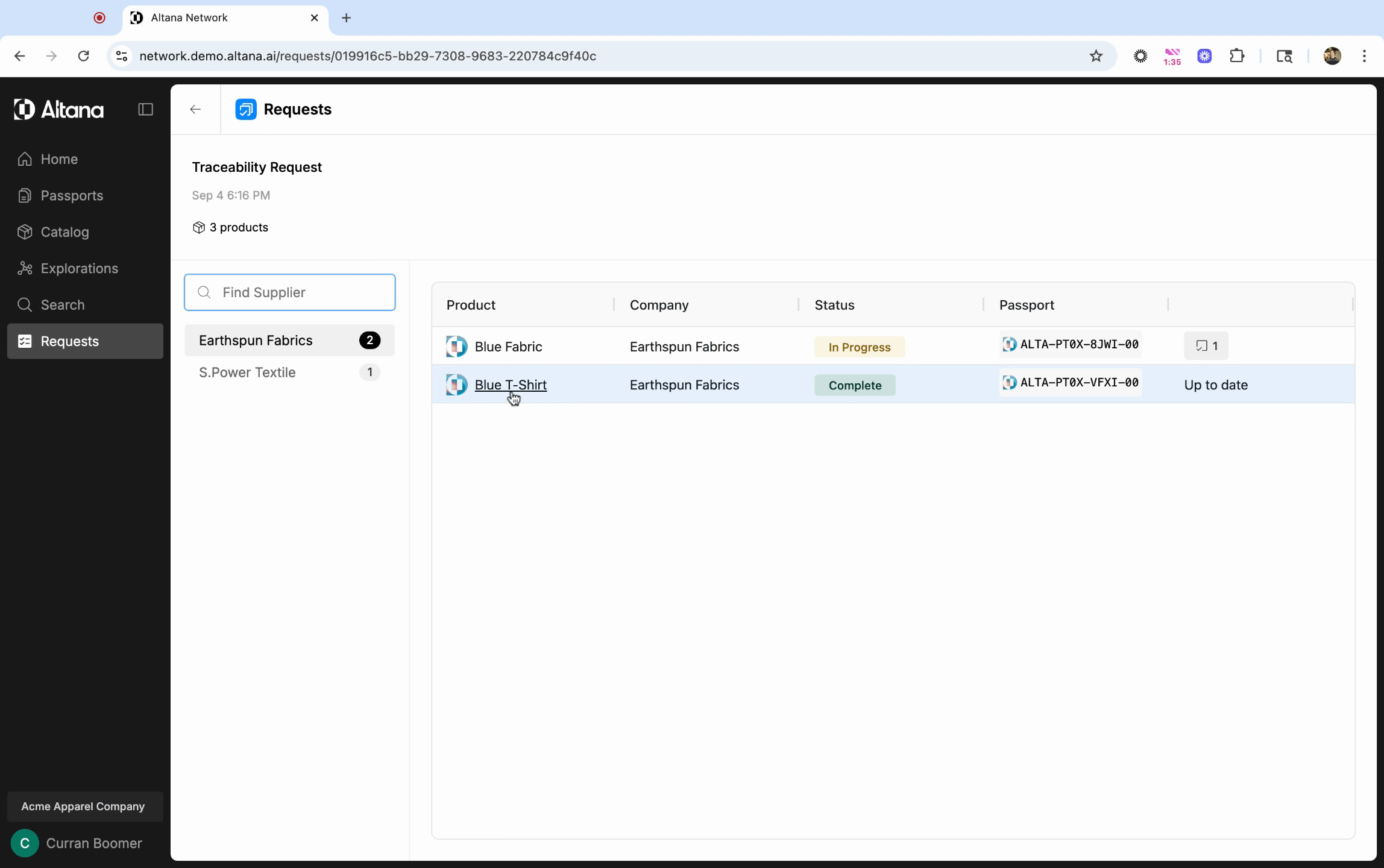
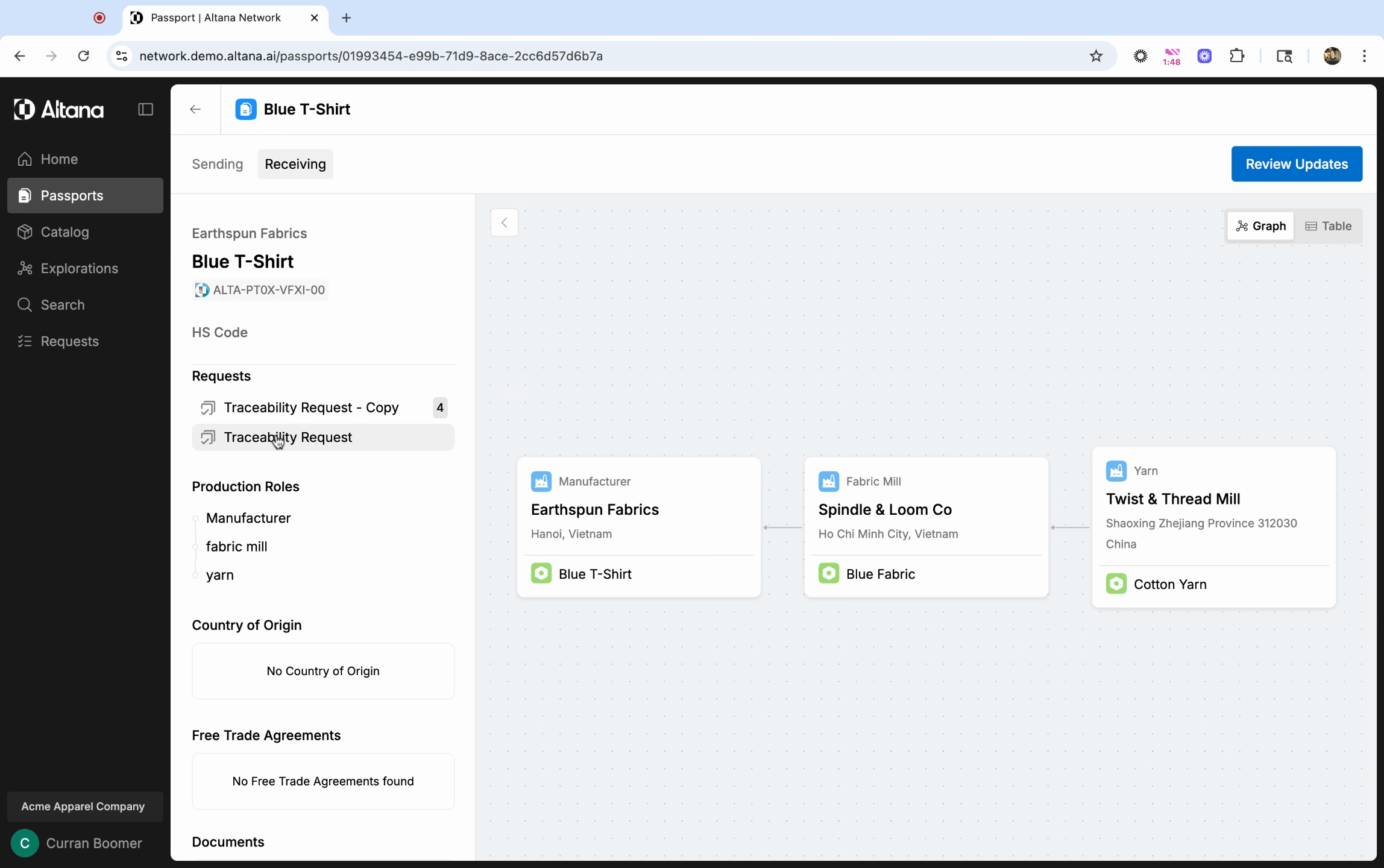
You'll see all the questions sent and their completion status on the right-hand side of the passport.
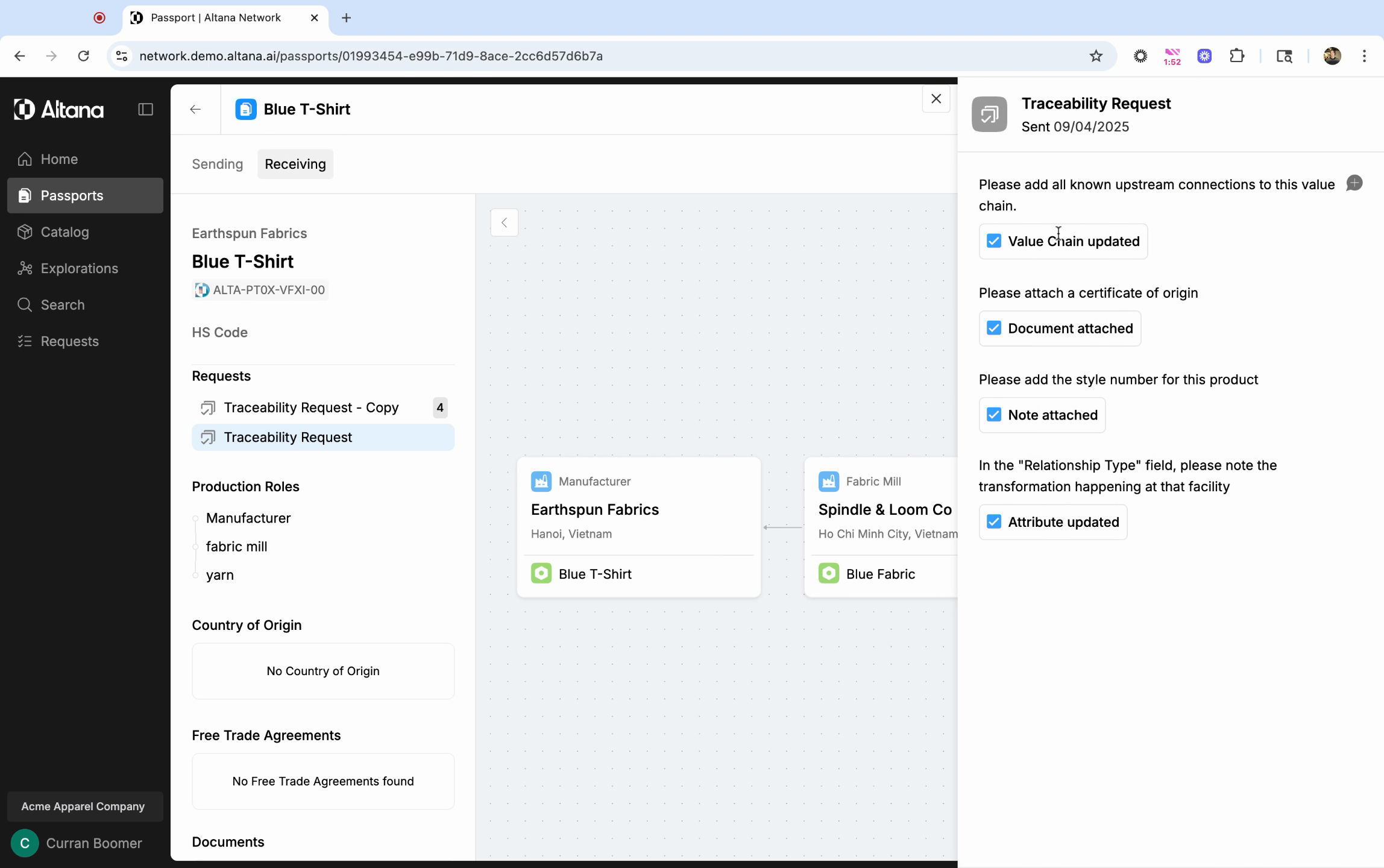
Responses are stored within the product passport, either as entities in the value chain or as information/documents attached to each entity.
Step 5: Suppliers can also leave comments on individual request items if they need more information. Click on the comment bubble next to a request item to view the conversation.
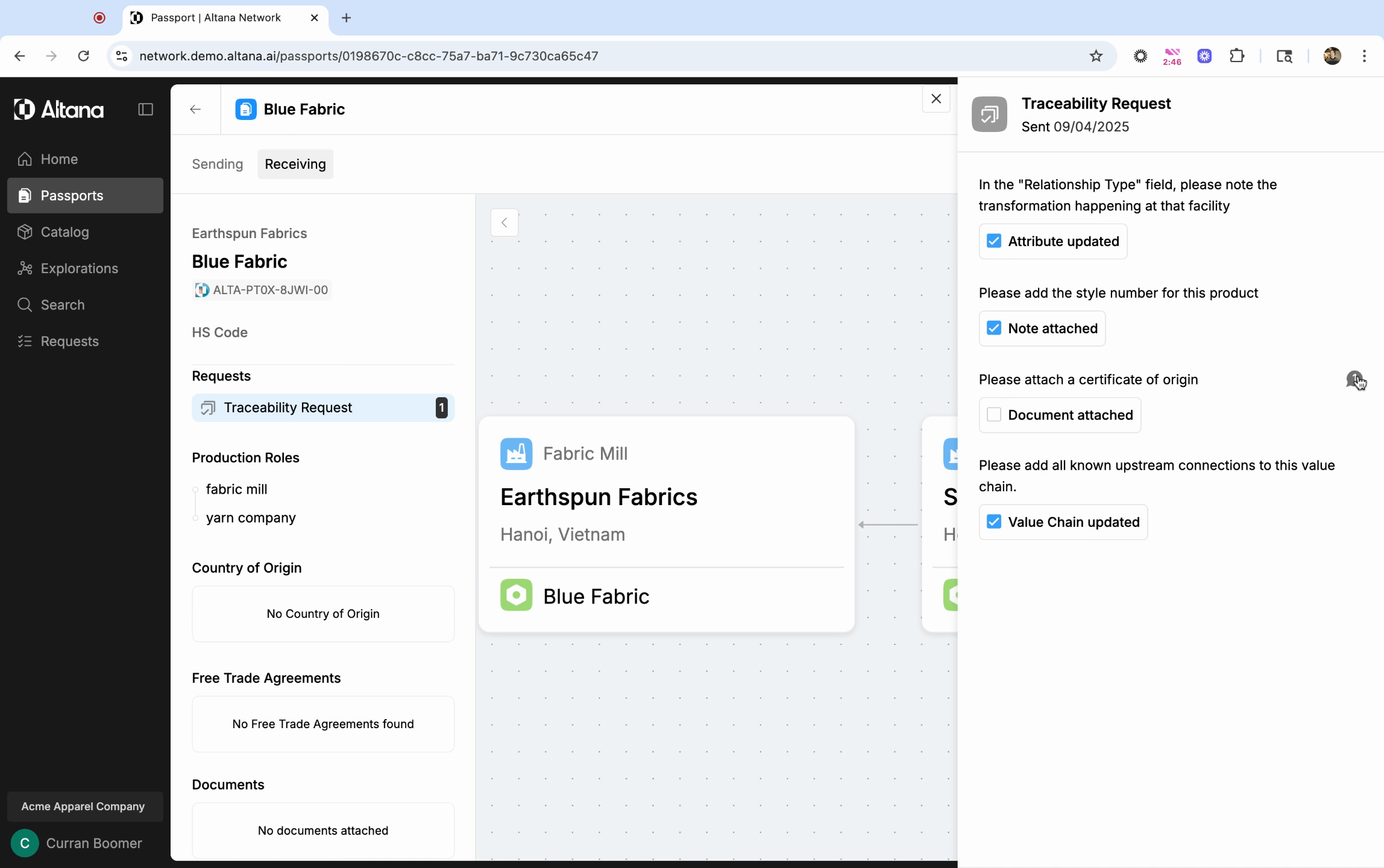
You can respond and provide any additional context necessary for them to complete that item.