
Receiving Data from a Collaborator
In this guide we'll cover how to add information received from other businesses into our product catalog, helping us expand our understanding of a product’s value chain via collaboration.
Step 1: Share a Product Passport with the business you want to collaborate with. You can find detailed steps for how to do this here.
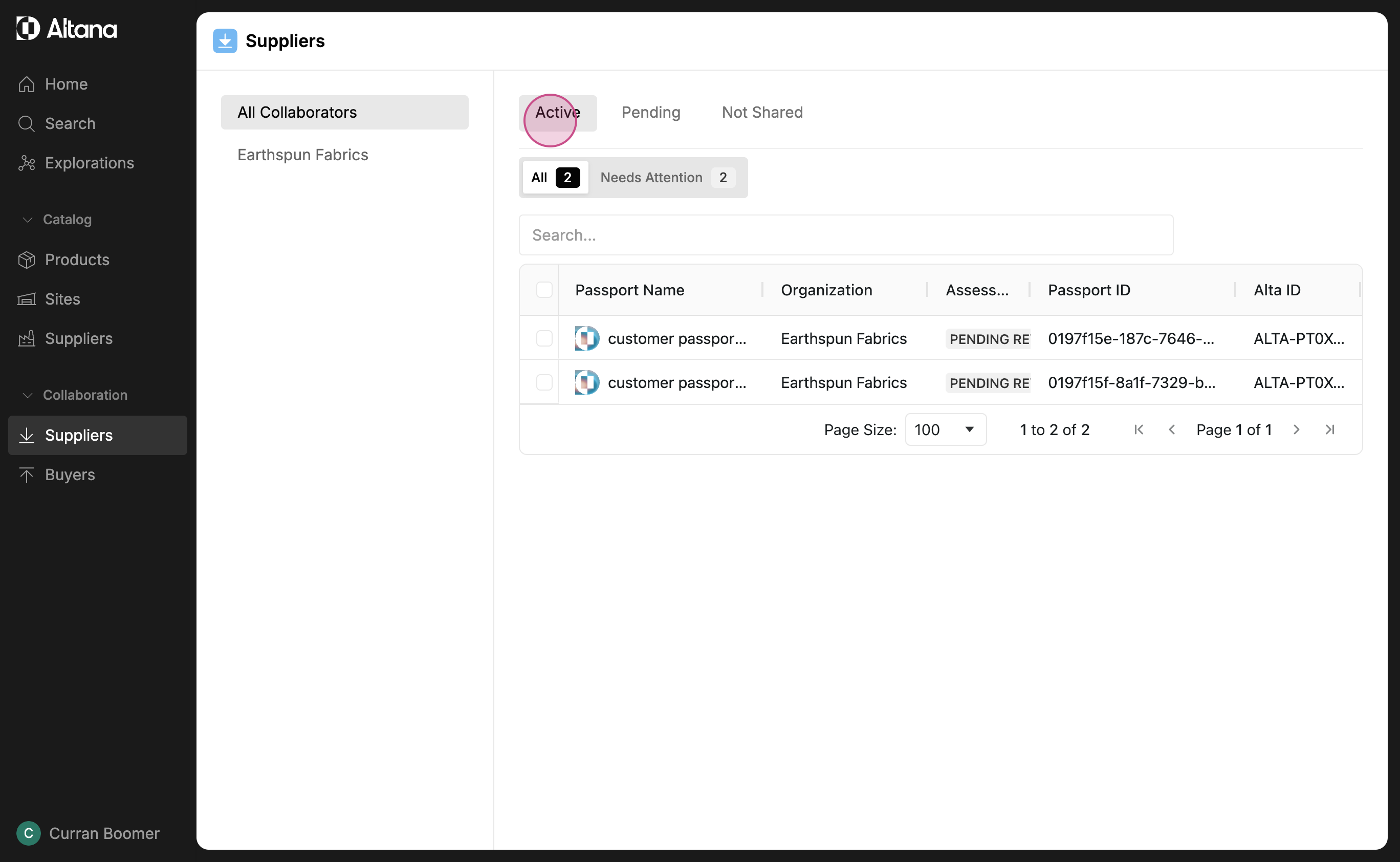
Step 2: Once your supplier has responded to your request to collaborate, you can find their response by going to Collaboration > Suppliers > Active.
Here you'll be able to see all the Product Passports you're actively collaborating on with your suppliers.
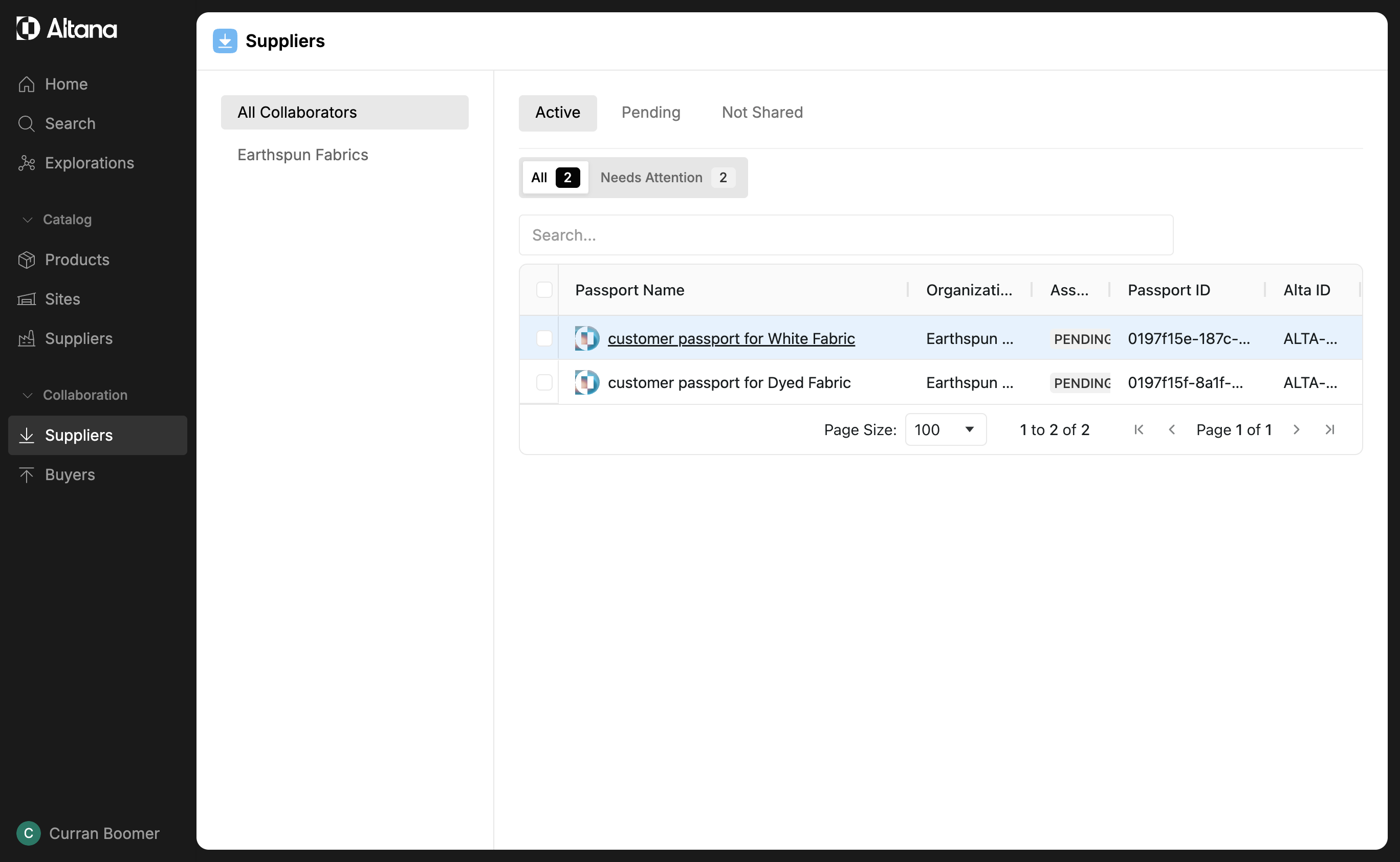
Step 3: Select a passport. In this case, we're selecting the passport for White Fabric.
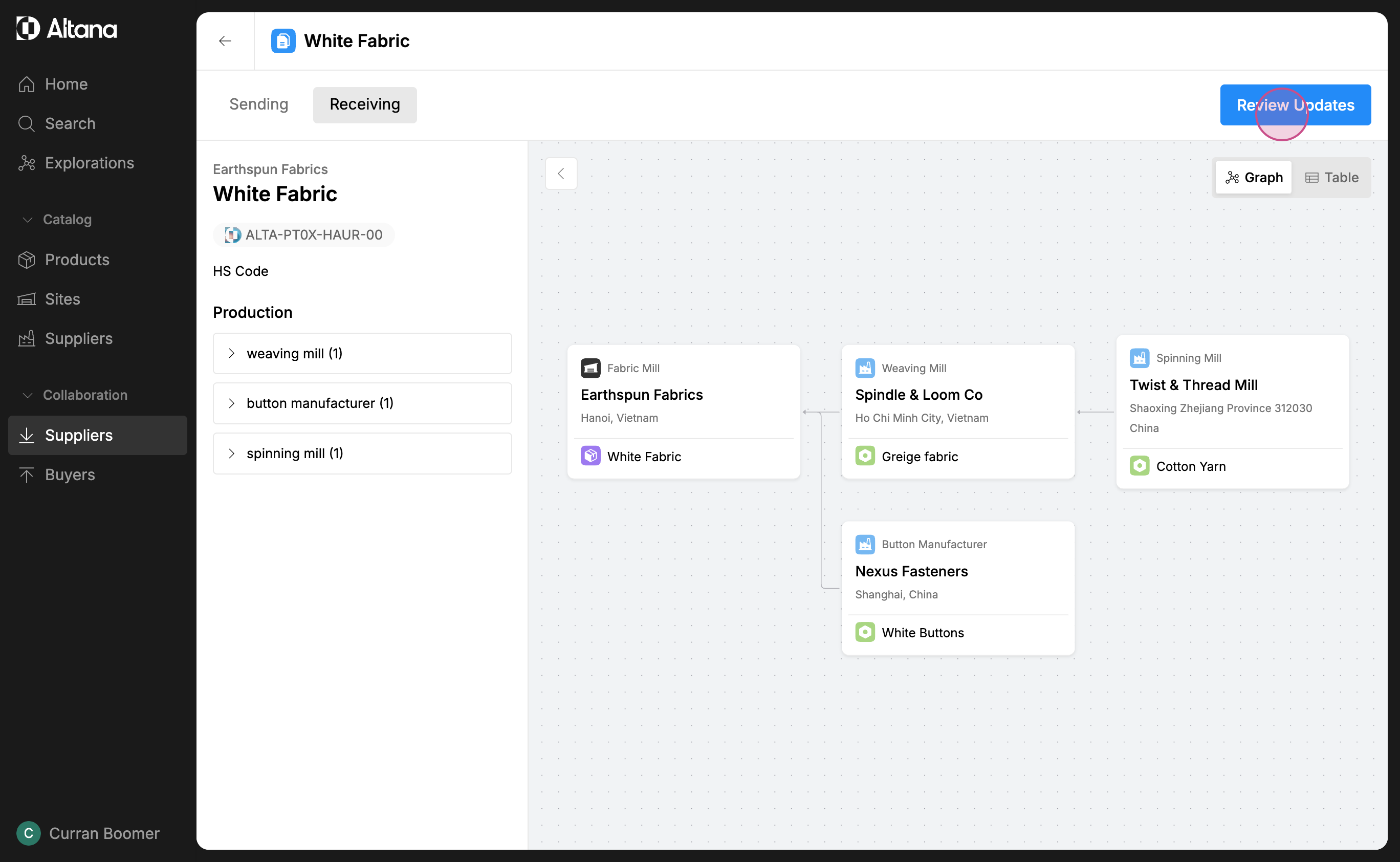
Step 4: Review the information your supplier has shared with you by looking at the Receiving tab of the passport. On the Sending tab you can see the information you originally sent them.
In this case, the Receiving tab contains new information about the upstream value chain for this product.
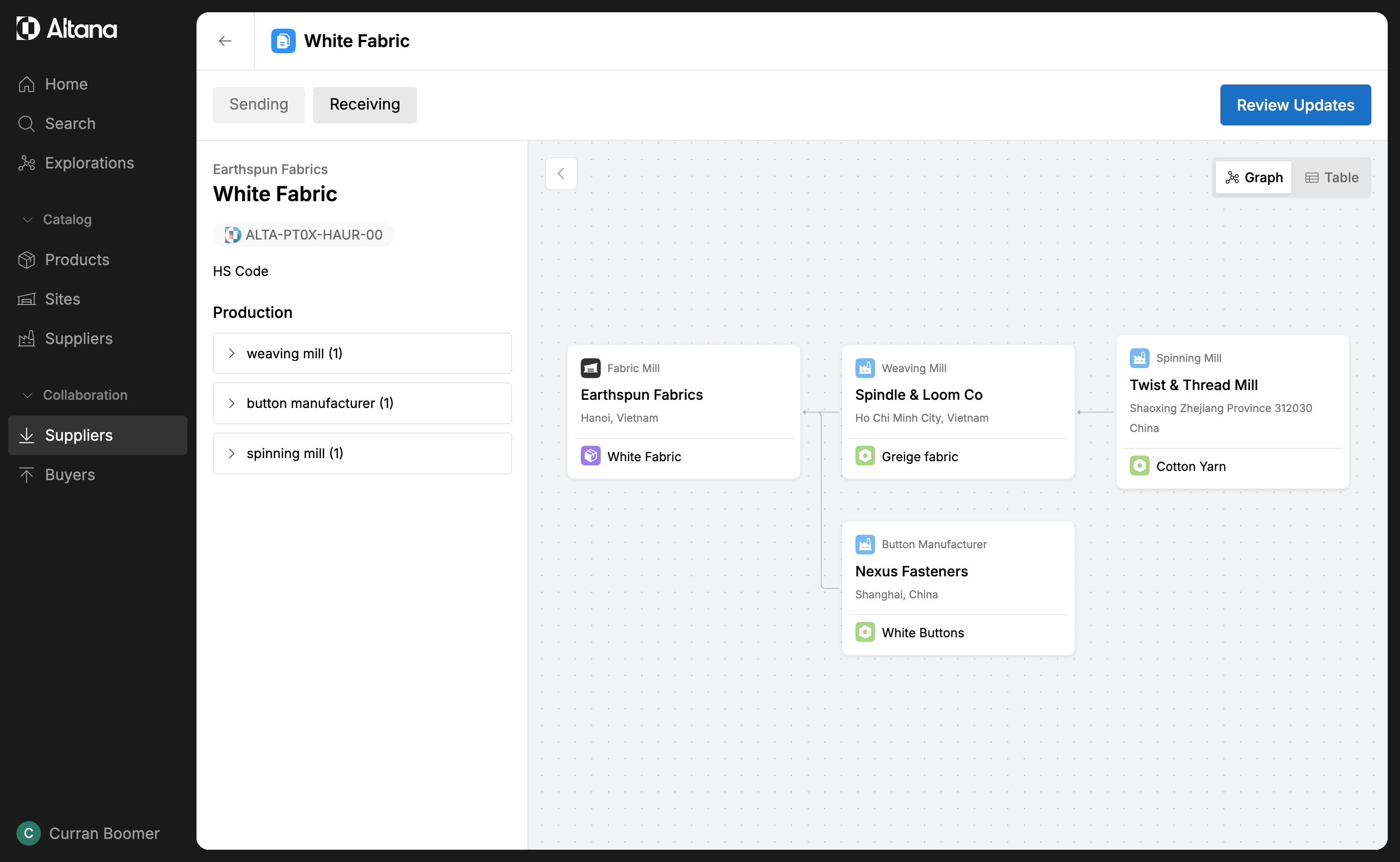
Step 5: To incorporate this information into your product catalog, click on Review Updates.
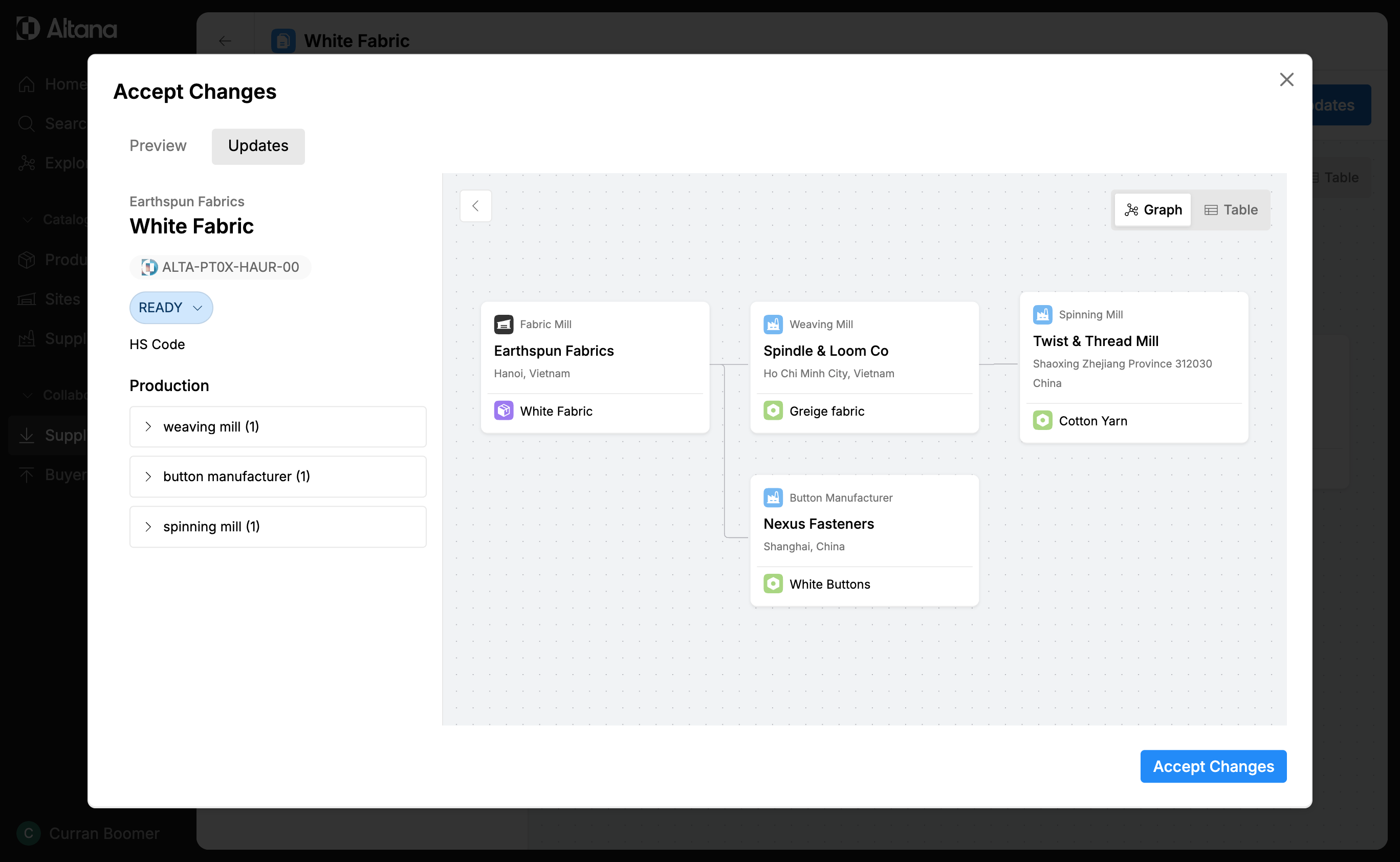
Step 6: You'll be prompted to review the updates. If everything looks good, click on Accept Changes.
Step 7: The updates are now part of your product catalog.
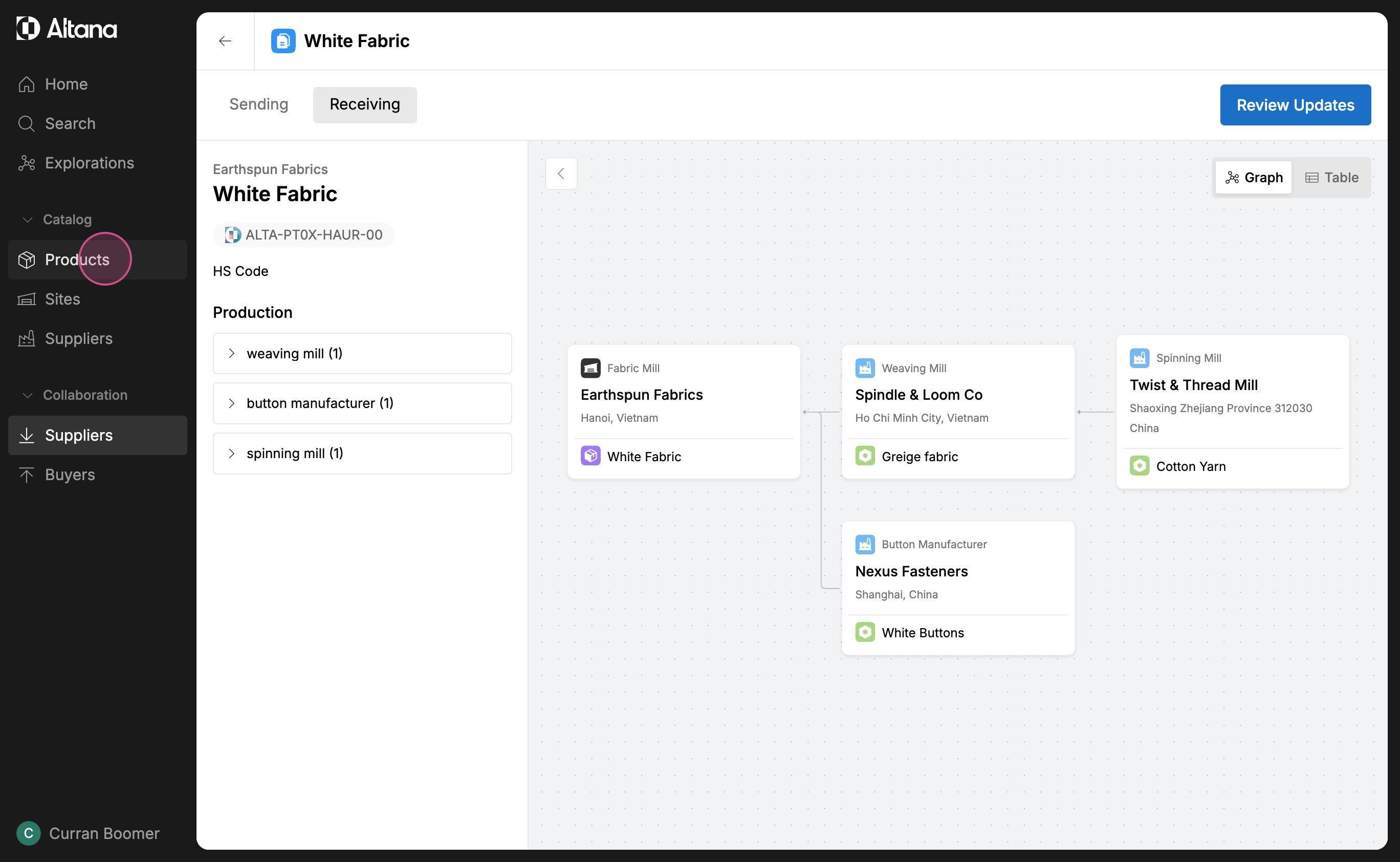
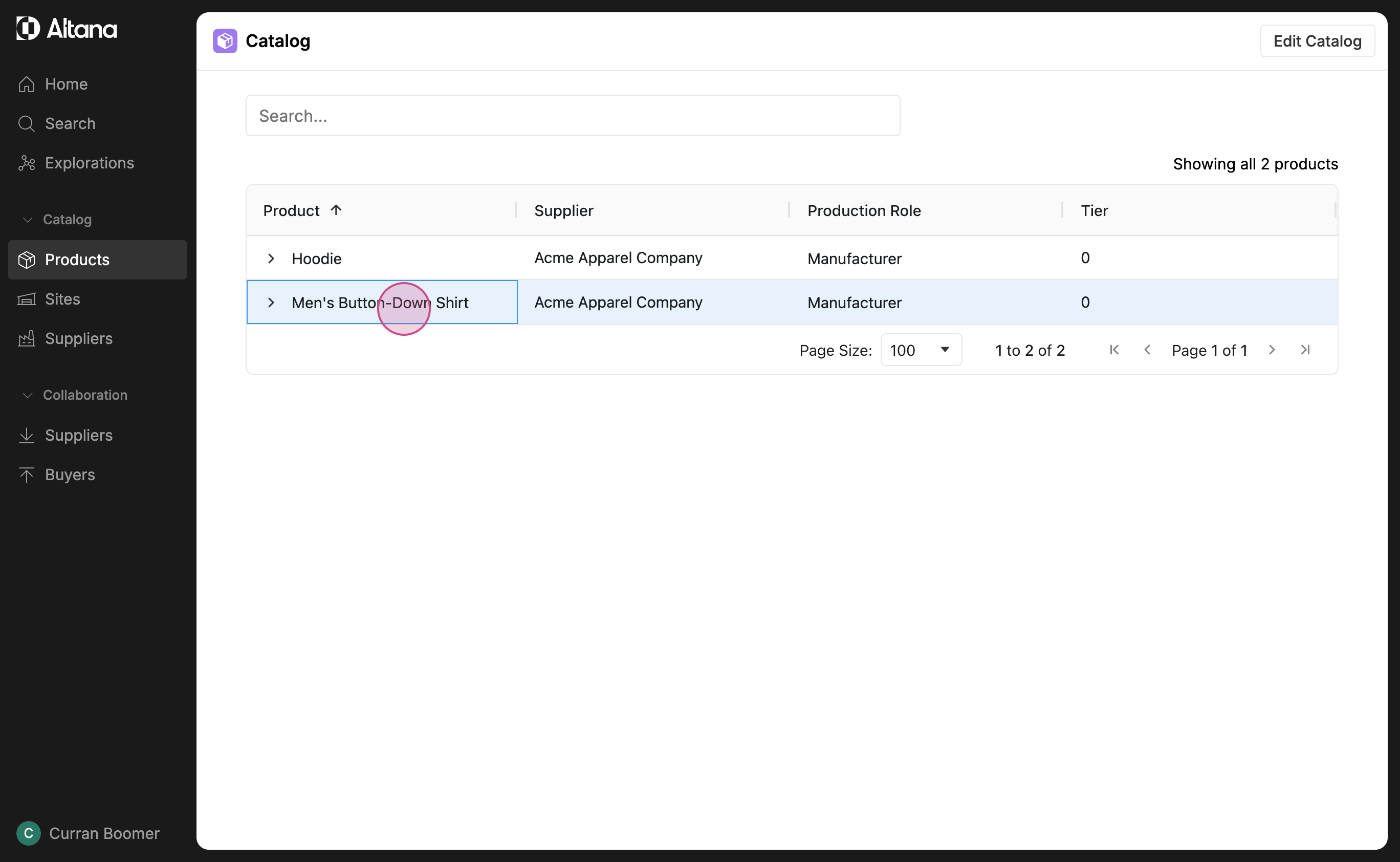
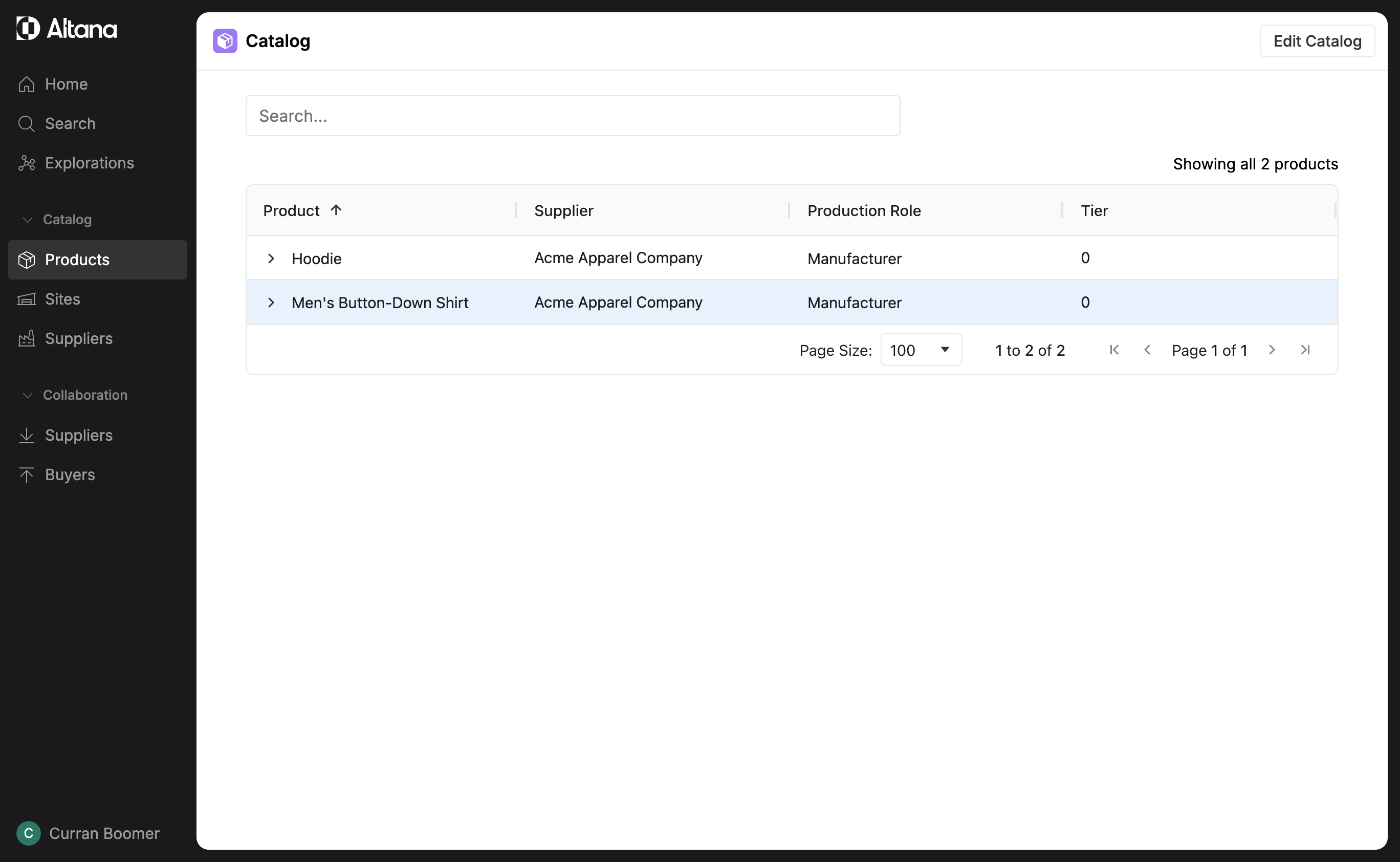
Step 8: To verify the updates, go to Products and click on the product that uses the updated passport.
In this case, White Fabric is an input good to Men's Button-Down Shirt, so we will select that Product.
Step 9: Navigate to the value chain. You'll see that it now includes all the information your T1 supplier shared with you.
