
Sharing Information via a Product Passport
In this article, we'll cover how to respond when a collaborator asks for more information via a product passport.
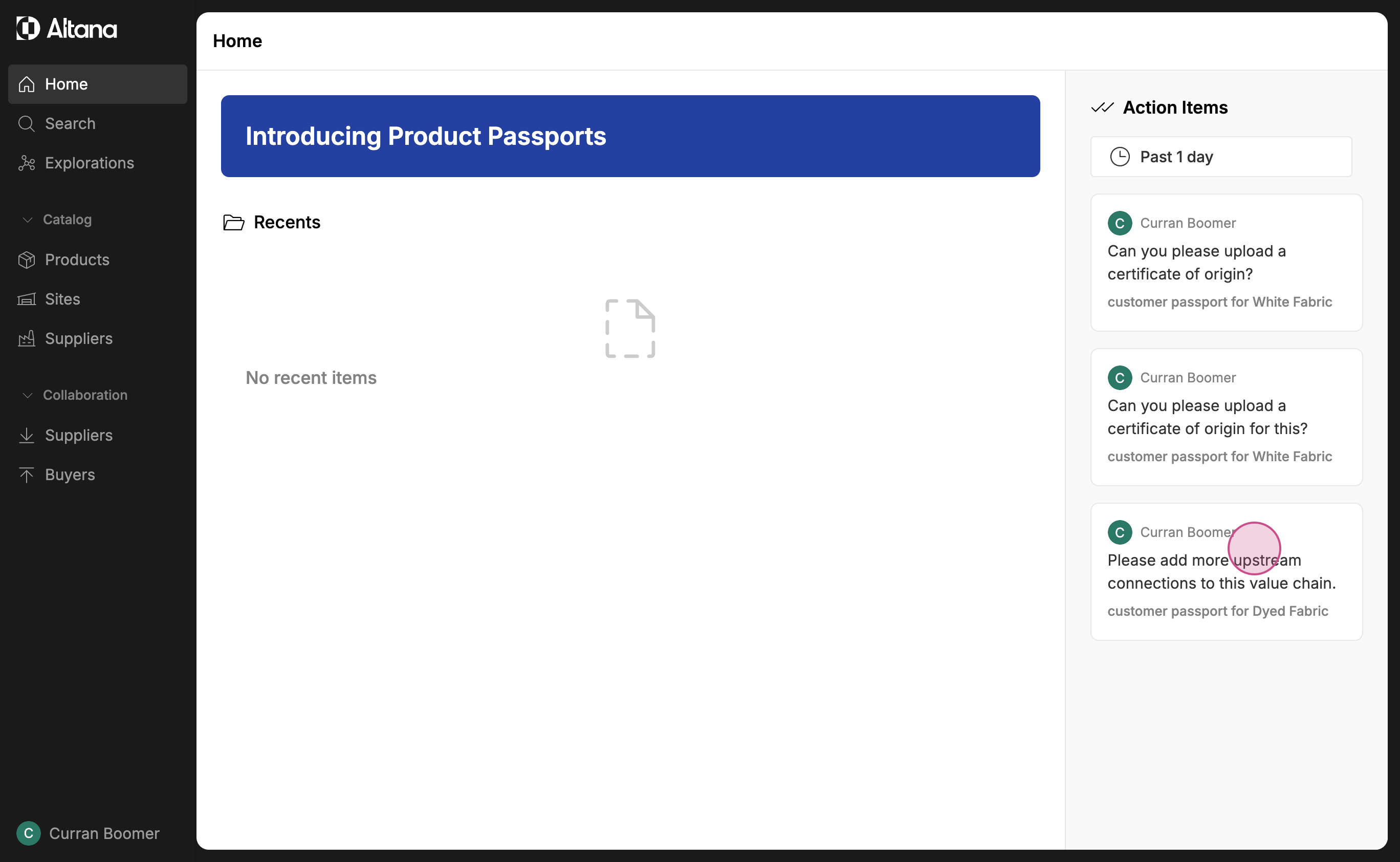
Step 1: You'll receive a comment from your downstream buyer on your Altana homepage. In this case, they're asking for more upstream connections to a product's value chain.
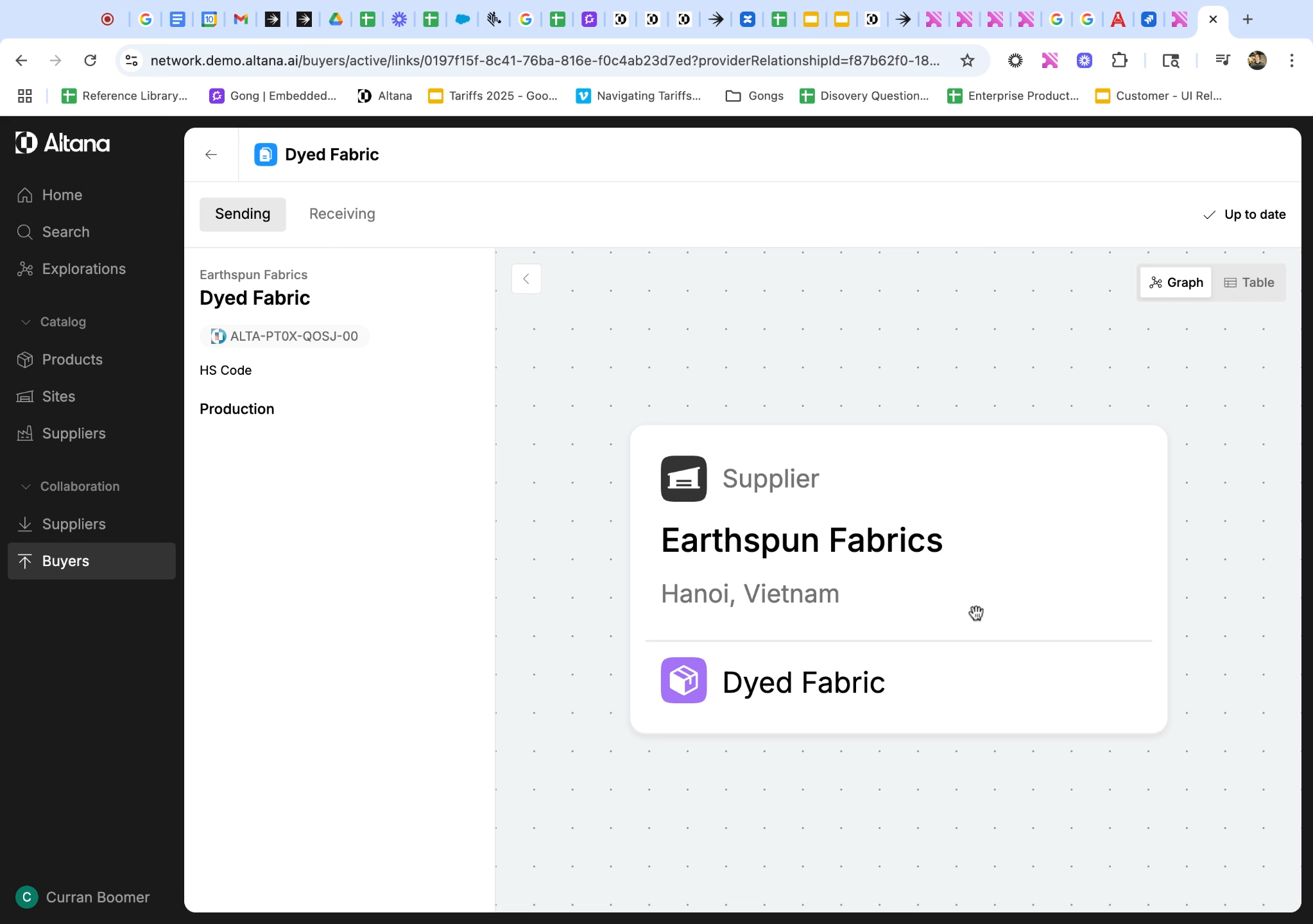
Step 2: Click on the comment. It'll take you directly to the product passport. Here, you'll see the information you're currently sharing with your buyer. Clicking on the entity in the value chain will let us see the comment from our buyer.
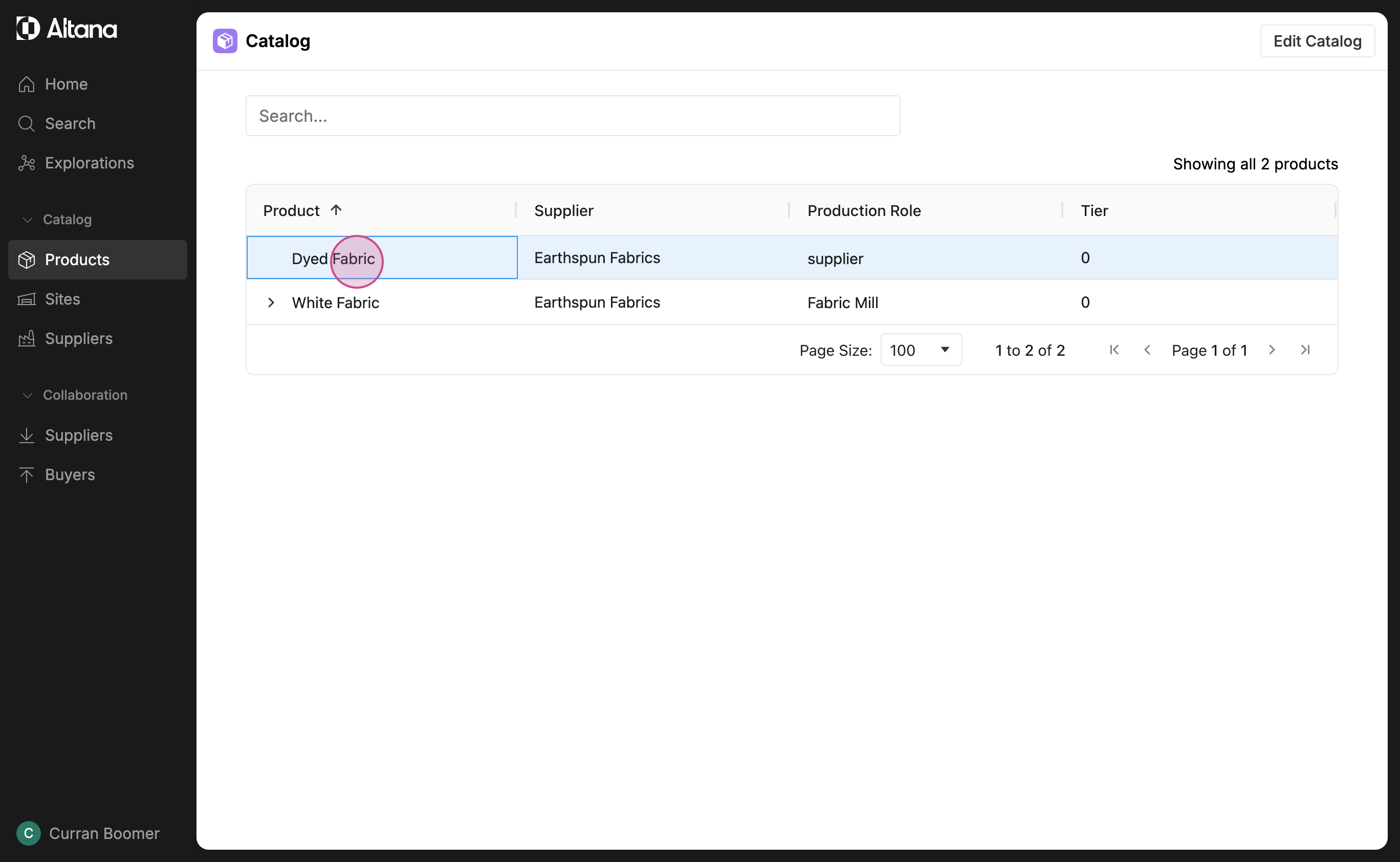
Step 3: Navigate to your product catalog to add new upstream entities to this product.
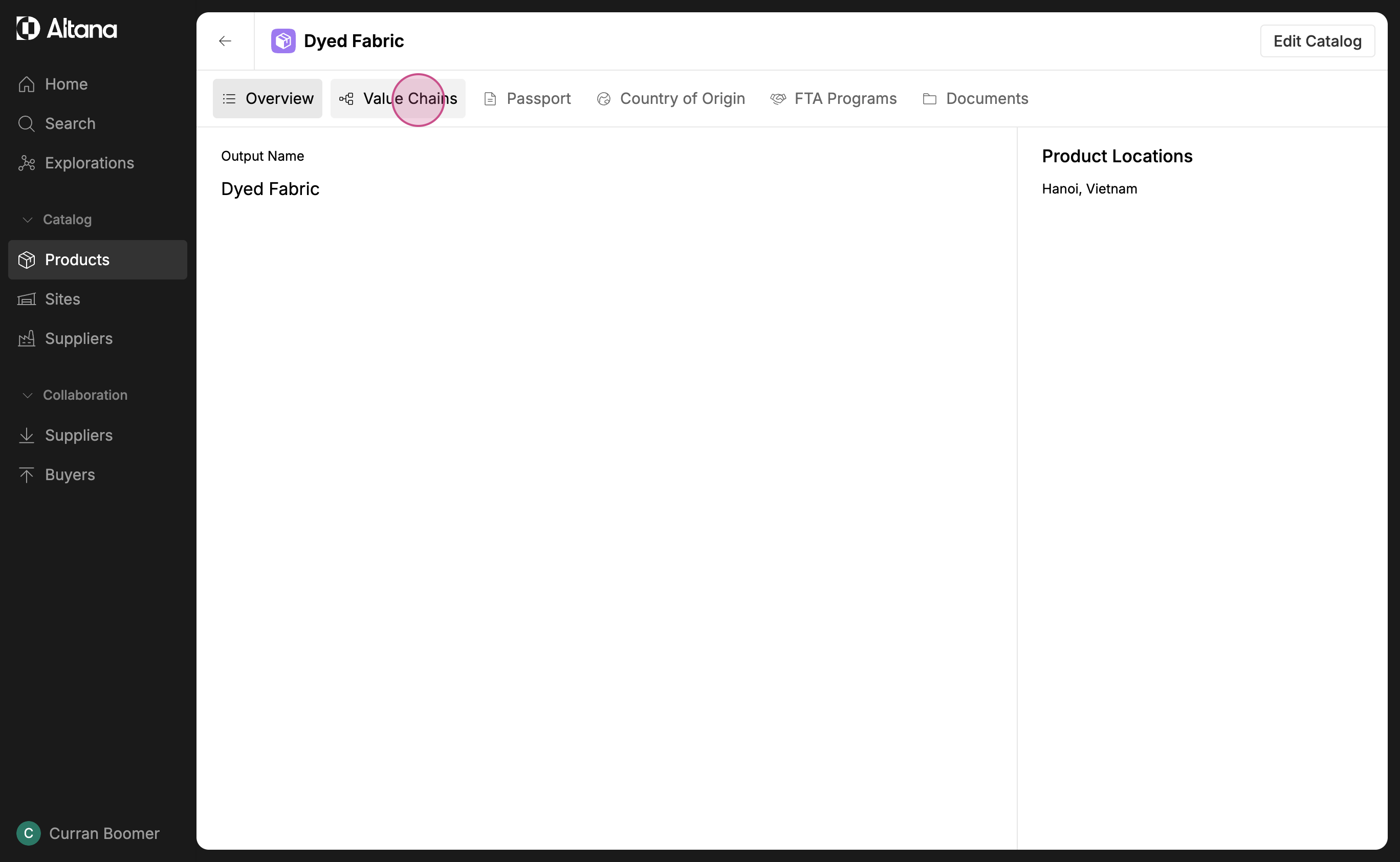
Step 4: Select the option for value chains.
Step 5: Now, it's time to add more suppliers. Click on Edit Catalog.
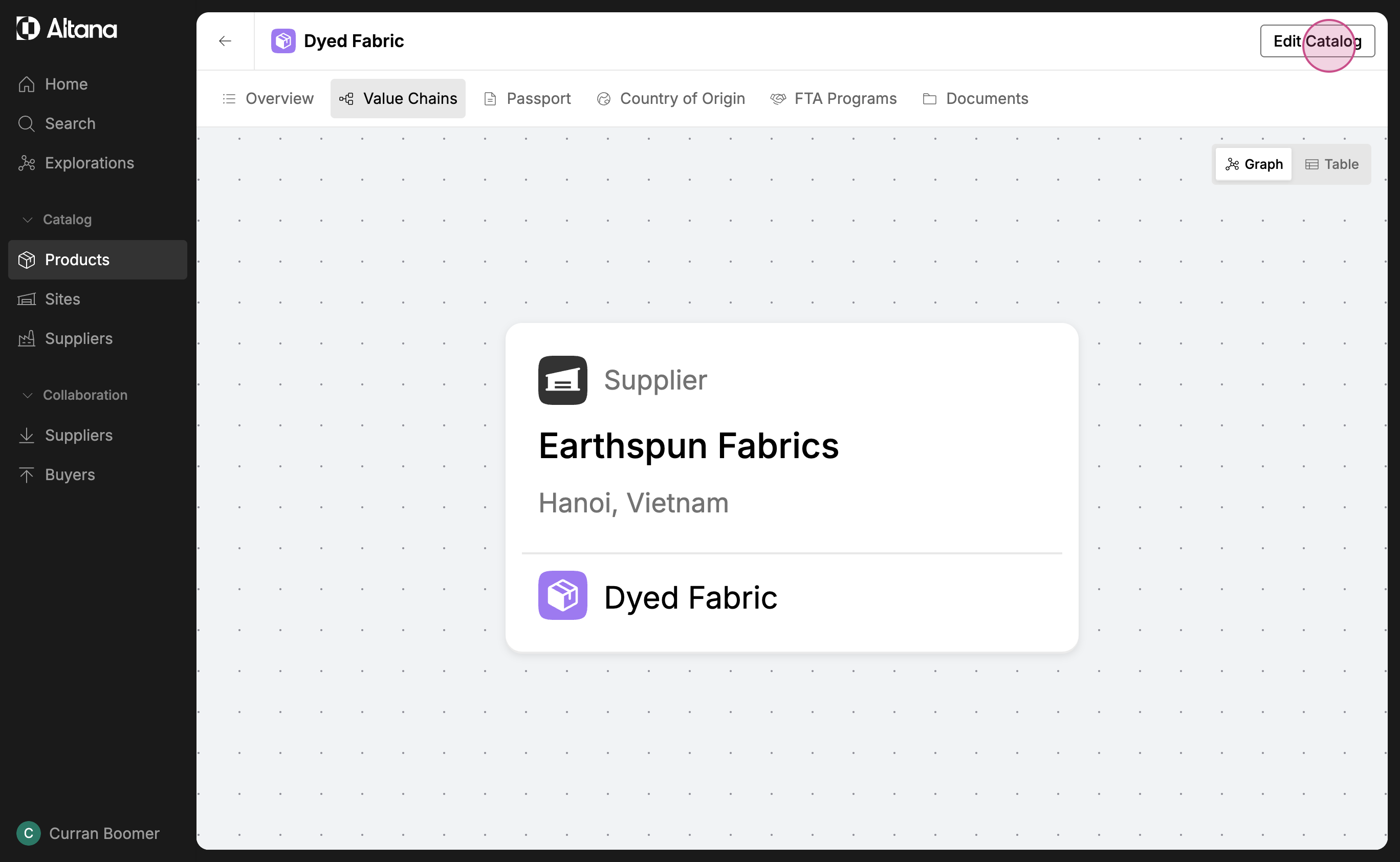
Step 6: Next, click the plus button to add new upstream connections.
Step 7: When you've successfully added new value chain connections for this product, click on Create Version to save to your catalog.
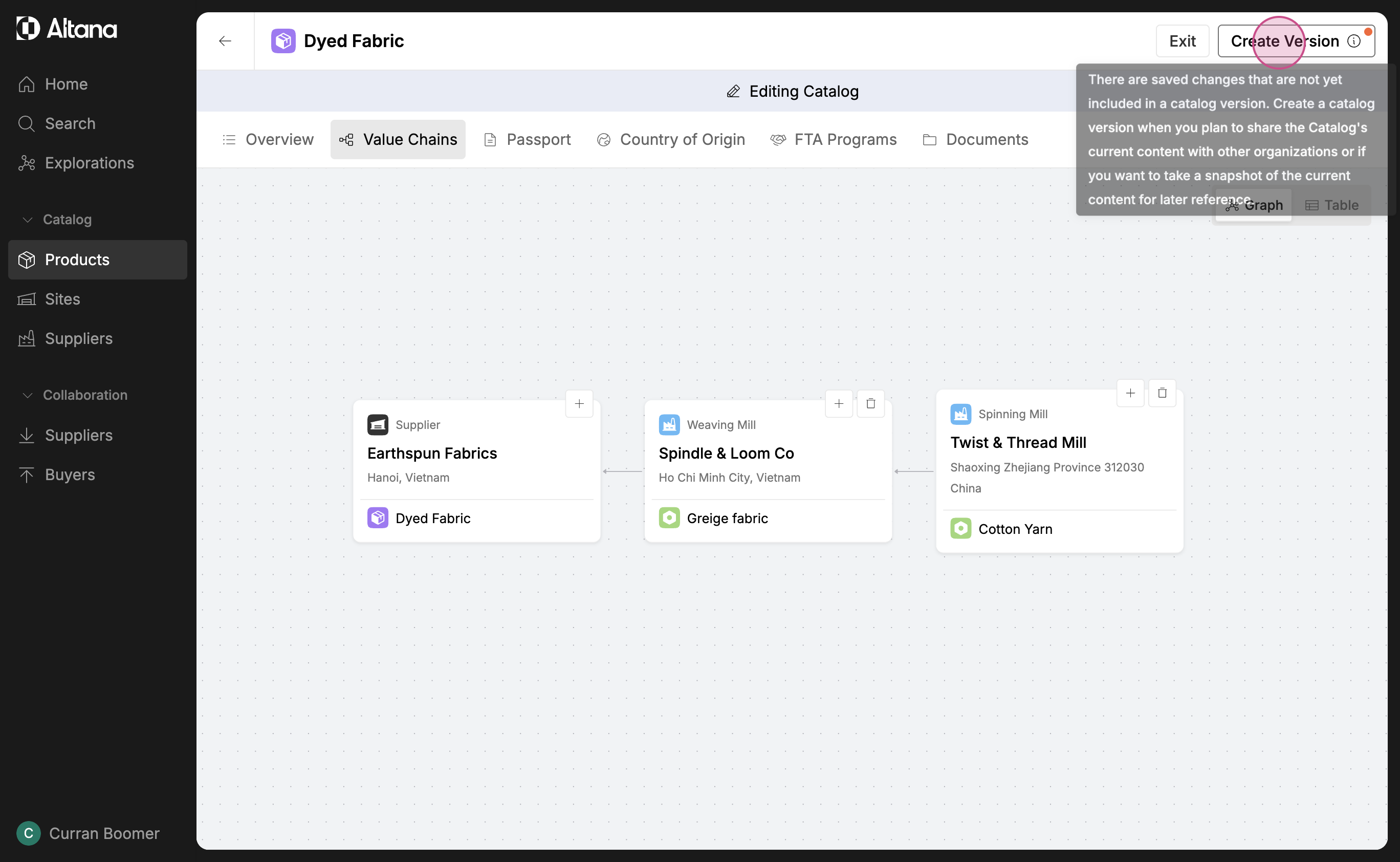
Step 8: Now, ensure these updates are reflected in the product passport you share with your buyer. Go back to the Collaboration section, click on Buyers.
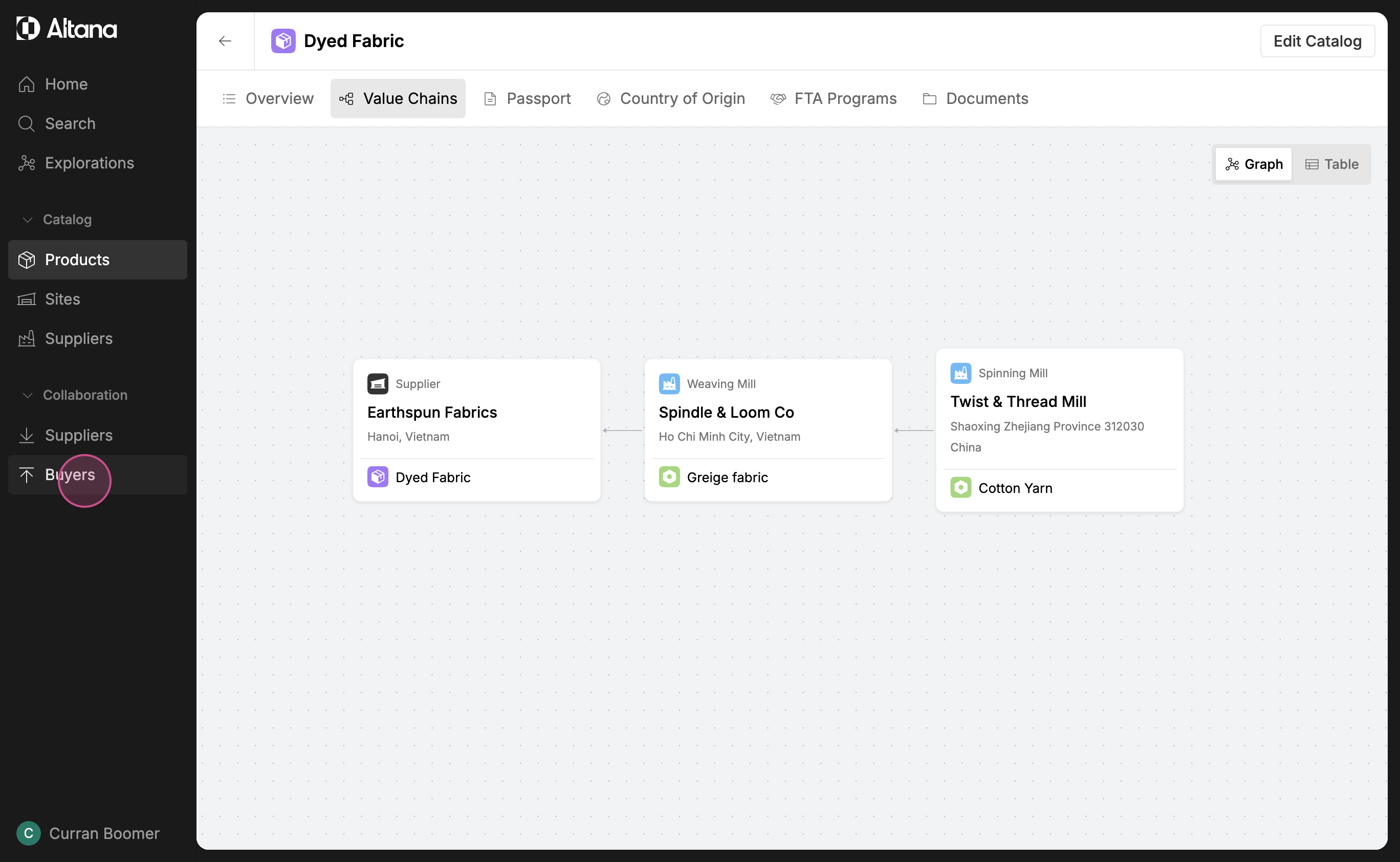
Step 9: Find the passport for the product, in this case, dyed fabric.
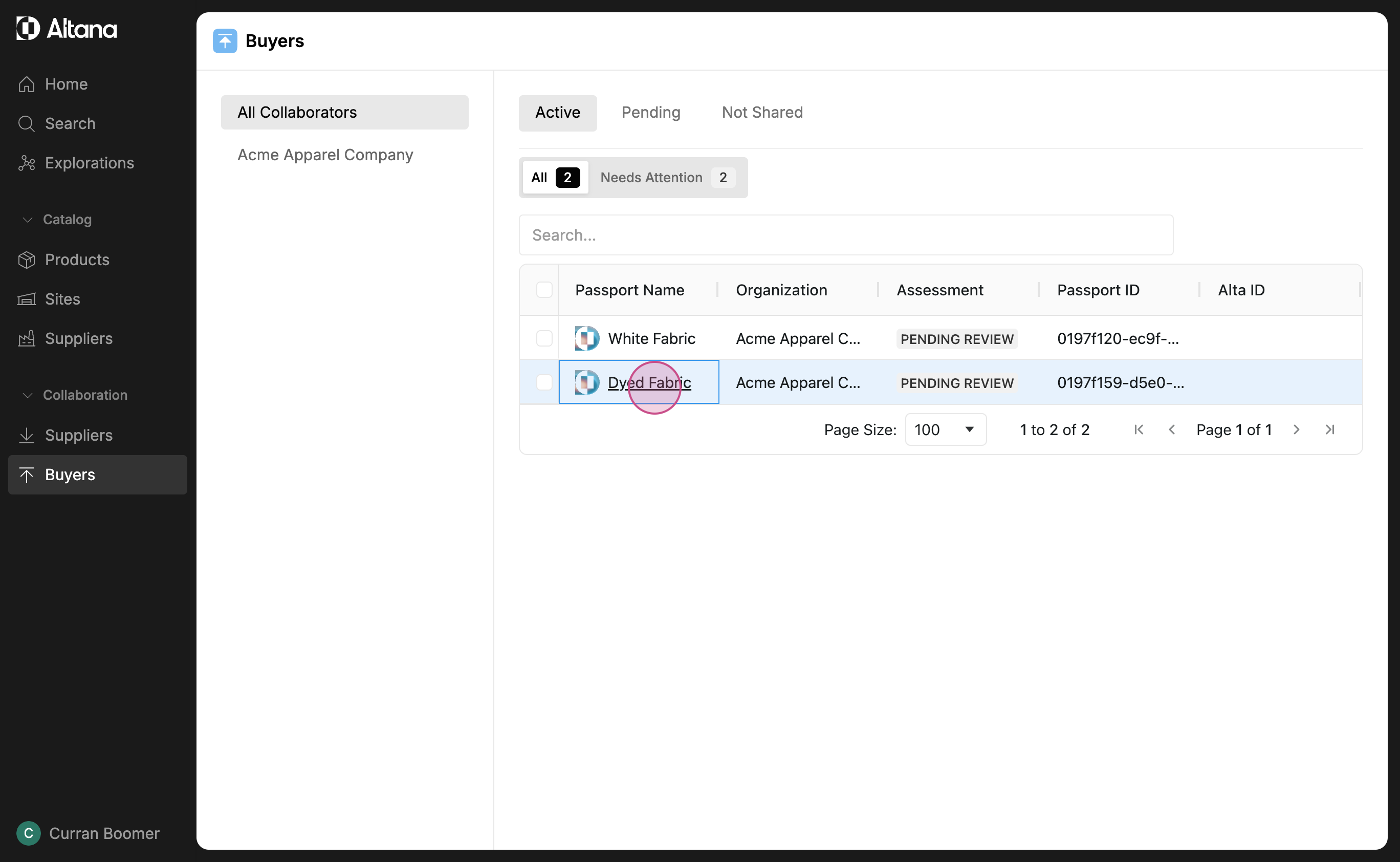
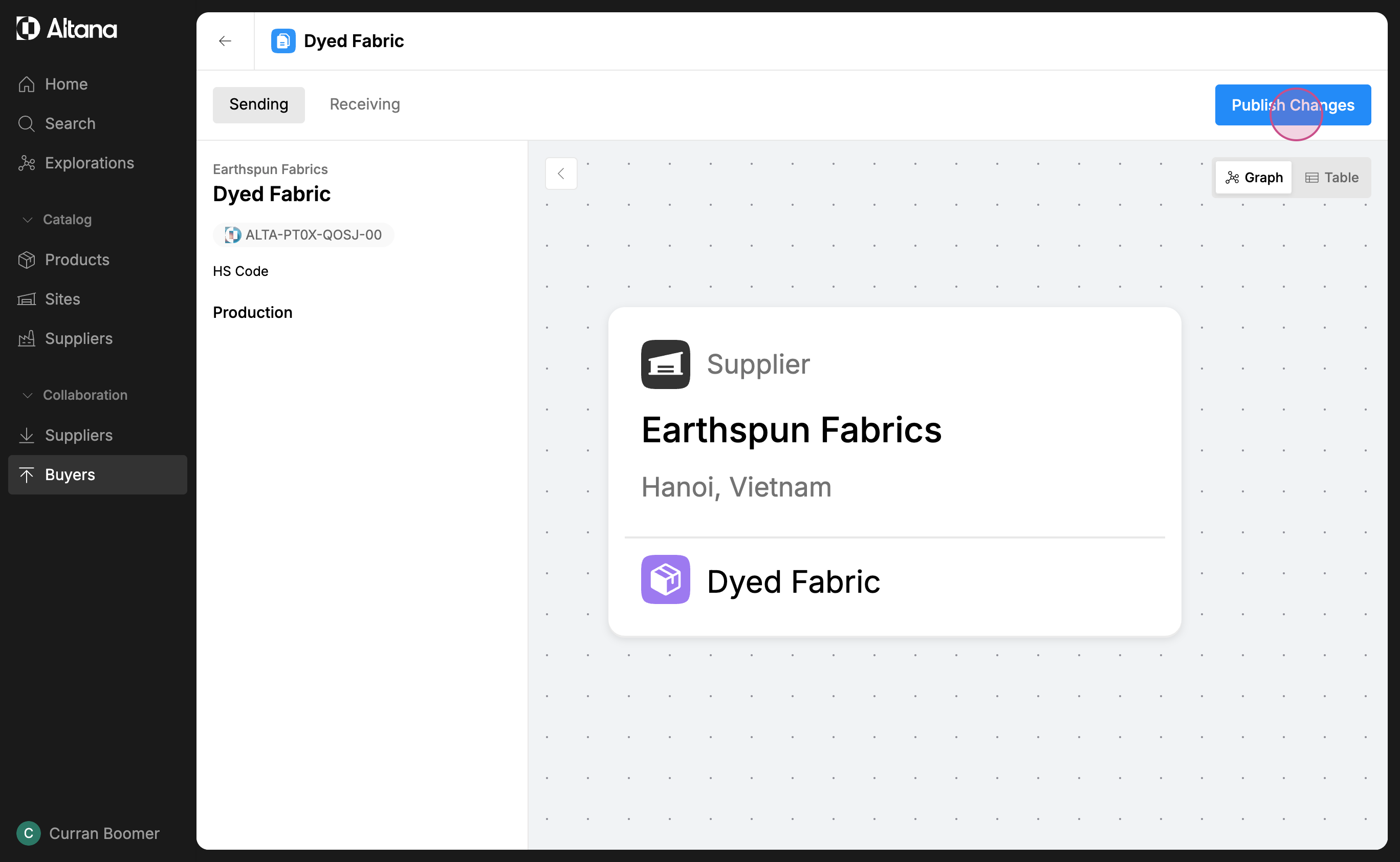
Step 10: You've added new connections that aren't showing in the passport yet. So, click on Publish Changes to update your passport.
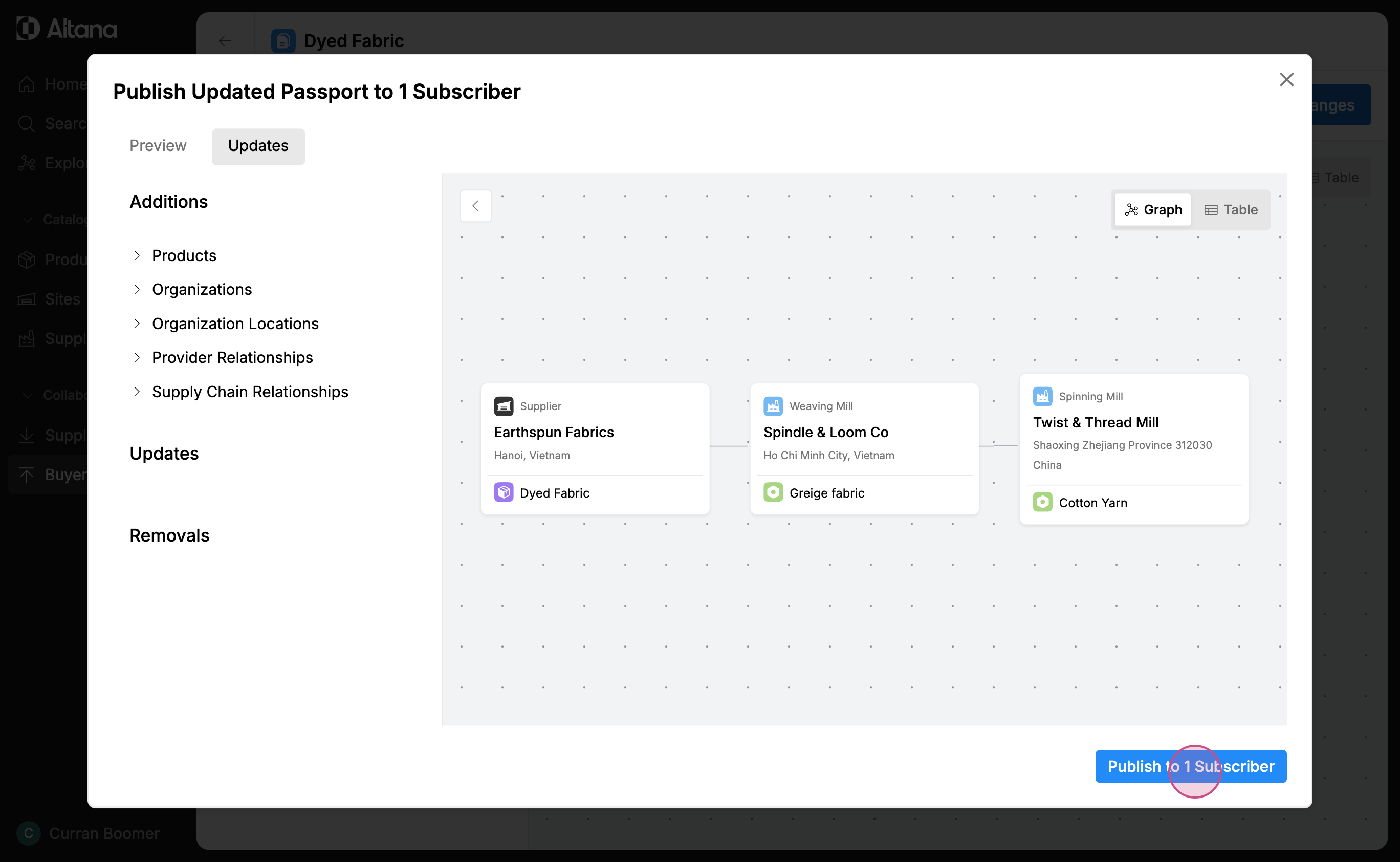
Step 11: Review the additions you've made to this value chain. If everything's correct, click on Publish to 1 Subscriber.
Step 12: The changes are now published in your passport and will be received by your buyer. They can then incorporate these value chain connections into their own product catalog.